
Severity Matrix & Tags
A finding's base severity is how serious detection rated it on its own. The same issue matters more on an asset your business depends on than on a test server, so StyxView also works out an effective severity: the base severity adjusted for the criticality of the assets the finding touches. The "Severity Matrix & Tags" page under "Configuration" holds the rule for that, in the "Severity Matrix", and your organisation's tag library, in "Asset Tags".
Each asset's criticality and scope are set on the "Asset Inventory" tab of Monitored Assets, or on the asset's own page. See Asset Inventory and Asset Page.
Navigation Path
Section titled “Navigation Path”In the left menu, go to "Configuration" → "Severity Matrix & Tags". Only users with the Admin role see this page, and only on accounts that include Attack Surface Management.
How Effective Severity Is Worked Out
Section titled “How Effective Severity Is Worked Out”- StyxView takes the assets the finding touches that are in scope. An asset with no criticality of its own counts at the band it takes by default.
- The most critical of those assets decides.
- The "Severity Matrix" cell for the finding's base severity and that asset's criticality gives the effective severity.
For example, a High finding that touches www.example.com (opens in a new tab), rated Medium, and pay.example.com, rated Very High, takes the cell in the "High" row and the "Very High" column, which is Critical by default. If pay.example.com is out of scope, www.example.com (opens in a new tab) decides instead, and the finding stays High. If both are out of scope, the finding is suppressed.
A finding linked to no asset keeps its base severity. Effective severity applies to Company Protection findings; Executive Protection and Third Party Risk findings keep their base severity.
After a change to an asset's criticality or scope, or to the matrix, StyxView re-scores the findings concerned in the background, which can take a few minutes.
Where It Shows
Section titled “Where It Shows”- The "Effective Severity" column on the Findings page, and in the "Findings" card of an asset's page. Where the effective severity differs from the base severity, point at the value to see the "Base Severity" and the asset that decided it, for example "Raised from High because pay.example.com (Host) is the most critical asset in scope, at Very High."
- "Effective Severity" at the top of a finding's page, and its "Assets" card, which lists the asset that decides first. See Assets Card. On a finding's page, the tooltip of "Effective Severity" ends by naming this page, for example "Hence it is Critical according to the matrix defined in Severity Matrix & Tags." For Admins, the page name opens this page. The sentence is left out for a suppressed finding and for a finding linked to no asset, since no matrix cell decided them.
- "Highest Effective Severity" on the tabs of "Monitored Assets" and on each asset's page.
Suppressed Findings
Section titled “Suppressed Findings”A finding is suppressed when every asset it touches is out of scope. A finding that touches at least one asset in scope is never suppressed.
- It stays recorded. Nothing is deleted.
- The "Findings" page opens without suppressed findings, through a "Suppressed" filter you can remove in "Filters". The "Suppressed" column, hidden by default, shows "Yes" for them: add it with "Columns".
- On the finding's page, a "Suppressed" chip shows beside "Effective Severity".
- It does not count toward an asset's "Highest Effective Severity", or in its "Findings" pills.
A suppressed finding returns to triage as soon as any asset it touches is back in scope.
Severity Matrix
Section titled “Severity Matrix”The "Severity Matrix" card is a table. Its rows, "Base Severity", run from Critical at the top down to Info. Its columns, "Asset Criticality", run from Very Low to Very High. A finding with the base severity of the row, on an asset with the criticality of the column, shows at the severity in the cell. An arrow beside a cell's value shows how many bands the cell raises or lowers the finding.
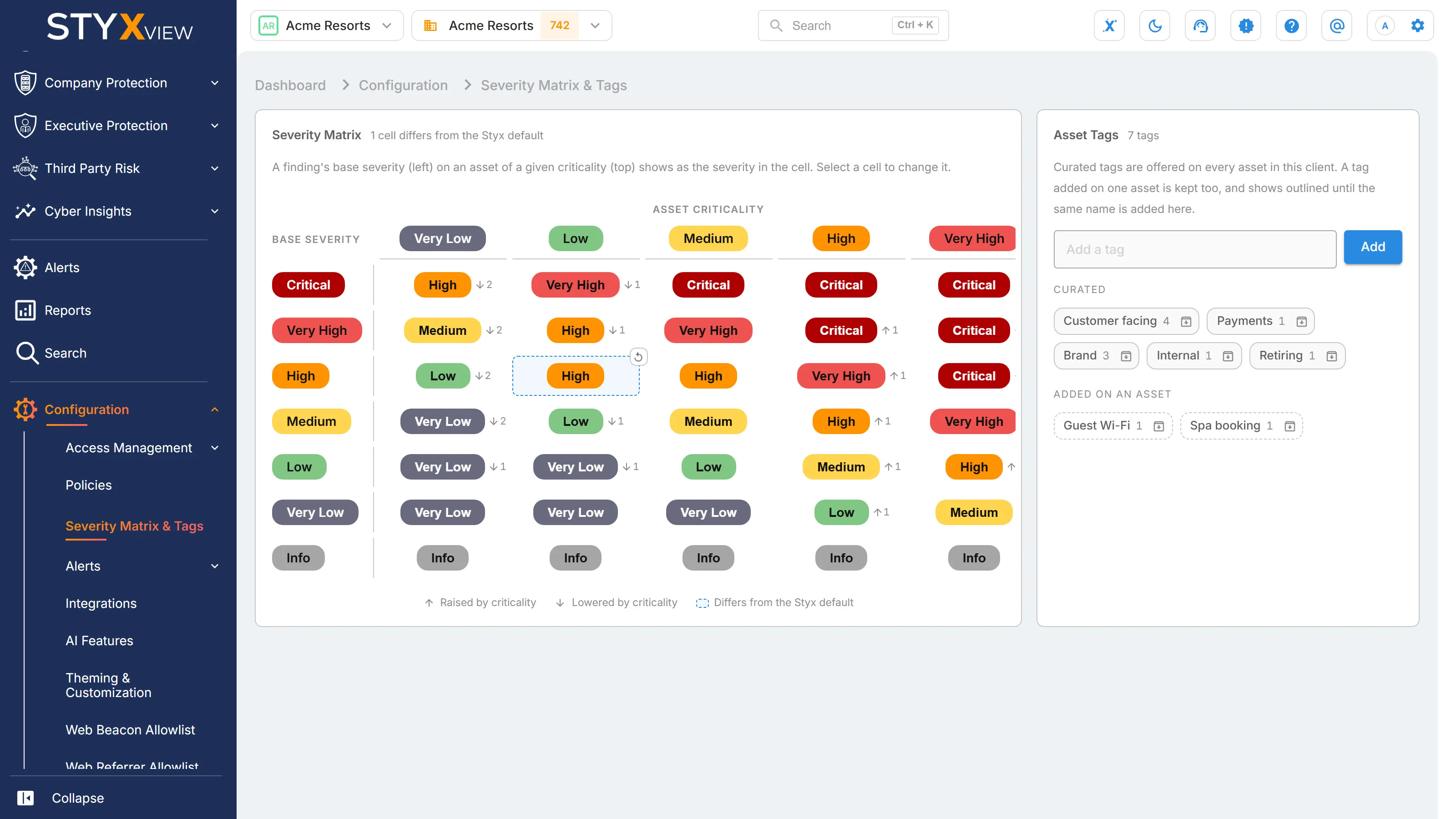
The matrix applies to every Company Protection finding in the account. The note at the top of the card says how many cells differ from the Styx default.
The Styx Default
Section titled “The Styx Default”- "Medium" keeps the base severity.
- "High" raises it one band, and "Very High" two, up to Critical at most.
- "Low" lowers it one band, and "Very Low" two, down to Very Low at most.
- An Info finding stays Info.
Changing a Cell
Section titled “Changing a Cell”- Select the cell for the base severity and asset criticality you want to change.
- Choose the severity those findings should show. The change is saved straight away, and StyxView re-scores the findings in the background, which can take a few minutes.
A cell that differs from the Styx default is shaded and outlined, as the legend under the table shows. A cell changed here has a "Reset to the Styx default" icon beside it, which puts the cell back.
Asset Tags
Section titled “Asset Tags”The "Asset Tags" card is your organisation's tag library. Its tags are offered when tagging an asset in any of your accounts, and each shows how many assets carry it. Tags group related assets. They do not change how findings are scored.
The library lists its tags in two groups:
- "Curated": tags added here.
- "Added on an asset": tags someone added on one asset's page. They show outlined on the asset until the same name is added here.
To add a tag, type its name in "Add a tag" and select "Add". A name can be up to 100 characters.
To retire a tag, select its retire icon and confirm with "Retire". The tag stops showing on every asset that carries it, and its name cannot be added on an asset's page. Adding the same name here again brings the tag back, on the same assets.