

Advanced Stealer Logs
Infostealer malware copies saved logins, browser cookies, and system details from an infected device and uploads them as a stealer log. Advanced Stealer Logs lists the infected devices whose logs hold data for your monitored keywords, such as your domain, and the credentials and cookies taken from each. A record here usually means a password to reset, sessions to revoke, and a device to clean.
Advanced Stealer Logs is available when your subscription includes it. Otherwise the page says "Advanced Stealer Logs is not included in your subscription. Contact the StyxView Support Team to add it."
Select "Company Protection" > "Data Leakage & Dark Web Detection" > "Advanced Stealer Logs". The page has three tabs:
- Stealer Sessions: one row per infected device session.
- Credentials: one row per login taken.
- Cookies: one row per browser cookie taken.
Each tab opens with "Closed" records filtered out. The toolbar is described in Action & Filter Bar. To save a filtered view, see Saved Views & Bookmarks. To export a tab once or on a schedule, see Export Functionality.
Stealer Sessions
Section titled “Stealer Sessions”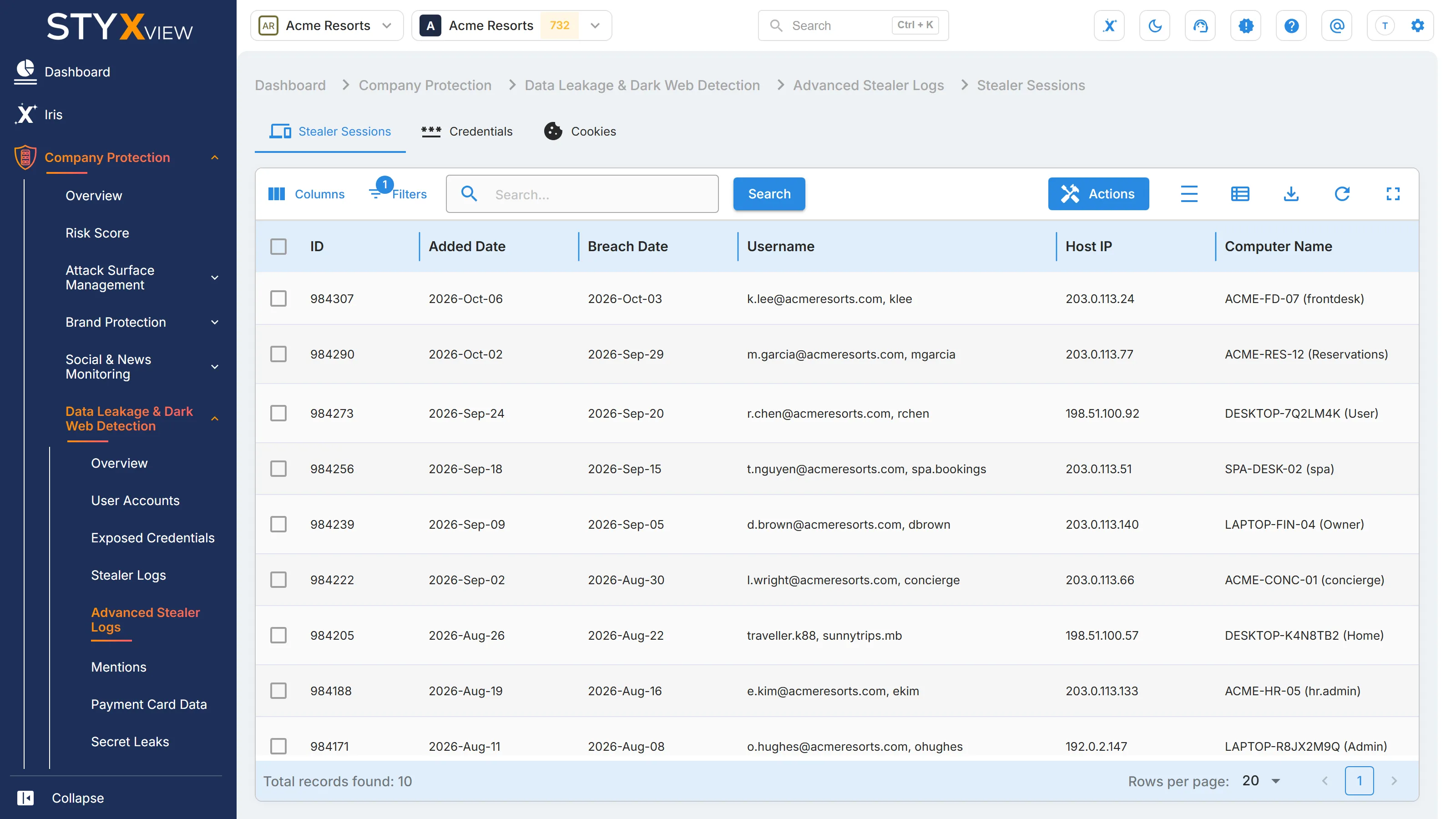
| Column | What it shows |
|---|---|
| ID | The finding ID, when the session has a finding. |
| Added Date | When StyxView added the session. |
| Breach Date | When the device was compromised. |
| Username | The usernames found in the session's credentials. |
| Host IP | The IP address of the infected device. |
| Computer Name | The name of the infected device. |
| Operating System | The device's operating system. |
| Malware Path | Where the malware ran on the device. |
| Stealer Session Name | The name of the stealer log. |
| Stealer Family | The infostealer malware family. |
| Asset Owner (likely) | "Employee" when the session holds an "Employee" or "Third Party" credential, "User" when it holds only "User" credentials. See Credentials. |
| Keyword | Your monitored keyword that the session matched. |
| Status | The review status. See Review statuses. |
| Finding Status | The status of the session's finding. See Findings. |
| ASN | The network the device's IP address belongs to. |
| ASN Type | The kind of network the IP address belongs to. |
| City | The city of the device's IP address. |
| State | The state or region of the device's IP address. |
| Country | The country of the device's IP address. |
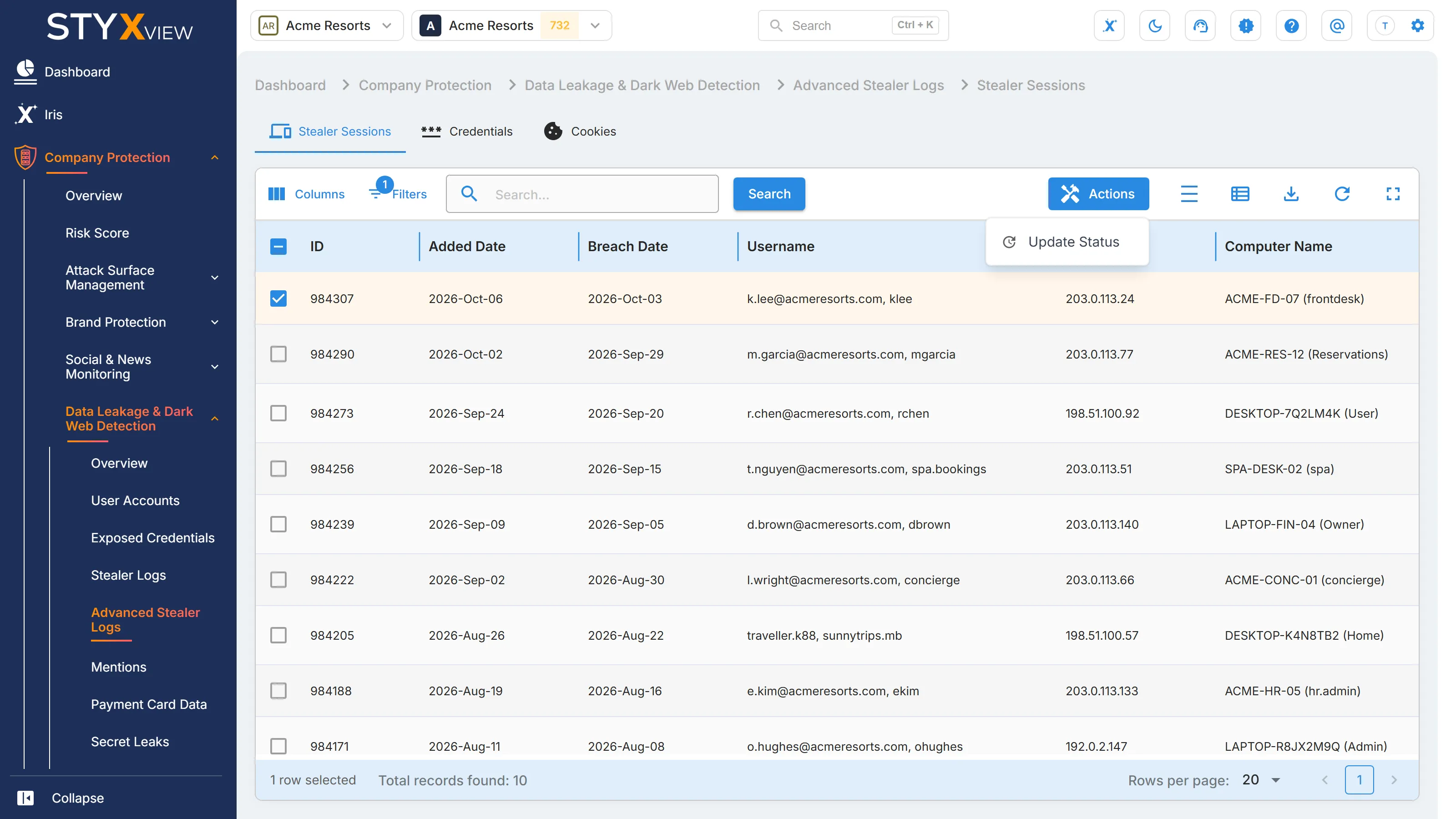
To change the review status of several sessions:
-
Select sessions that all have the same "Status".
-
Select "Actions", then "Update Status".
-
In "Update Status", choose the new "Status" and select "Save".
Changing a session's review status also changes the status of its finding: "New/Open" sets "New", "In Review" sets "Analyzing", "Monitor" sets "On Watchlist", and "Closed" sets "Closed Without Action".
Select a row to open it. A session with a finding opens the finding's page. Any other session opens the session page.
To investigate the email address linked to a session, right-click the row and select "Investigate" followed by the address. It opens the address's page in a new tab. See The address page.
The session page
Section titled “The session page”The page is titled "Advanced Stealer Logs" with the stealer log's name. "Details" shows the "Added Date", "Breach Date", "Host IP", "Computer Name", "Operating System", "Malware Path", "Stealer Family", and "Keyword", then the IP address's "IP", "Name", "ASN", "ASN Type", "City", and "Country". When the session is linked to an email address, "Email" shows it.
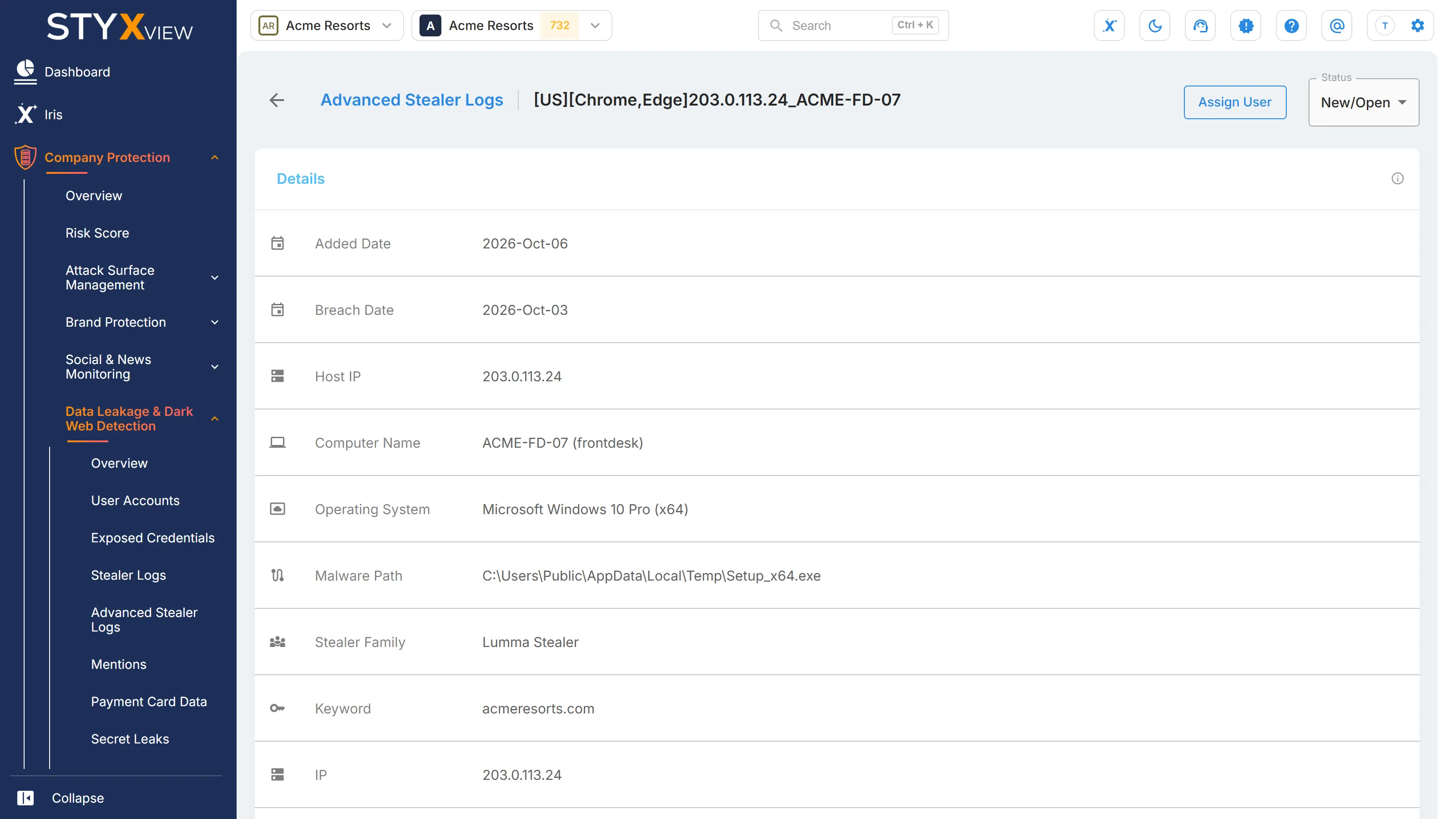
"Additional IP Info" opens the full record for the IP address. Below it, "Credentials" and "Cookies" list everything taken in the session.
At the top right:
- "Status" changes the review status. A status only moves forward, and "Closed" cannot be undone.
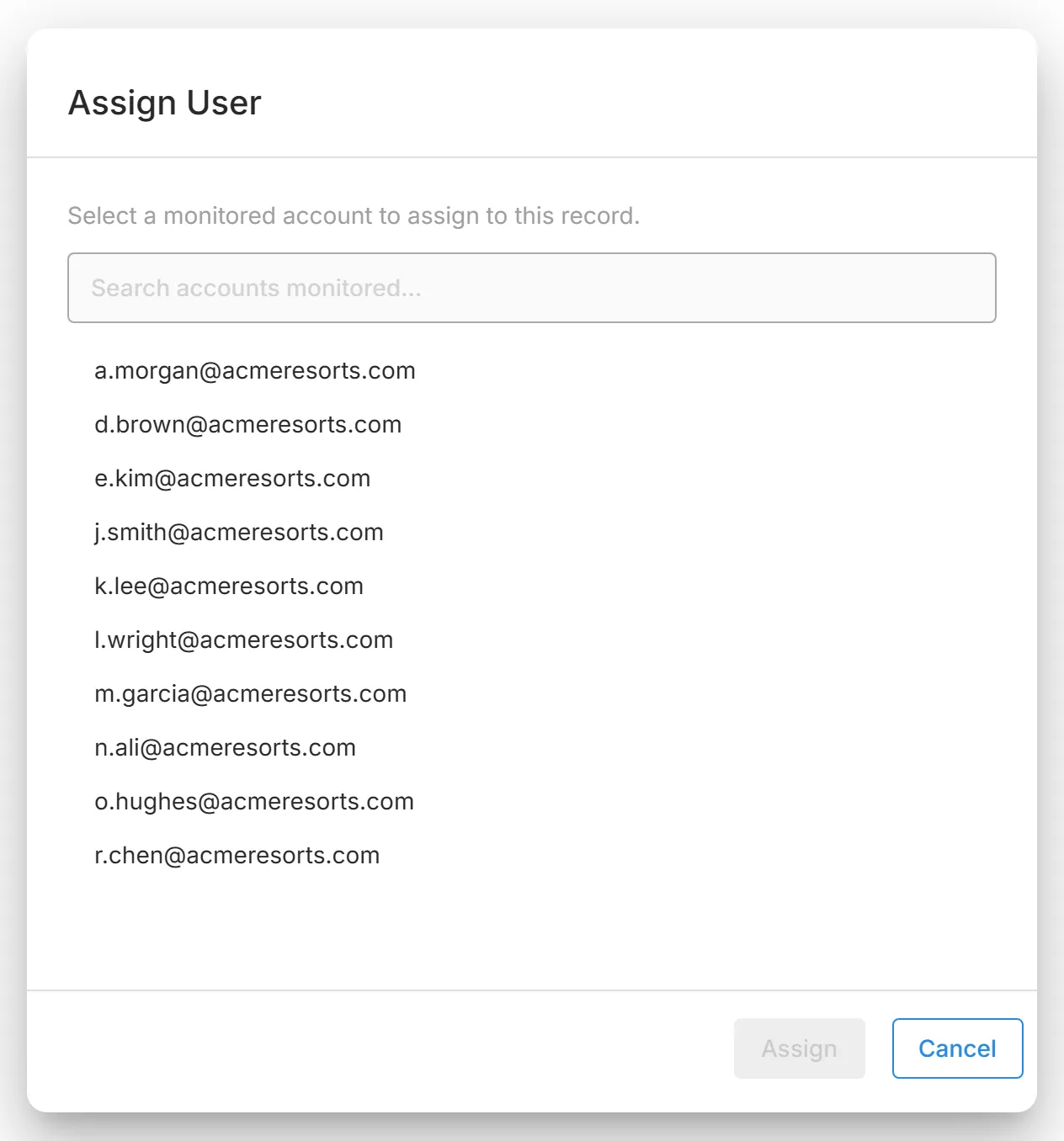
- "Assign User" links the session to one of your monitored email addresses. Search the list, select an address, and select "Assign". The address then shows as "Email" on the page.
Credentials
Section titled “Credentials”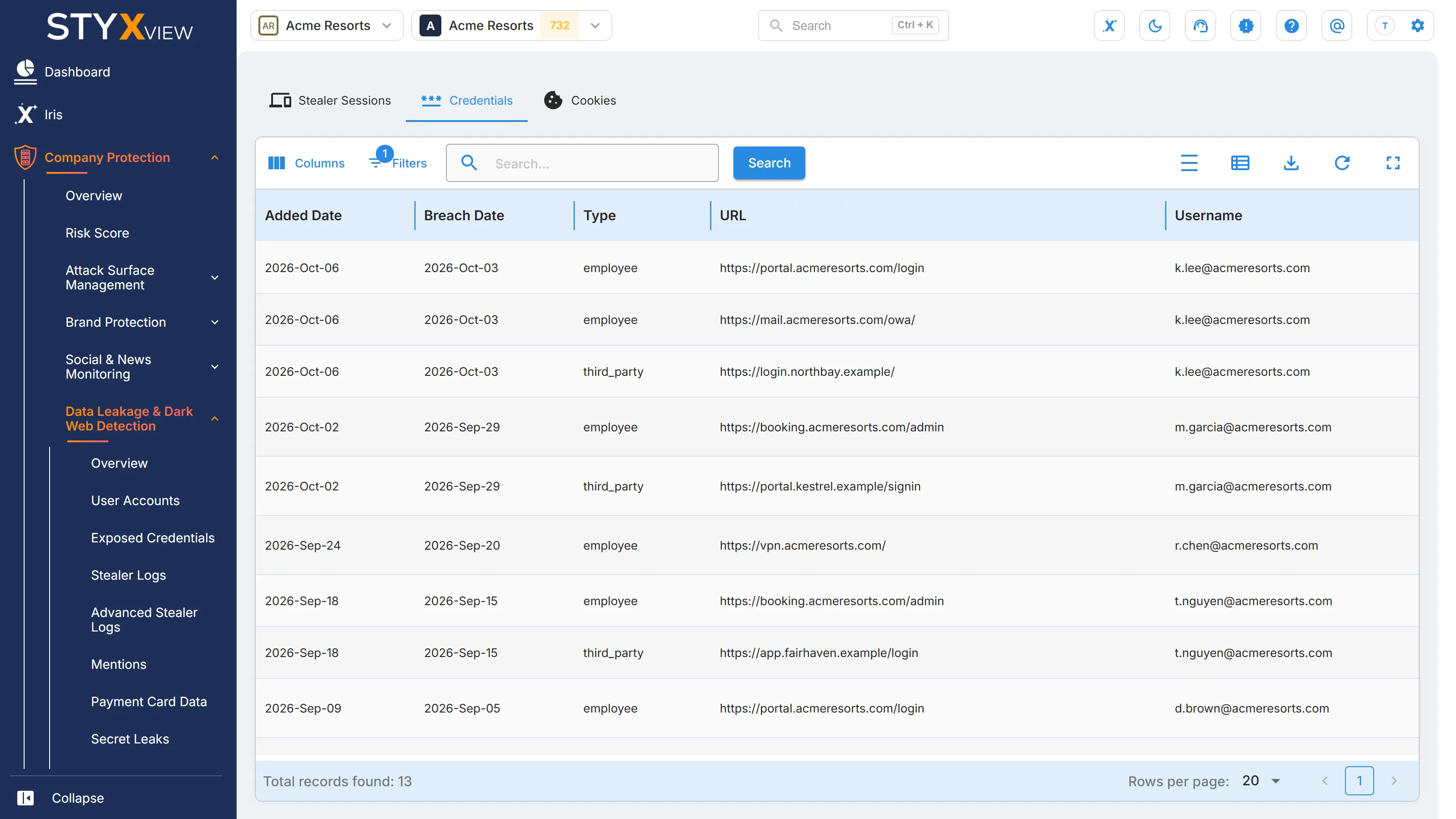
| Column | What it shows |
|---|---|
| Added Date | When StyxView added the session the credential came from. |
| Breach Date | When the device was compromised. |
| Type | "Employee", "User", or "Third Party", as described below. |
| URL | The site the login is for. |
| Username | The username of the login. |
| Password | The password of the login. |
| Status | The review status of the session. |
| Host IP | The IP address of the infected device. |
| Computer Name | The name of the infected device. |
| Operating System | The device's operating system. |
| Stealer Session Name | The name of the stealer log. |
| Stealer Family | The infostealer malware family. |
| Domain | The domain of the login. |
"Type" says how the login relates to your organisation:
- "Employee": a login to your organisation's own services by one of its people.
- "User": a login to your organisation's services by a customer or other outside user.
- "Third Party": a login to another organisation's service with one of your organisation's email addresses.
The tab has no "Actions" menu. Change the review status on the "Stealer Sessions" tab or on the session's page. Select a row to open its session's page.
Cookies
Section titled “Cookies”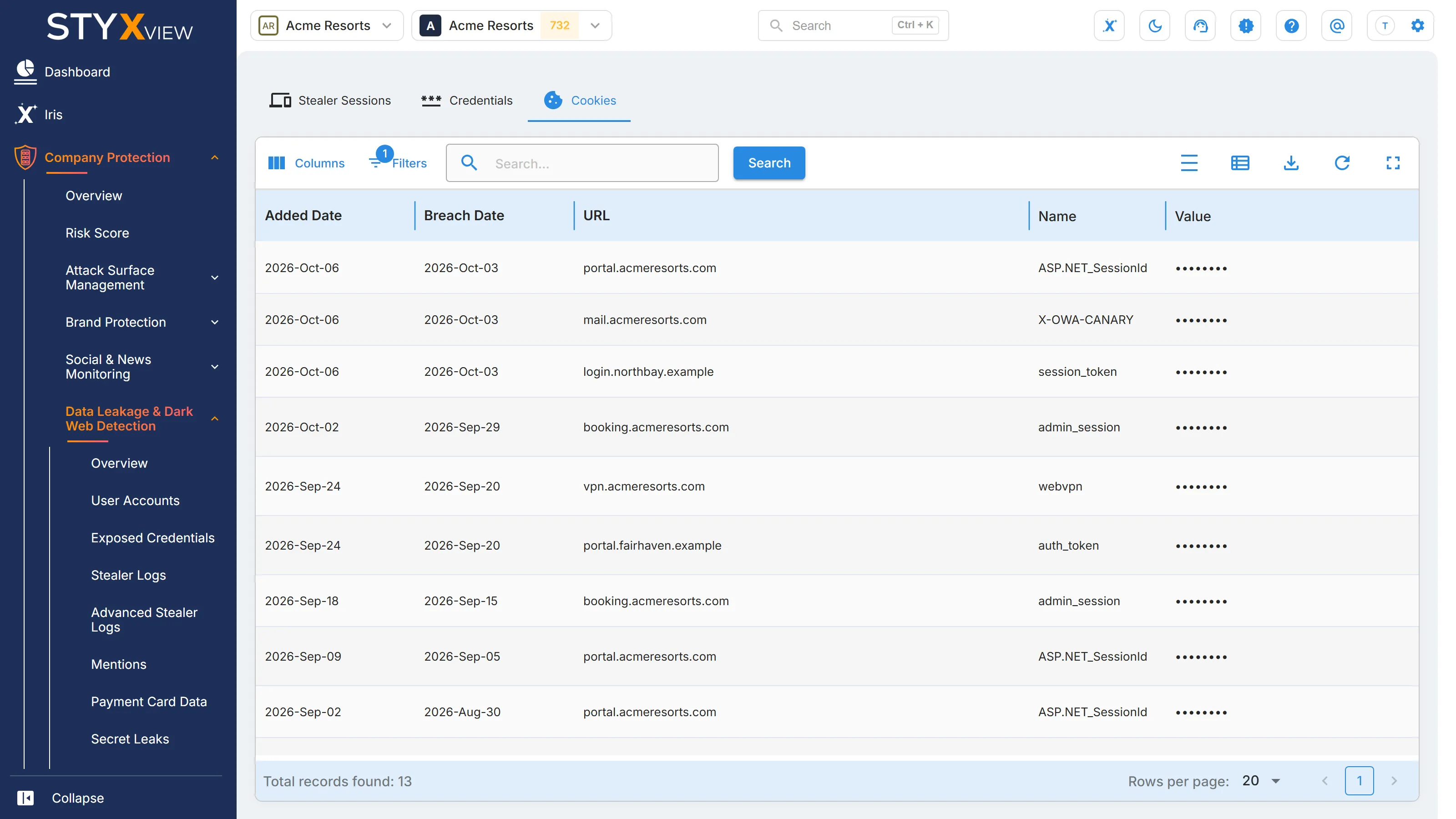
| Column | What it shows |
|---|---|
| Added Date | When StyxView added the session the cookie came from. |
| Breach Date | When the device was compromised. |
| URL | The site the cookie belongs to. |
| Name | The cookie's name. |
| Value | The cookie's value. |
| Expiry Date | When the cookie expires. A cookie that has not expired may still give access to a signed-in session. |
| Status | The review status of the session. |
| URL Stripped | The site's domain without the rest of the address. |
| Host IP | The IP address of the infected device. |
| Computer Name | The name of the infected device. |
| Operating System | The device's operating system. |
| Stealer Session Name | The name of the stealer log. |
| Stealer Family | The infostealer malware family. |
The tab has no "Actions" menu. Change the review status on the "Stealer Sessions" tab or on the session's page. Select a row to open its session's page.