

Alerts
StyxView raises an alert when one of your alert rules fires, for example when a client email address appears in a newly discovered third-party breach. On the "Alerts" page you review alerts, update their status, and add notes.
Which rules run is set in Alert Rules. Who is emailed about alerts is set in Subscriptions.
Alerts Page
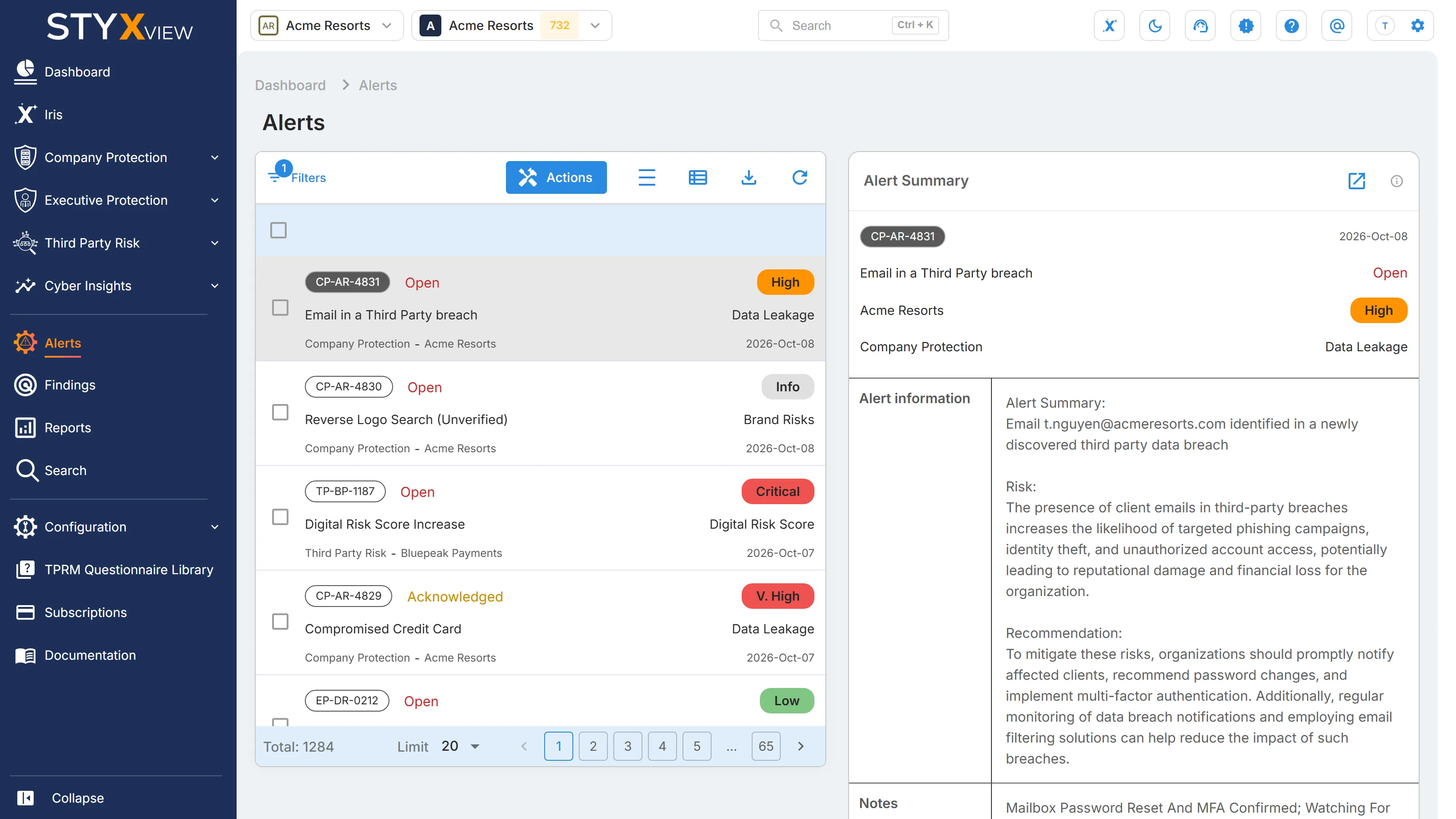
Section titled “Alerts Page”In the left menu, select "Alerts". The list of alerts is on the left, and the summary of the selected alert is on the right. The newest alerts are at the top.
Alerts Table (Left Panel)
Section titled “Alerts Table (Left Panel)”Each alert in the list shows:
- The ticket number, for example
EP-ABCD-5. - The status: Open, Acknowledged, Resolved, or Closed.
- The severity: Critical, V. High, High, Medium, Low, or Info.
- The alert name and its category, for example Data Leakage.
- The solution and project the alert belongs to.
- The date the alert was created.
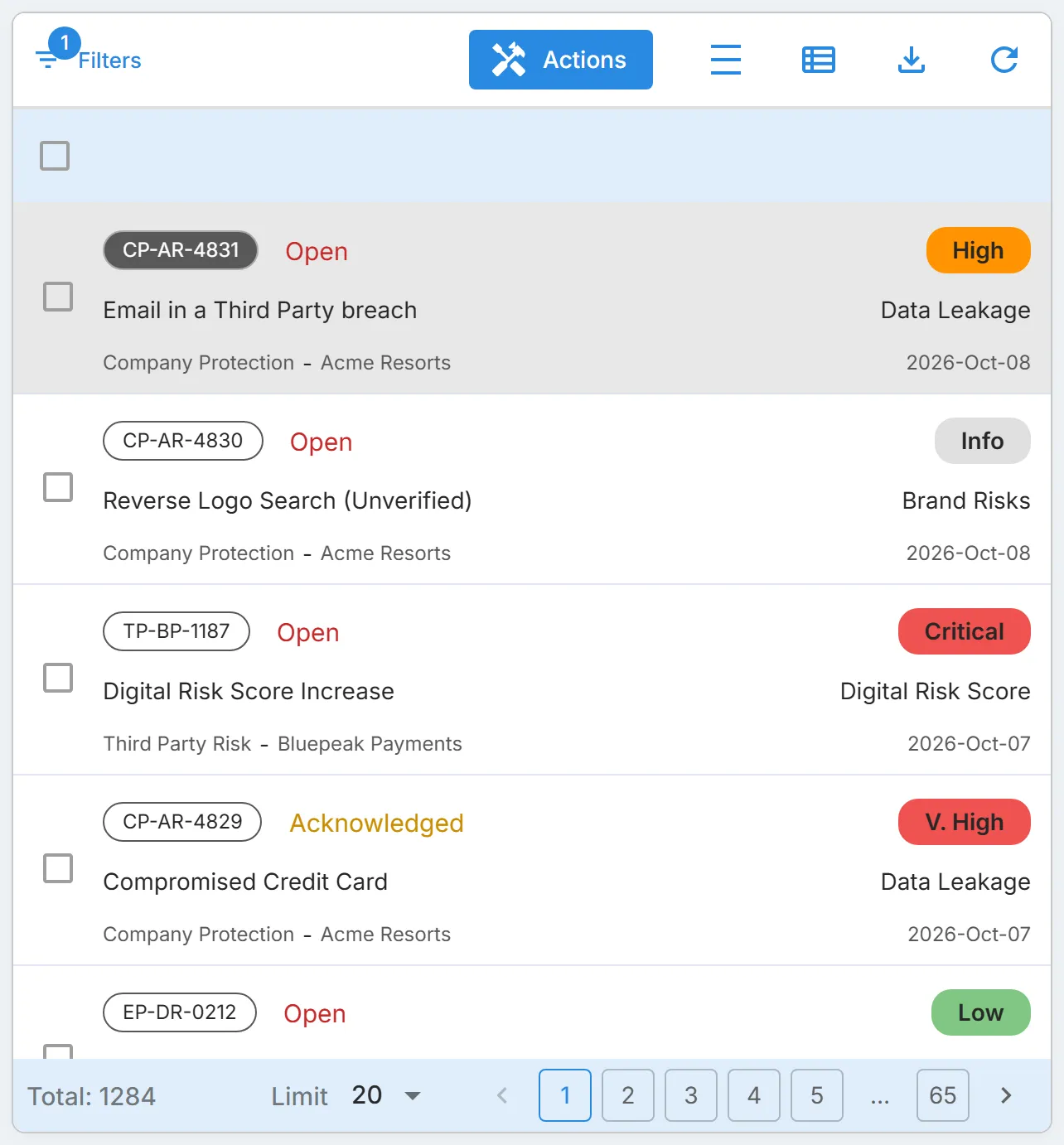
By default the list shows only Open alerts. To change what the list shows, select "Filters" and filter by "Severity", "Solution", "Category", "Status", "Created Date", "Ticket Number", or "Alert Name". Remove the Status filter to see alerts in every status.
The toolbar also has "Actions", the Views icon for saved views, the Export icon, and the Refresh icon. See Action & Filter Bar, Saved Views & Bookmarks, and Export Functionality.
Alert Summary (Right Panel)
Section titled “Alert Summary (Right Panel)”Select an alert in the list to see its "Alert Summary" on the right:
- The ticket number, the date the alert was created, the alert name, its status, project, severity, solution, and category.
- "Alert information": what triggered the alert, the risk it poses, and the recommended response.
- "Notes": the latest note on the alert, with its author and date.
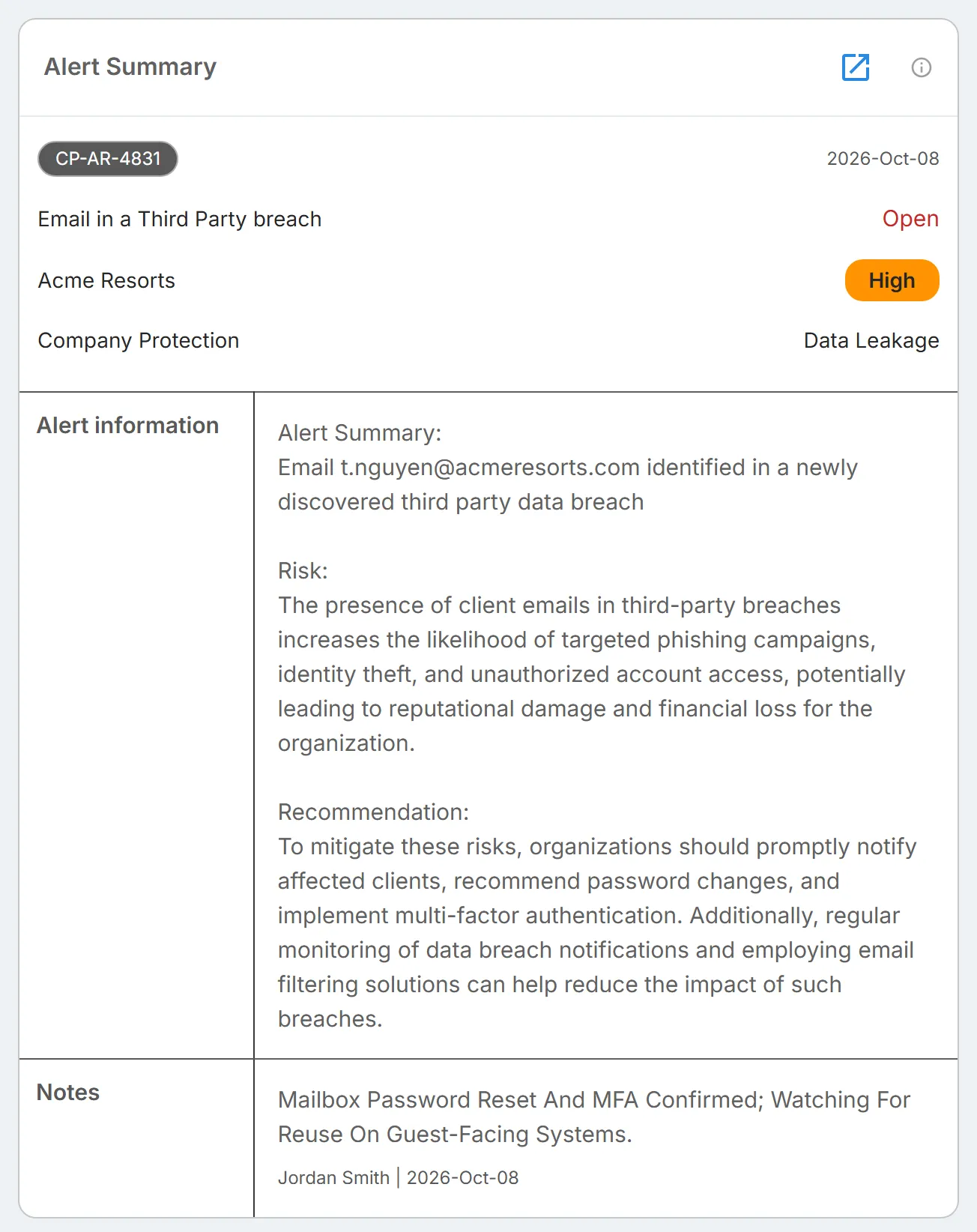
The recommendation is general guidance for this type of alert. Check it against your own environment before you act on it.
Notes Section
Section titled “Notes Section”Notes record what your team found and did about an alert.
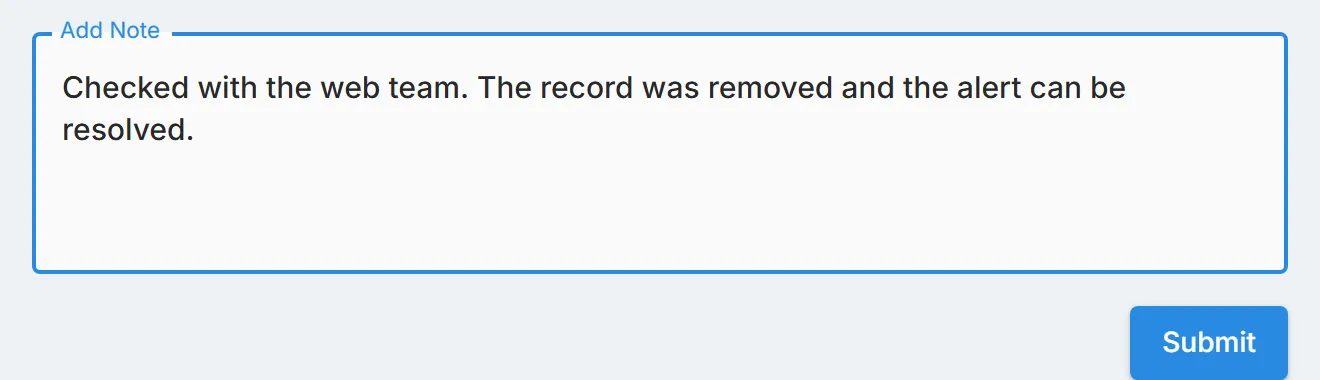
- To add a note to one alert, select the alert, enter the note in "Add Note" below the summary, and select "Submit".
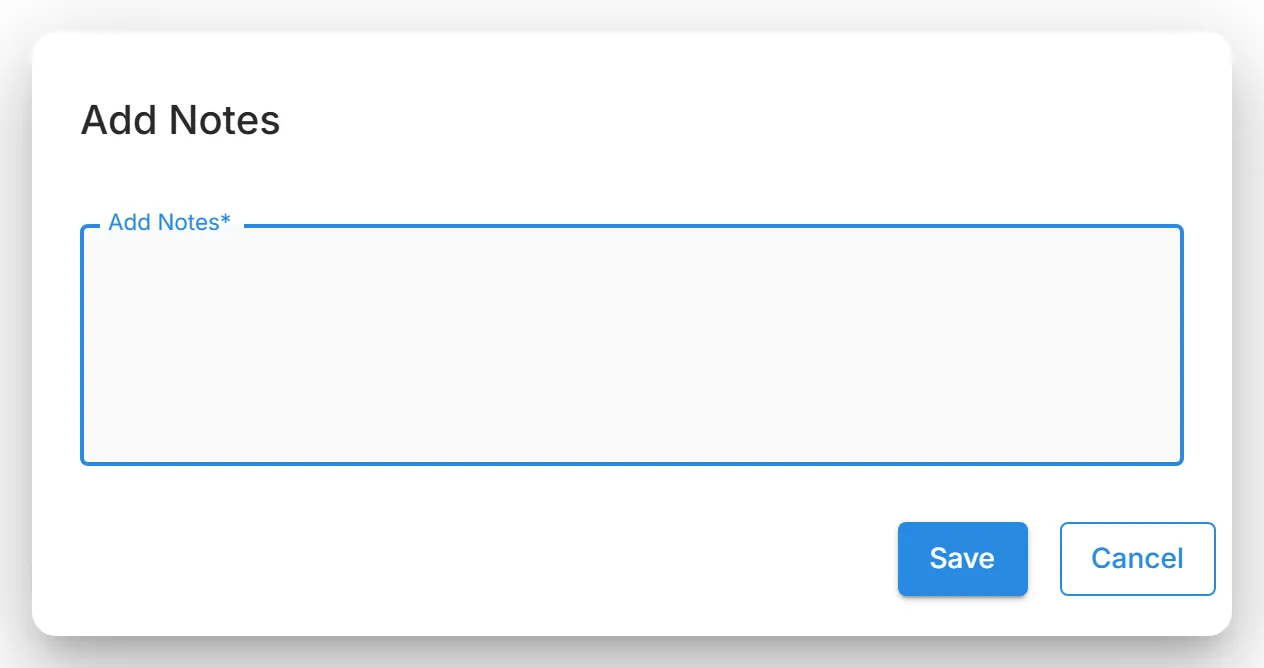
- To add the same note to several alerts, select them in the list, select "Actions" → "Add Notes", enter the note, and select "Save".
Actions Menu
Section titled “Actions Menu”Use "Actions" to change the status of several alerts at once.
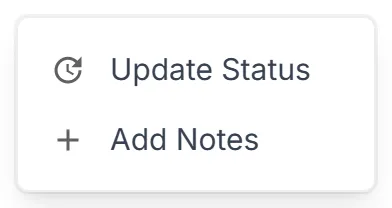
- Select the alerts in the list with their checkboxes. They must all have the same status.
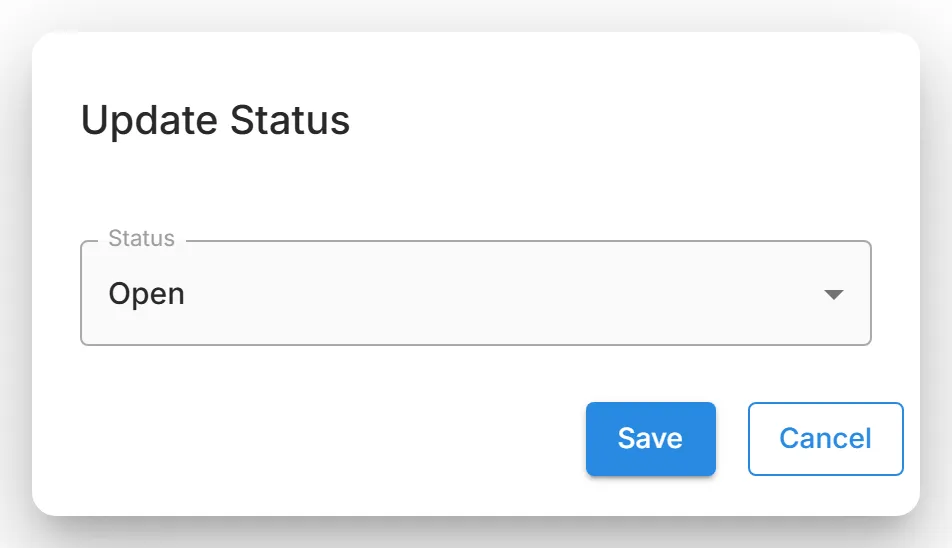
- Select "Actions" → "Update Status".
- In the "Update Status" dialog, choose the new "Status" and select "Save".
| Status | Meaning |
|---|---|
| Open | The alert has been raised and nobody has worked on it yet. Every new alert starts here. |
| Acknowledged | Someone has seen the alert. It does not mean the underlying issue has been dealt with. |
| Resolved | The mitigation has been completed. |
| Closed | The final state: the alert is verified and needs no further action. |
An alert moves forward through these statuses and cannot go back to an earlier one. The user who changes an alert's status becomes its "Assigned To" user.
Alert Details View
Section titled “Alert Details View”To see the full alert, select the open icon at the top right of the "Alert Summary". On a phone, selecting an alert opens this view directly.

The top of the page shows the ticket number and a "Status" list for changing the alert's status. A Resolved or Closed alert's status cannot be changed here. The "Alert Details" card shows the alert name and severity, then:
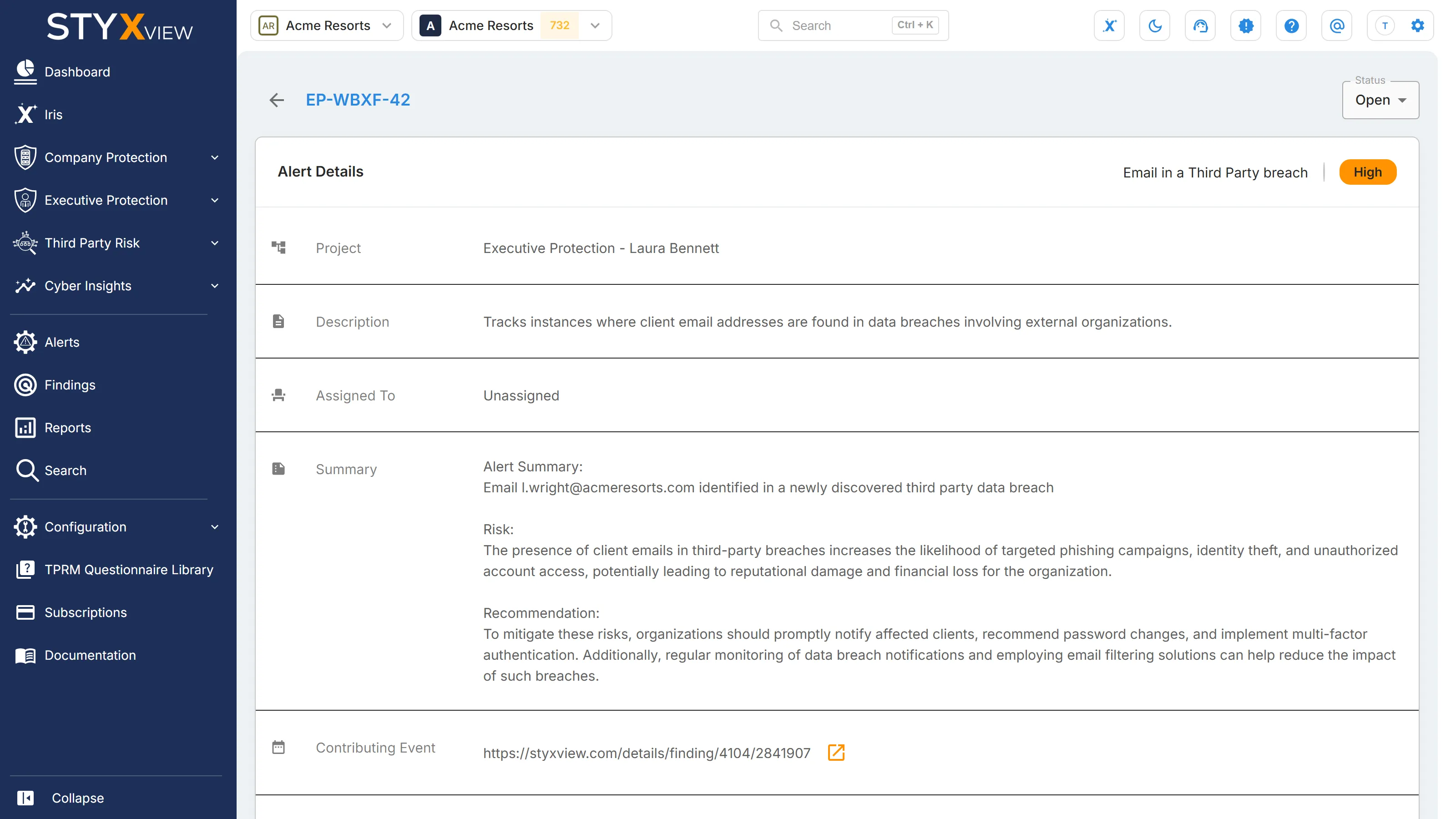
| Field | Description |
|---|---|
| Project | The project the alert belongs to. |
| Description | What the alert rule watches for. |
| Assigned To | The user who last changed the alert's status. |
| Summary | What triggered the alert, the risk, and the recommended response. |
| Contributing Event | A link to the detection that made the rule fire. Resolving the alert does not resolve the event. |
| Event(Raw) | The unprocessed detection record, in JSON. Use it when the summary does not explain the alert. |
| Risk | The potential impact of the issue. |
| Recommendation | The suggested response. |
| Alert Created | When the alert was raised. |
| Last Modified | When the alert last changed. |
| Notes | The notes on the alert. Add one with "Add Note" and "Submit" at the bottom of the page. |
To return to the "Alerts" page, select the back arrow at the top left.