

Risk Register
Navigation path
Section titled “Navigation path”-
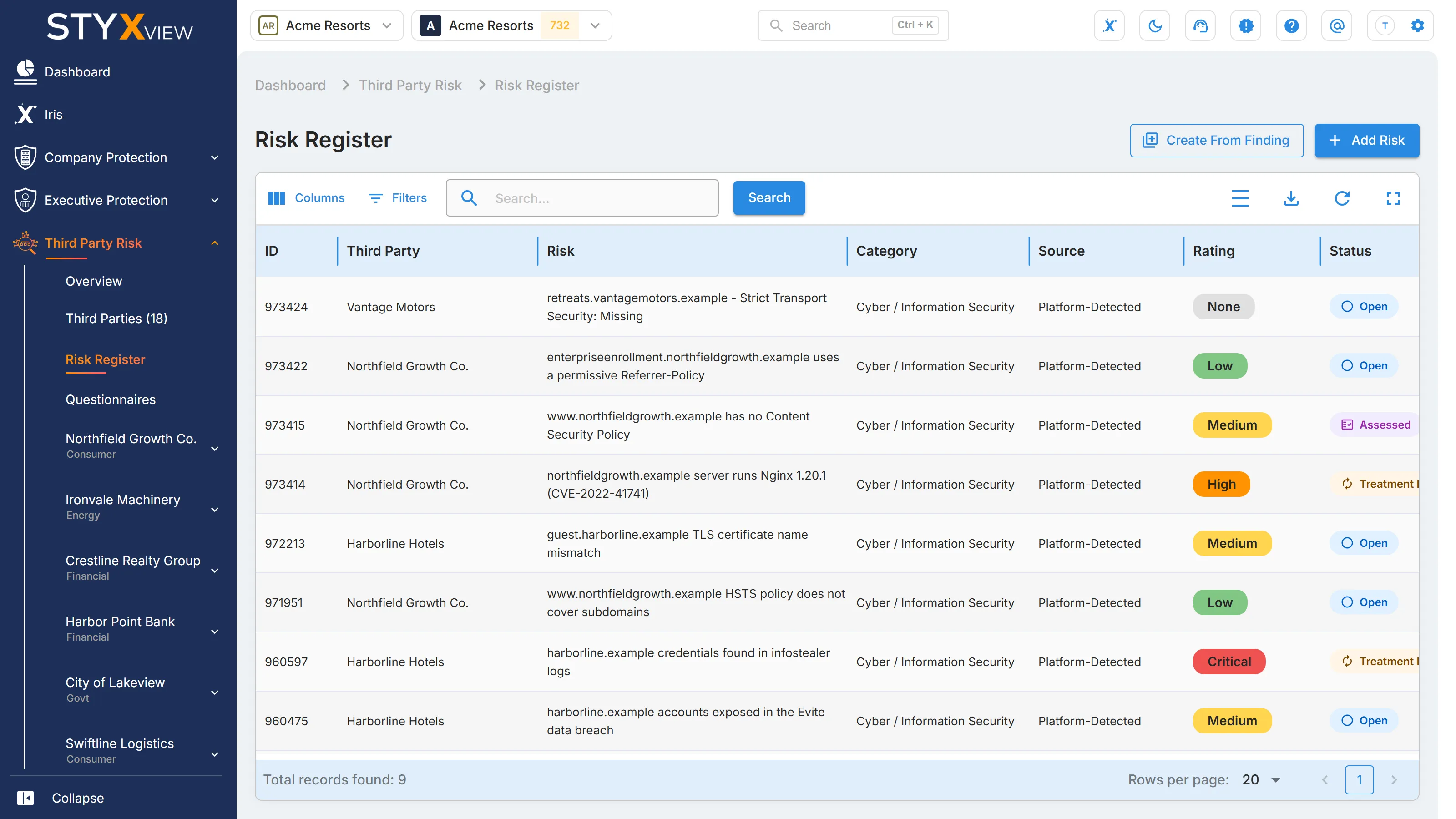
Third Party Risk → Risk Register lists the risks for all your third parties.
-
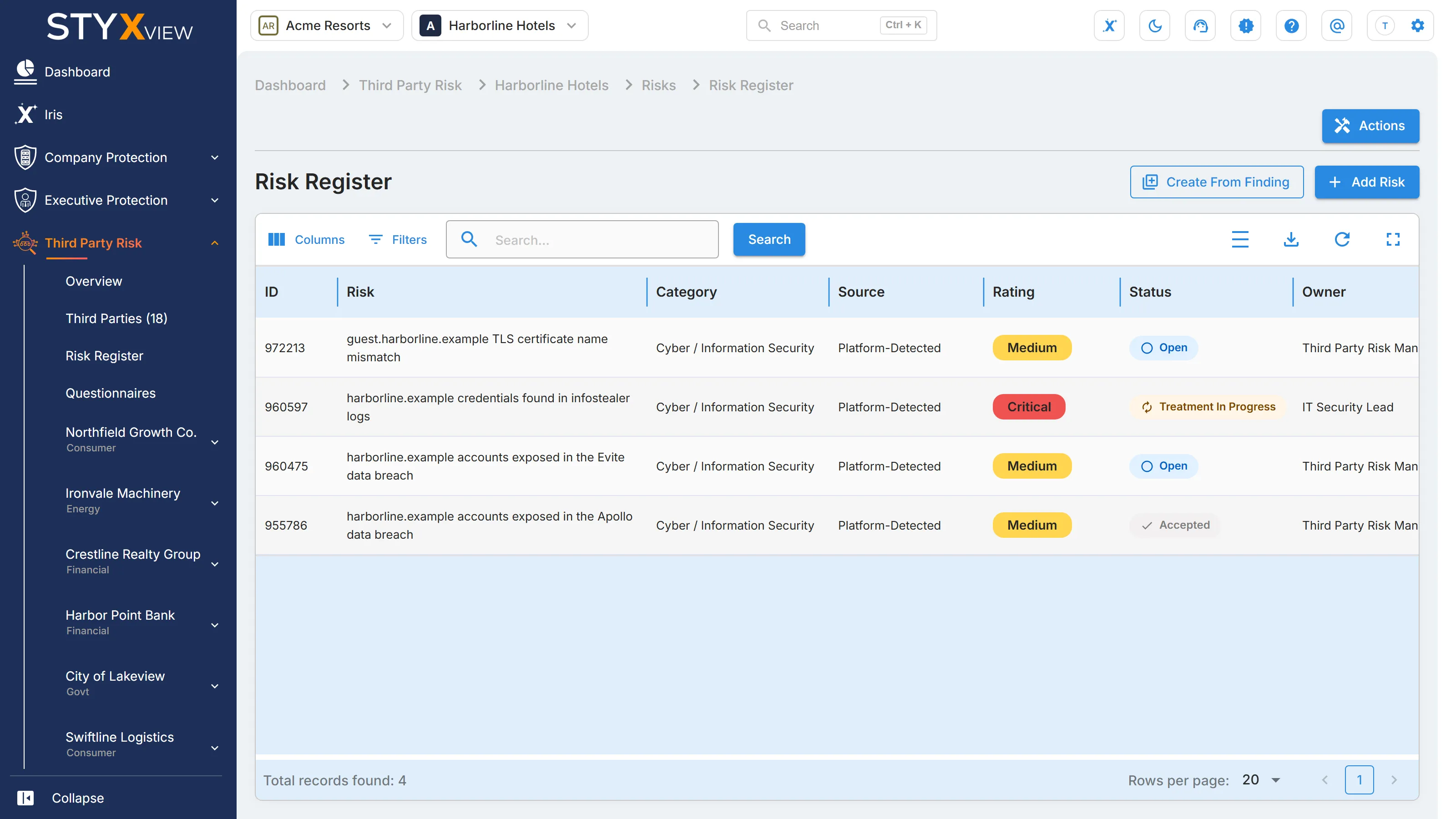
Third Party Risk → a third party → Risks → Risk Register lists the risks for that third party only.
Overview
Section titled “Overview”Purpose: The Risk Register is your log of the risks your team has decided to track against your third parties. Each entry has an owner, a rating, a treatment, and a target date, so you can follow it from the moment it is identified until it is resolved or formally accepted.
StyxView does not add entries on its own. Your team adds each one: by hand, from a questionnaire answer, or from a finding that StyxView detected.
What it shows
Section titled “What it shows”| Column | What it shows |
|---|---|
| "ID" | The risk's reference number. |
| "Third Party" | The third party the risk was raised against. Shown on the register for all third parties only. |
| "Risk" | The risk's title. |
| "Category" | The area the risk falls under, such as "Cyber / Information Security" or "Data Privacy". |
| "Source" | How the risk was identified: "Manual", "Audit / Assessment", "News / OSINT", "Questionnaire", "Platform-Detected", or "Contract Review". |
| "Source Questionnaire" | For a risk raised from a questionnaire, the questionnaire and question it came from. Hidden by default; turn it on from "Columns". |
| "Rating" | The inherent risk rating: "Low", "Medium", "High", or "Critical". See Ratings. |
| "Status" | Where the risk stands. See Statuses. |
| "Owner" | The person responsible for the risk. |
| "Target Date" | The date the risk should be resolved by. |
| "Last Updated" | When the entry was last changed. |
Select a row to open the risk's page.
Using the register
Section titled “Using the register”Use the toolbar above the table to work with the list:
- "Columns": choose which columns are visible.
- "Filters": narrow the list, for example to one third party, category, or status.
- Search: find an entry by keyword.
- Export: download the current view.
Adding a risk manually
Section titled “Adding a risk manually”-
Select "Add Risk" at the top right of the register.
-
Enter a "Risk Title".
-
On the register for all third parties, choose the "Third Party".
-
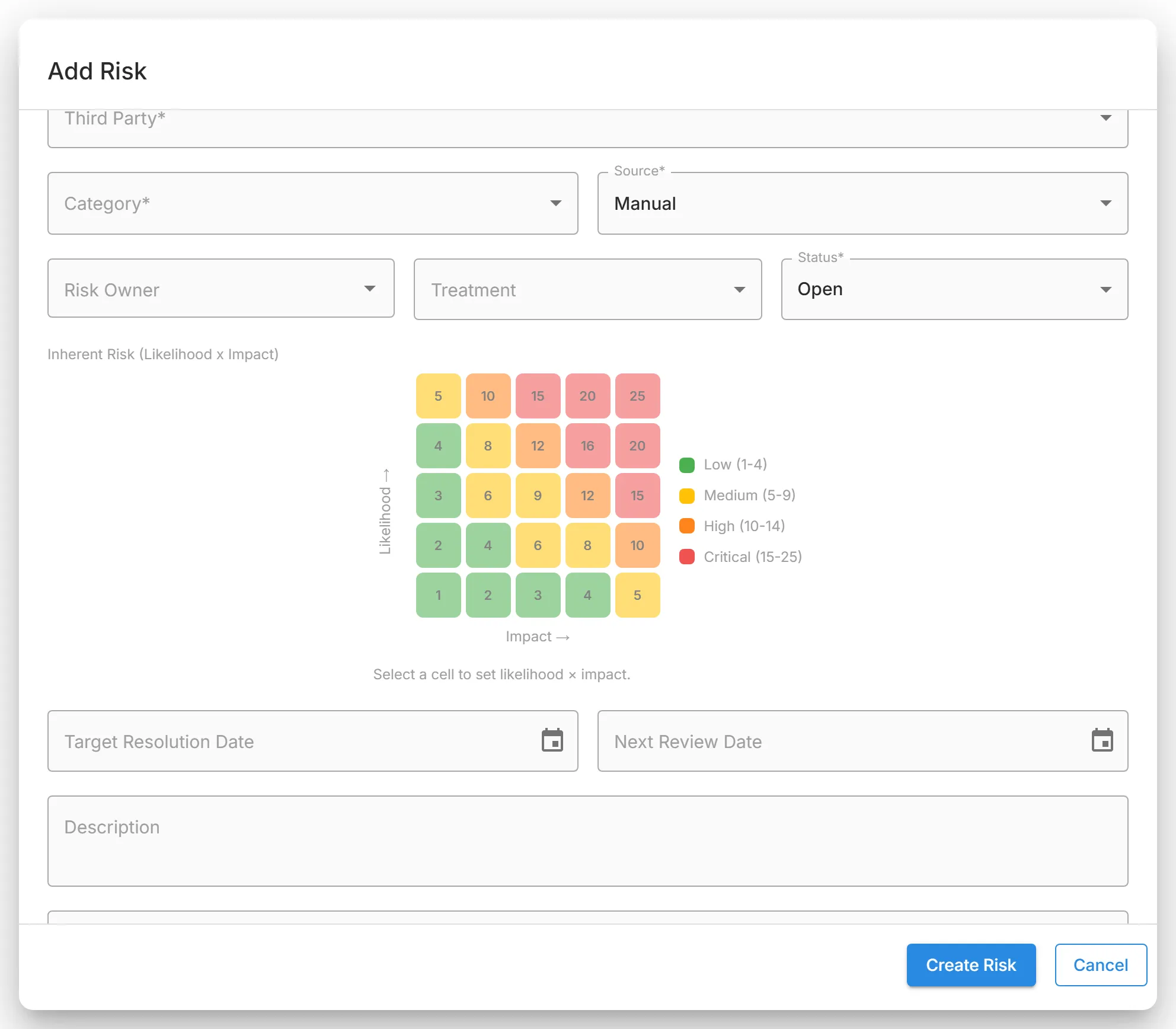
Choose a "Category" and a "Source". The source defaults to "Manual".
-
Optionally, set a "Risk Owner" (pick a user or type a name) and a "Treatment": "Accept", "Mitigate", "Transfer", or "Avoid".
-
Choose a "Status". It defaults to "Open".
-
Under "Inherent Risk (Likelihood x Impact)", select the cell for the risk's likelihood and impact. This sets the rating.
-
Optionally, set a "Target Resolution Date" and a "Next Review Date", and enter a "Description" and a "Treatment Plan / Notes".
-
Select "Create Risk".
Use this for risks your team identified outside StyxView, for example from a call with the third party, a news report, or an internal review.
Creating risks from findings
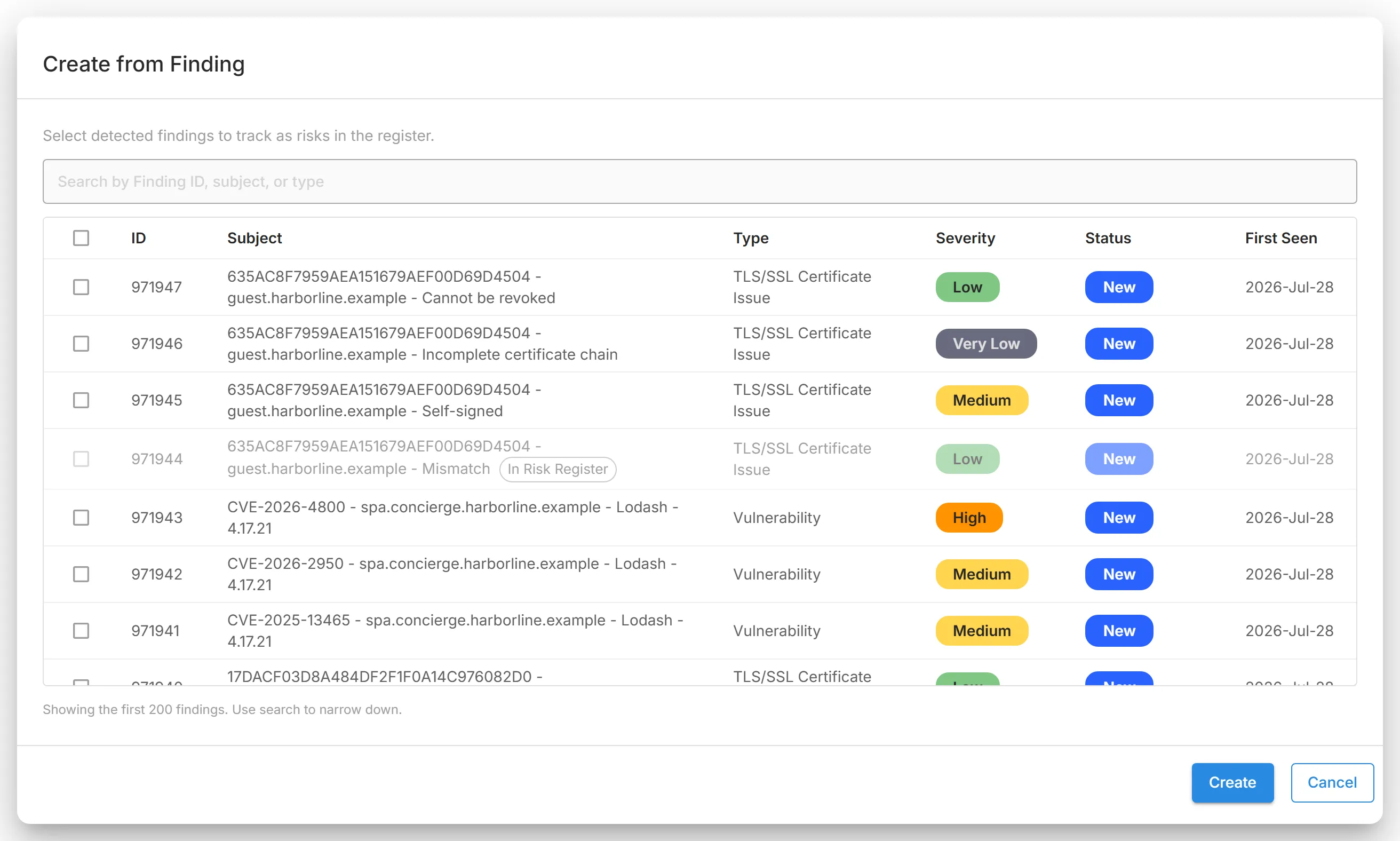
Section titled “Creating risks from findings”Select "Create from Finding" to track findings that StyxView detected on a third party as risks.
-
On the register for all third parties, choose the "Third Party".
-
Select the findings to track. Search by finding ID, subject, or type to narrow the list. Findings already tracked are marked "In Risk Register".
-
Select "Create". Each selected finding becomes a risk with the source "Platform-Detected".
Raising risks from questionnaires
Section titled “Raising risks from questionnaires”Reviewers can raise a risk from a questionnaire once the third party has submitted it. Use "Add Risk" on a question in the questionnaire, or the "Add Risk" icon on the "Sent Questionnaires" tab for the response as a whole. The source is set to "Questionnaire" and cannot be changed. See Raising a risk from an answer.
Ratings
Section titled “Ratings”The rating comes from the inherent risk score, which is likelihood multiplied by impact. Each is rated from 1 to 5:
- Likelihood: "Rare", "Unlikely", "Possible", "Likely", or "Almost Certain".
- Impact: "Insignificant", "Minor", "Moderate", "Major", or "Severe".
| Score | Rating |
|---|---|
| 1 to 4 | "Low" |
| 5 to 9 | "Medium" |
| 10 to 14 | "High" |
| 15 to 25 | "Critical" |
A risk without a likelihood and impact has no rating.
Statuses
Section titled “Statuses”A risk's status is one of "Open", "Assessed", "Treatment in Progress", "Mitigated", "Accepted", "Closed", or "Reopened". A new risk starts as "Open", and your team moves it on as the work progresses.
"Accepted" cannot be chosen in the form. A risk reaches "Accepted" only when an acceptance request is approved on the risk's page.
The risk's page
Section titled “The risk's page”Select a risk to open its page. It shows the risk's title, status, and source, with "Edit" to change the details.
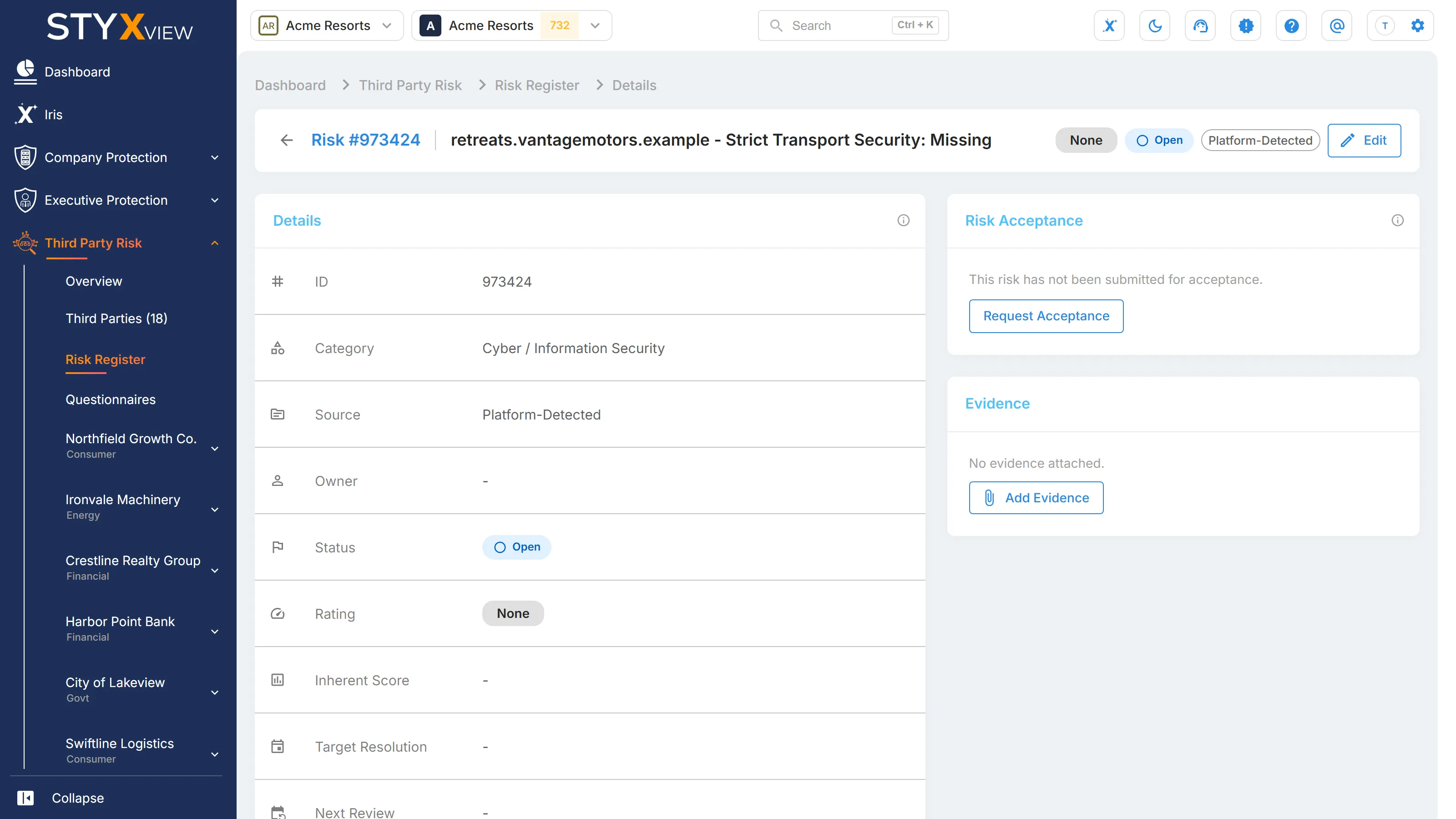
- "Details": "ID", "Category", "Source", "Owner", "Status", "Rating", "Inherent Score", "Target Resolution", "Next Review", "Last Updated", and "Description".
- "Risk Acceptance": select "Request Acceptance" to ask for the risk to be accepted, with an optional rationale. While the request is pending, select "Approve" or "Reject". Approving sets the status to "Accepted". Rejecting leaves the risk open for treatment.
- "Evidence": select "Add Evidence" to attach a file, such as a remediation report. Select a file's name to download it.
- "Questionnaire Details": for a risk raised from a questionnaire, the questionnaire and the question it came from, with a link to the questionnaire.