

Asset Reputation
Blocklisted Assets
Section titled “Blocklisted Assets”Overview
Section titled “Overview”The "Blocklisted Assets" tab lists your IP addresses and domains that appear on public blocklists. A listing means other services may refuse mail or traffic from the asset, and it often points to a compromised host or a mail configuration problem. Each row is one listing of one asset on one blocklist.
Open it from "Company Protection" > "Attack Surface Management" > "Asset Reputation". "Blocklisted Assets" is the first tab.
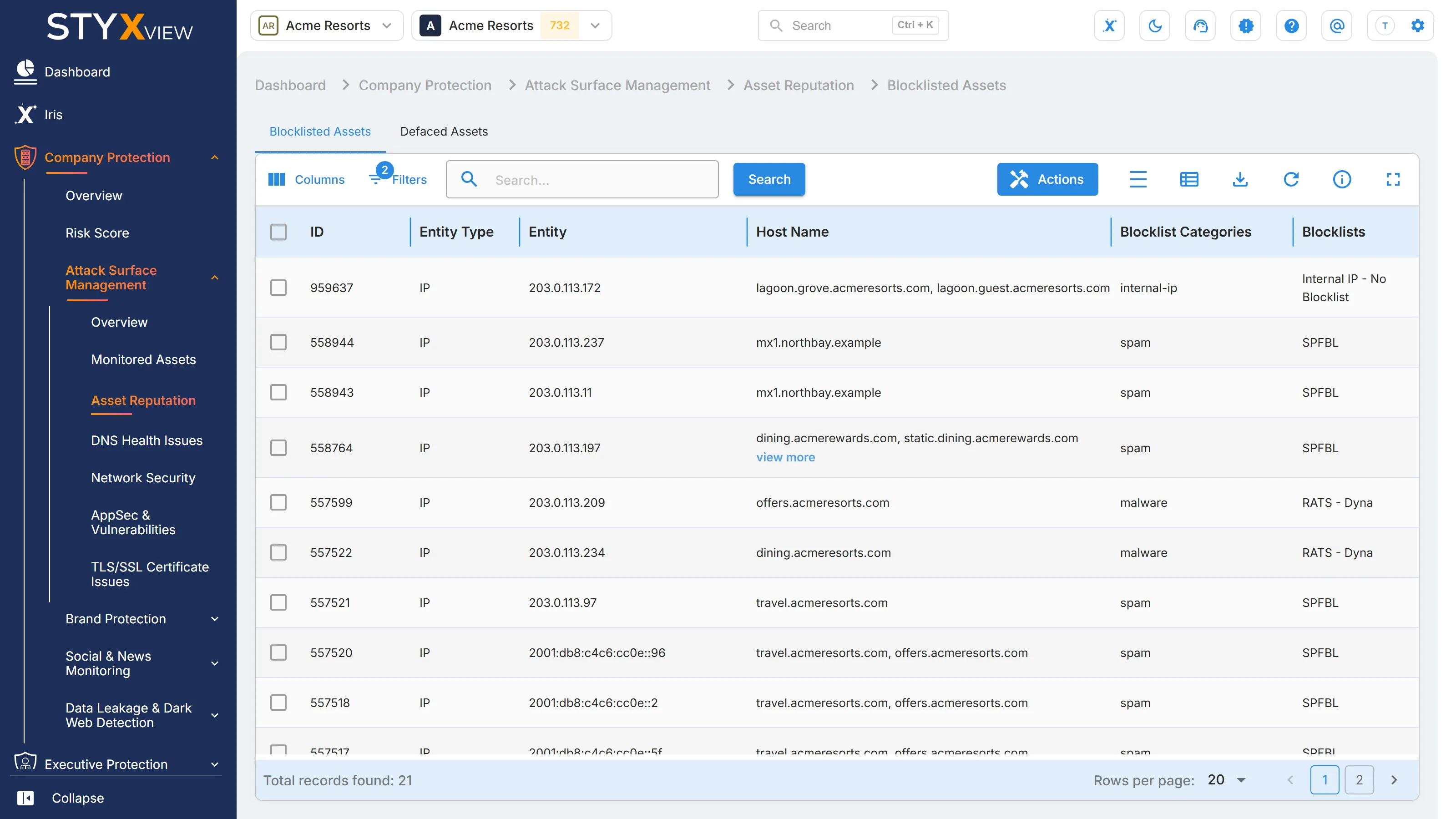
Columns
Section titled “Columns”| Column | What it shows |
|---|---|
| ID | The finding's permanent identifier. |
| Entity Type | "IP" or "Domain". |
| Entity | The listed IP address or domain. |
| Host Name | The hosts on that address or domain. |
| Blocklist Categories | What the asset is listed for. See the table below. |
| Blocklists | The blocklist that names the asset. |
| Severity Rating | How serious the listing is, from "Very Low" to "Very High". |
| Status | Where the finding is in the triage workflow. See Findings for each status. |
| First Seen | When StyxView first found the listing. |
| Last Seen | The most recent check that still found it. |
| Associated Risks | What the listing can lead to. |
| Assigned User | The user the finding is assigned to. |
| Latest Comment | The most recent comment on the finding. |
"Client Domain", "Issue Description", and "Issue Recommendations" are hidden by default. Add them with "Columns" to read what the listing means and how to fix it.
Blocklist categories
Section titled “Blocklist categories”| Category | Default rating | Associated risks |
|---|---|---|
| spam | "Medium" | "Email Service Blockages" |
| malware | "High" | "Web Service Blockages" |
| phishing | "High" | "Compromised Infrastructure", "Legal Liability" |
| exploits | "High" | "Compromised Infrastructure", "Lateral Attacker Movement" |
| abused | "High" | "Compromised Infrastructure", "Further Attacks" |
| internal-ip | "Very Low" | "Internal IPs Exposed" |
A spam listing usually traces back to mail configuration. A malware, phishing, or exploits listing usually means a compromised host. One listing is worth checking; several blocklists naming the same asset is a reputation problem.
Check the "Entity Type" and "Host Name" before acting: an address shared with a hosting provider can be listed because of another customer.
Working with findings
Section titled “Working with findings”By default the grid shows open findings, with the status "New", "Analyzing", "On Watchlist", "Response In Progress", or "Reappeared", and hides findings marked as false positives. Change "Filters" to see the rest.
To act on findings:
-
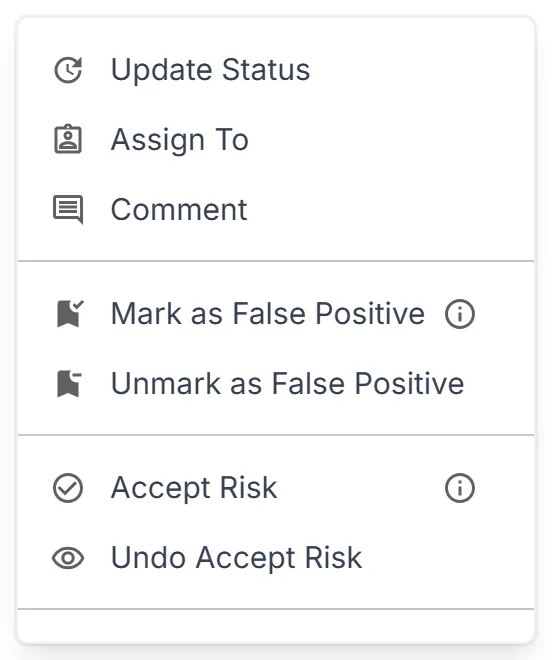
Select the checkbox of one or more rows, then select "Actions". To act on one row, you can right-click it instead.
-
Choose an action:
- "Update Status" moves the findings through the triage workflow.
- "Assign To" assigns them to a user.
- "Comment" adds a note.
- "Mark as False Positive" records that a finding is not a real issue. "Unmark as False Positive" reverses it.
- "Accept Risk" records a decision to leave the issue unfixed: the finding's status becomes "Closed Without Action", so it leaves the open list, and it keeps being detected. "Undo Accept Risk" sets it to "Reappeared" and adds it to the watchlist. See Accept Risk.
-
Enter the context the dialog asks for, then select "Confirm".
Select a row to open the finding's detail page. See Findings.
Once the cause is fixed, request removal from each blocklist that names the asset. Blocklists delist at different speeds.
Third parties
Section titled “Third parties”For a third party you monitor, open "Third Party Risk", the third party's name, "Risks", then "Asset Reputation". The grid lists that third party's blocklisted assets, and "Actions" offers "Create Risk", which raises a risk from the selected findings in the Risk Register.
Defaced Assets
Section titled “Defaced Assets”Overview
Section titled “Overview”A website is defaced when an attacker replaces its content with their own. The "Defaced Assets" tab lists your domains that have been reported as defaced. A defacement is visible evidence that a compromise has already happened, so treat an entry here as an incident rather than a routine finding.
Open it from "Company Protection" > "Attack Surface Management" > "Asset Reputation" > "Defaced Assets".
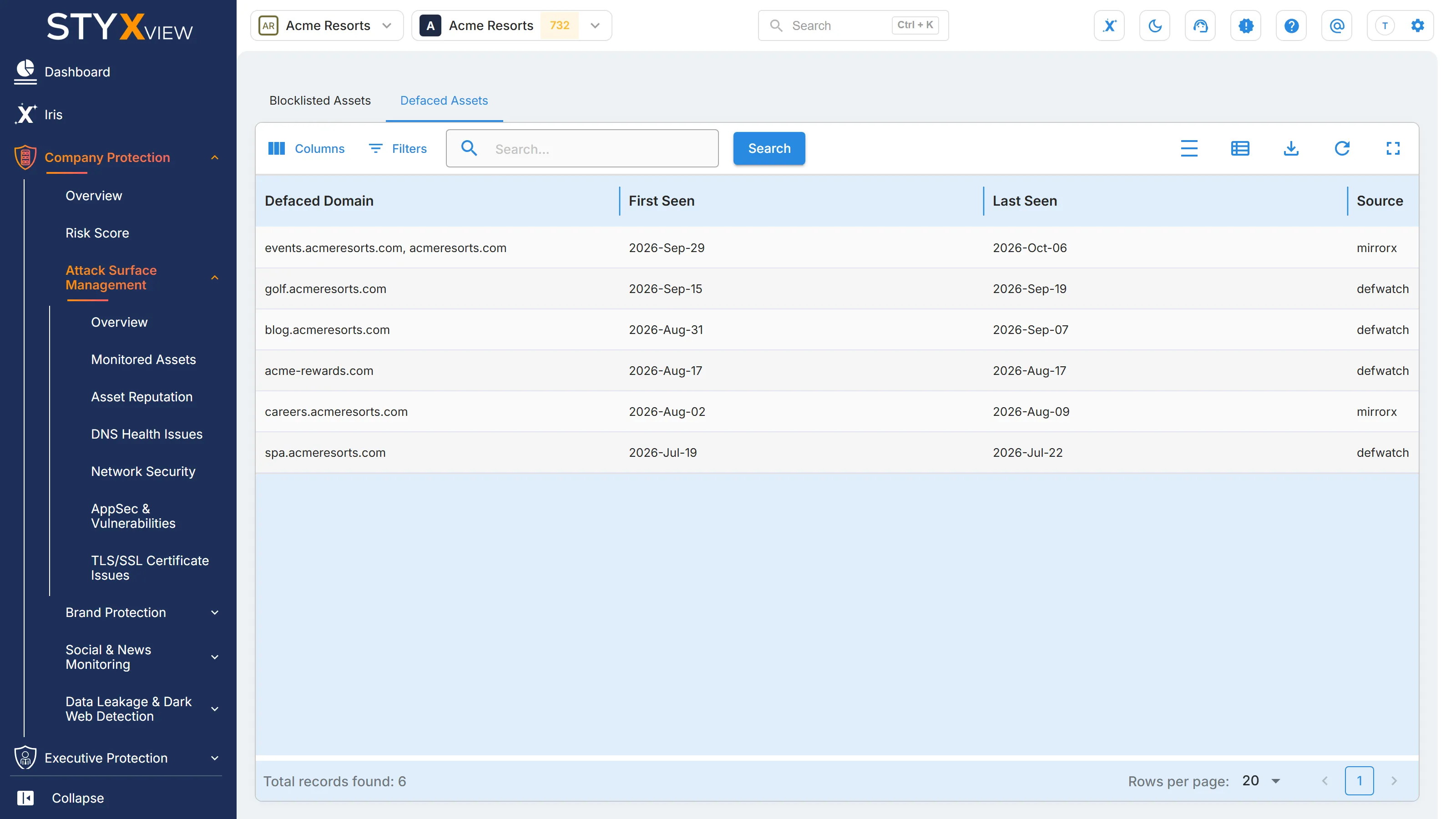
Columns
Section titled “Columns”| Column | What it shows |
|---|---|
| Defaced Domain | The domain whose website was defaced. |
| First Seen | When the defacement was first reported. |
| Last Seen | When it was most recently reported. |
| Source | The archive or feed that reported the defacement. |
Defacement details
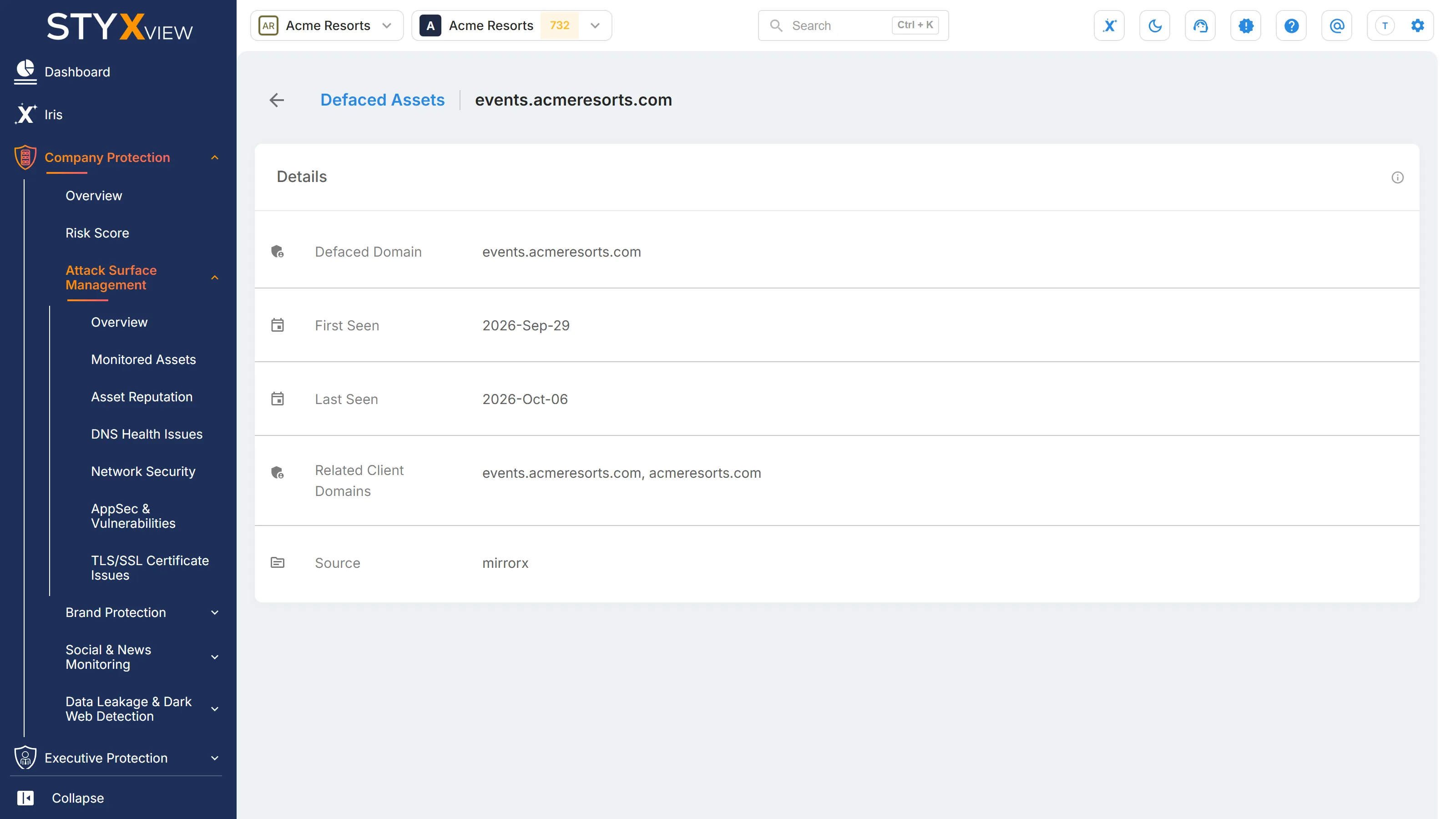
Section titled “Defacement details”Select a row to open its detail page, which repeats these fields and adds "Related Client Domains", the domains of yours the defacement relates to.
What to do
Section titled “What to do”Check the site's current content, restore it from a known good copy, and investigate how the attacker gained write access before bringing the site back.