

Iris
Navigation Path
Section titled “Navigation Path”-
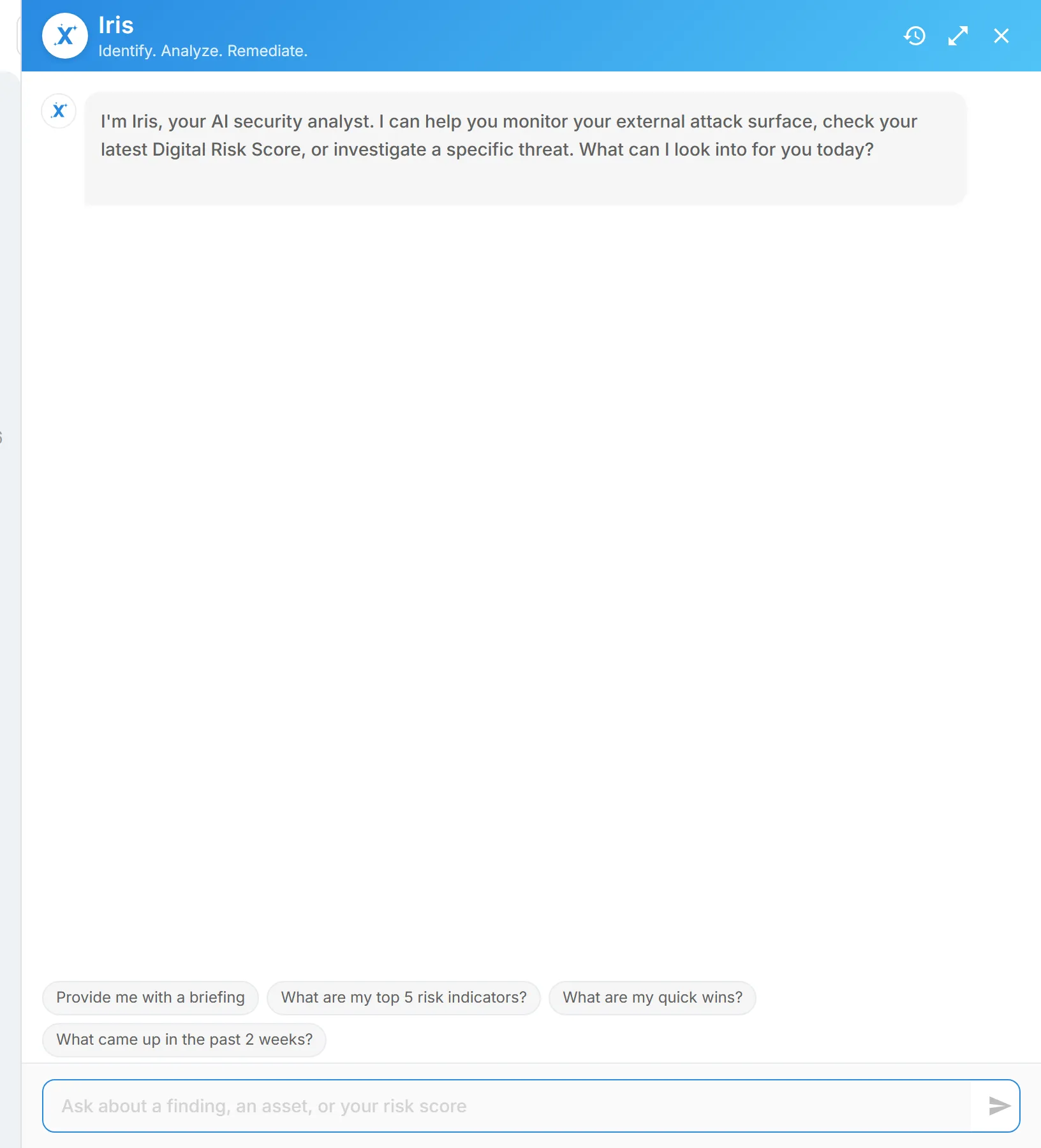
Iris panel: on any page, select the Iris icon ("Iris - AI Assistant") at the top right.
-
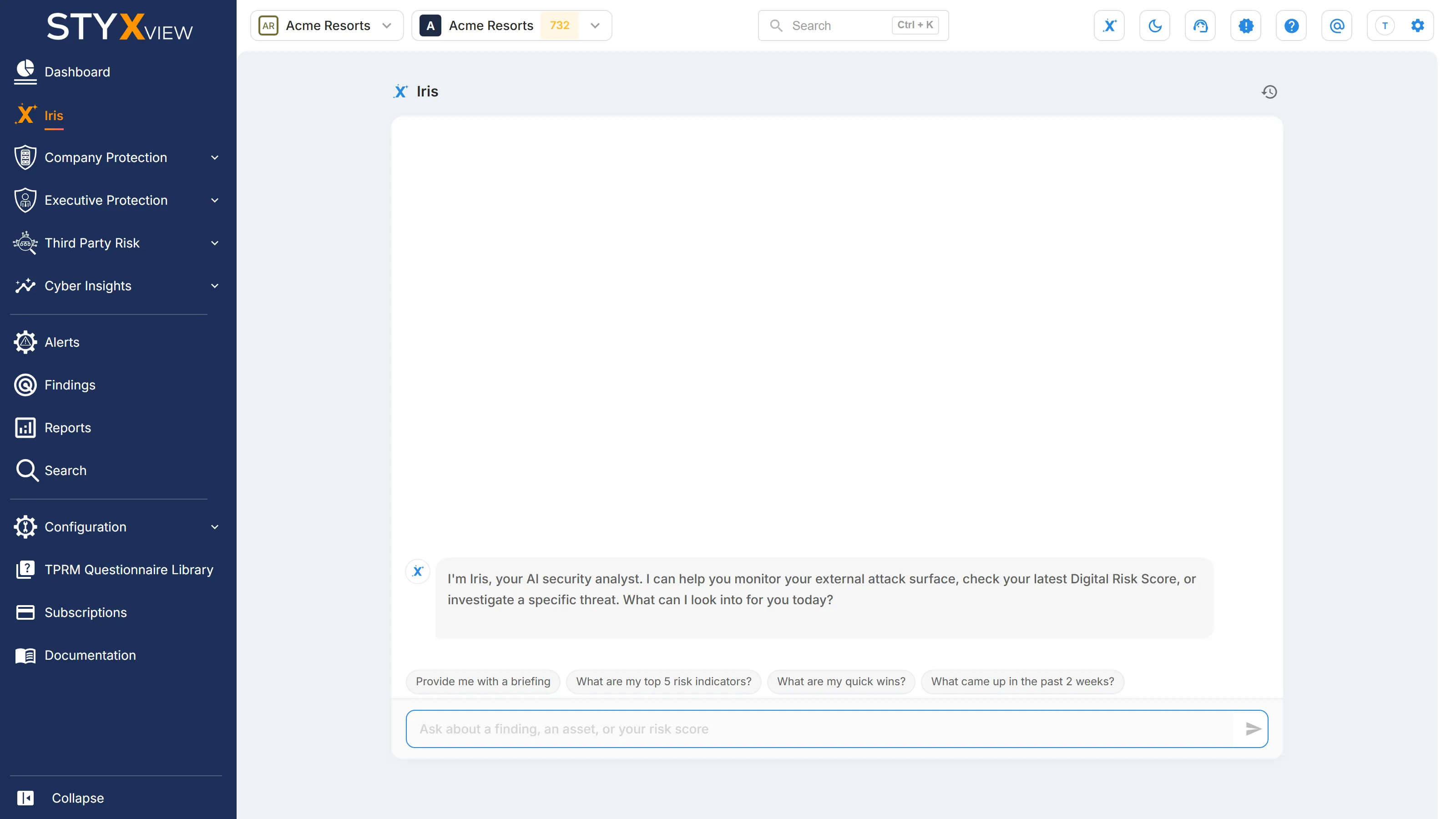
Iris page: in the left menu, select "Iris". In the panel, "Open Iris as a page" does the same.
-
AI Overview: open a finding and select "AI Overview" at the top of its page.
Overview
Section titled “Overview”Iris is StyxView's AI assistant. It answers questions about your digital risk posture in plain language, using the data of the account you are viewing: findings, risk indicators, alerts, and your Digital Risk Score. It does not replace StyxView's dashboards and reports. It is a faster route to an answer when you know the question but not which page has it.
Iris is available in two places: a conversation you can open from any page, and an AI Overview on each finding. Iris answers in English.
The Iris Chat Panel
Section titled “The Iris Chat Panel”Type a question, or start from a suggested prompt:
- "Provide me with a briefing": a summary of your current risk posture.
- "What are my top 5 risk indicators?"
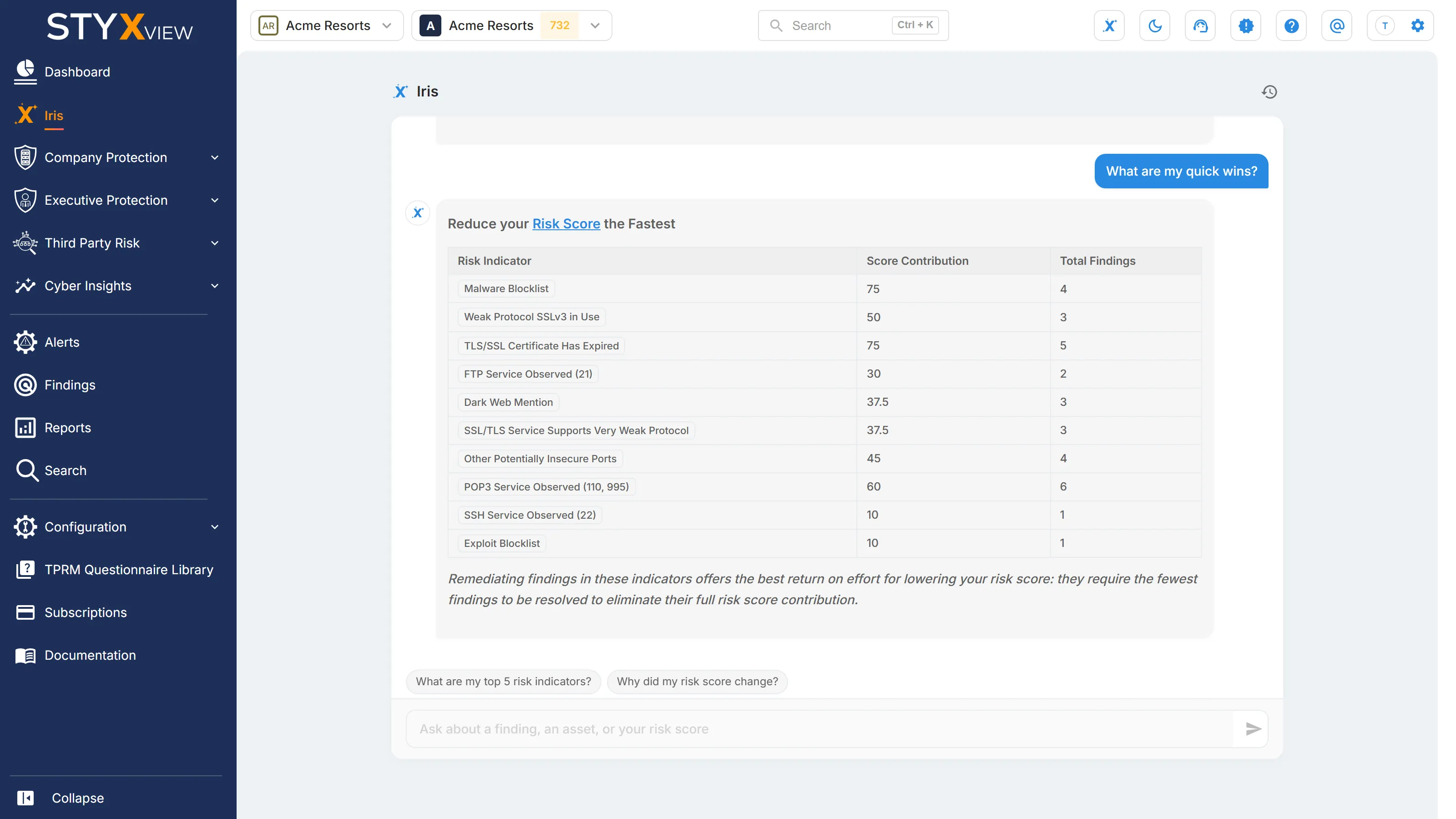
- "What are my quick wins?": issues that take little effort to fix and meaningfully reduce your risk.
- "What came up in the past 2 weeks?": a recap of recent findings.
After an answer, Iris suggests follow-up questions you can select. You can also ask your own follow-up in the same conversation, or ask about a specific finding, risk indicator, or third party by name.
Findings and Assets in Answers
Section titled “Findings and Assets in Answers”Findings, hosts, and addresses named in an answer appear as highlighted pills:
- Hover over a pill to preview the finding or asset.
- Select it to open its page in a new tab, so the conversation stays open.
- Select "Attach to the context" to add it to your next question.
Past Conversations
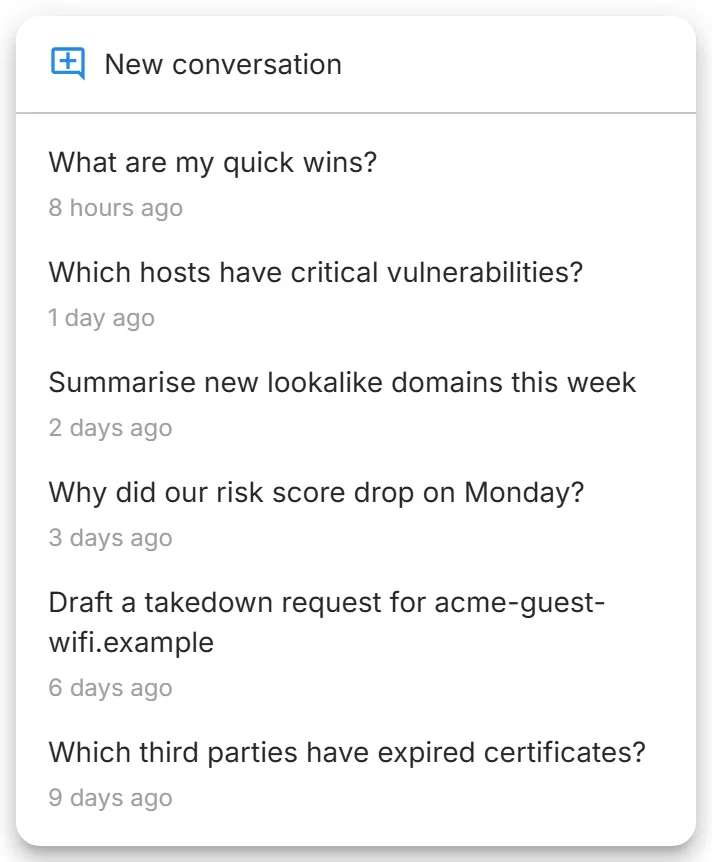
Section titled “Past Conversations”Select "Past conversations" at the top of the panel to reopen an earlier conversation, or select "New conversation" to start again. Iris keeps conversations for 30 days, then deletes them.
Response Times
Section titled “Response Times”The suggested prompts answer in seconds. A question that needs a fuller analysis takes longer: Iris says "This needs the full analysis" and shows the steps it is working through until the answer is ready.
Acting on Findings with Iris
Section titled “Acting on Findings with Iris”You can ask Iris to act on findings, for example to mark a finding as a false positive or to assign several findings to a colleague. Iris can comment on findings, mark them as false positive, accept the risk, mark them as legitimate, flag brand infringement, add them to the watchlist, change their status, and assign them.
Iris never changes anything on its own. It shows a card with the change it proposes:
- Check the findings and the change on the card.
- Enter a "Comment". It is required, and it is posted to each finding.
- Select "Confirm".
Before it applies the change, Iris checks that the findings are still as it described them. If some have changed, the card lists them, and "Confirm Anyway" applies the change to the rest. Iris acts with your permissions, so it can change only what you could change yourself. Past conversations do not show these cards again.
Iris cannot take other actions, such as requesting a takedown or changing your configuration.
AI Overview on Findings
Section titled “AI Overview on Findings”Open a finding and select "AI Overview" at the top of its page. The "Iris - AI Overview" panel explains that one finding:
- Finding Context: what the finding is and why it matters for your environment.
- Applicability: for a vulnerability, whether it applies to the affected host.
- Recommended Actions: remediation steps, in order of priority.
- How to Fix: where the fix goes and the steps to apply it, when Iris can tell from what it has detected.
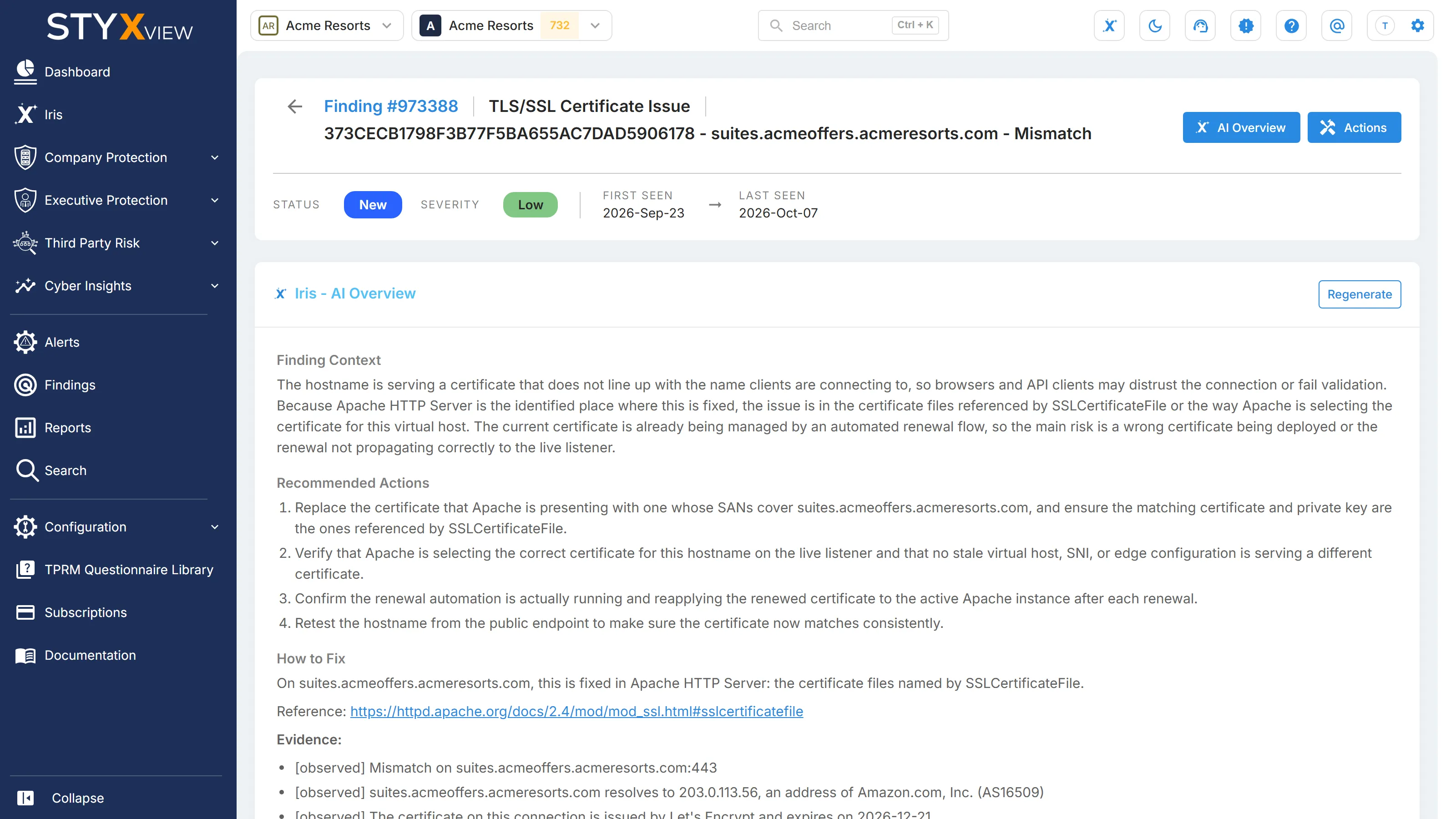
Applicability and How to Fix appear only on the findings they cover.
Select "Continue In Chat" to carry the overview into the Iris conversation and ask follow-up questions. Select "Regenerate" to produce a fresh overview. The button appears only for users who are allowed to regenerate.
If Iris is still working on the overview, the panel says so, and the overview is ready the next time you open the finding. The panel stays open on the findings you open next, until you close it with "AI Overview".
Turning On AI Features
Section titled “Turning On AI Features”Iris and AI Overview work only after an administrator accepts the AI feature terms for the account. Until then, the Iris panel shows a message in place of the question box, and AI Overview shows a preview of what it provides with an "Activate AI Features" button.
To turn on AI features for the account you are viewing:
- In the left menu, go to "Configuration" → "AI Features". Only users with the Admin role can change this setting.
- Turn on the switch for "Iris AI Copilot".
- Read the AI feature terms, including the current AI provider, with the link in the dialog.
- Select both checkboxes: that you are authorised to enable AI features and accept the terms, and that you understand data will be processed by the AI provider outside StyxView.
- Select "Agree And Enable Iris".
The page then shows "AI features are turned on", with who accepted the terms and when. To turn AI features off, turn off the switch and select "Turn Off".
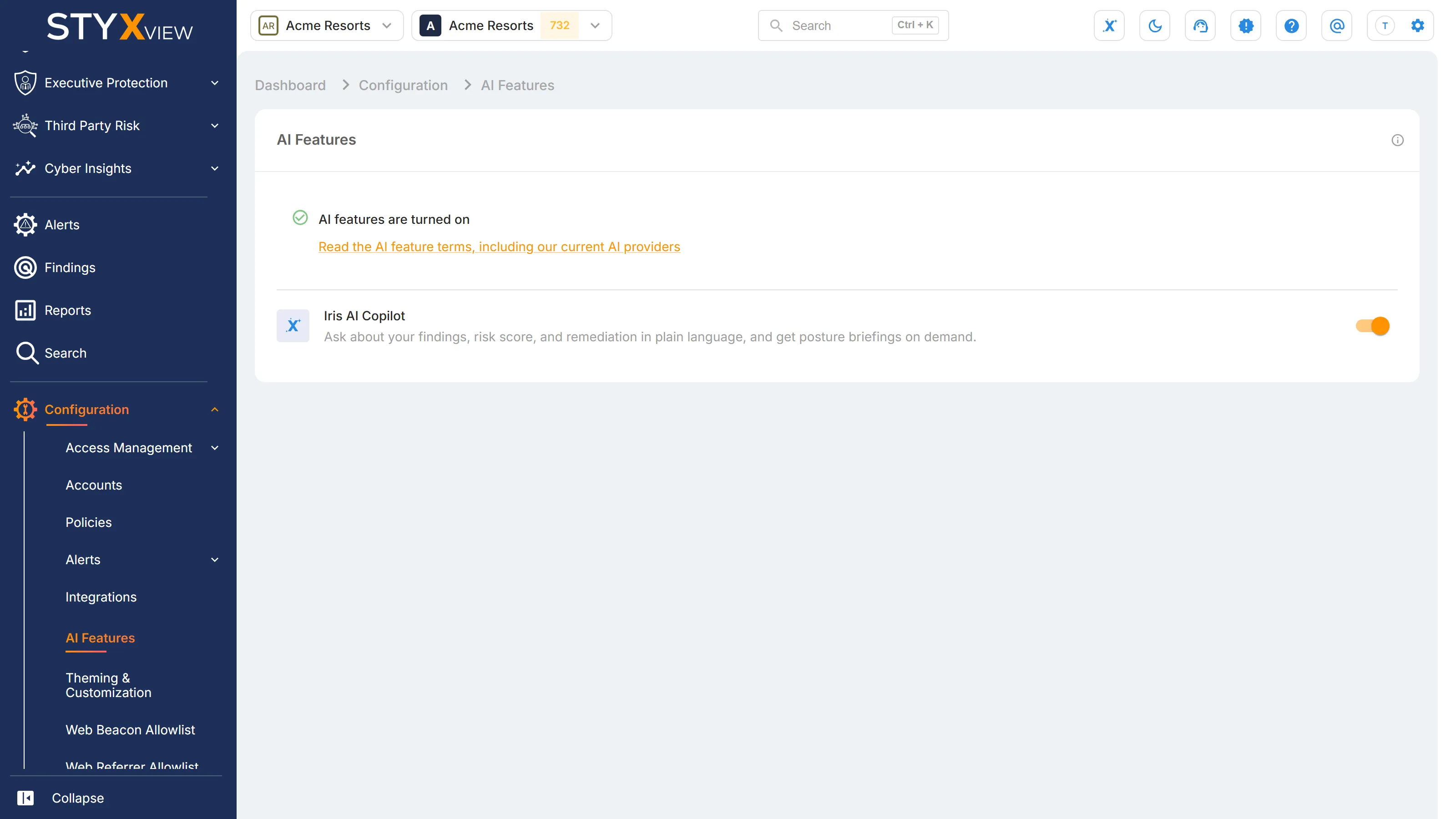
What enabling AI features means:
- Iris sends only your question and data from the account you are viewing to the AI provider.
- Iris can only see accounts you already have permission to see.
- Conversations are kept for 30 days for troubleshooting, then deleted. They are not used to train any model.
A Note on Accuracy
Section titled “A Note on Accuracy”Iris answers from your account's real data, but like any AI assistant it can misread a question or summarise imperfectly. Before you act on an answer, especially one with legal, compliance, or contractual weight, confirm the details on the underlying page.