

Social & News Content
Social & News Content
Section titled “Social & News Content”"Social & News Content" lists every social media post and news article collected about your organization. Search it for a keyword, such as a brand, product, executive, or hashtag, and filter it by platform, news category, sentiment, and date to find what matters.
To open it, select "Company Protection" in the left menu, then "Social & News Monitoring", then "Social & News Content". The "View all" links on the overview open it too.
The page has two tabs: "Card View" and "Tabular View".
Card View
Section titled “Card View”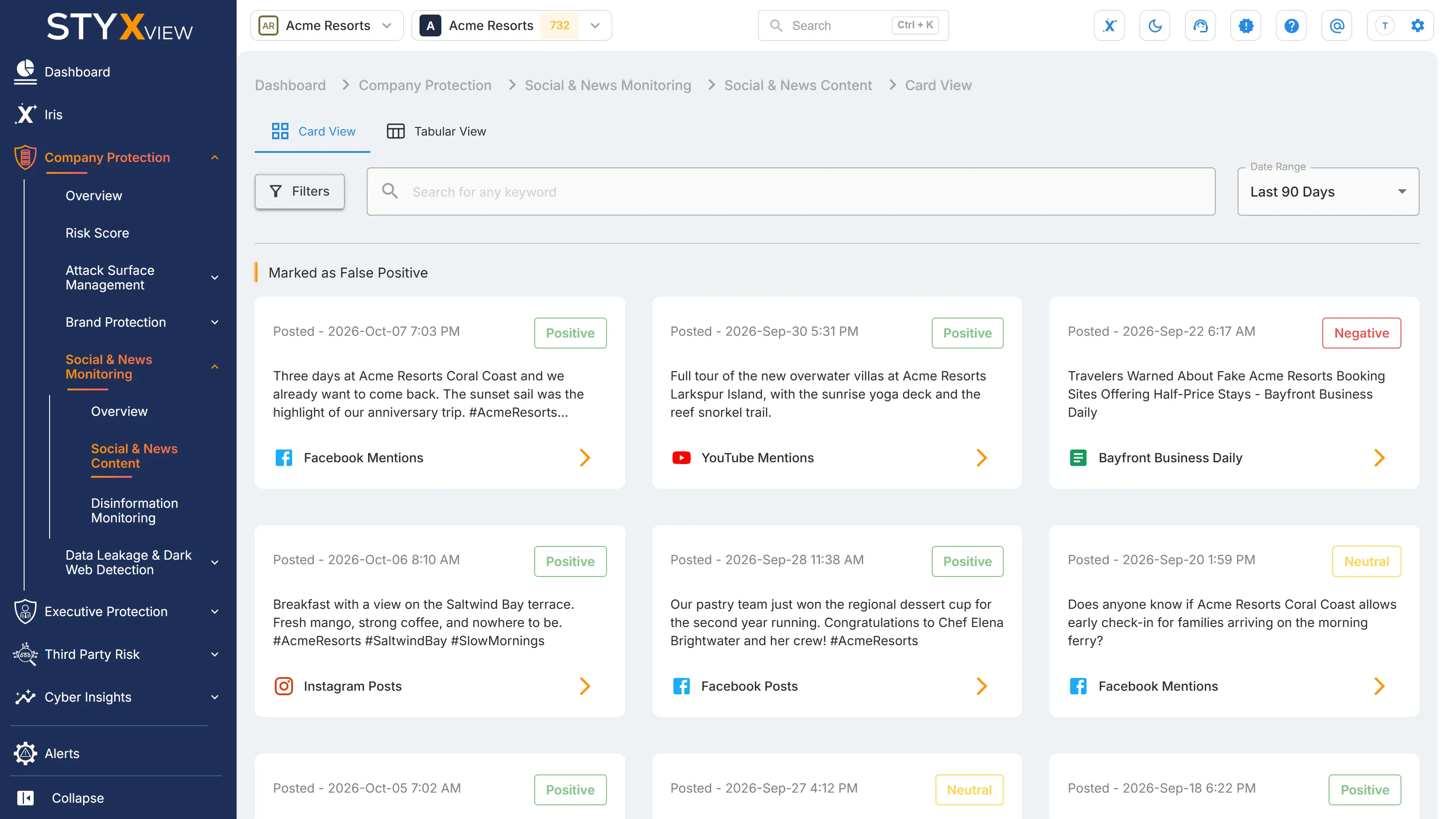
Card View shows posts and articles as cards, newest first. Scroll down to load more, until "End of Results".
-
Search. Enter a word or phrase in "Search for any keyword" and press Enter. A card matches when its title, content, platform, or sentiment contains what you typed.
-
Date Range. Choose "Last 7 Days", "Last 30 Days", or "Last 90 Days", or a year. The page opens on "Last 90 Days".
-
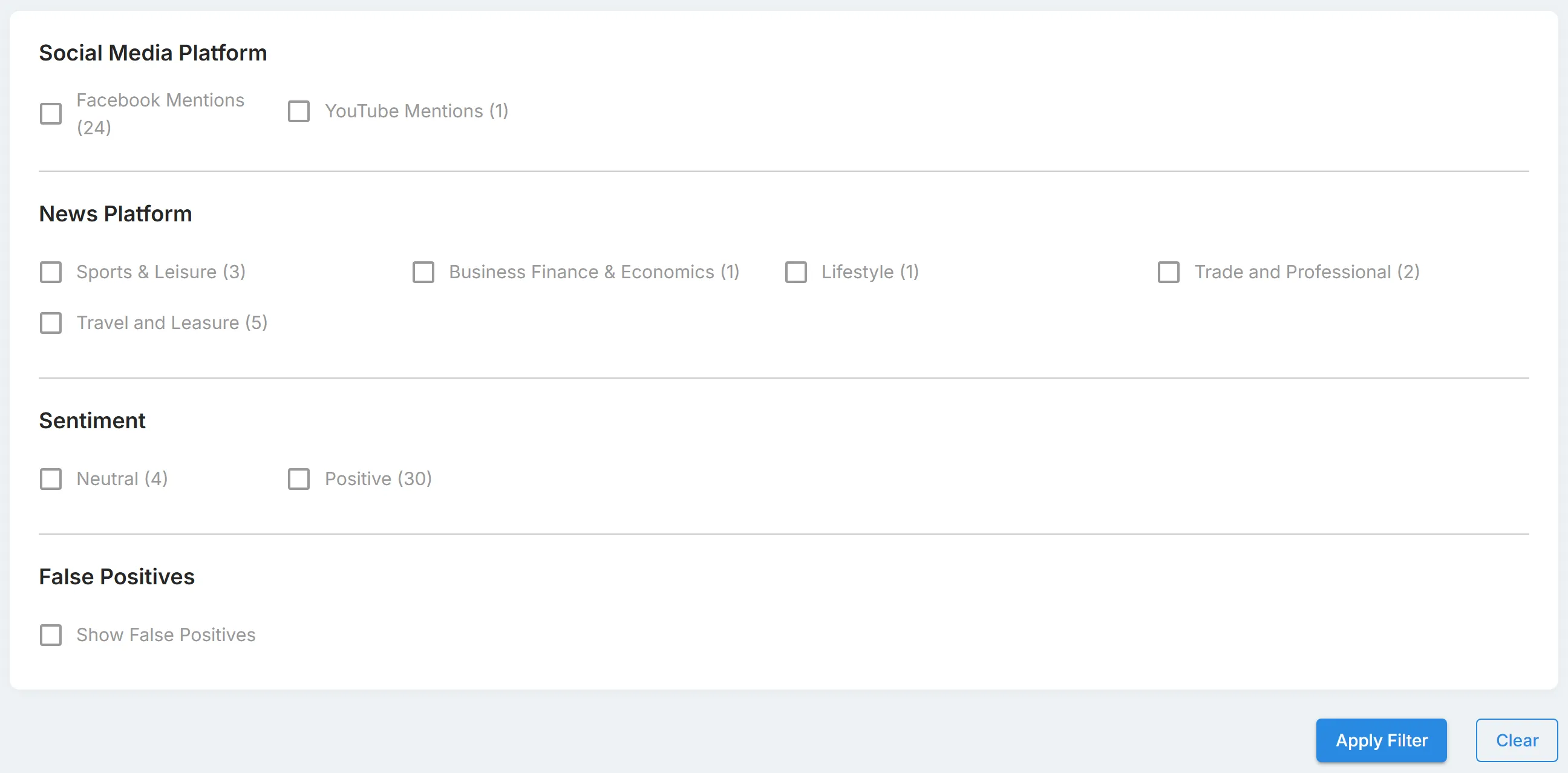
Filters. Select "Filters" to choose platforms under "Social Media Platform", news categories under "News Website Categories", and sentiments under "Sentiment". Each option shows how many items it holds. Select "Apply Filter" to apply your choices, or "Clear" to reset them.
-
False positives. Posts and articles marked as false positives are hidden. To see them, select "Show False Positives" under "False Positives" in the filters. They are marked with a coloured left border.
Each card shows when the item was posted, its sentiment tag ("Positive", "Neutral", or "Negative"), a preview of the content, and its platform. Select the arrow on a card to open its detail page.
Tabular View
Section titled “Tabular View”Tabular View lists the same posts and articles in a grid, newest first.
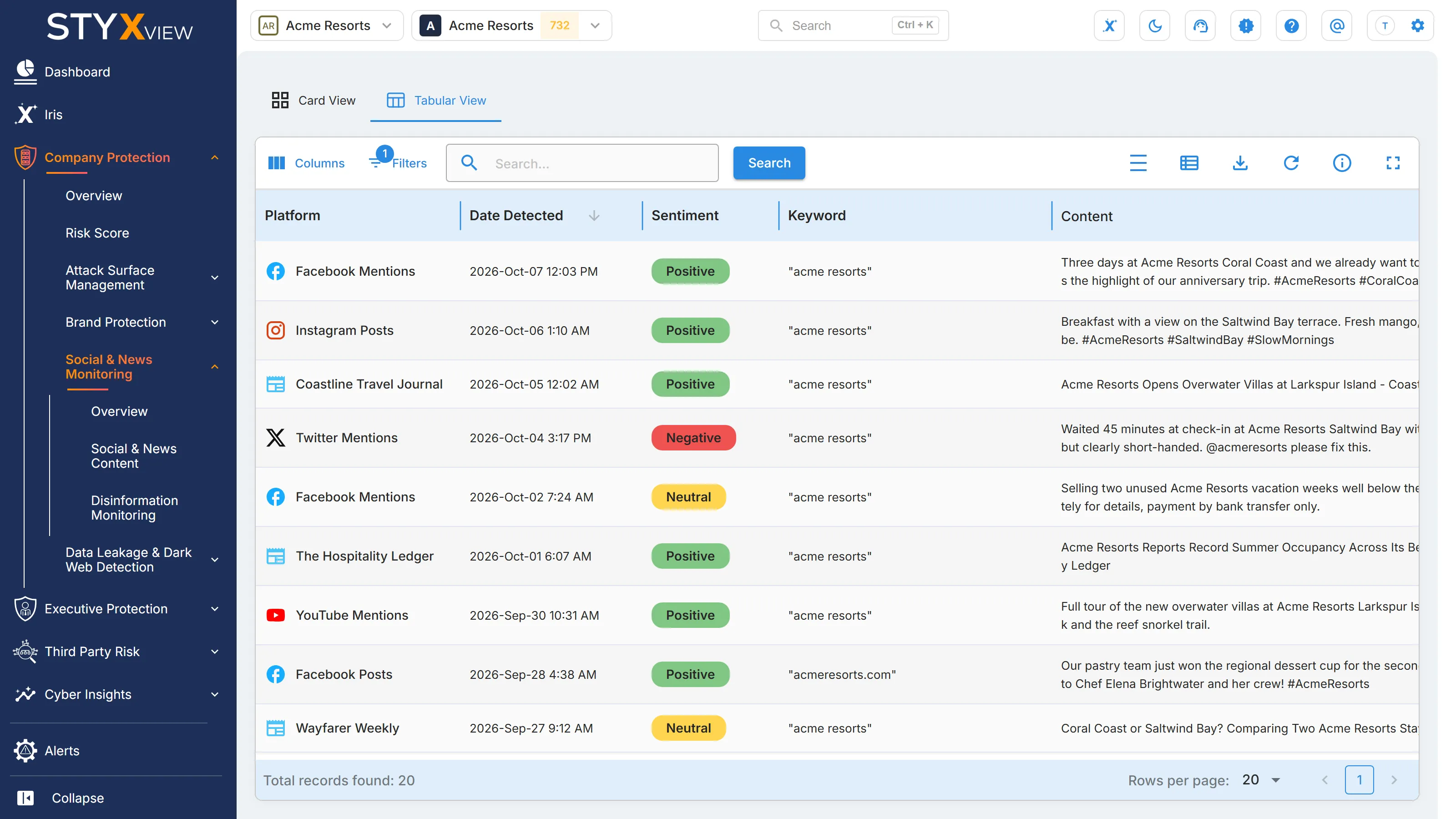
| Column | What it shows |
|---|---|
| "Platform" | Where the post or article was published. |
| "Date Detected" | The date and time of the post or article. |
| "Sentiment" | "Positive", "Neutral", or "Negative". |
| "Keyword" | The keyword the post or article matched. |
| "Content" | The title or text of the post or article, with a link to the original. |
To show only posts or only articles, filter on "Type" under "Filters". False positives are hidden by default. Select a row to open its detail page. The toolbar is described in Action & Filter Bar.
Detail pages
Section titled “Detail pages”A social media post opens as "Social Media Post", with its "Platform Name", "Sentiment", "Language", "Link", "Keywords", "Discovered Date", "Image", and full "Content".
A news article opens as "News Article", with its "Search Keyword", "Sentiment", "Link", "Keywords Found", "Original Language", "Discovered Date", "Image", "Summary", and full "Content".
If an item is not relevant to your organization, select "Mark as False Positive" on its detail page. The button is available to users with the Admin or Analyst role. The item is then hidden by default in Social & News Content.