

Sending Out a Questionnaire
Send a questionnaire to collect a third party's own account of its security controls. You choose the template, the people at the third party who answer it (respondents), and the people in your organisation who review the answers (reviewers). The "Sent Questionnaires" tab then tracks every questionnaire until it is complete.
Admin and Analyst users can send, schedule, and delete questionnaires.
Navigation path
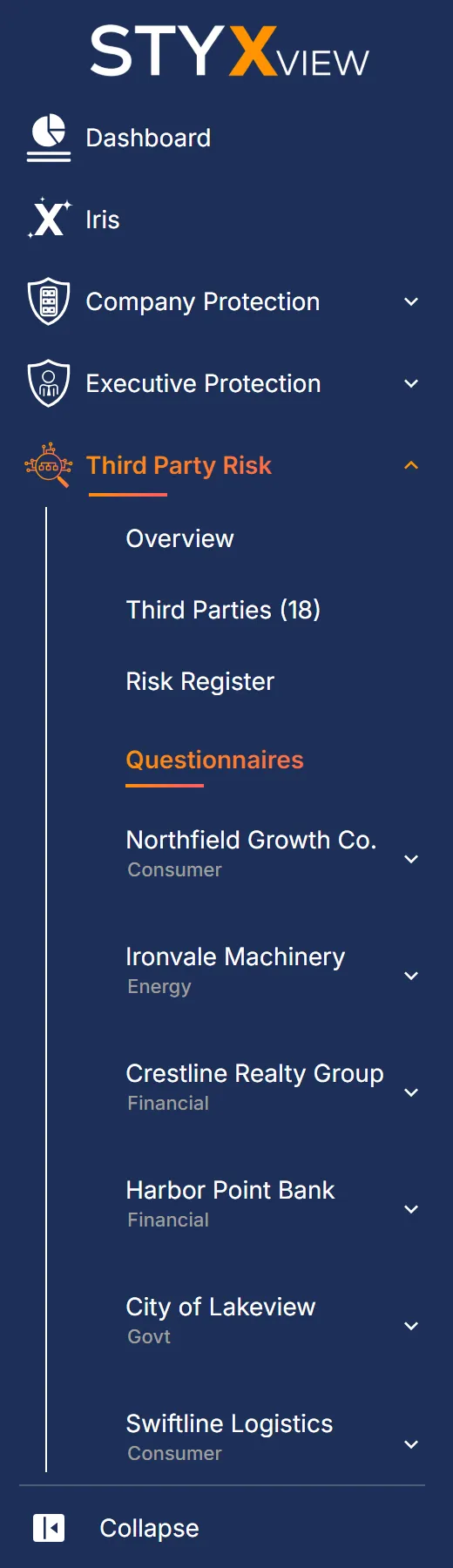
Section titled “Navigation path”- In the sidebar, select Third Party Risk → Questionnaires.
- The page opens on the "Sent Questionnaires" tab. "Scheduled Questionnaires" and "Templates" are the other tabs.
Sending a questionnaire
Section titled “Sending a questionnaire”-
On the "Sent Questionnaires" tab, select "Send Questionnaire".

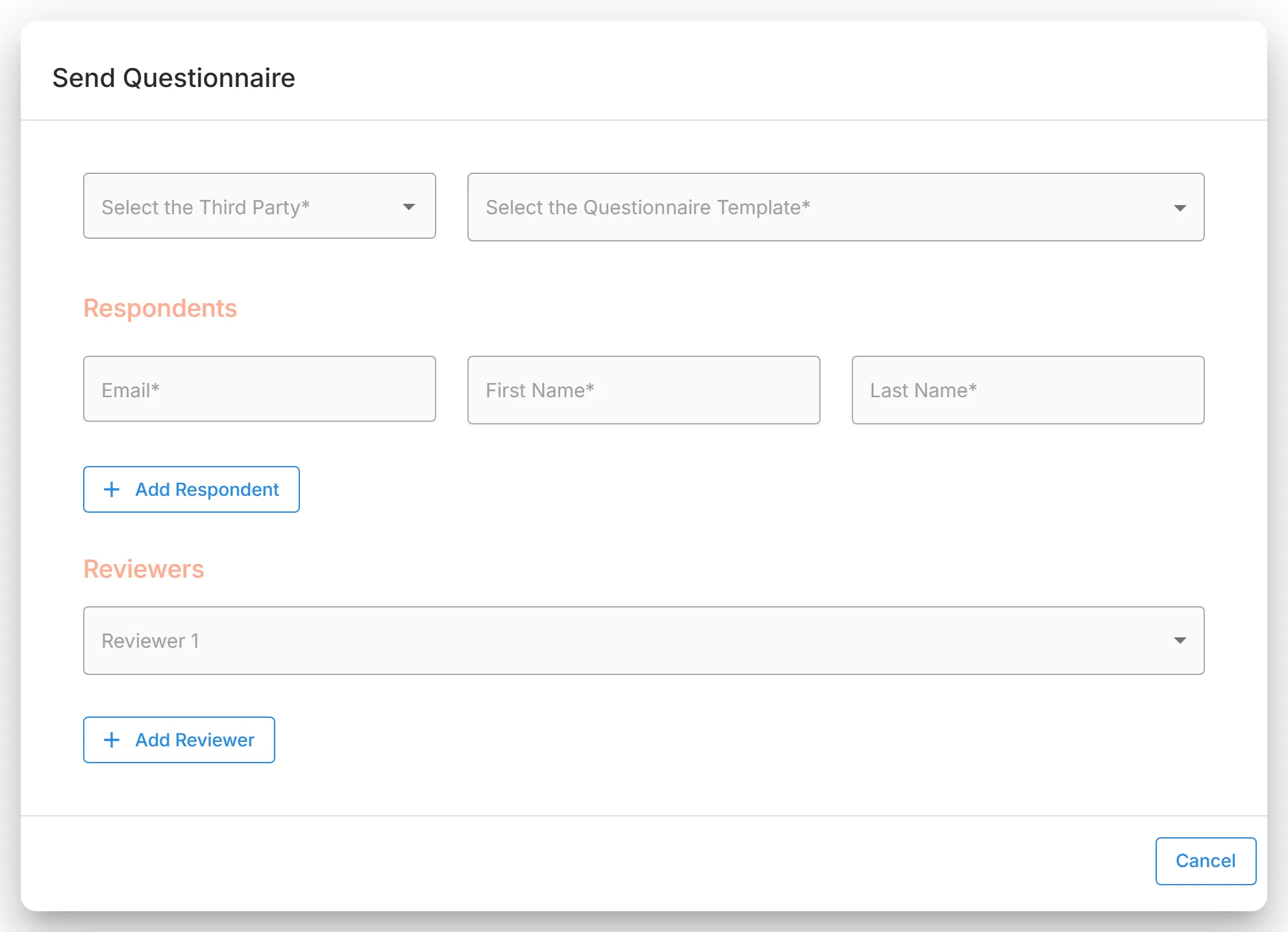
The "Send Questionnaire" dialog opens.
-
In "Select the Third Party", choose the third party.
-
In "Select the Questionnaire Template", choose the template. Only enabled templates are listed. See Managing Questionnaire Templates.
-
Under "Respondents", enter the "Email", "First Name", and "Last Name" of the person at the third party who will answer. As you type an email address, people you have sent questionnaires to before are suggested. Select "Add Respondent" to add another respondent.
-
Under "Reviewers", choose a user from your organisation in "Reviewer 1". Select "Add Reviewer" to add another. At least one reviewer is required. Only reviewers can give feedback on the answers and accept or return the questionnaire.
-
Select "Send".
Each respondent receives an invitation email with a link to the third party portal. A respondent who is new to the portal also receives a username and temporary password, and sets a new password at first sign-in. To brand the invitation email, go to Configuration → Theming & Customization and select the "Third Party Questionnaire" tab.
StyxView sends reminder emails to respondents while a questionnaire is "Sent" or "In Progress", and to reviewers while it is "Under Review". When the third party submits its answers, the reviewers are emailed.
Monitoring questionnaire status
Section titled “Monitoring questionnaire status”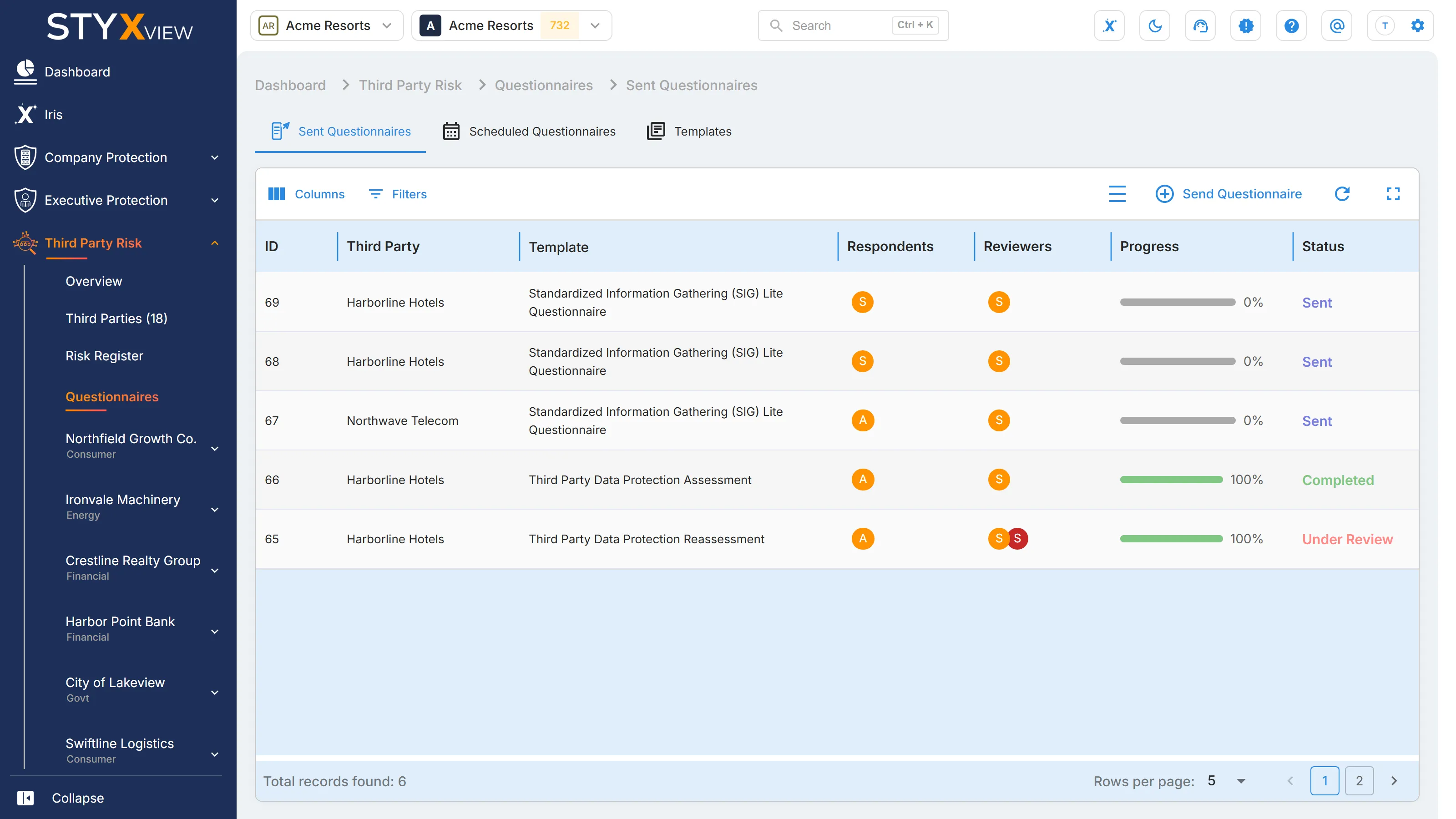
Track progress
Section titled “Track progress”The "Sent Questionnaires" table has one row per questionnaire.
| Column | What it shows |
|---|---|
| "ID" | The questionnaire's identifier. |
| "Third Party" | The third party it was sent to. |
| "Template" | The template it was sent from. |
| "Respondents" | The people at the third party who answer it. |
| "Reviewers" | The people in your organisation who review it. |
| "Progress" | How much of the questionnaire the third party has answered, as a percentage. |
| "Status" | Where the questionnaire stands. See the table below. |
| "Score" | The questionnaire risk score out of 1000, for a scored template. "Provisional" marks a score calculated when the third party submitted; the score becomes official when the questionnaire is completed. Empty when the template is not scored or nothing has been submitted. |
| "Sent On" | The date it was sent. |
| "Last Activity" | The date of the latest change. |
| "Completed On" | The date it was completed. |
| "Risks Registered" | How many Risk Register entries were raised from it. Select the number to open those risks in the Risk Register. |
| "Actions" | The icons described under Take action. |
| Status | Meaning |
|---|---|
| "Sent" | Sent to the third party, which has not started it. |
| "In Progress" | The third party has saved answers but has not submitted them. |
| "Under Review" | The third party has submitted its answers. Your reviewers can now review them. |
| "Sent Back to TP" | A reviewer has requested changes. The questionnaire is back with the third party. |
| "Completed" | A reviewer has accepted the questionnaire. |
View details
Section titled “View details”Select a row, or the view icon, to open the questionnaire with the third party's answers. See Managing Questionnaire Responses and Feedback.
Take action
Section titled “Take action”- View (eye icon): opens the questionnaire.
- Edit (pencil icon): opens "Update Questionnaire", where you can add respondents or reviewers. The third party and template cannot be changed. Not available once the questionnaire is "Completed".
- "Add Risk": raises a Risk Register entry from the whole response. Available once the third party has submitted, that is, when the status is "Under Review", "Sent Back to TP", or "Completed". See Risk Register.
- Delete (red icon): deletes the questionnaire after you confirm.
Scheduling a questionnaire
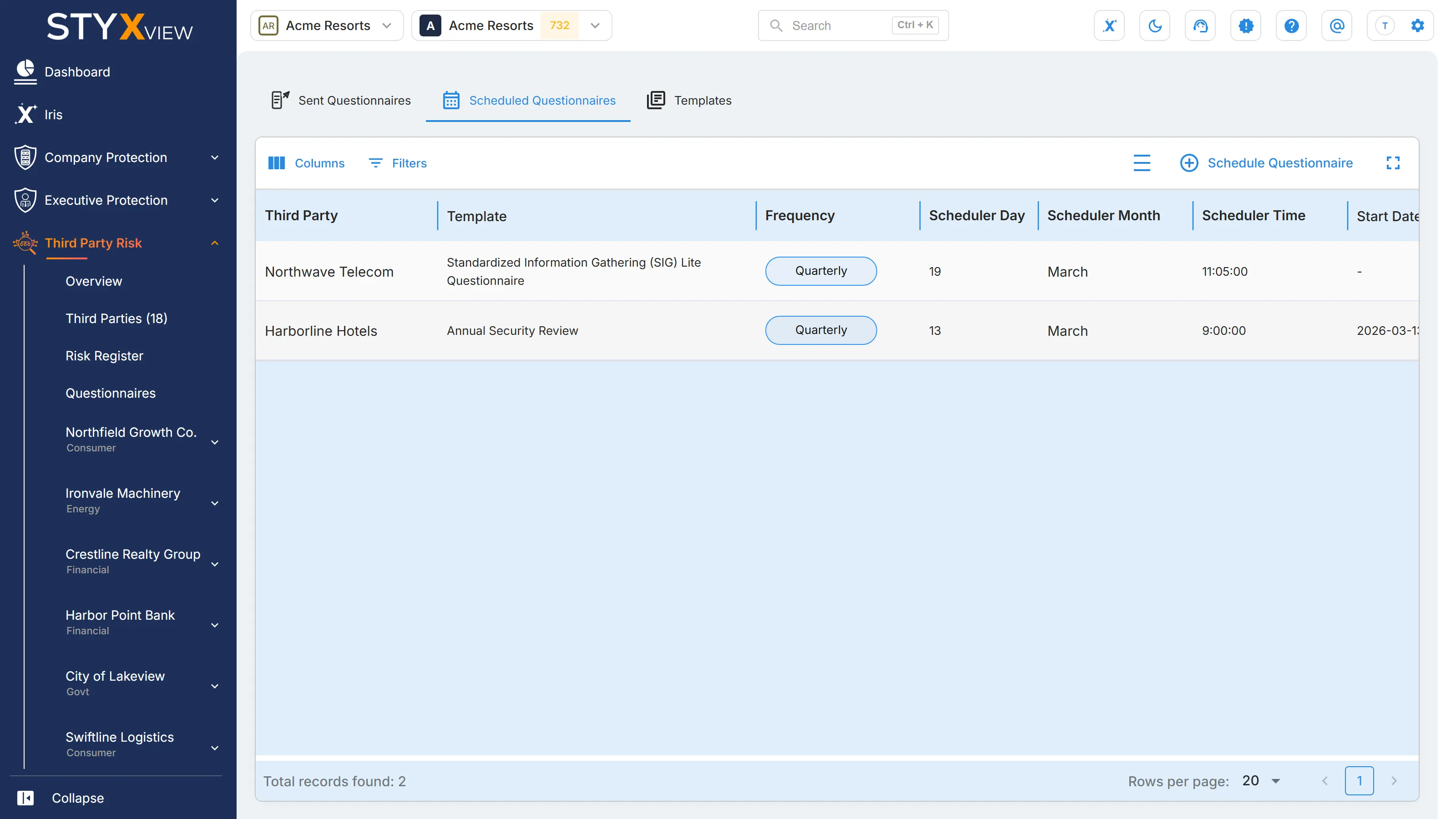
Section titled “Scheduling a questionnaire”To send the same questionnaire to a third party at regular intervals, use the "Scheduled Questionnaires" tab.
-
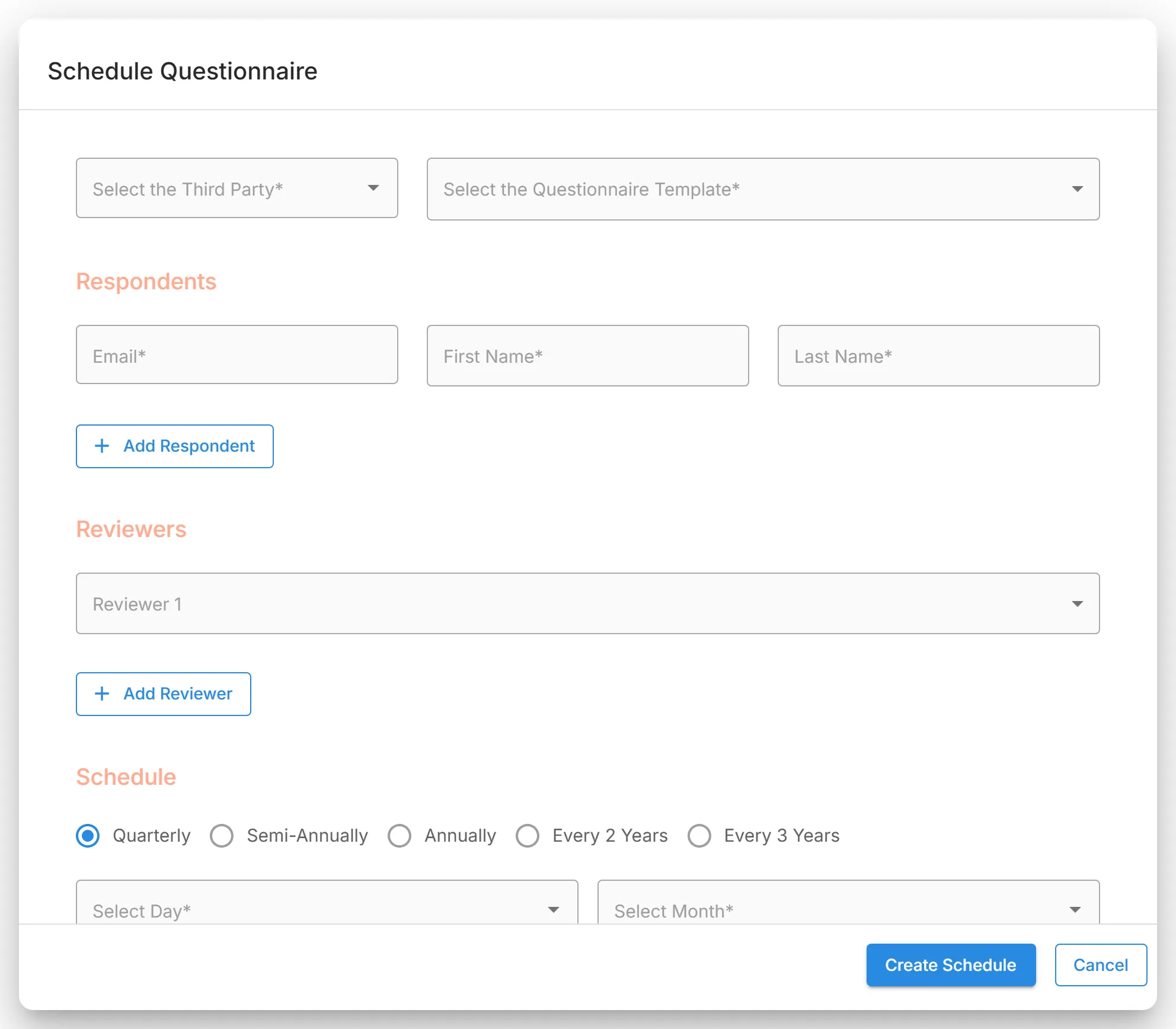
Select "Schedule Questionnaire".
-
Choose the third party and the template, and add respondents and reviewers as you would when sending.
-
Under "Schedule", choose how often to send: "Quarterly", "Semi-Annually", "Annually", "Every 2 Years", or "Every 3 Years".
-
Set "Select Day", "Select Month", "Select Time", and "Select Timezone".
-
Optionally, under "Active Date Range", set a "Start Date" (tomorrow or later) and an "End Date" to limit when the schedule runs. "Schedule Series" previews the send dates.
-
Select "Create Schedule".
The "Scheduled Questionnaires" table lists each schedule with its "Third Party", "Template", "Frequency", "Scheduler Day", "Scheduler Month", "Scheduler Time", "Start Date", "End Date", "Respondents", "Reviewers", and "Status" ("Active", "Inactive", "Expired", or "Failed"). Use the edit icon to change a schedule ("Update Schedule") and the delete icon to remove it.
How the third party fills out the questionnaire
Section titled “How the third party fills out the questionnaire”Respondents answer in a separate third party portal. They see the questionnaires assigned to them, work through the sections, attach supporting files where a question allows it, and can save their progress and return later. When they submit, the status changes to "Under Review". If you request changes, they see your feedback and can update their answers. For the respondent's steps, see What the third party sees.
How to view the third party's responses
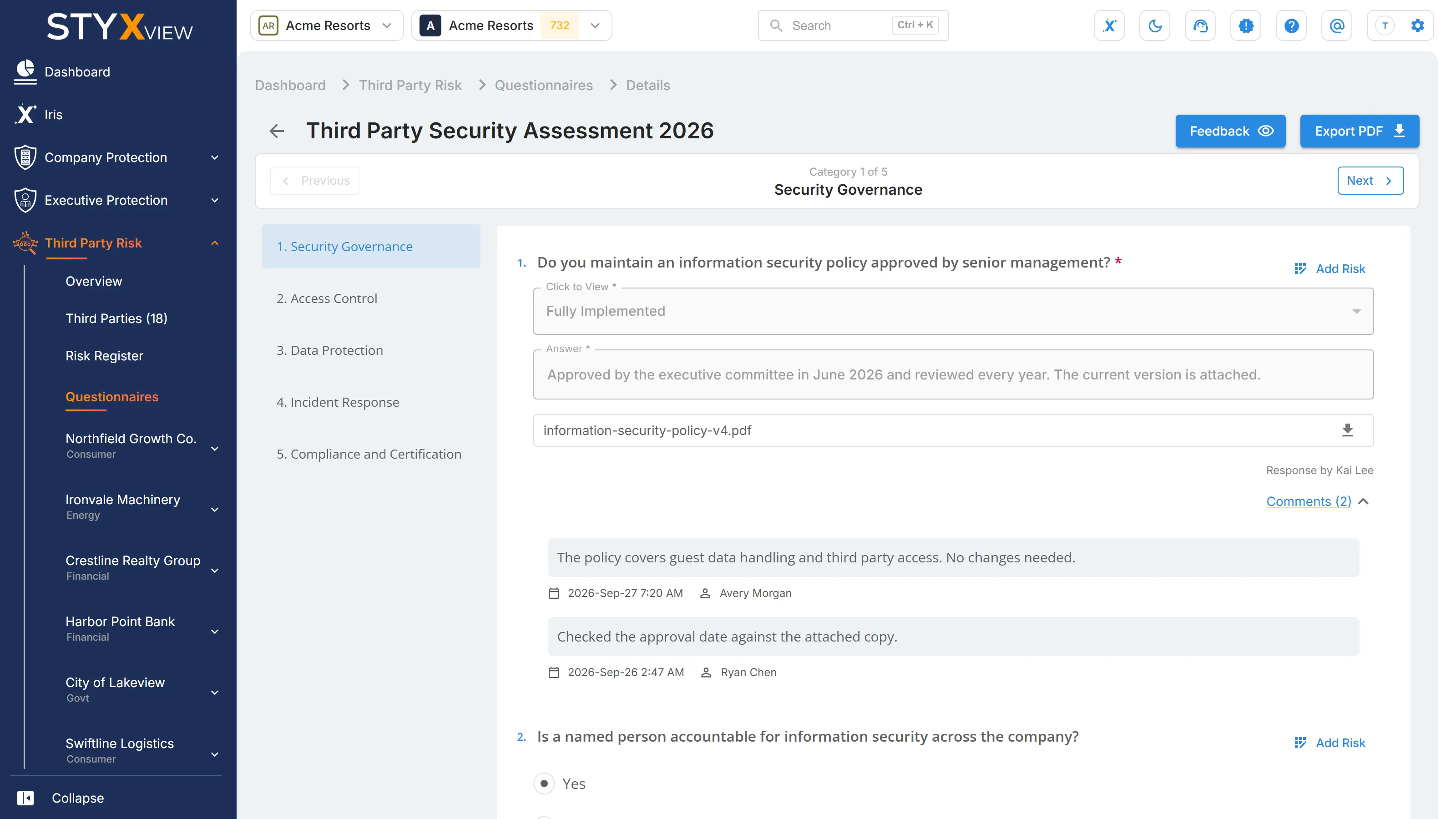
Section titled “How to view the third party's responses”Reviewers and other users with access open a questionnaire from the "Sent Questionnaires" tab. The response view shows every answer and uploaded file, who answered each question, and the comments on it. Select "Export PDF" to download the questionnaire with its answers.
To review the answers, give feedback, and accept or return the questionnaire, see Managing Questionnaire Responses and Feedback.