

Triage & Watchlist
Findings on the watchlist
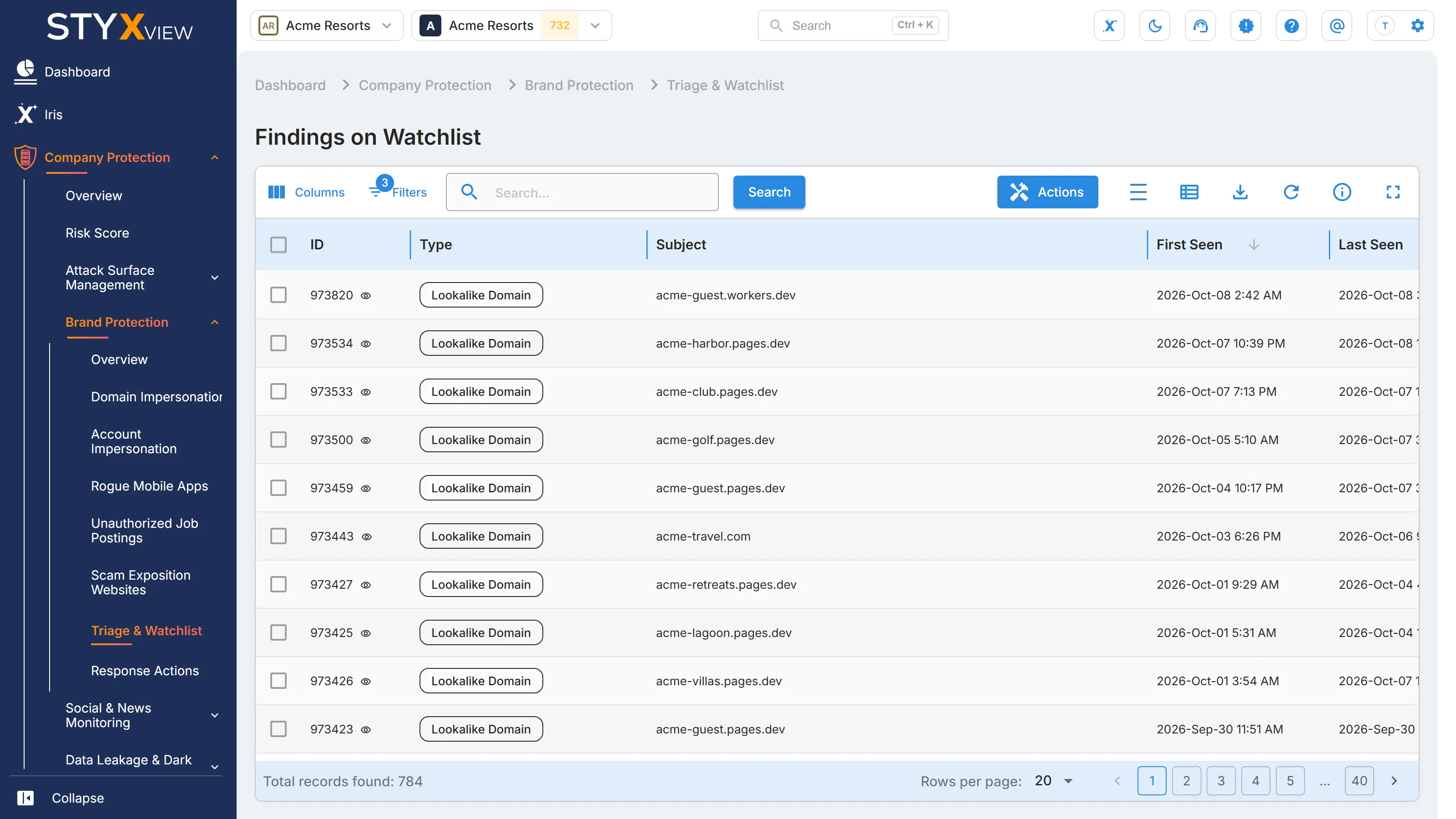
Section titled “Findings on the watchlist”The watchlist holds findings your team wants to keep under observation without acting on them yet, such as a lookalike domain that is registered but shows no content. "Triage & Watchlist" lists every finding on the watchlist in one grid, titled "Findings on Watchlist", whichever module detected it.
Adding a finding to the watchlist changes nothing about detection. It is a marker for your team, and the finding keeps being re-detected and updated.
To open it, select "Company Protection" in the left menu, then "Brand Protection", then "Triage & Watchlist".
How findings get here
Section titled “How findings get here”Select "Add to Watchlist" in the "Actions" menu of a grid that offers it, such as Lookalike Domains or Impersonating Social Media Accounts, or on a finding's detail page. The finding's "Monitored In Watchlist" value becomes "Yes" and it appears here.
The watchlist marker is separate from the status "On Watchlist". This grid shows findings with the marker, whatever their status. Like the other grids, it opens filtered to open statuses and hides false positives. Marking a finding as a false positive or as legitimate takes it off the watchlist.
Columns
Section titled “Columns”| Column | What it shows |
|---|---|
| "ID" | The finding's permanent identifier. |
| "Type" | The kind of finding, such as a lookalike domain or an impersonating account. |
| "Subject" | What the finding is about, such as the domain or the account address. |
| "First Seen" | When StyxView first detected it. |
| "Last Seen" | The most recent scan that still found it. |
| "Severity" | How serious the finding is. |
| "Latest Comment" | The most recent comment on the finding. |
"Status", "Assigned User", and "False Positive" are available under "Columns". The grid opens sorted by "First Seen", newest first.
Actions
Section titled “Actions”Select one or more rows, then "Actions". This grid offers "Update Status", "Assign To", "Comment", "Mark as False Positive", "Mark as Brand Infringement/Impersonation/Leak Detected", "Accept Risk", "Remove from Watchlist", and "Mark as Legitimate", with the matching "Unmark" and "Undo" actions. "Accept Risk" records a conscious decision to leave a finding unfixed: its status becomes "Closed Without Action", so it leaves this list, and it keeps being re-detected. Every action is described in Finding Actions.
To request a takedown, open the finding's detail page by selecting its row, then select "Actions", then "Request Takedown".