

Monitored Assets
Overview
Section titled “Overview”The "Hosts" tab lists every host StyxView has found under your domains: the domains themselves, their subdomains, and the mail servers and name servers they use. Subdomains you are not tracking yourself often turn up here, and forgotten ones are a common way in.
Open it from "Company Protection" > "Attack Surface Management" > "Monitored Assets". "Hosts" is the first tab.
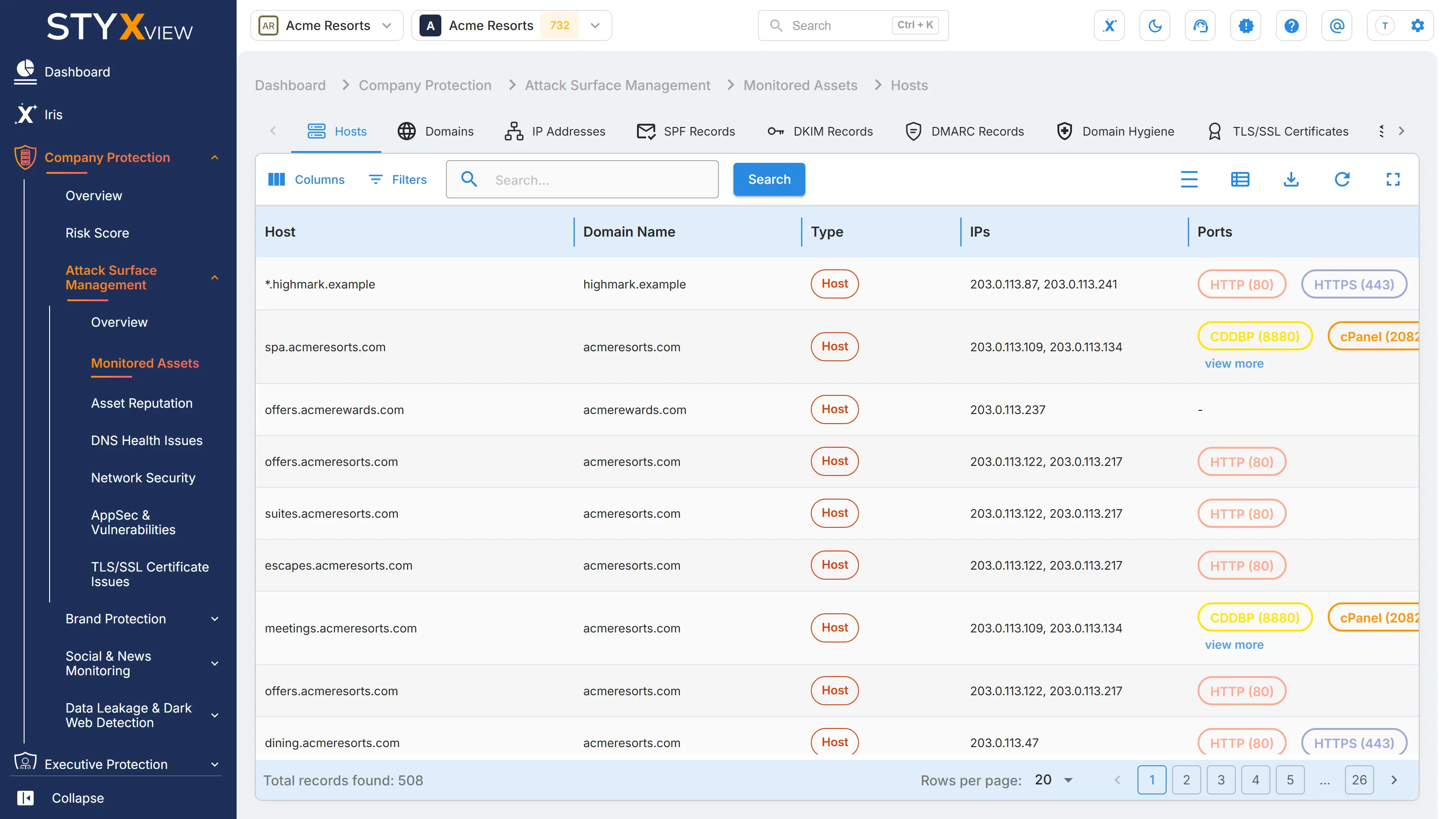
Columns
Section titled “Columns”| Column | What it shows |
|---|---|
| Host | The full host name. |
| Domain Name | The registered domain the host belongs to. |
| Type | "Host" for a domain or subdomain, or "Mail Server", "Name Server", or "SaaS Application". |
| IPs | The IP addresses the host resolves to. Select "view more" when there are several. |
| Ports | The open ports found on the host, with the service on each, such as HTTPS (443). |
| Severity Rating | The rating of the most serious vulnerability found on the host: "Low", "Medium", "High", or "Critical". "None" means no vulnerability was found. Vulnerabilities marked as false positives are not counted. |
| First Seen | When StyxView first detected the host. |
| Last Seen | The most recent scan that found the host. |
"Domain Name" and "Type" filter by a list of values. See Action & Filter Bar for the toolbar.
Host details
Section titled “Host details”Select a row to open the host's detail page. It shows:
- "Host Details": the domain, IP addresses, ports, type, risk rating, and first and last seen dates.
- "TLS/SSL Certificate": the certificate the host presents.
- One "IP Address Details" card per IP address, with its ISP, ASN, and location.
- A table for each kind of issue found on the host, such as "Vulnerabilities", "Potentially Insecure Ports", "SSH Issues", "TLS/SSL Issues", "Website Security Header Issues", "DNS Health Issues", and "Blocklisted Assets", plus the host's "Open Ports" and "Technologies".
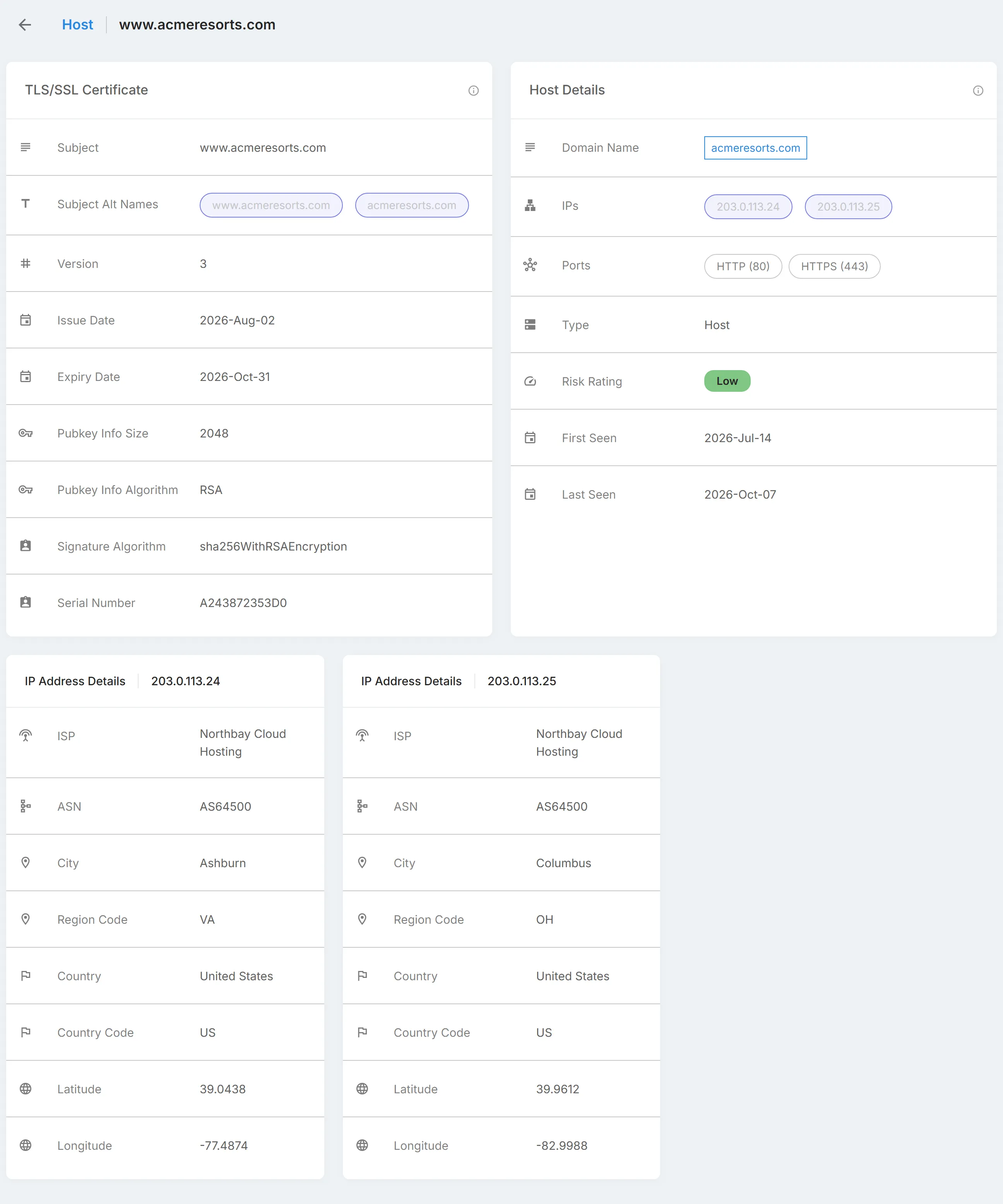
Select a row in an issue table to open its details.
Third parties
Section titled “Third parties”For a third party you monitor, open "Third Party Risk", the third party's name, then "Assets". "Hosts" is the first tab and lists that third party's hosts.
Domains
Section titled “Domains”Overview
Section titled “Overview”The "Domains" tab lists the registered domains monitored for your organization, with their registration and DNS details. Hosts, DNS records, and email authentication checks start from this list, so a domain missing here is not checked. Add domains under "Configuration" > "Policies". See Policies.
Open it from "Company Protection" > "Attack Surface Management" > "Monitored Assets" > "Domains".
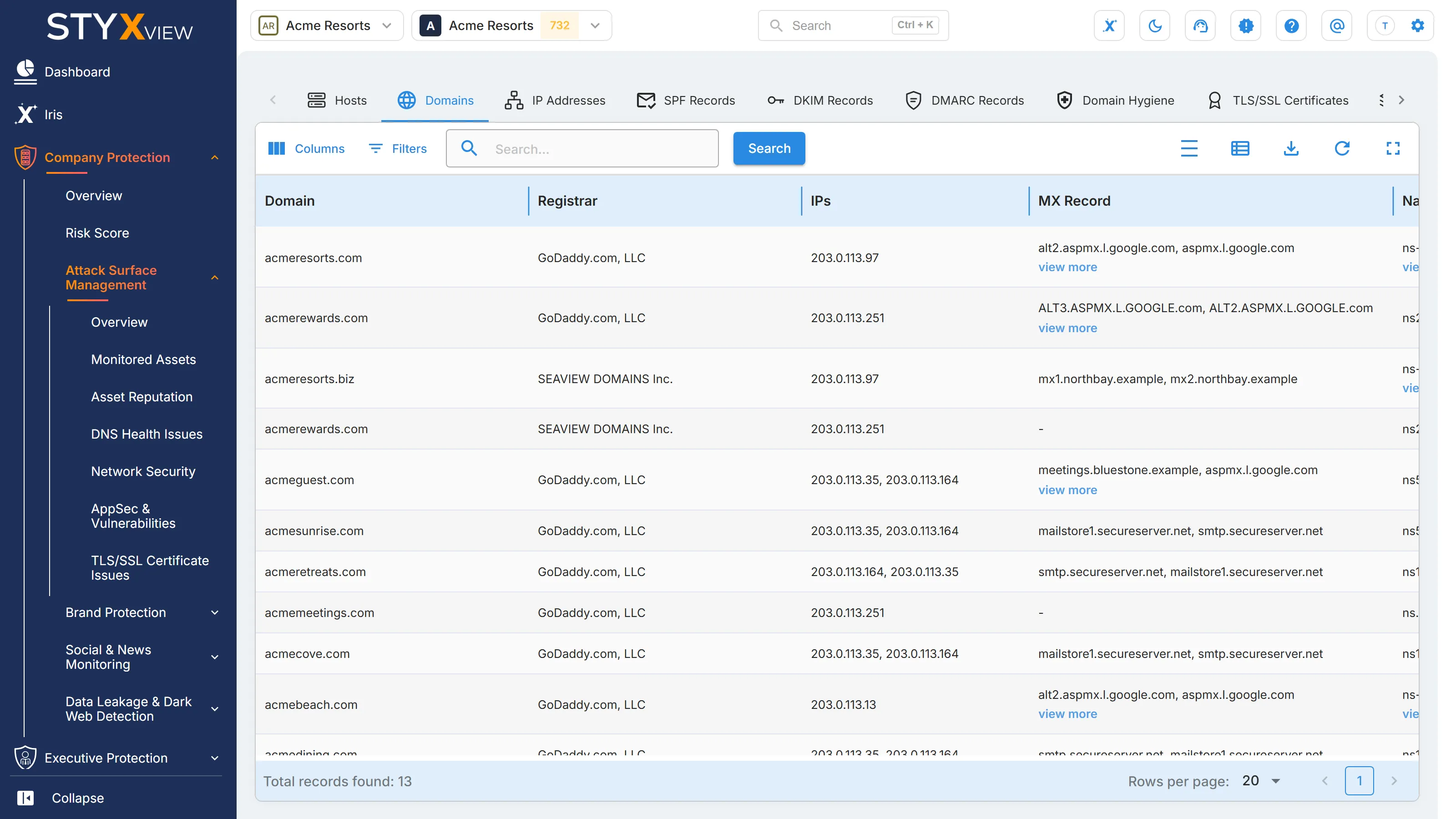
Columns
Section titled “Columns”| Column | What it shows |
|---|---|
| Domain | The registered domain. |
| Registrar | The company the domain is registered through. |
| IPs | The IP addresses the domain resolves to. |
| MX Record | The mail servers the domain publishes. |
| Name Servers | The DNS servers authoritative for the domain. |
| Has Backup MailServer | Whether the domain publishes more than one mail server. |
| Has Backup NameServer | Whether the domain publishes more than one name server. |
| Domain Creation | When the domain was first registered. |
| Domain Expiry | When the registration lapses. A lapsed domain can be registered by anyone. |
"Has Backup MailServer" and "Has Backup NameServer" read "Yes", "No", "Not Applicable" when the check does not apply to the domain, or "Unknown" when the domain has not been checked yet. A single mail server or name server is a single point of failure, not a security finding.
"Admin Email", "Registrant Email", and "Tech Email" from the domain's WHOIS record are hidden by default. Add them with "Columns". See Action & Filter Bar.
Domain details
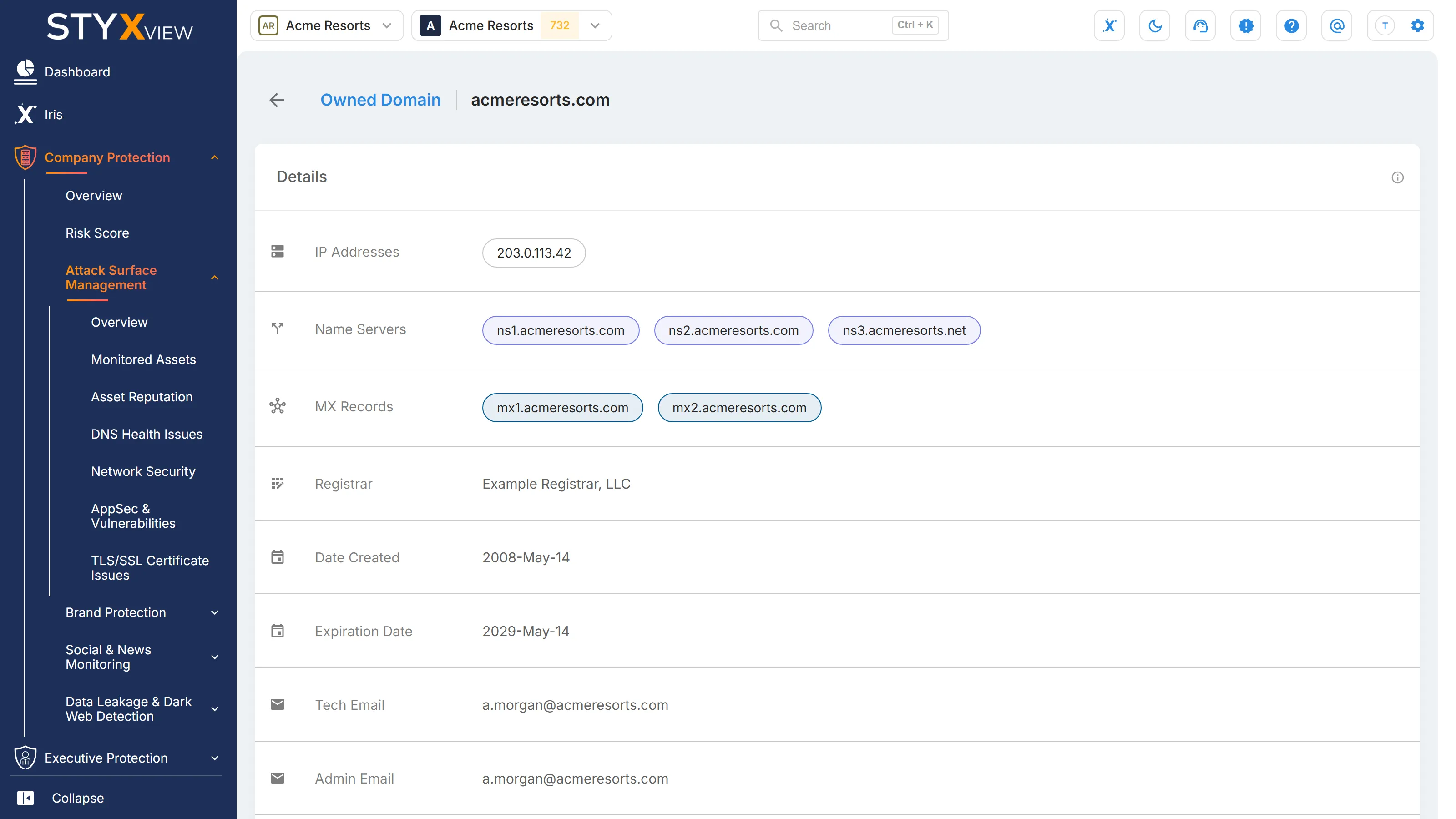
Section titled “Domain details”Select a row to open the domain's detail page. It shows:
- "Details": IP addresses, name servers, MX records, registrar, creation and expiration dates, and the WHOIS contact emails.
- The domain's "SPF Records", "DKIM Records", "DMARC Records", and "Domain Hygiene" results.
- Its "Subdomains" and "Technologies".
- A table for each kind of issue found on the domain, such as "SPF Issues", "DNS Health Issues", "Blocklisted Assets", "Potentially Insecure Ports", "Insecure Protocols", "Vulnerabilities", "Website Header Issues", and "TLS/SSL Certificate Issues".
Third parties
Section titled “Third parties”For a third party you monitor, open "Third Party Risk", the third party's name, "Assets", then "Domains".
IP Addresses
Section titled “IP Addresses”Overview
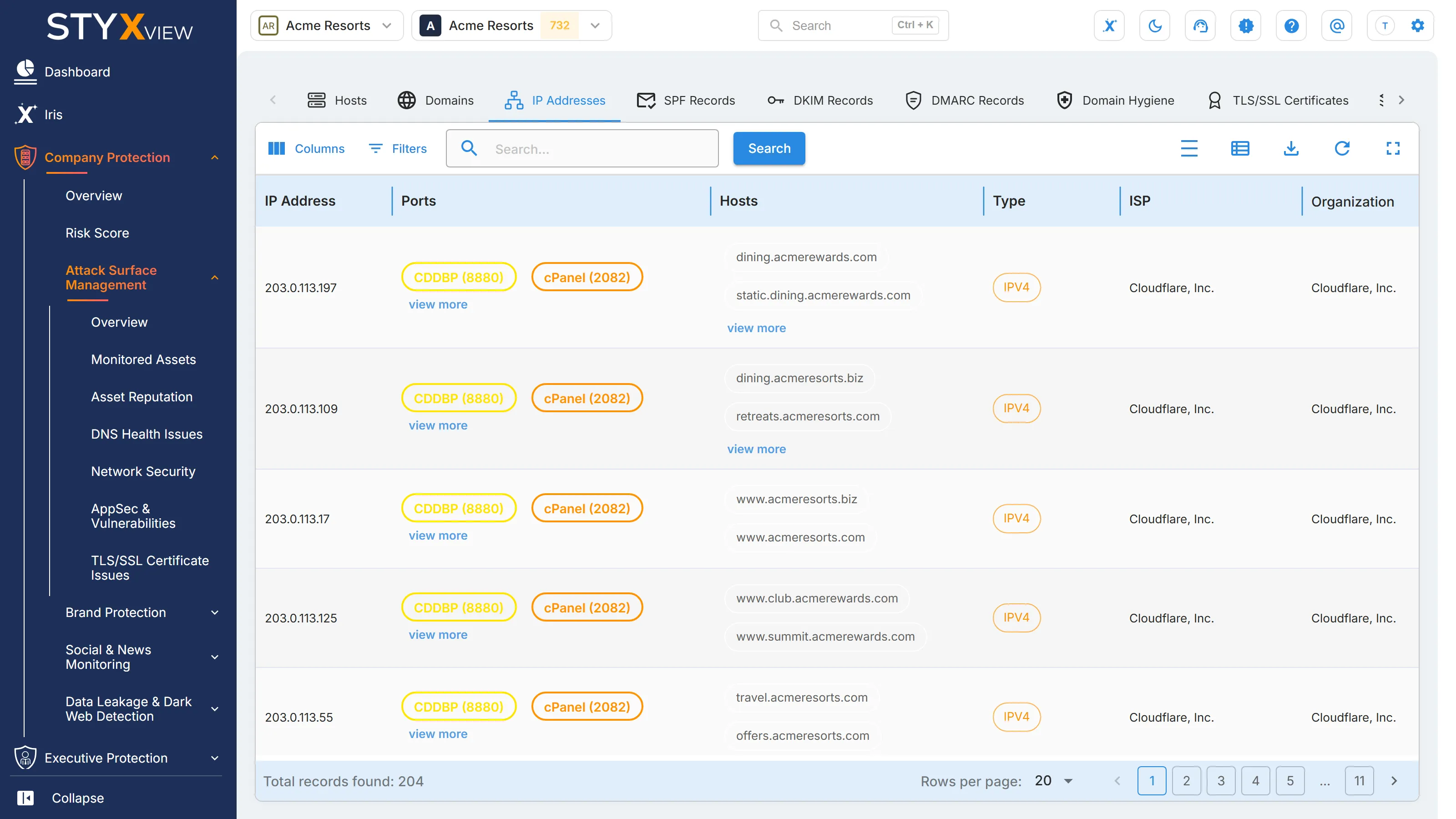
Section titled “Overview”The "IP Addresses" tab lists the public IP addresses linked to your organization: addresses your hosts resolve to, and dedicated addresses listed in your policy. It shows where each address sits and who operates the network.
Open it from "Company Protection" > "Attack Surface Management" > "Monitored Assets" > "IP Addresses".
Columns
Section titled “Columns”| Column | What it shows |
|---|---|
| IP Address | The address. |
| Ports | The open ports found on the address, with the service on each. |
| Hosts | The host names that resolve to the address. |
| Type | "IPV4" or "IPV6". |
| ISP | The provider operating the network the address belongs to. |
| Organization | The organisation the address block is registered to. |
| City | The city the address geolocates to. |
| Country | The country the address geolocates to. |
| Source | How StyxView found the address: "DNS Resolved" (one of your hosts resolves to it), "Dedicated IP Address" (listed as dedicated in your policy), or both. |
An address shared with other organisations, such as one behind a hosting provider or content delivery network, can carry findings that belong to a neighbour. Confirm ownership before acting on one.
More columns are hidden by default: "Country Code", "Region Code", "OS", "Tags", "Longitude", "Latitude", "Reverse Lookup Host Name", "Reverse Lookup Domains", and "ASN". Add them with "Columns". See Action & Filter Bar.
IP address details
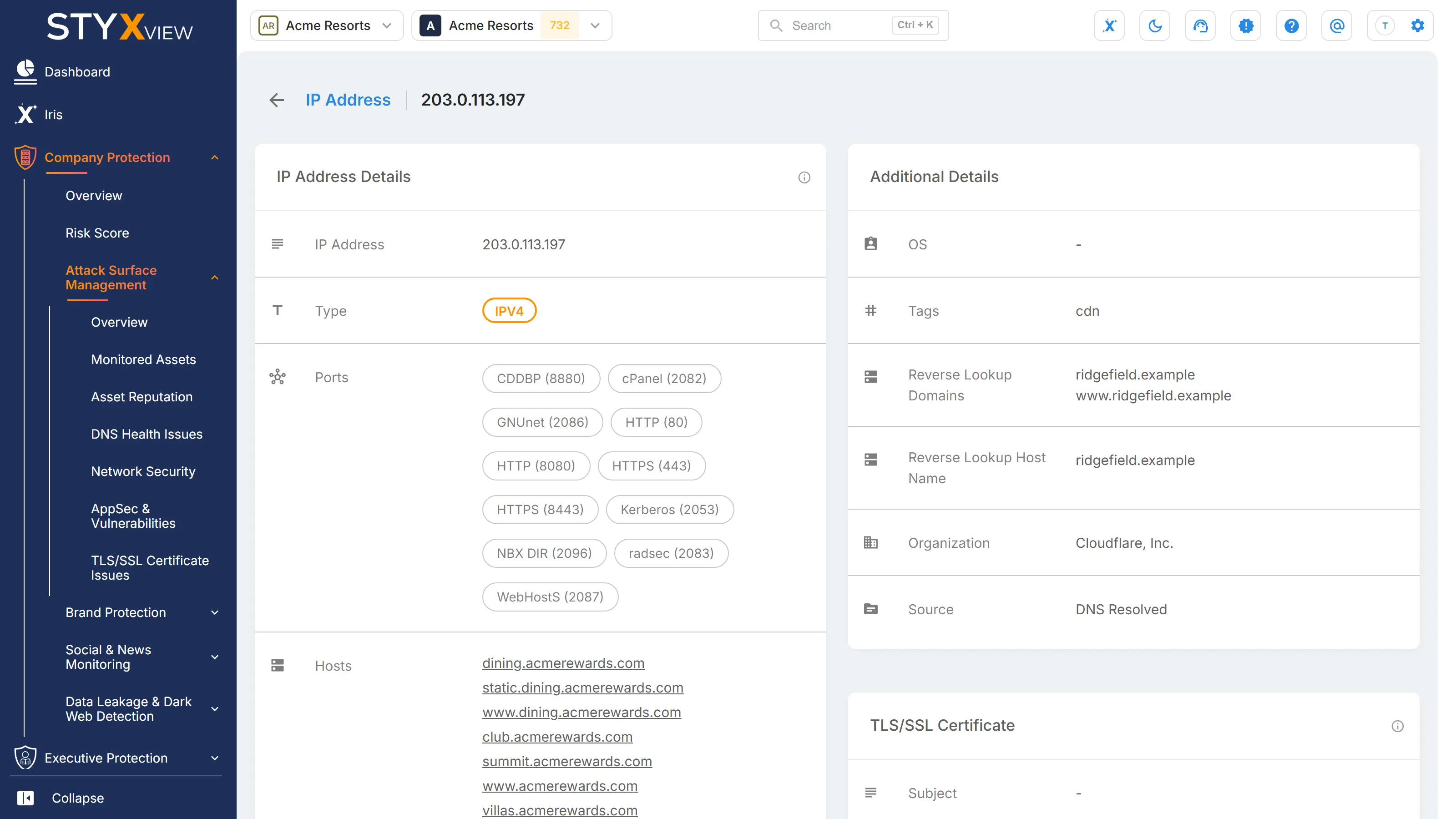
Section titled “IP address details”Select a row to open the address's detail page. It shows:
- "IP Address Details": type, ports, hosts, location, and ISP.
- "Additional Details": operating system, tags, reverse lookup results, organisation, and source.
- "TLS/SSL Certificate": the certificate served on the address.
- A table for each kind of issue found on the address, such as "Vulnerabilities", "CVEs", "Potential Insecure Ports", "SSH Issues", "TLS/SSL issues", and "Blocklisted Assets", plus its "Hosts" and "Open Ports".
SPF Records
Section titled “SPF Records”Overview
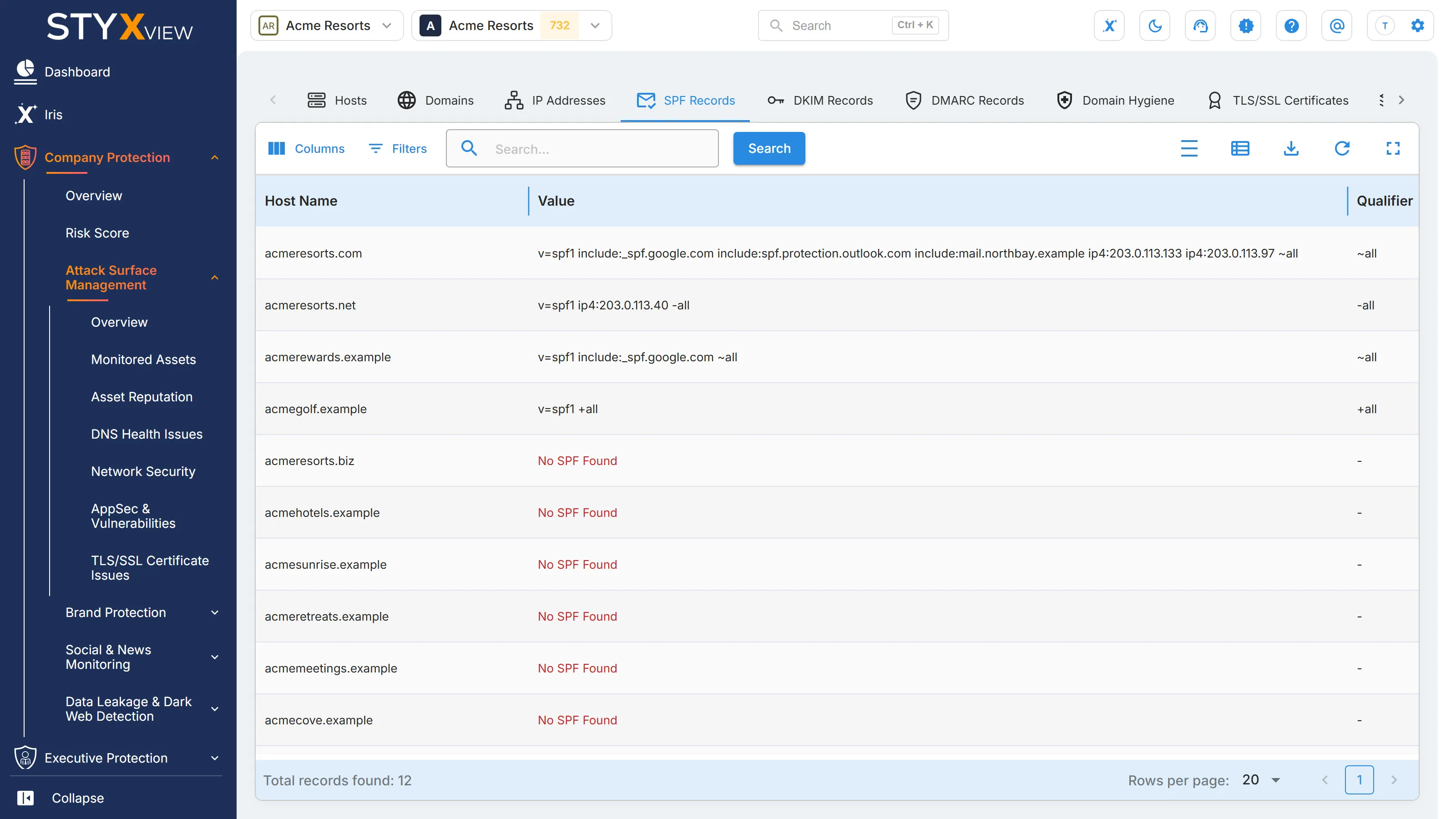
Section titled “Overview”A Sender Policy Framework (SPF) record lists the mail servers allowed to send email as a domain. Without one, anyone can send mail that claims to come from you. The "SPF Records" tab shows the record published for each of your domains, one row per domain.
Open it from "Company Protection" > "Attack Surface Management" > "Monitored Assets" > "SPF Records".
Columns
Section titled “Columns”| Column | What it shows |
|---|---|
| Host Name | The domain. |
| Value | The SPF record exactly as published in DNS. |
| Qualifier | The "all" rule at the end of the record, which tells receiving servers what to do with mail from servers the record does not list. |
| Wild Card | "Yes" when a mechanism in the record uses a wildcard, "No" when none does, and "N/A" when the check does not apply. |
| Severity Rating | How serious the problems with the record are, from "Very Low" to "Very High". |
"First Seen" and "Last Seen" are hidden by default. Add them with "Columns".
When the domain has no usable record, "Value" reads:
- "No SPF Found": the domain publishes no SPF record.
- "No SPF Found (Invalid)": the record contains "?all", which tells receivers to treat unlisted senders as neutral. StyxView treats it as no record.
Qualifier
Section titled “Qualifier”| Qualifier | Meaning |
|---|---|
| -all | Hard fail: reject mail from servers the record does not list. This is the enforcing setting. |
| ~all | Soft fail: accept the mail but mark it as suspicious. This raises the "SPF Record contains a Softfail" issue. |
| ?all | Neutral: no guidance for unlisted servers. |
A record with no qualifier raises the "Lack of qualifier - SPF record" issue.
Wild Card
Section titled “Wild Card”SPF does not support wildcards. A mechanism such as include:*.contoso.com authorises no sender at all, so legitimate mail sent through it can fail authentication. A wildcard raises the "SPF Record Contains Wildcard" issue.
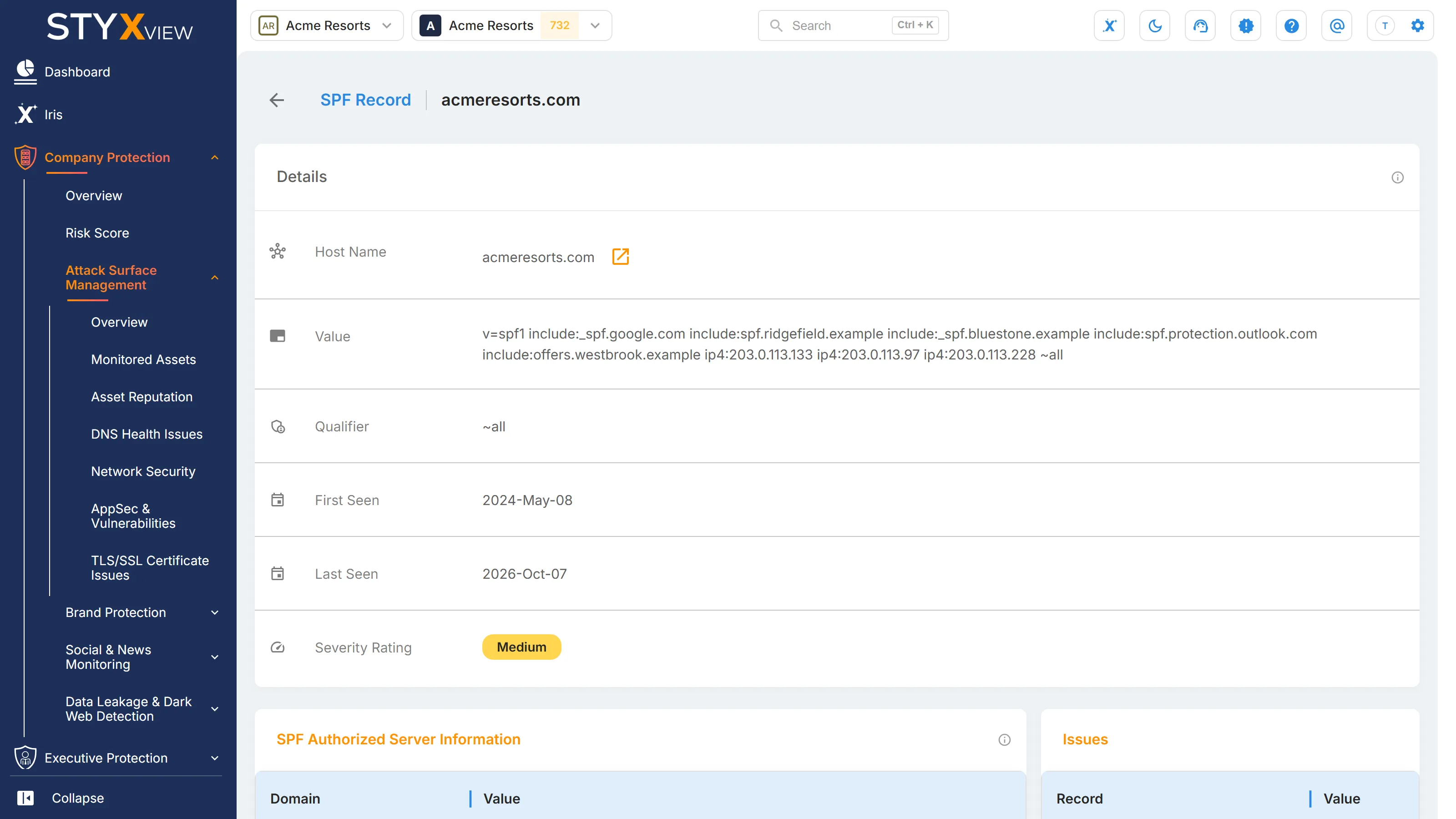
SPF record details
Section titled “SPF record details”Select a row to open the record's detail page. "Details" repeats the columns above, "SPF Authorized Server Information" lists the servers the record permits to send as the domain, and "Issues" lists the problems found in it. Review the authorised servers: an entry you do not recognise, or a broad include that pulls in a provider's whole range, can send mail as you.
What to do
Section titled “What to do”SPF problems, including a missing record, are raised as findings on the DNS Health Issues page. Assign and track them there.
Third parties
Section titled “Third parties”For a third party you monitor, open "Third Party Risk", the third party's name, "Assets", then "SPF Records".
DKIM Records
Section titled “DKIM Records”Overview
Section titled “Overview”DomainKeys Identified Mail (DKIM) lets a domain sign its outgoing mail. Recipients check the signature against a public key the domain publishes in DNS, which proves the message came from the domain and was not altered. SPF says who may send; DKIM proves the message is intact. DMARC needs at least one of them to pass before it can enforce anything.
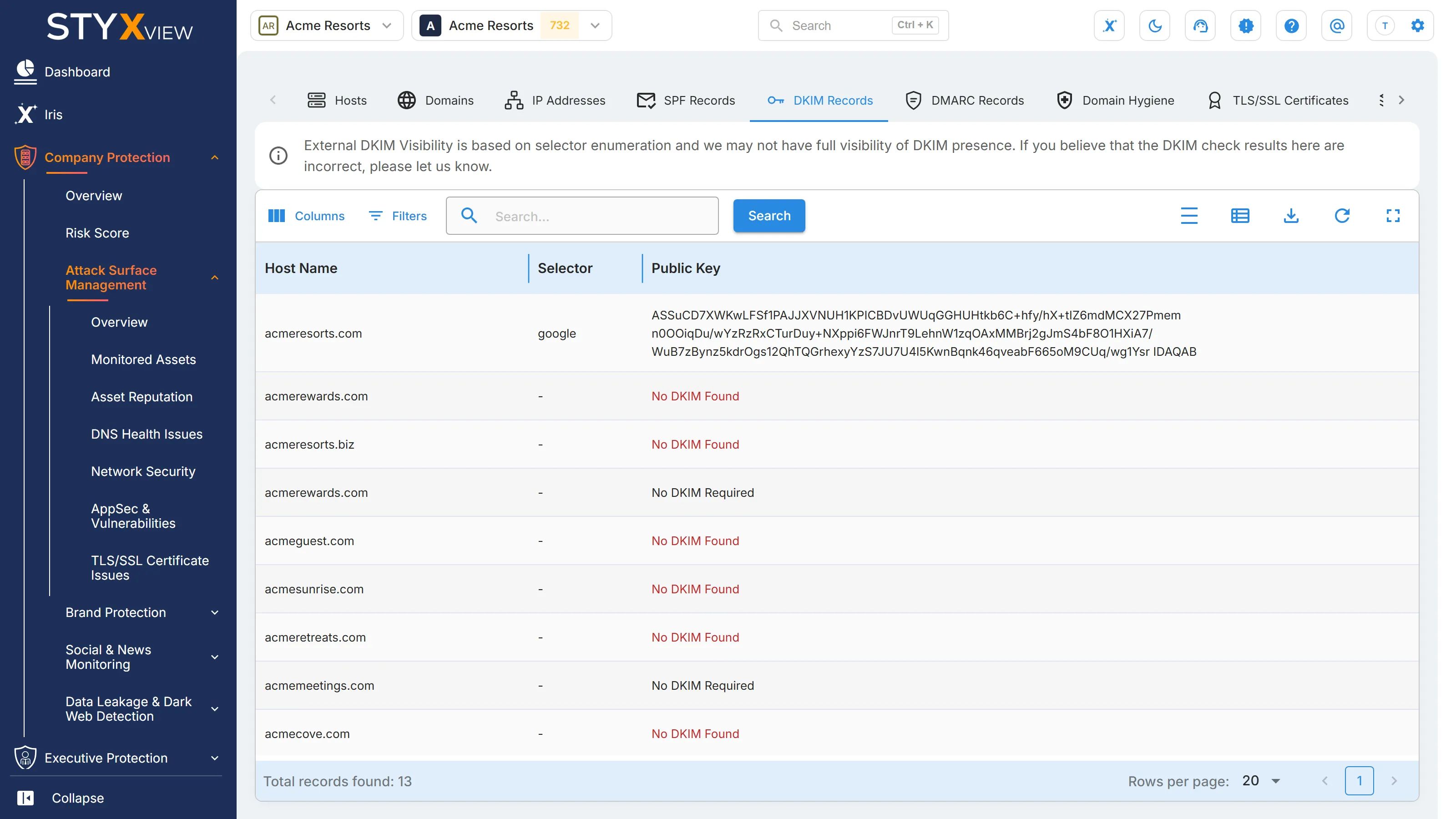
The "DKIM Records" tab shows the keys found for each of your domains, one row per key, or one row per domain when no key was found.
Open it from "Company Protection" > "Attack Surface Management" > "Monitored Assets" > "DKIM Records".
Columns
Section titled “Columns”| Column | What it shows |
|---|---|
| Host Name | The domain. |
| Selector | The name the key is published under. One domain can publish several, usually one per sending service. |
| Public Key | The public key recipients use to verify signed mail, or a status when no key was found. |
| Severity Rating | How serious the problem is, from "Very Low" to "Very High". |
"First Seen" and "Last Seen" are hidden by default. Add them with "Columns".
When no key was found, "Public Key" reads:
- "No DKIM Found": no key was found, and the "Missing DKIM record" issue is open for the domain.
- "No DKIM Found (finding suppressed)": no key was found, and the "Missing DKIM record" finding was marked as a false positive.
- "No DKIM Required": no key was found, and the domain is not flagged for a missing DKIM record.
DKIM record details
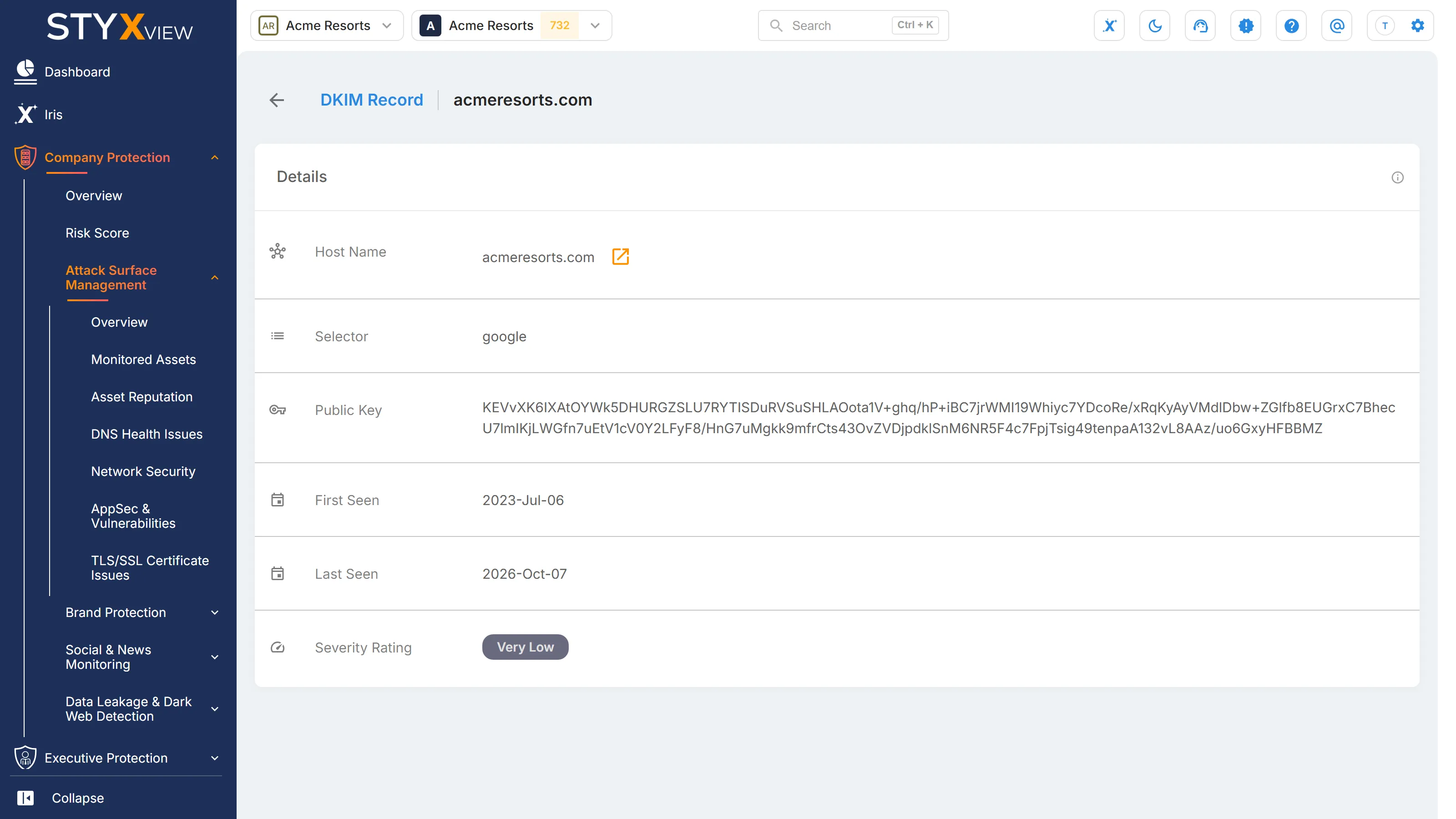
Section titled “DKIM record details”Select a row to open the record's detail page, which repeats the columns above with the full public key and the first and last seen dates.
What to do
Section titled “What to do”A missing DKIM record is raised as a finding on the DNS Health Issues page. Assign and track it there. If you send mail through a service with no key listed here, check that the service signs your mail and that its key is published under your domain.
Third parties
Section titled “Third parties”For a third party you monitor, open "Third Party Risk", the third party's name, "Assets", then "DKIM Records".
DMARC Records
Section titled “DMARC Records”Overview
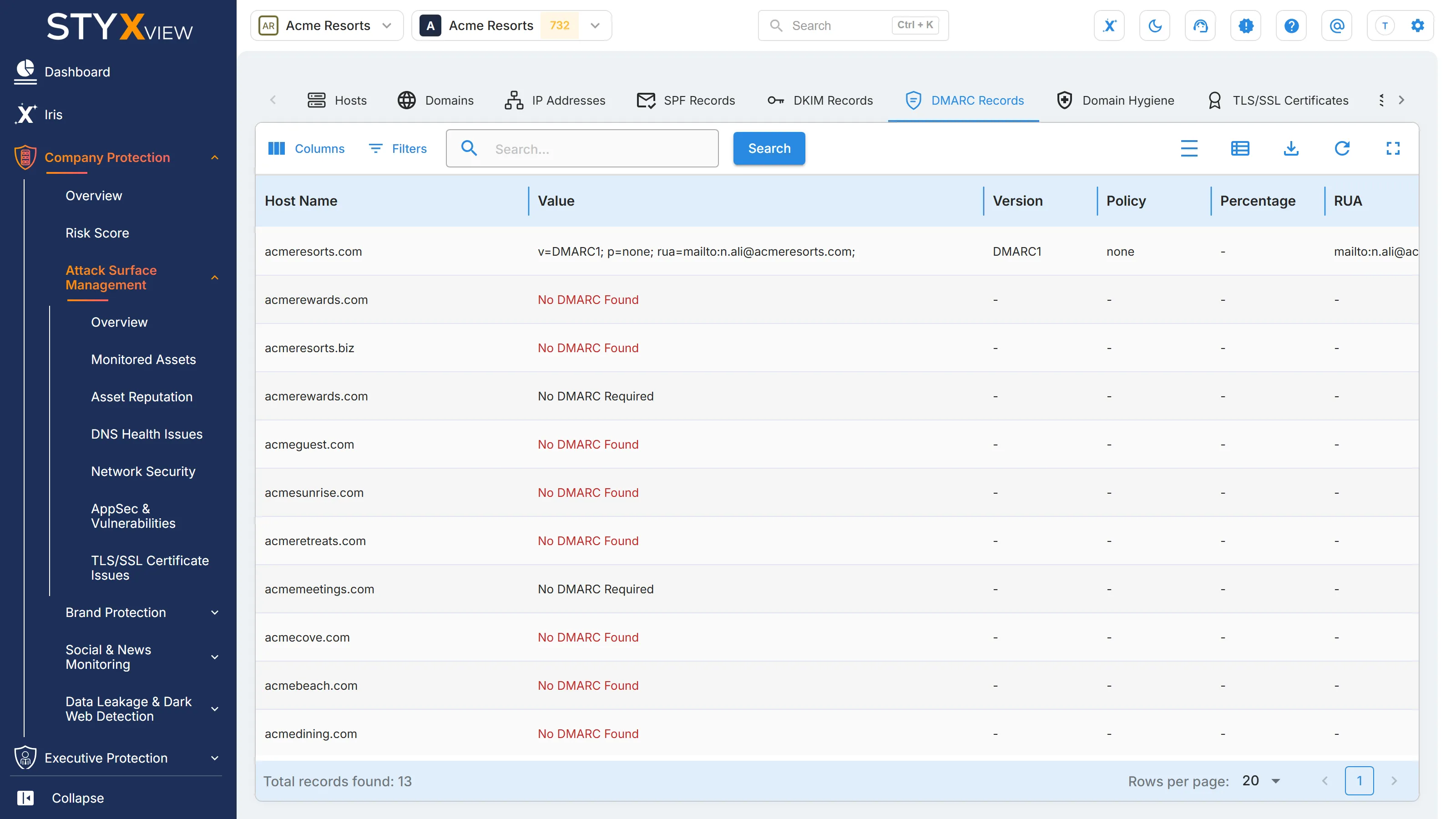
Section titled “Overview”Domain-based Message Authentication, Reporting, and Conformance (DMARC) builds on SPF and DKIM. A domain's DMARC record tells receiving mail servers what to do with mail that claims to come from the domain but fails those checks, and where to send reports about it. The "DMARC Records" tab shows the record for each of your domains, one row per domain.
Open it from "Company Protection" > "Attack Surface Management" > "Monitored Assets" > "DMARC Records".
Columns
Section titled “Columns”| Column | What it shows |
|---|---|
| Host Name | The domain. |
| Value | The DMARC record exactly as published in DNS, or a status when no record was found. |
| Version | The DMARC version, "DMARC1". |
| Policy | What receivers should do with mail that fails: "none", "quarantine", or "reject". |
| Percentage | The share of failing mail, in percent, that the policy applies to. |
| RUA | The address receivers send aggregate DMARC reports to. |
| Severity Rating | How serious the problem is, from "Very Low" to "Very High". |
"First Seen" and "Last Seen" are hidden by default. Add them with "Columns".
Policy
Section titled “Policy”| Policy | Meaning |
|---|---|
| none | Monitor only. Failing mail is still delivered, and reports are sent. |
| quarantine | Failing mail is treated as suspicious, usually delivered to spam. |
| reject | Failing mail is refused. This is the enforcing setting. |
A record with no "RUA" address can enforce, but nobody receives reports on who is sending mail as you.
No record
Section titled “No record”When no record was found, "Value" reads:
- "No DMARC Found": no record was found, and the "Missing DMARC record" issue is open for the domain.
- "No DMARC Required": no record was found, and the domain is not flagged for a missing DMARC record.
DMARC record details
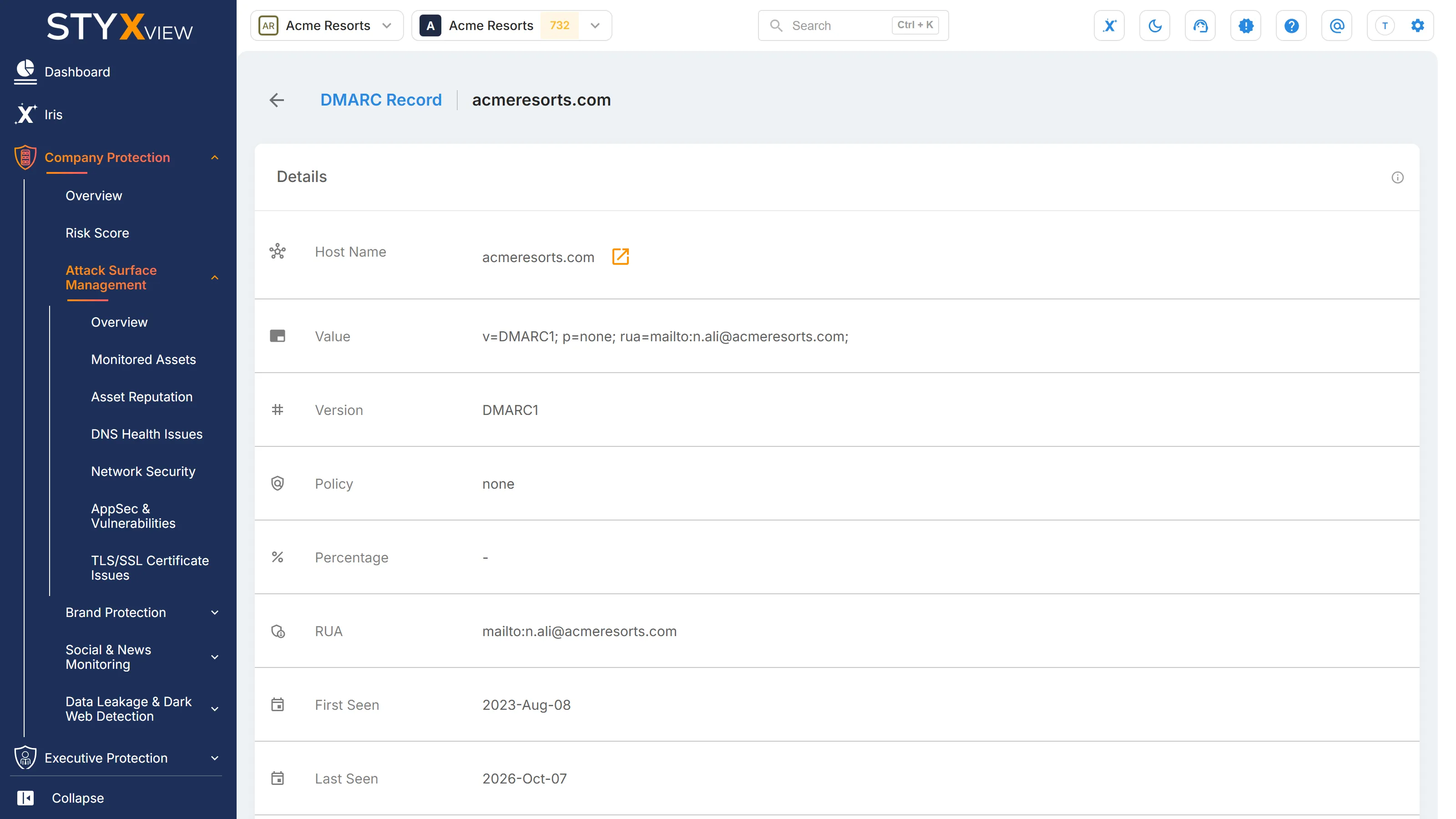
Section titled “DMARC record details”Select a row to open the record's detail page, which repeats the columns above with the first and last seen dates.
What to do
Section titled “What to do”A missing or duplicated DMARC record is raised as a finding on the DNS Health Issues page. Assign and track it there.
Third parties
Section titled “Third parties”For a third party you monitor, open "Third Party Risk", the third party's name, "Assets", then "DMARC Records".
Domain Hygiene
Section titled “Domain Hygiene”Overview
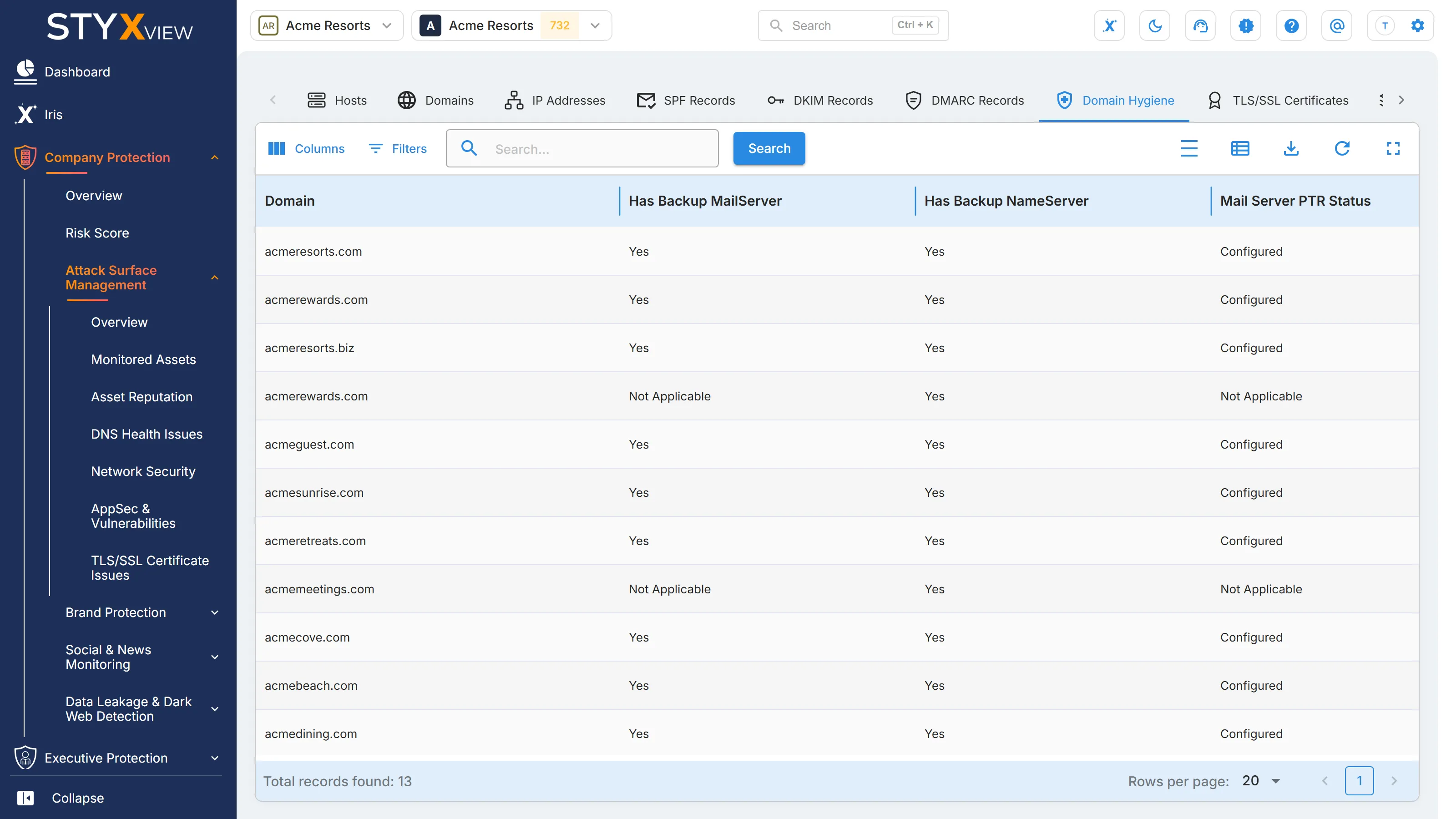
Section titled “Overview”The "Domain Hygiene" tab checks the basic resilience and mail configuration of each of your domains, one row per domain.
Open it from "Company Protection" > "Attack Surface Management" > "Monitored Assets" > "Domain Hygiene".
Columns
Section titled “Columns”| Column | What it shows |
|---|---|
| Domain | The domain. |
| Has Backup MailServer | Whether the domain publishes more than one mail server. |
| Has Backup NameServer | Whether the domain publishes more than one name server. |
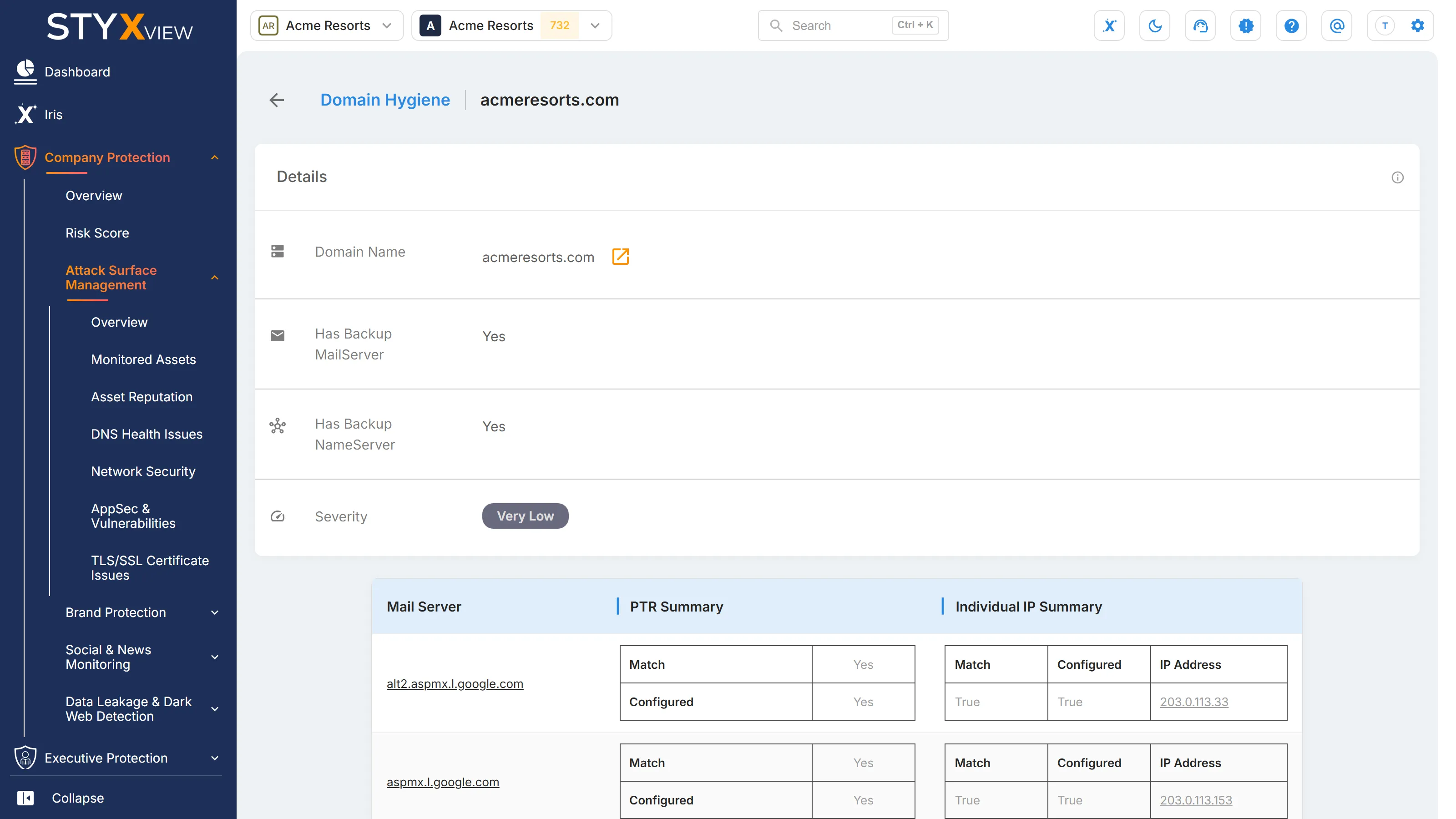
| Mail Server PTR Status | Whether the reverse DNS (PTR) records of the domain's mail servers are set up and match. |
| Severity Rating | How serious the domain's hygiene problems are, from "Very Low" to "Very High". |
"Has Backup MailServer" and "Has Backup NameServer" read "Yes", "No", "Not Applicable" when the check does not apply to the domain, or "Unknown" when the domain has not been checked yet.
"Mail Server PTR Status" reads "Configured", "Partially Configured", "Not Configured", "Not Applicable", or "Unknown". Receiving mail servers look up the reverse DNS of the sending address. A missing or mismatched record is a common reason legitimate mail is filtered as spam.
What each problem means
Section titled “What each problem means”| Problem | Issue raised | Rating |
|---|---|---|
| Only one mail server | "Missing backup email server" | "Medium" |
| Only one name server | "Missing backup name server" | "Medium" |
| Mail server reverse DNS does not match its host name | "Mailserver PTR Mismatch" | "Low" |
These issues are findings on the DNS Health Issues page. Assign and track them there. A single mail server or name server is a single point of failure: if it goes down, mail delivery or the whole domain stops.
Domain hygiene details
Section titled “Domain hygiene details”Select a row to open the domain's detail page. "Details" repeats the backup server checks and the severity. Below it, each mail server has its own card: select the server name to open its host page, and read "Match" and "Configured" for its reverse DNS, overall and for each of its IP addresses.
Third parties
Section titled “Third parties”For a third party you monitor, open "Third Party Risk", the third party's name, "Assets", then "Domain Hygiene".
TLS/SSL Certificates
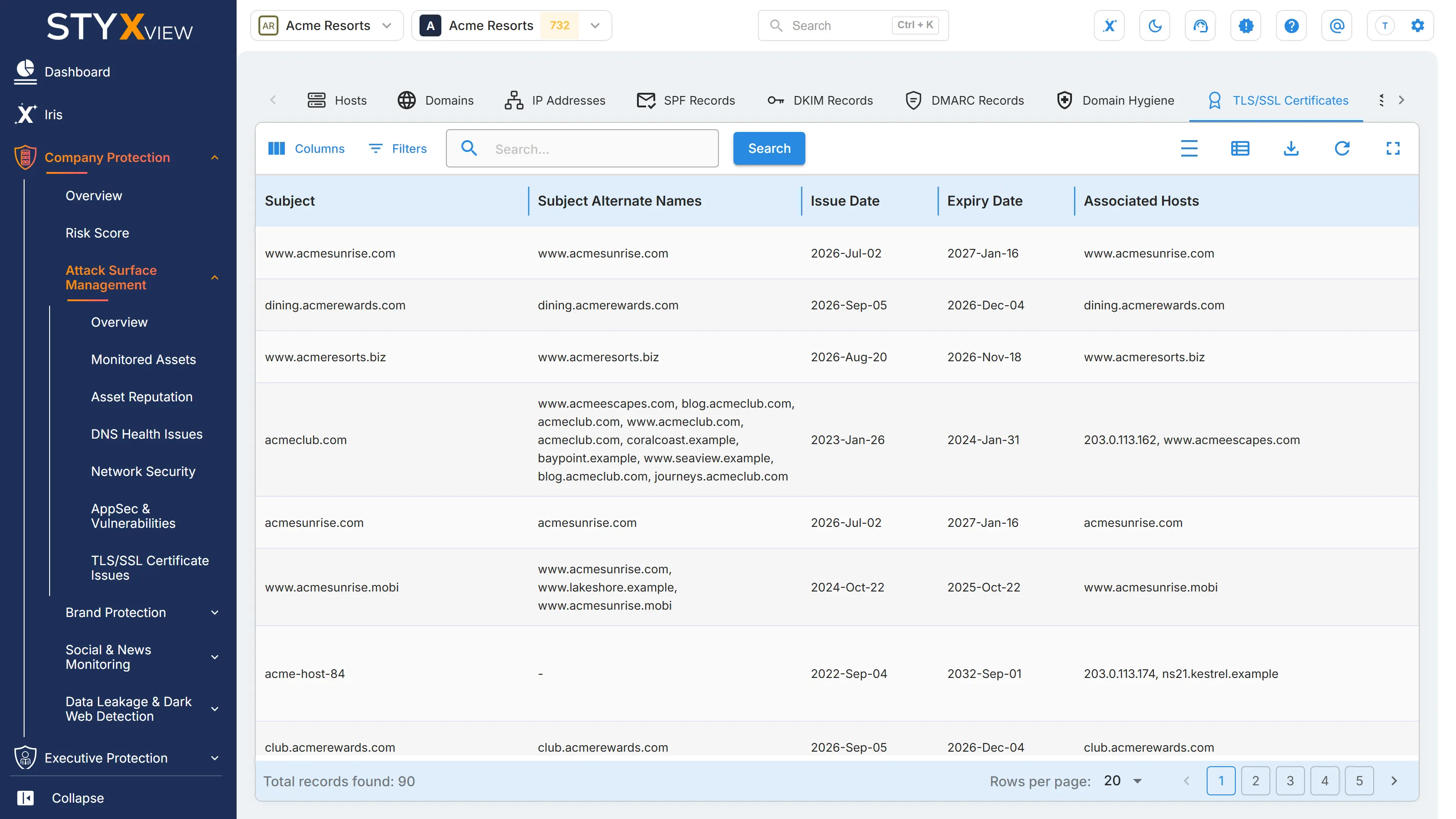
Section titled “TLS/SSL Certificates”Overview
Section titled “Overview”The "TLS/SSL Certificates" tab is the inventory of certificates StyxView found on your hosts, one row per certificate. Problems with them, such as expiry or a name mismatch, are tracked as findings on TLS/SSL Certificate Issues.
Open it from "Company Protection" > "Attack Surface Management" > "Monitored Assets" > "TLS/SSL Certificates".
Columns
Section titled “Columns”| Column | What it shows |
|---|---|
| Subject | The common name the certificate was issued to. |
| Subject Alternate Names | Every host name the certificate is valid for. Serving it on any other name fails validation. |
| Issue Date | When the certificate authority issued the certificate. |
| Expiry Date | When the certificate stops being valid. |
| Associated Hosts | The hosts and IP addresses serving the certificate. |
| Port | The port the certificate is served on. |
| Issues | The certificate issues found, such as "Mismatch", "Expiring soon", or "Insecure Protocols". See TLS/SSL Certificate Issues for the full list. |
| Severity Rating | How serious the certificate's issues are, from "Very Low" to "Very High". |
| Serial Number | The serial number the certificate authority assigned. It tells two certificates on the same host apart. |
More columns are hidden by default: "Version", "Pubkey Info Size", "Signature Algorithm", "Pubkey Info Algorithm", "Cipher Suite Supported", "Lowest TLS Supported", "Highest TLS Supported", "Cert Days Left", "Issuer", and "Supported Protocols". Add them with "Columns". "Lowest TLS Supported" matters most: an attacker who controls the connection picks the weakest version the server still accepts.
Certificate details
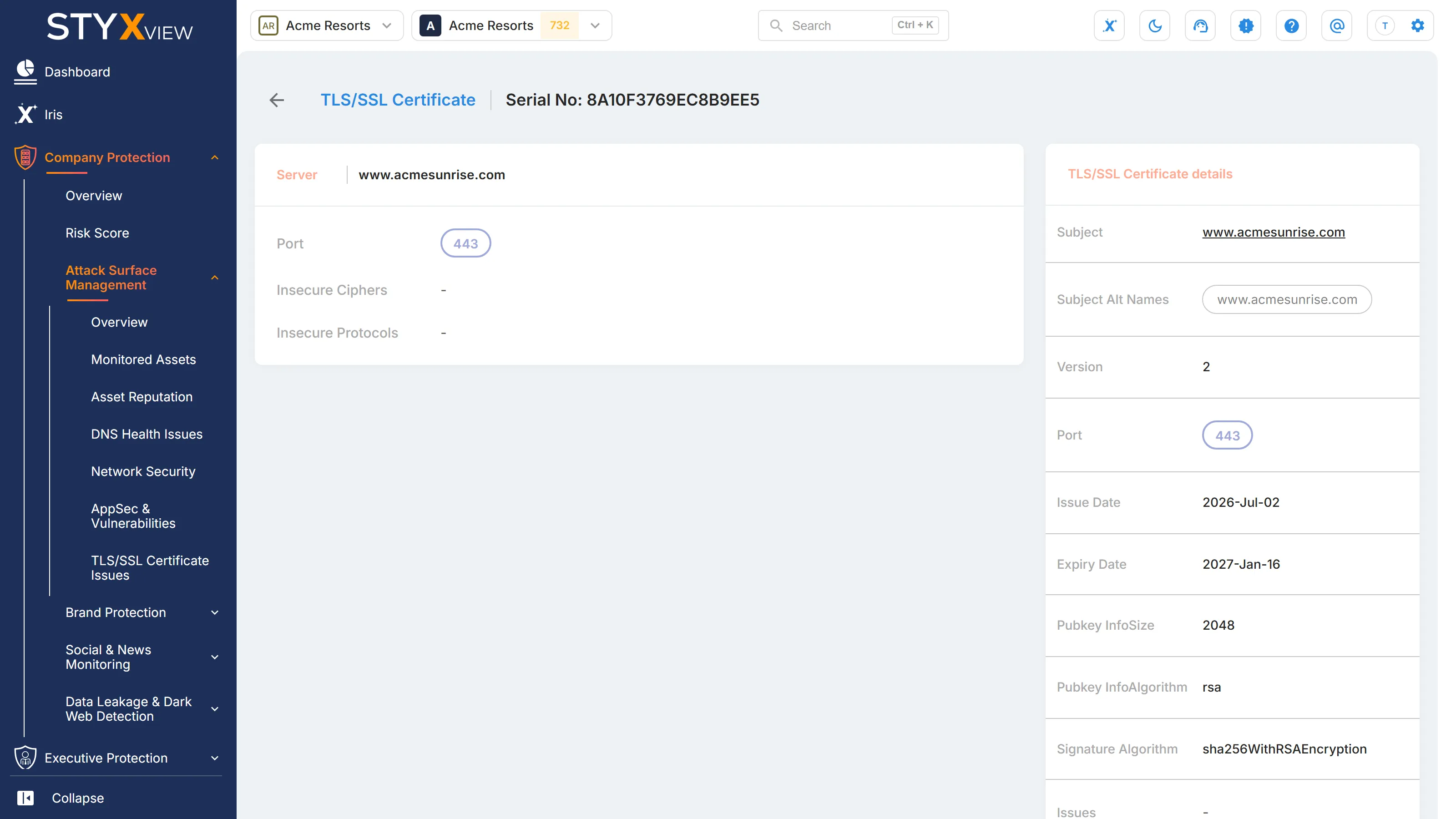
Section titled “Certificate details”Select a row to open the certificate's detail page. "TLS/SSL Certificate details" lists the subject, alternative names, version, port, issue and expiry dates, key size and algorithm, signature algorithm, and issues. Beside it, each server presenting the certificate has a card with its port and any insecure ciphers and protocols it accepts. Select the server name to open that host.
Third parties
Section titled “Third parties”For a third party you monitor, open "Third Party Risk", the third party's name, "Assets", then "TLS/SSL Certificates".
Web Server Technologies
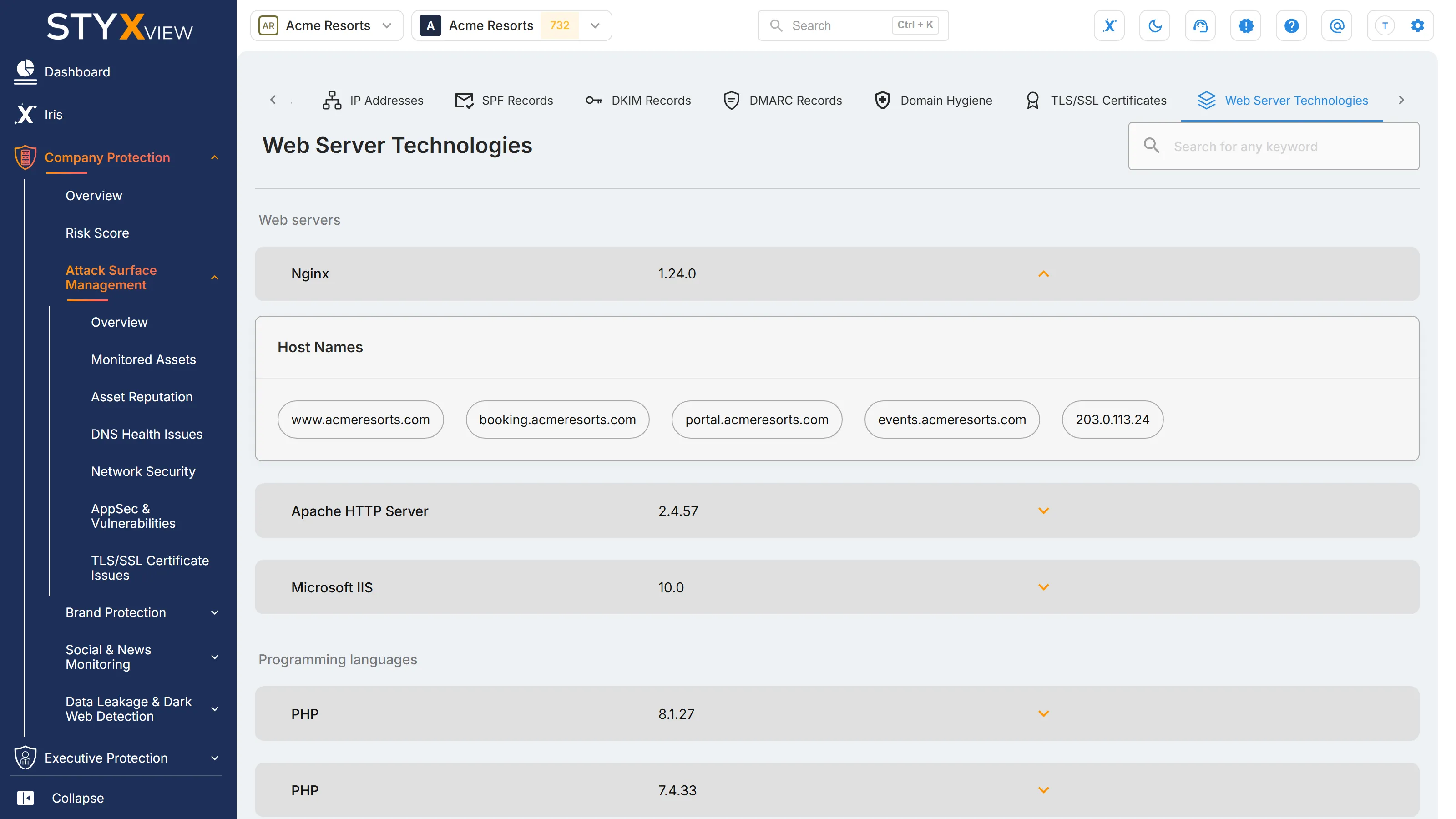
Section titled “Web Server Technologies”The "Web Server Technologies" tab lists the software StyxView has detected running on your websites and web servers, with the version where it could be read. Use it to find outdated versions, and to see which hosts run a product when a new vulnerability is published for it.
Open it from "Company Protection" > "Attack Surface Management" > "Monitored Assets" > "Web Server Technologies".
How the list is organised
Section titled “How the list is organised”Technologies are grouped under their category. Each row shows a technology's name and the version found. A dash means no version was detected.
The same technology appears once per version. If your hosts run two versions of a product, it has two rows.
The list shows what the latest scans found. Technologies no longer detected, and technologies marked as false positives, are not listed.
Hosts running a technology
Section titled “Hosts running a technology”Select the arrow on a row to show "Host Names", the hosts where that technology and version were found. Select a host to open its page in a new tab. See Host details and IP address details.
Search the list
Section titled “Search the list”Enter a word in "Search for any keyword" and press Enter. The list keeps the technologies whose category, name, version, or host contains what you typed. Clear the box to show the full list again.
Mobile Apps
Section titled “Mobile Apps”Overview
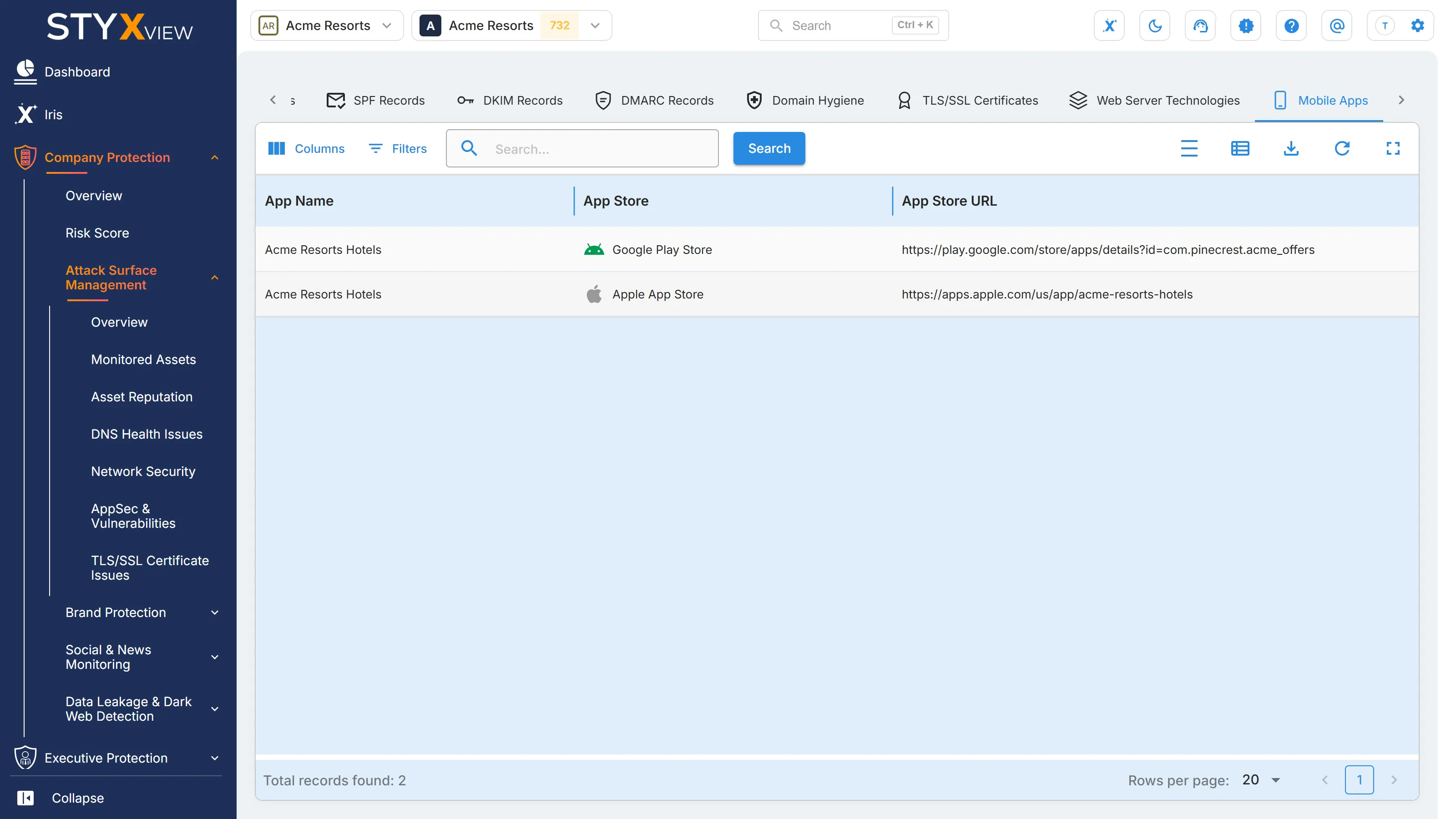
Section titled “Overview”The "Mobile Apps" tab lists your organization's official mobile apps. Apps added to your Company Protection policy under "Mobile Apps" appear here. Add or change them under "Configuration" > "Policies". See Policies.
Knowing which apps are genuinely yours is what makes impersonating apps stand out. Apps published in your name by someone else are reported under Brand Protection. See Rogue Mobile Apps.
Open the tab from "Company Protection" > "Attack Surface Management" > "Monitored Assets" > "Mobile Apps".
Columns
Section titled “Columns”| Column | What it shows |
|---|---|
| App Name | The name the app is published under. |
| App Store | The store the app is published in, such as "Google Play Store" or "Apple App Store". |
| App Store URL | The app's page in the store. |
Social Media
Section titled “Social Media”Overview
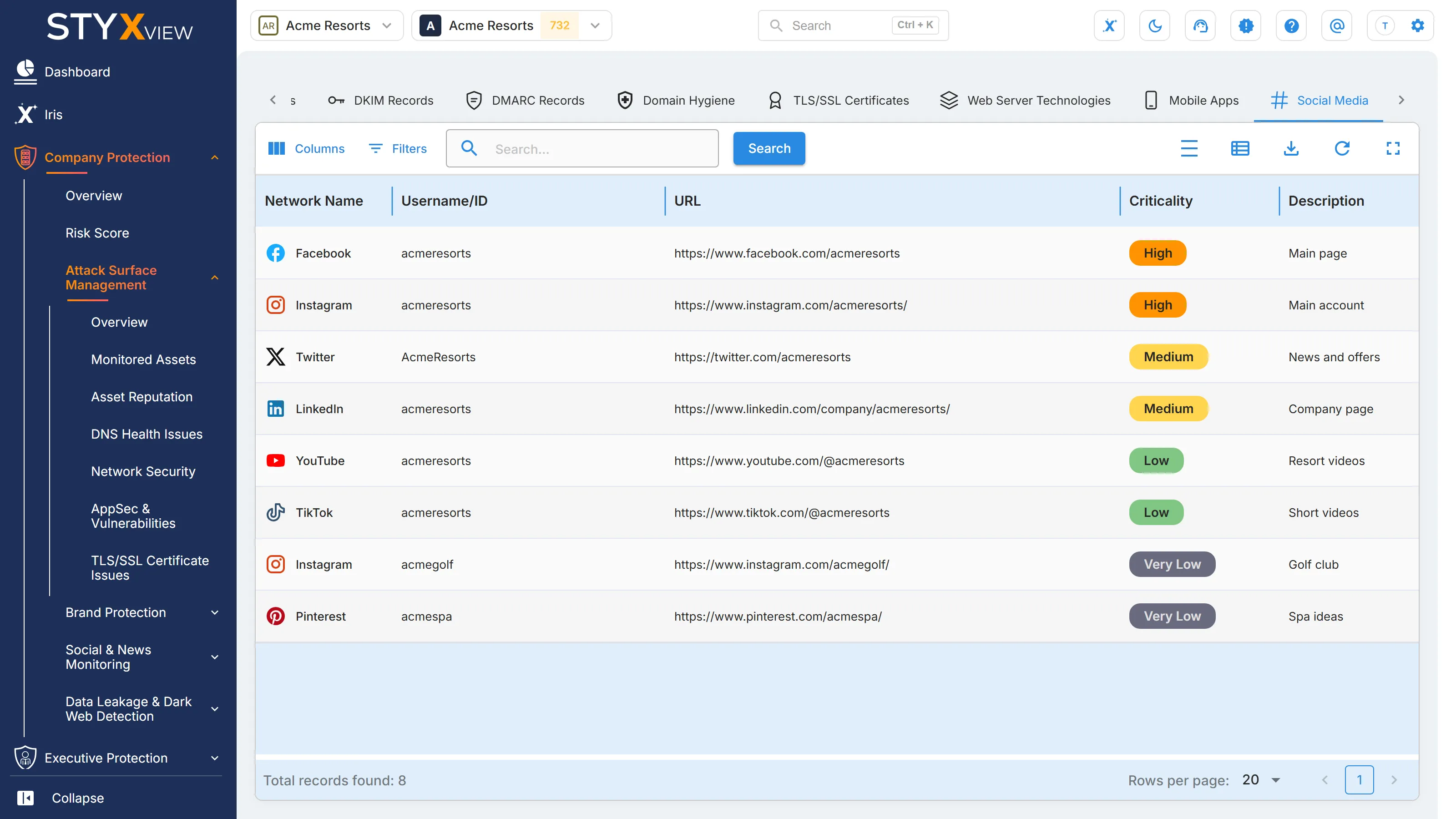
Section titled “Overview”The "Social Media" tab lists your organization's official social media accounts. Two kinds of account appear here:
- Accounts added to your Company Protection policy under "Social Media". Add or change them under "Configuration" > "Policies". See Policies.
- Accounts marked as legitimate on Impersonating Social Media Accounts, which confirms they belong to your organization.
Knowing which accounts are genuinely yours is what makes impersonating accounts detectable.
Open the tab from "Company Protection" > "Attack Surface Management" > "Monitored Assets" > "Social Media".
Columns
Section titled “Columns”| Column | What it shows |
|---|---|
| Network Name | The social network, such as Facebook, Instagram, or LinkedIn. |
| Username/ID | The account's username or ID on the network. |
| URL | The account's page. |
| Criticality | How important the account is to your organization, from "Very Low" to "Very High". It rates the account, not a finding on it. |
| Description | Any description recorded for the account. |
| MFA Enabled | Whether multi-factor authentication (MFA) is enabled on the account: "Yes" or "No". |
An account without multi-factor authentication is one stolen password away from takeover. Turn it on wherever "MFA Enabled" reads "No".
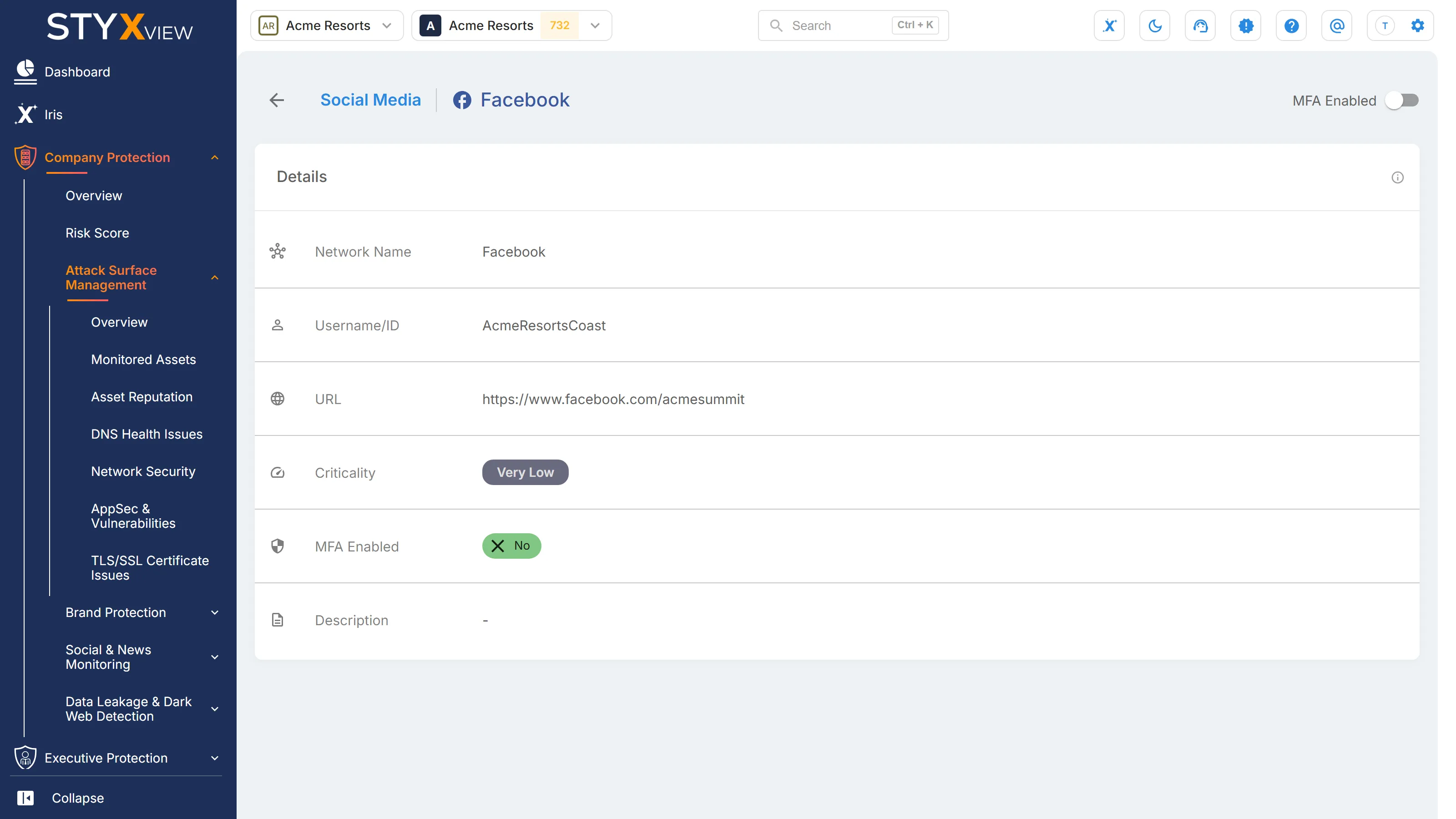
Account details
Section titled “Account details”Select a row to open the account's detail page, which repeats these fields.
Informational Websites
Section titled “Informational Websites”Overview
Section titled “Overview”The "Informational Websites" tab lists the public websites on your hosts that publish information rather than take input from visitors. Forms found on your sites are listed under Input Forms.
These sites are lower risk than pages that collect credentials or payments, but they are still worth tracking: they are public, and a defacement on one is highly visible. See Defaced Assets.
Open the tab from "Company Protection" > "Attack Surface Management" > "Monitored Assets" > "Informational Websites".
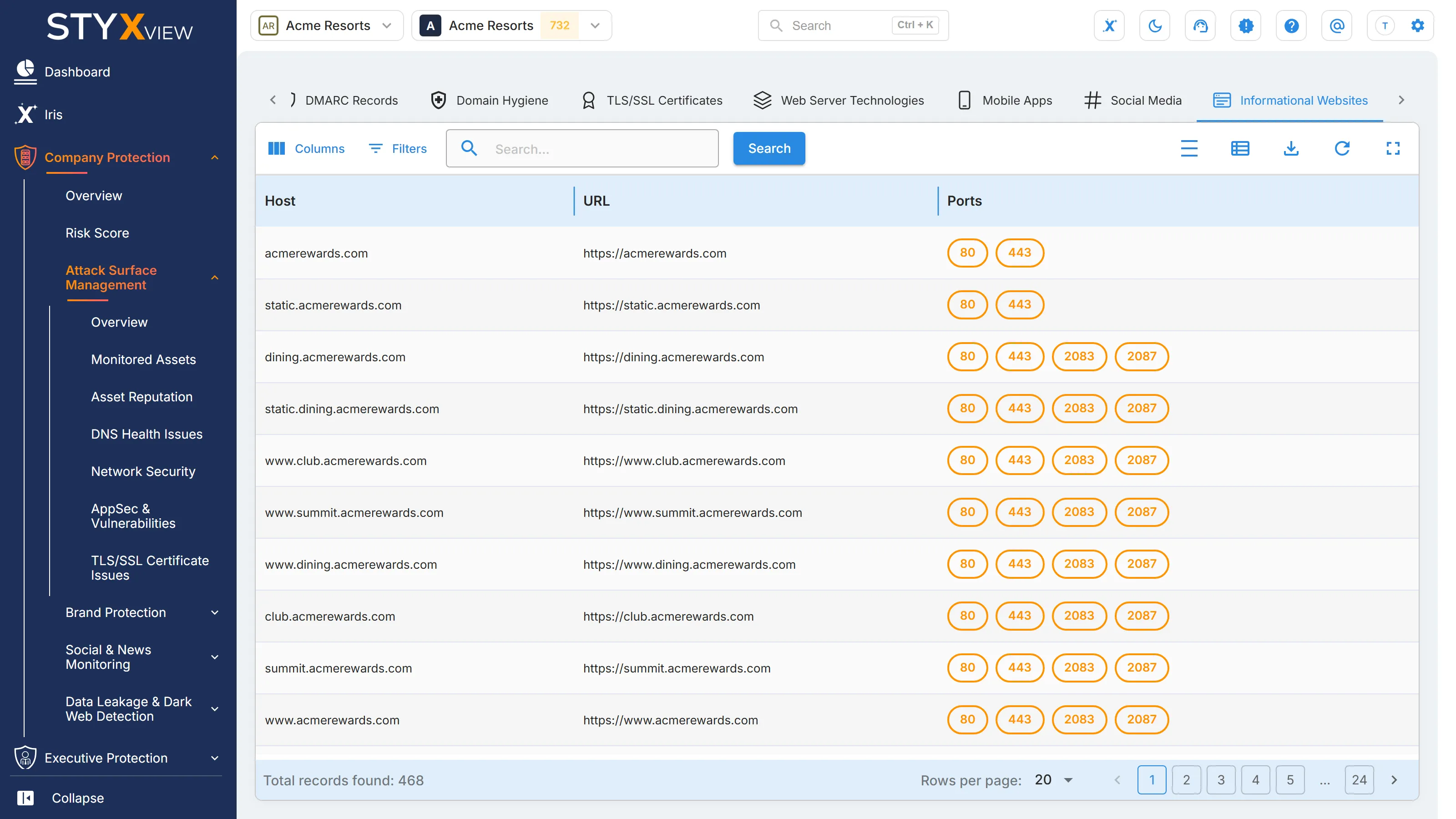
Columns
Section titled “Columns”| Column | What it shows |
|---|---|
| Host | The host serving the website. |
| URL | The website's address. An address starting with https is served over TLS. |
| Ports | The open ports found on the host. |
Input Forms
Section titled “Input Forms”Overview
Section titled “Overview”The "Input Forms" tab lists the forms StyxView found on your public websites: login pages, contact forms, search boxes, and other places where visitors type information. Forms are a common entry point for attacks such as cross-site scripting, SQL injection, and credential stuffing, so this list is where to start a review of what your sites accept from the internet.
Open it from "Company Protection" > "Attack Surface Management" > "Monitored Assets" > "Input Forms".
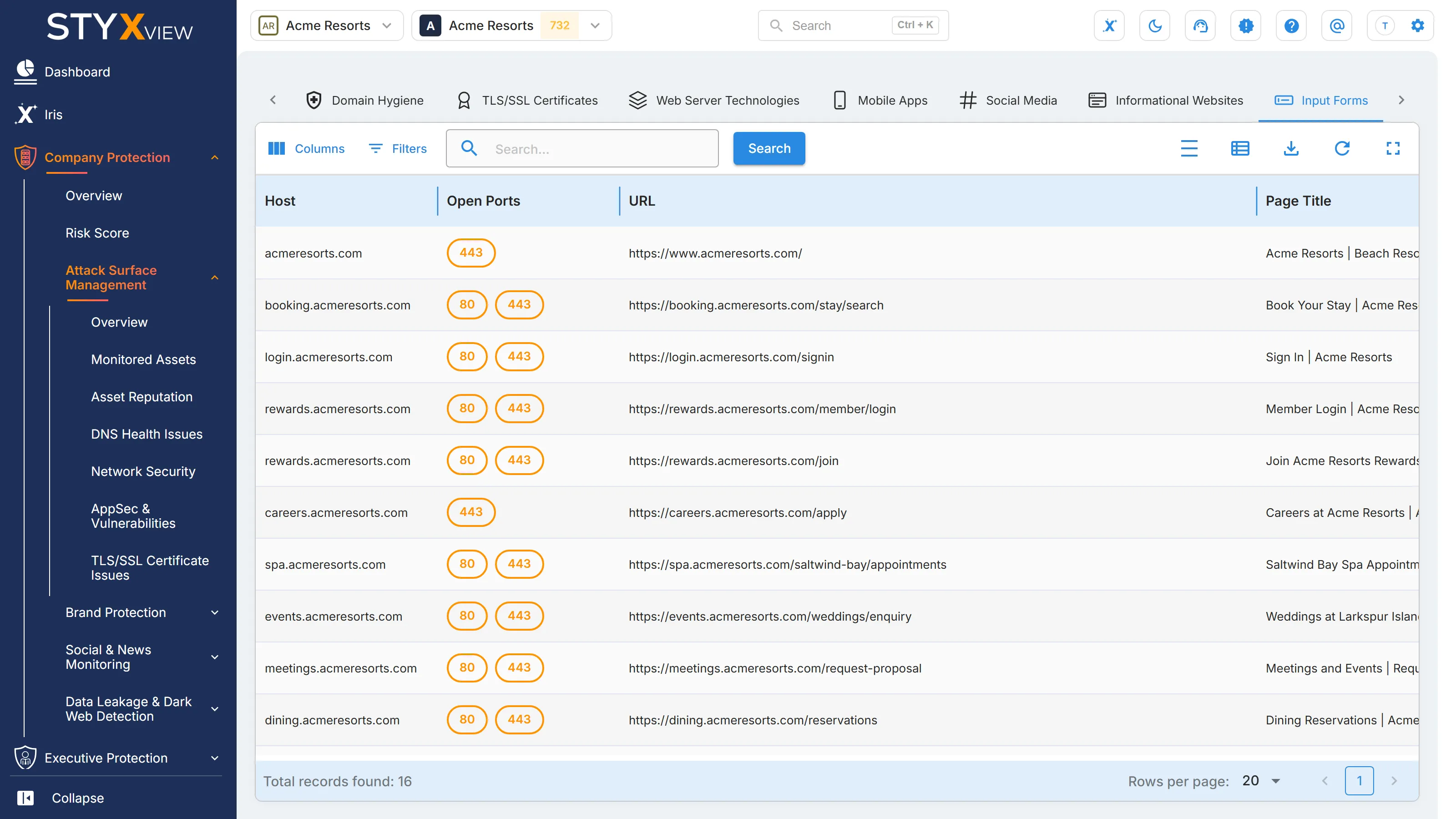
Columns
Section titled “Columns”| Column | What it shows |
|---|---|
| Host | The host serving the page with the form. |
| Open Ports | The open ports found on the host. |
| URL | The address of the page with the form. |
| Page Title | The title of that page. |
| Form Type | What the form appears to collect. |
Form types
Section titled “Form types”"Form Type" is one of:
- "Login/Registration Form"
- "Enquiry/Contact Form"
- "Job Application Form"
- "Complaint/Feedback Form"
- "Loan Calculator Form"
- "Promo/Gift Card Component"
- "Search Component"
- "Undetermined", when the purpose could not be told from the page.
What to do
Section titled “What to do”Review login, registration, and other forms that take credentials or personal data first. Check that each one is meant to be public and is served over HTTPS.
SaaS Applications
Section titled “SaaS Applications”Overview
Section titled “Overview”The "SaaS Applications" tab lists the software-as-a-service (SaaS) applications identified as in use by your organization, one row per host. Hosts added to your Company Protection policy with the type "SaaS Application" appear here. Add them under "Configuration" > "Policies". See Policies.
Each application is a third party holding some of your data, so review any your procurement or security team has not approved.
Open the tab from "Company Protection" > "Attack Surface Management" > "Monitored Assets" > "SaaS Applications".
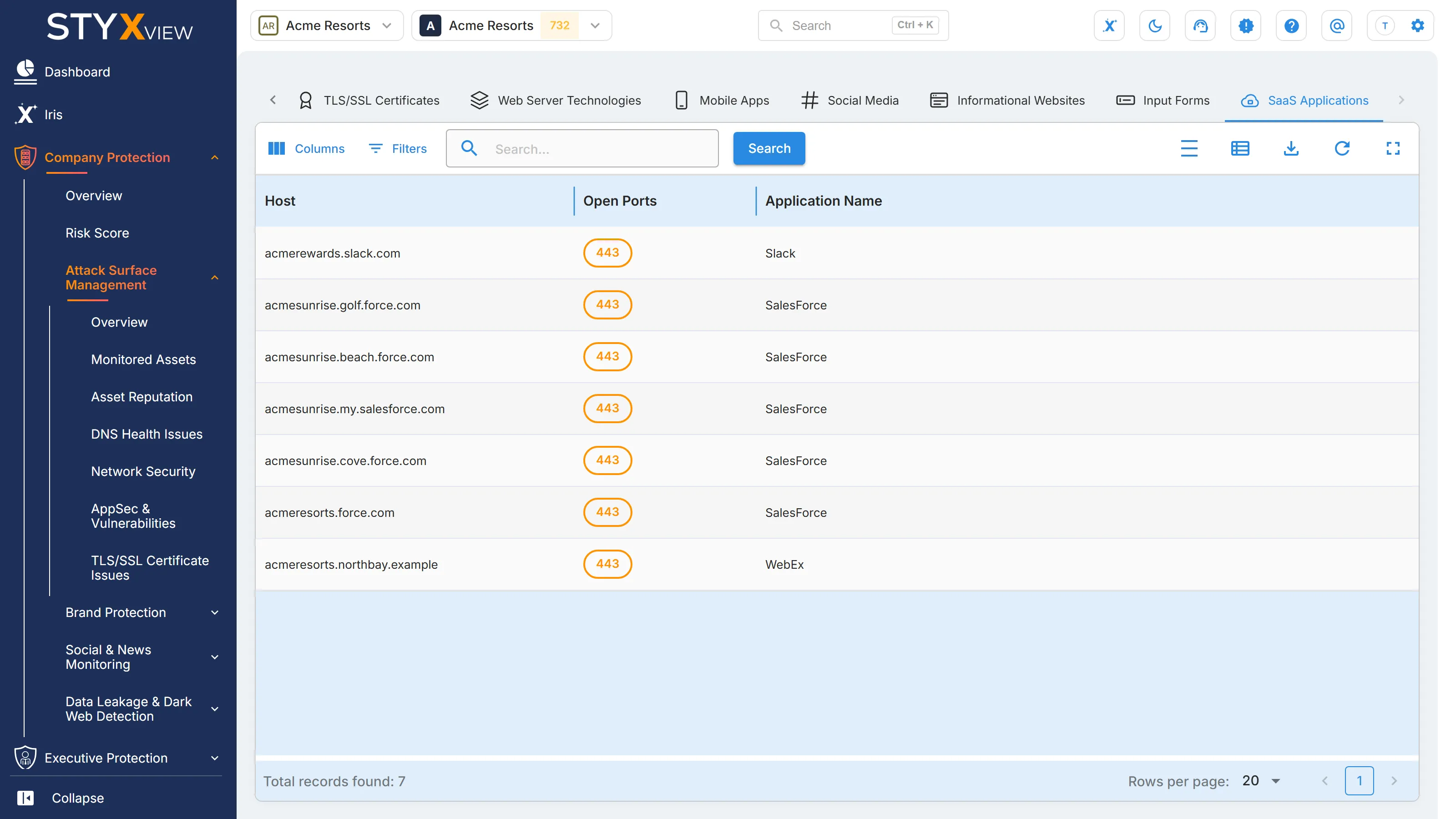
Columns
Section titled “Columns”| Column | What it shows |
|---|---|
| Host | The host the application runs on. |
| Open Ports | The open ports found on the host. |
| Application Name | The name of the application. |