

Domain Impersonation
Lookalike Domains
Section titled “Lookalike Domains”A lookalike domain is a registered domain built to be mistaken for one of yours: a swapped character, an added word, or a different suffix. Registration alone is a risk, because the domain can be used for phishing pages or for email that appears to come from you. Content on the domain raises the stakes.
To open the list, select "Company Protection" in the left menu, then "Brand Protection", then "Domain Impersonation". "Lookalike Domains" is the first tab.
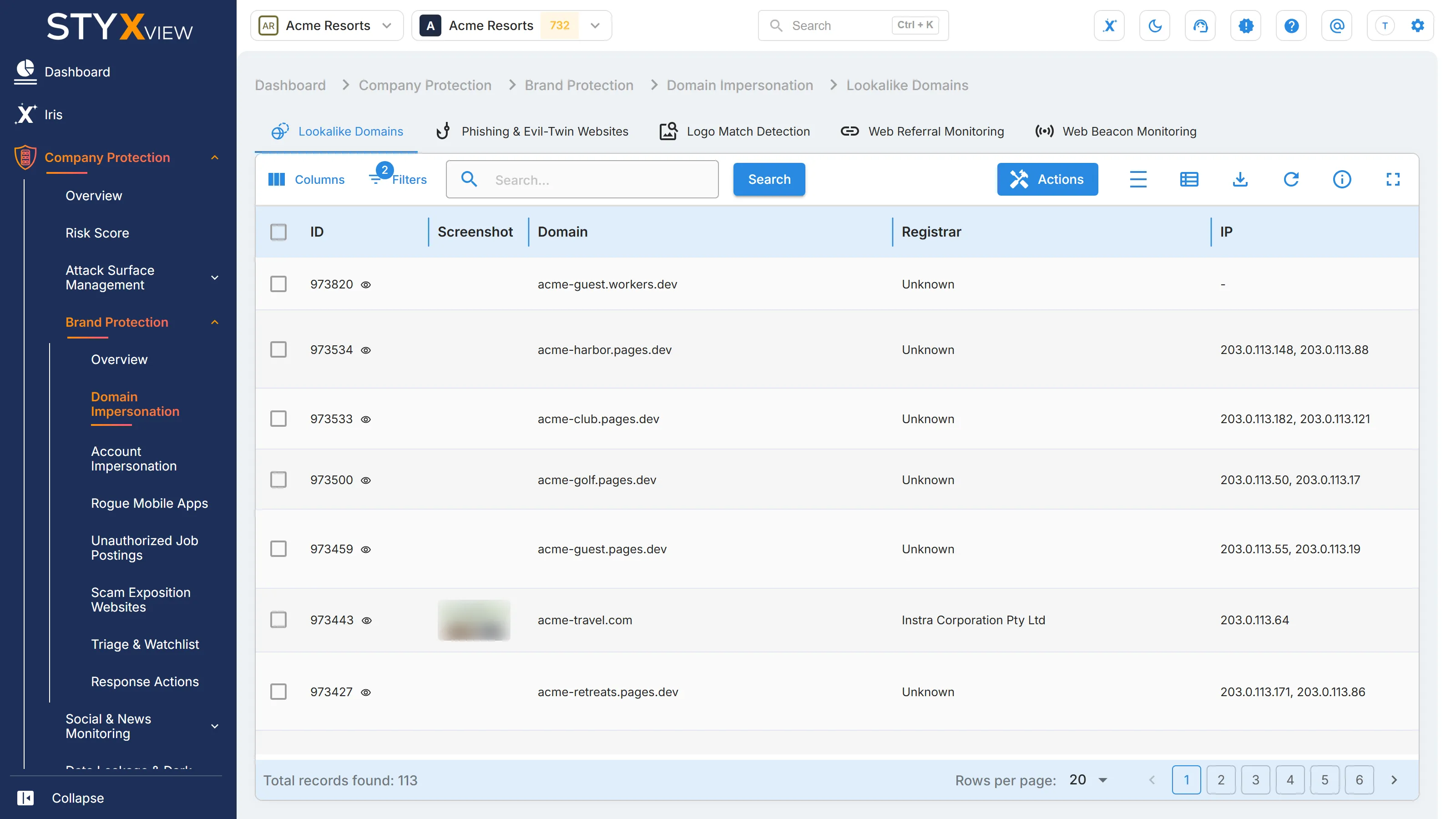
The grid opens sorted by "First Seen", newest first, and filtered to open findings. See Working with brand findings for the default filters and row marks.
Columns
Section titled “Columns”| Column | What it shows |
|---|---|
| "ID" | The finding's permanent identifier. |
| "Screenshot" | A capture of the site. Hover over it for a larger view. |
| "Domain" | The lookalike domain, with icons to copy it or open it. |
| "Registrar" | The company the domain is registered with. |
| "IP" | The IP addresses the domain resolves to. |
| "MX Record" | The mail servers the domain publishes. A domain with MX records can receive email, so it can intercept replies. |
| "Name Servers" | The DNS servers that control where the domain points. |
| "Status" | Where the finding is in your triage workflow. See Finding statuses. |
| "Severity Rating" | How serious the finding is: "Very Low", "Low", "Medium", "High", "Very High", or "Critical". |
| "Domain Creation" | When the domain was registered. A domain registered days ago and already resolving is more likely to be an active campaign. |
| "Domain Expiry" | When the registration expires. |
| "First Seen" | When StyxView first detected the domain. |
| "Last Seen" | The most recent scan that still found it. |
| "Infringement Detected" | "Yes" when the domain has been confirmed as misusing your brand. |
| "URLs" | Pages found on the domain. |
| "Page Titles" | The titles of those pages. |
| "Monitored In Watchlist" | "Yes" when the finding is on the watchlist. |
| "Fuzzer" | The permutation technique that produced the lookalike, such as a character swap, an insertion, an omission, or a different suffix. |
| "Assigned User" | The user the finding is assigned to. |
| "Latest Comment" | The most recent comment on the finding. |
| "Generic Keywords" | Broad monitored terms found on the site. |
| "Specific Keywords" | Precise monitored terms found on the site, such as brand or product names. A specific match is a stronger signal than a generic one. |
| "Geoblocking Detected" | "Yes" when the site serves different content, or refuses to load, depending on where the visitor is. |
More columns are available under "Columns": "Admin Email", "Registrant Email", "Tech Email", "Detection Keywords", "Can Send Email", "Recently Registered", "Owner Hidden", and "High-Abuse Registrar".
Actions
Section titled “Actions”Select one or more rows, then "Actions". This grid offers "Update Status", "Assign To", "Comment", "Mark as False Positive", "Mark as Brand Infringement/Impersonation/Leak Detected", "Add to Watchlist", "Request Takedown", and "Mark as Legitimate", with the matching "Unmark" and "Remove" actions. Each is described in Acting on findings.
- "Request Takedown" raises a domain suspension request for one domain at a time.
- "Mark as Legitimate" also adds the domain to your owned domains in Attack Surface Management. Use it only for domains your organization owns and manages.
Adding a domain yourself
Section titled “Adding a domain yourself”To track a lookalike domain that StyxView has not detected:
-
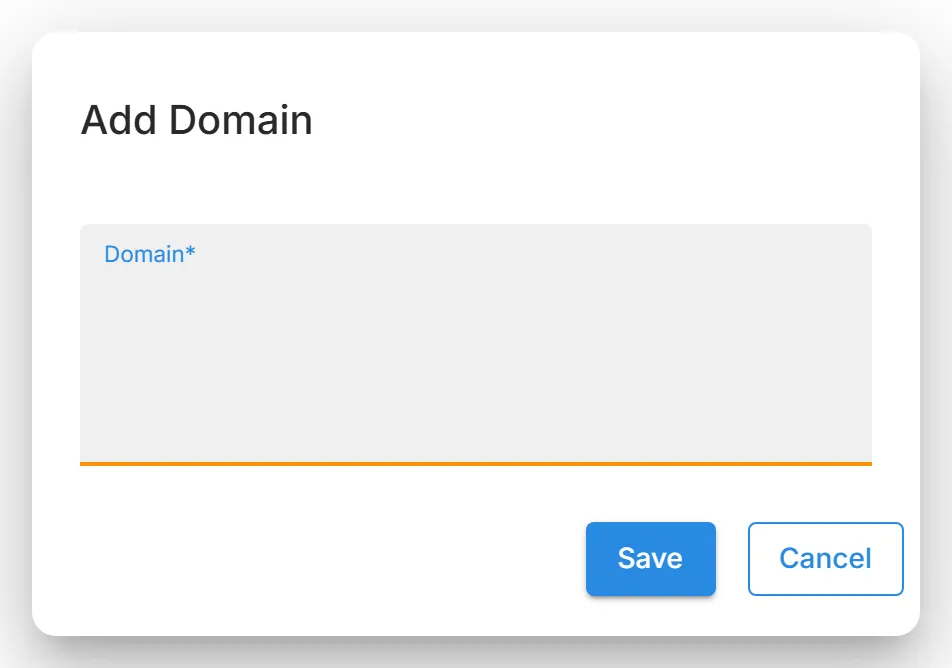
Select "Actions", then "Add Manual Domain Impersonation Finding". The "Add Domain" dialog opens.
-
In "Domain", enter one domain per line, such as
contoso-login.com. -
Select "Save".
Domain detail page
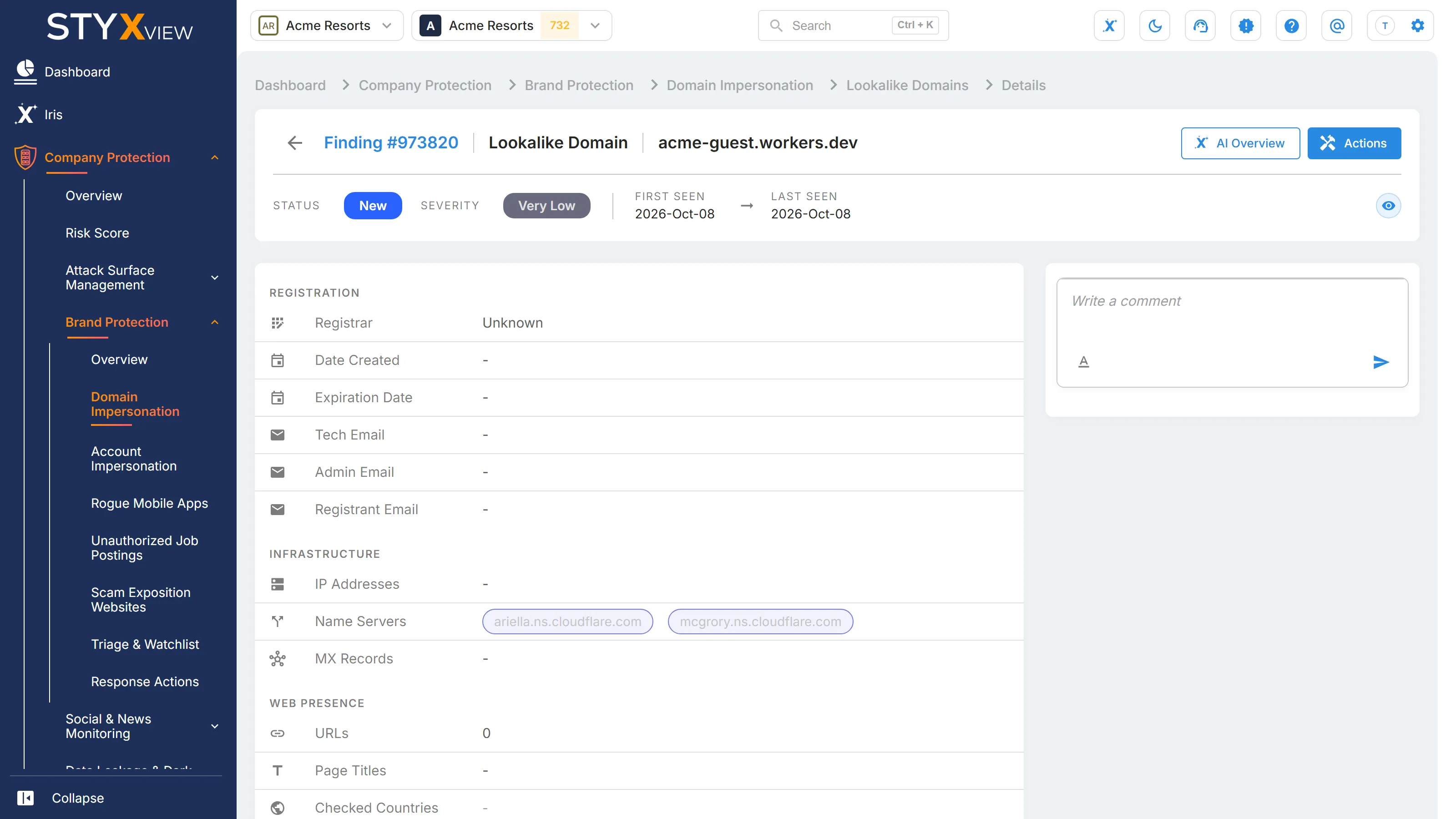
Section titled “Domain detail page”Select a row to open the domain's detail page. Besides the status, comments, and actions described in Findings, it shows:
- Registration: "Registrar", "Date Created", "Expiration Date", and the registration contacts "Tech Email", "Admin Email", and "Registrant Email".
- Infrastructure: "IP Addresses", "Name Servers", and "MX Records".
- Web presence: "URLs", "Page Titles", "Checked Countries" (the countries StyxView loaded the site from), and "Geoblocking Detected".
- Detection: "Fuzzer", "Detection Keywords", "Generic Keywords", and "Specific Keywords".
- Inspection Results: a checklist of the signals checked on the domain, such as whether it can receive email, whether the owner is hidden, whether it was registered recently, and whether your logo or brand colours were found on the site. Hover over an item for its explanation.
- Site Response: how the site answered on each port checked, and the brand terms found on it.
Screenshot gallery
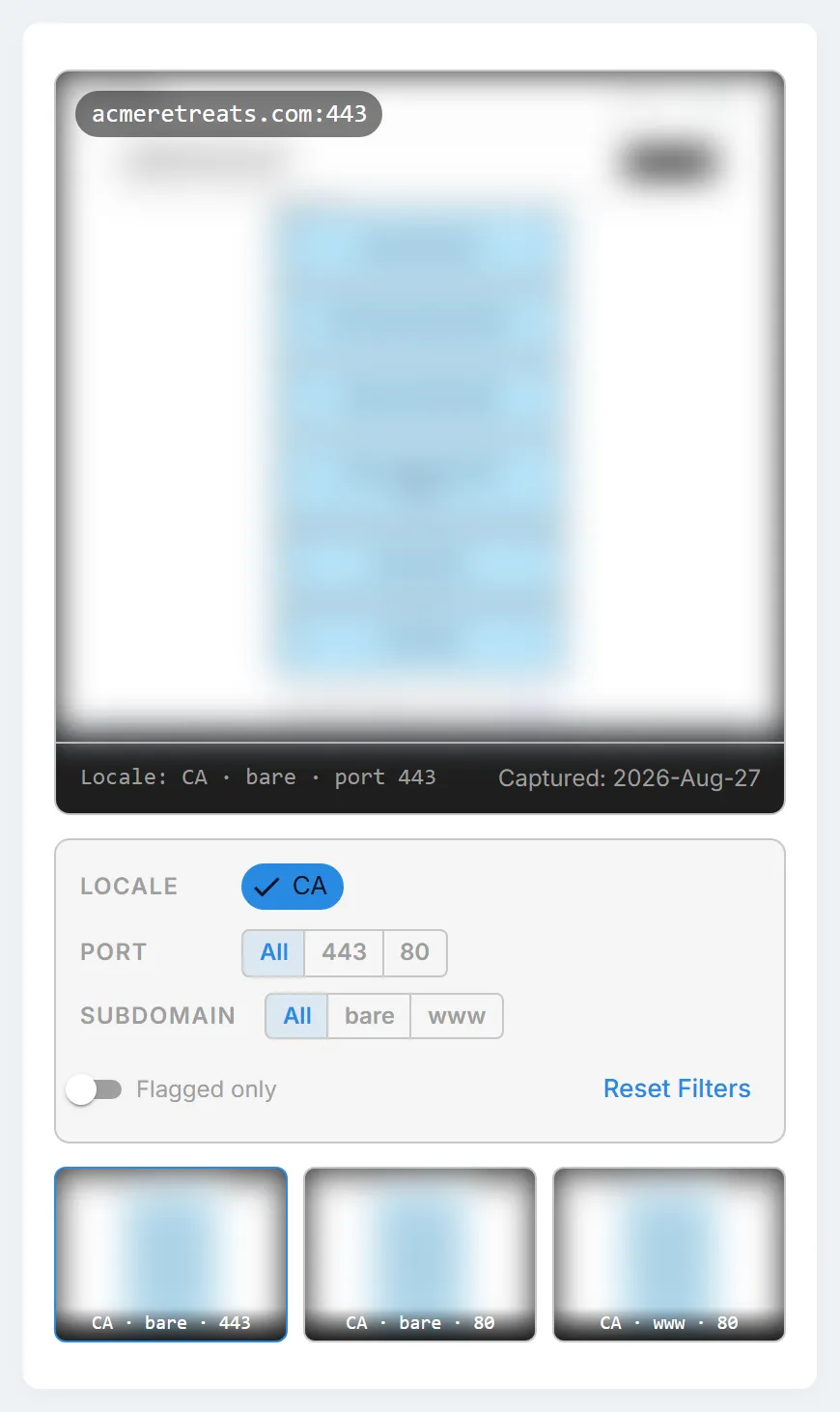
Section titled “Screenshot gallery”StyxView captures the site from several countries and on the plain domain and its www subdomain, because phishing sites often show different content by location. The gallery on the detail page shows one large capture with its host, port, locale, and capture date, and thumbnails of the others. Captures where your brand or logo was found carry a "Flagged" badge.
Filter the captures by "Locale", "Port" ("All", "443", or "80"), and "Subdomain" ("All", "bare", or "www"), or turn on "Flagged only". "Reset filters" shows every capture again.
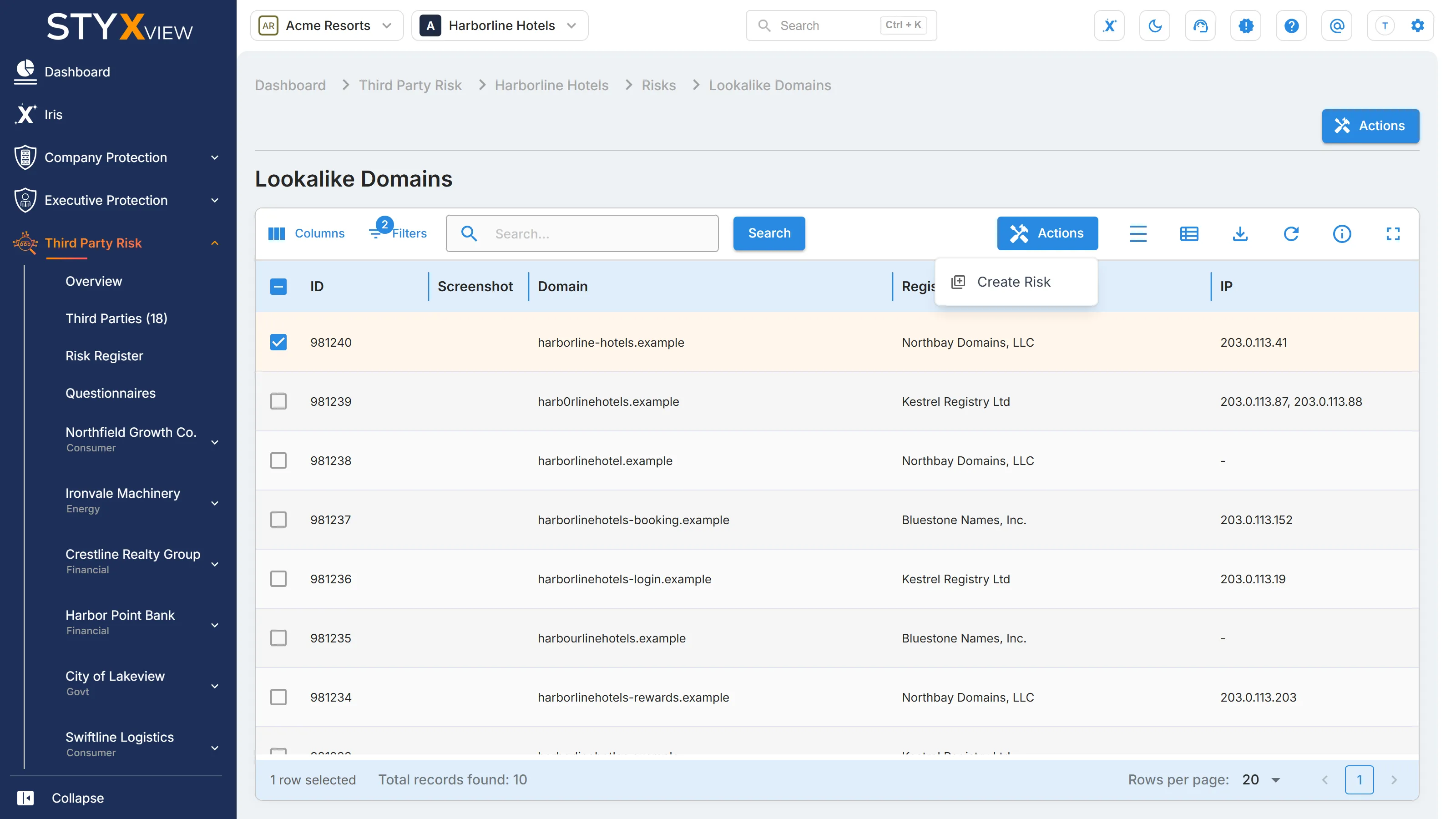
Lookalike domains for a third party
Section titled “Lookalike domains for a third party”The same grid appears for each third party, under "Third Party Risk", the third party's name, "Risks", then "Lookalike Domains". There, "Actions" offers only "Create Risk", which creates risks in that third party's "Risk Register" from the selected findings.
Phishing & Evil-Twin Websites
Section titled “Phishing & Evil-Twin Websites”This grid lists websites that imitate your legitimate portals or services. They are built to trick visitors into sharing login credentials, payment details, or personal data. Spotting them early lets your team warn users and block or report the sites.
To open it, select "Company Protection" in the left menu, then "Brand Protection", then "Domain Impersonation", and select the "Phishing & Evil-Twin Websites" tab.
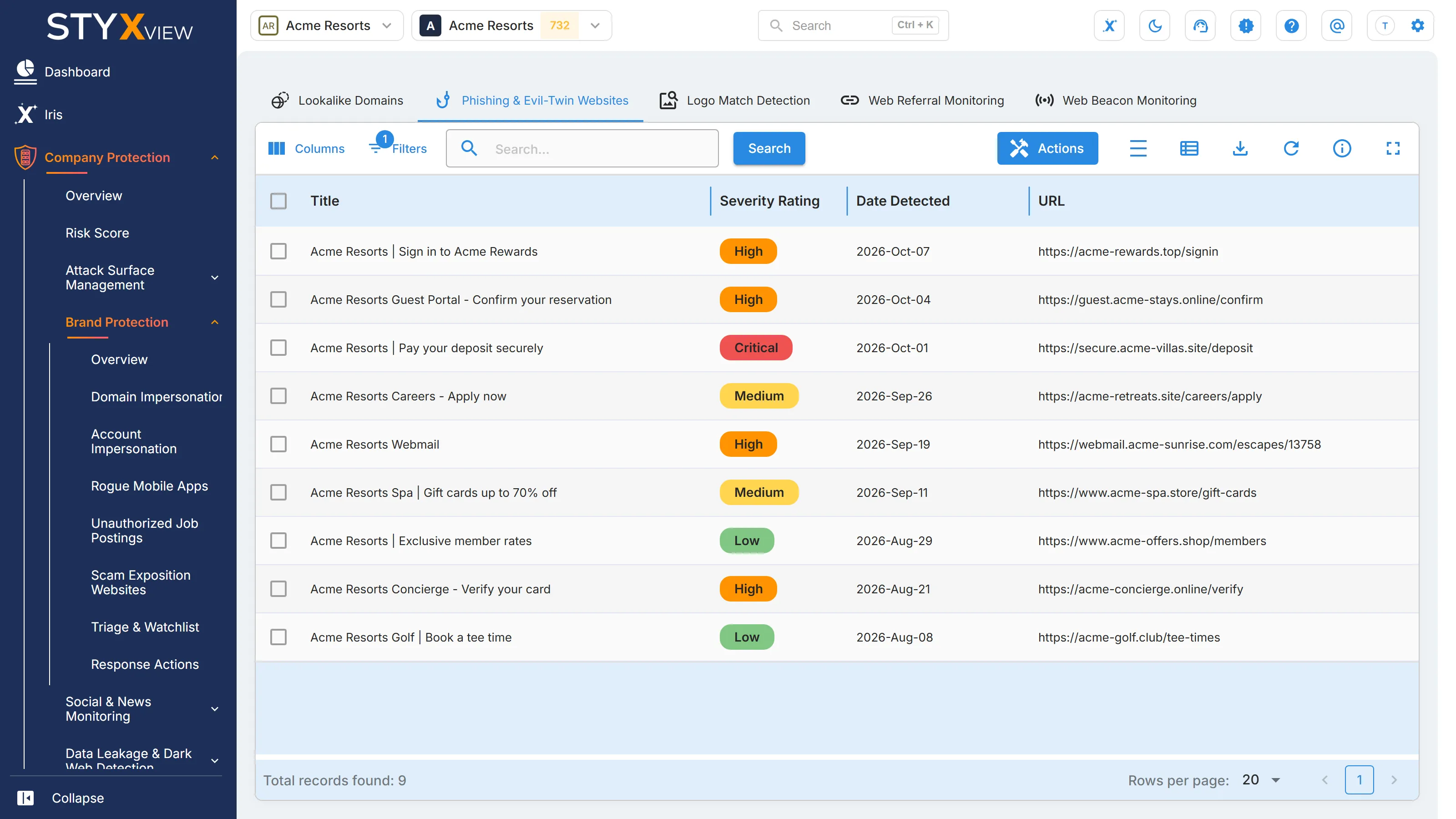
Columns
Section titled “Columns”| Column | What it shows |
|---|---|
| "Title" | The title of the suspicious page, which often copies your branding. |
| "Severity Rating" | How serious the site is judged to be. |
| "Date Detected" | When StyxView detected the site. |
| "URL" | The full address of the site, with icons to copy it or open it. |
| "Potential Attacks" | The kinds of attack the site is equipped for, such as "Impersonation" or "Brand/Reputational Damage". It describes what the site could be used for, not that it has been. |
| "Keywords" | The search terms that surfaced the site. |
Actions
Section titled “Actions”This grid has no triage status. Its only action is "Mark as False Positive": select one or more rows, select "Actions", then "Mark as False Positive", and confirm. Records marked as false positives are hidden by default; remove the false positive filter under "Filters" to see them again. "Request Takedown" is not available on this grid.
Logo Match Detection
Section titled “Logo Match Detection”StyxView searches the web for images of your logo. Each page where image recognition finds a match is listed here as a finding, so your team can tell legitimate use, such as a partner listing or a news article, from impersonation or unauthorised use.
A match is visual, not a legal judgement. Review the page before you treat it as an infringement.
To open the list, select "Company Protection" in the left menu, then "Brand Protection", then "Domain Impersonation", and select the "Logo Match Detection" tab.
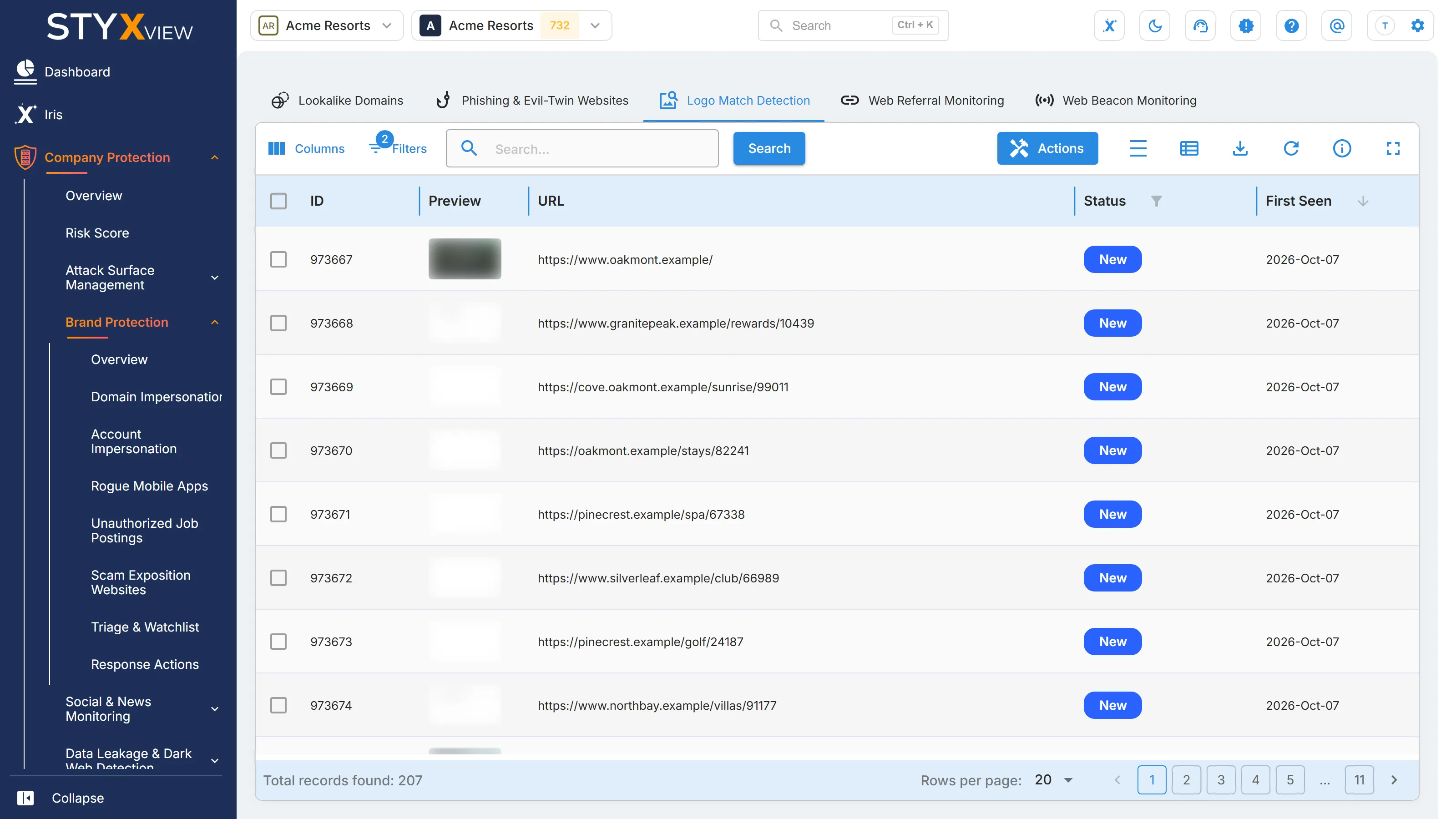
The grid opens sorted by "First Seen", newest first, and filtered to open findings. See Working with brand findings.
Columns
Section titled “Columns”| Column | What it shows |
|---|---|
| "ID" | The finding's permanent identifier. |
| "Preview" | A capture of the page. Hover over it for a larger view. |
| "URL" | The page where the logo was found, with icons to copy it or open it. |
| "Status" | Where the finding is in your triage workflow. See Finding statuses. |
| "First Seen" | When StyxView first found the logo on the page. |
| "Last Seen" | The most recent scan that still found it. |
| "Infringement Detected" | "Yes" when the page has been confirmed as misusing your brand. |
| "Assigned User" | The user the finding is assigned to. |
| "Latest Comment" | The most recent comment on the finding. |
"Matched Logo", the image on the page that was matched against your logo, is available under "Columns".
Actions
Section titled “Actions”Select one or more rows, then "Actions". This grid offers "Update Status", "Assign To", "Comment", "Mark as False Positive", and "Mark as Brand Infringement/Impersonation/Leak Detected", with their "Unmark" actions. Each is described in Acting on findings.
Select a row to open the finding's detail page, which shows the "Detected Logo" and a "Reference Screenshot" of the page.
Web Referral Monitoring
Section titled “Web Referral Monitoring”Web Referral Monitoring analyses your web access logs to find suspicious or malicious websites that send traffic to your domains.
Phishing sites often redirect victims to your real site after collecting their credentials, so the visit arrives with the phishing site as its referrer. StyxView flags suspicious referring domains, URLs with misleading subdomains, and redirect chains typical of phishing kits. This also shows where your brand is referenced outside the properties you know about.
To open the list, select "Company Protection" in the left menu, then "Brand Protection", then "Domain Impersonation", and select the "Web Referral Monitoring" tab.
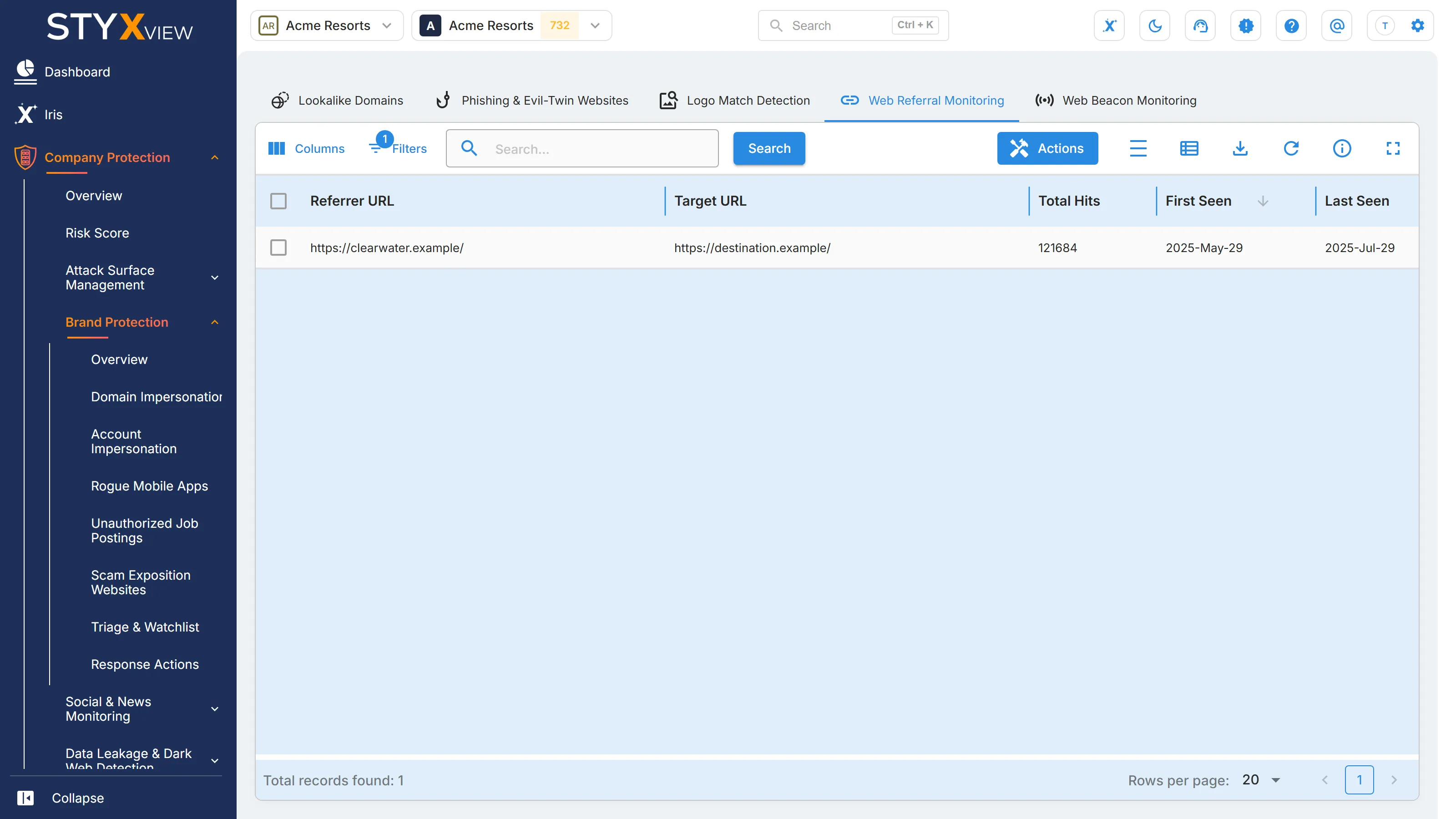
Columns
Section titled “Columns”| Column | What it shows |
|---|---|
| "Referrer URL" | The page that sent visitors to your site. |
| "Target URL" | The page on your site that the visitors reached. |
| "Total Hits" | How many visits from this referrer have been seen since monitoring started. The count only rises, so check the dates beside it for recent activity. |
| "First Seen" | When the referrer was first seen. |
| "Last Seen" | When it was most recently seen. |
The grid opens sorted by "First Seen", newest first. It lists referrers that are not on your Web Referrer Allowlist. To stop a trusted referrer from being reported, add it to the allowlist in the left menu under "Configuration" > "Web Referrer Allowlist".
Select a row to open its detail page. To dismiss a referrer, select it, select "Actions", then "Mark as False Positive". Records marked as false positives are hidden by default.
Web Referral Monitoring needs your web server logs.
- Include the required fields. Make sure your web server logs record at least:
TimestampReferrer HeaderSource IPX-Forwarded-For HeaderorForwarded HeaderUser-Agent HeaderRequest MethodHostandPath, orRequest URITLS VersionandTLS Cipher
- Deliver the logs automatically. Configure your systems to send the logs to a secure S3 bucket provided by Styx Intelligence.
- Monitoring starts. Once the logs arrive, StyxView analyses the referral traffic continuously and lists suspicious referrers in this grid.
Web Beacon Monitoring
Section titled “Web Beacon Monitoring”Web Beacon Monitoring uses a 1x1 transparent tracking pixel embedded in your web pages to detect when your content is cloned or mirrored.
When attackers copy a page such as your login or checkout page to build a phishing site, the pixel comes with it. Each time the copy loads, the pixel reports the site it was loaded from. A load from a site you do not run is direct evidence that your page has been copied, even when the attacker avoids any variation of your domain name.
To open the list, select "Company Protection" in the left menu, then "Brand Protection", then "Domain Impersonation", and select the "Web Beacon Monitoring" tab.
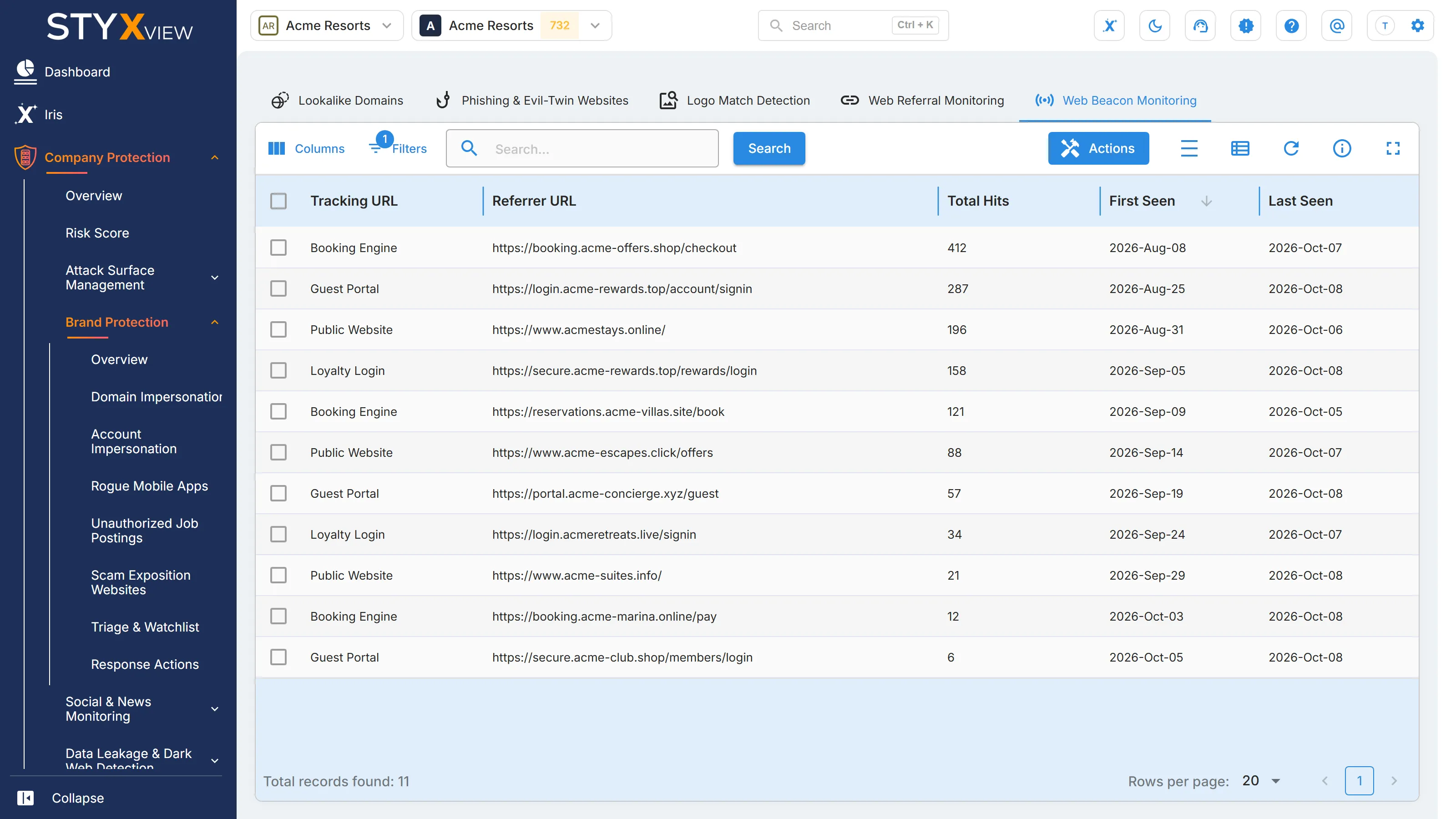
Columns
Section titled “Columns”| Column | What it shows |
|---|---|
| "Tracking URL" | The beacon address that was loaded. |
| "Referrer URL" | The site the pixel was loaded from. |
| "Total Hits" | How many loads from this site have been seen since monitoring started. The count only rises, so check the dates beside it for recent activity. |
| "First Seen" | When loads from this site were first seen. |
| "Last Seen" | When they were most recently seen. |
The grid lists loads from sites that are not on your Web Beacon Allowlist. To stop a trusted site from being reported, add it to the allowlist in the left menu under "Configuration" > "Web Beacon Allowlist".
Select a row to open its detail page. To dismiss a record, select it, select "Actions", then "Mark as False Positive". Records marked as false positives are hidden by default.
- Embed the pixel. Insert the HTML snippet provided by Styx Intelligence just before the closing
</body>tag on key pages, such as login, checkout, and account settings. - Allow the pixel in your Content Security Policy. If your site uses a Content Security Policy, add the beacon domain to the
img-srcdirective so the pixel can load. - Monitoring starts. Once the pixel is deployed, StyxView monitors its loads and lists those from unauthorised or suspicious sites in this grid.