

Web Beacon Allowlist
Web Beacon Monitoring reports the sites that load your web beacon, the tracking pixel embedded in your pages. A request for it from a site you do not run is evidence that your pages have been copied. The "Web Beacon Allowlist" lists the sites that are allowed to serve your pages, such as your own domains, so StyxView treats beacon requests from them as legitimate.
Each entry describes a domain and, optionally, a subdomain and a path.
Navigation Path
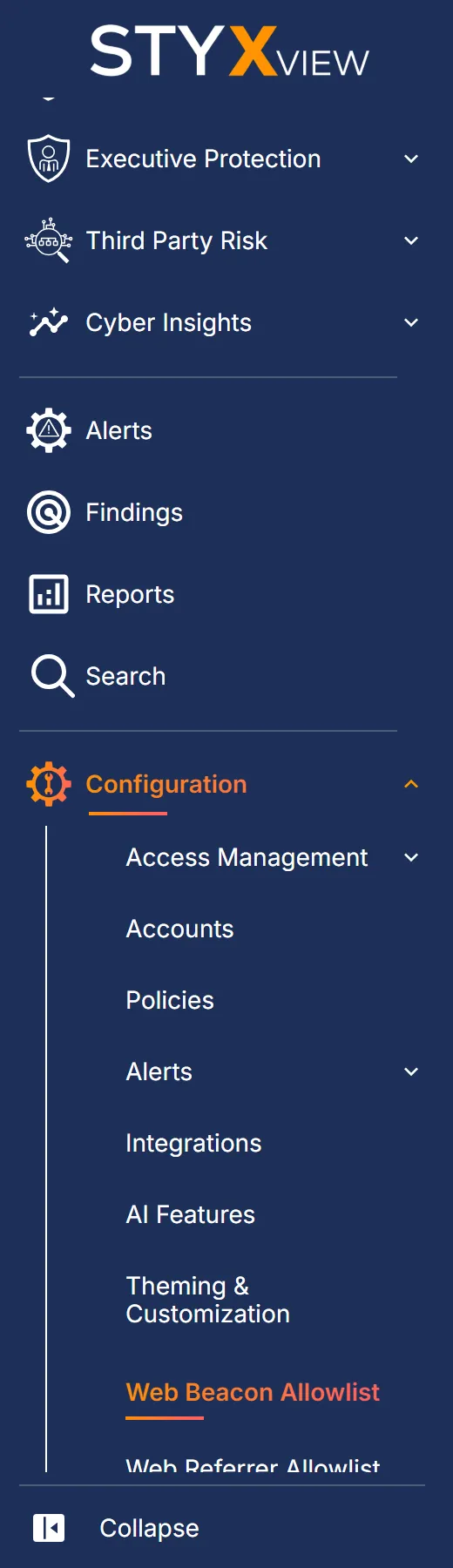
Section titled “Navigation Path”In the left menu, go to "Configuration" → "Web Beacon Allowlist". Only users with the Admin role see this page.
Steps to Add a Web Beacon Configuration to the Allowlist
Section titled “Steps to Add a Web Beacon Configuration to the Allowlist”-
Go to "Configuration" → "Web Beacon Allowlist".
-
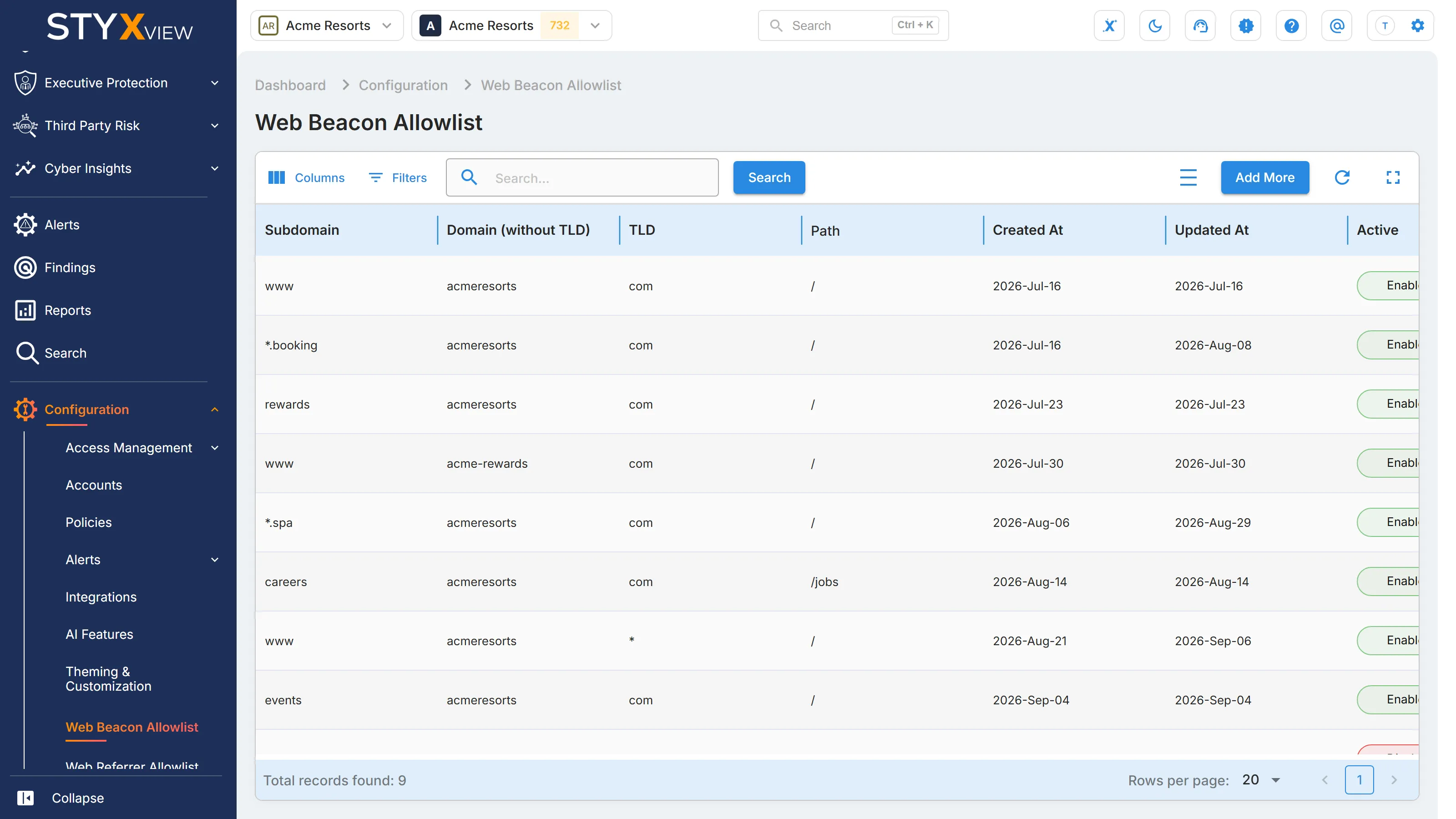
Select "Add More". The "Add Web Beacon" dialog opens.
-
Complete the fields:
Field What to enter Subdomain Optional. The subdomain part, for example wwworshop.eu. Leave it empty for the domain itself.Include Nested Subdomains Turn on to also match every subdomain below the one you entered. With shop, the entry also matcheseu.shop.contoso.com. Available only when "Subdomain" has a value.Domain (without TLD) Required. The domain name without its suffix, for example contosoforcontoso.com.TLD The suffix, for example comorco.uk. Required unless "Any TLD (*)" is on.Any TLD (*) Turn on to match the domain under any suffix, for example contoso.com,contoso.net, andcontoso.co.uk. The "TLD" field then shows*.Path Optional. The path after the domain, without the leading slash, for example products. The entry matches paths that start with it. Leave it empty to match all paths.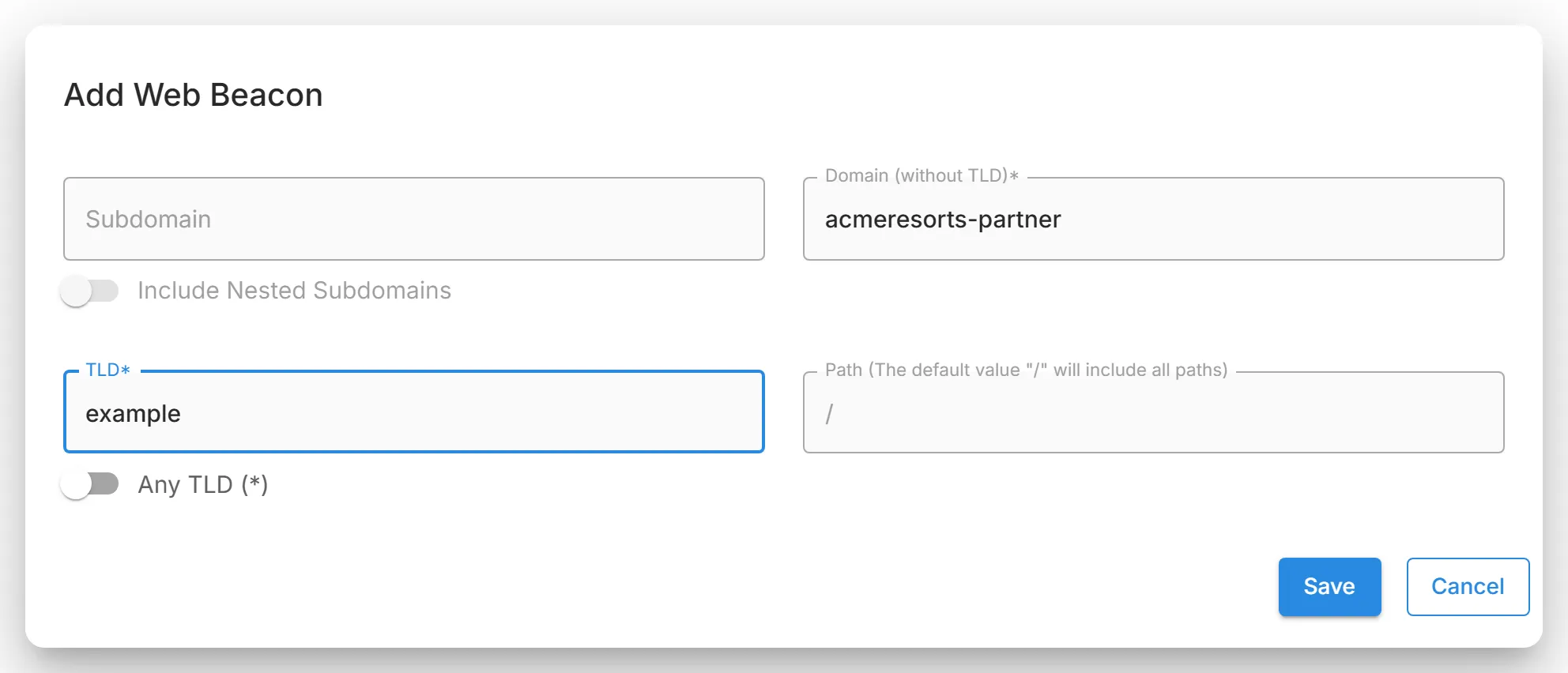
-
Select "Save" to add the entry, or "Cancel" to close the dialog without saving.
Rules for Each Field
Section titled “Rules for Each Field”- "Subdomain": each part separated by a dot uses 1 to 63 letters, numbers, or hyphens, with no hyphen at the start or end.
- "Domain (without TLD)": 1 to 63 letters, numbers, or hyphens, with no dot and no hyphen at the start or end.
- "TLD": letters only, with parts separated by dots, for example
co.uk.
StyxView removes characters that are not allowed as you type, and names the field to correct when you select "Save".
Verifying the Beacon Configuration
Section titled “Verifying the Beacon Configuration”After you save, the entry appears in the table. Use "Search...", "Filters", or "Columns" in the toolbar to find it.
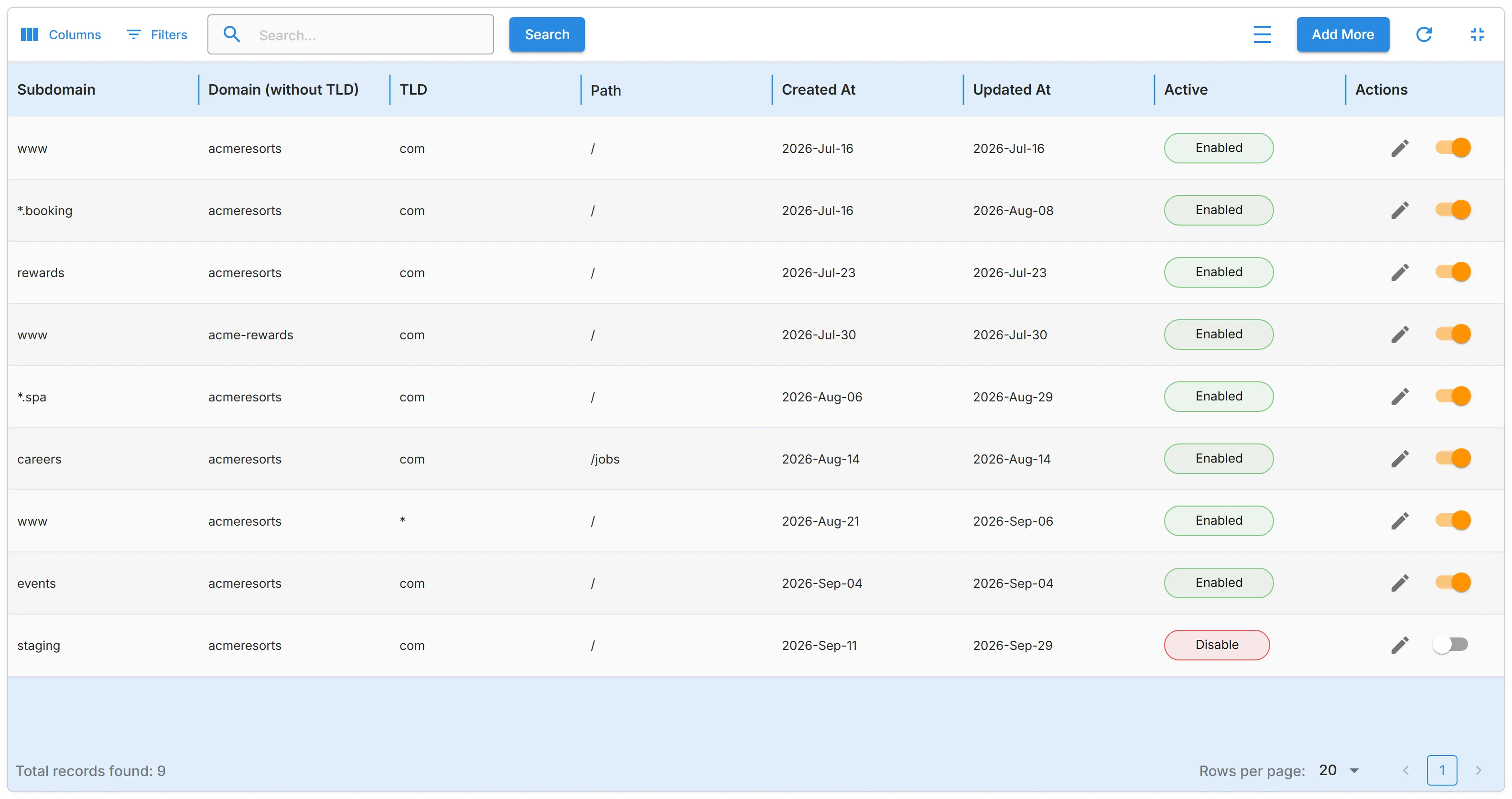
| Column | Description |
|---|---|
| Subdomain | The subdomain. An entry that includes nested subdomains shows *. in front of it. |
| Domain (without TLD) | The domain name without its suffix. |
| TLD | The suffix, or * for any suffix. |
| Path | The path the entry matches. |
| Created At | When the entry was added. |
| Updated At | When the entry was last changed. |
| Active | Whether the entry is enabled. |
| Actions | The edit icon and the switch that turns the entry on or off. |
Actions (Edit, Enable/Disable)
Section titled “Actions (Edit, Enable/Disable)”- Edit: select the pencil icon in "Actions". The dialog opens with the entry's values. Change them and select "Save".
- Enable or disable: use the switch in "Actions". A disabled entry stays in the list, and the "Active" column shows its state.