

Login and User Roles
StyxView asks for your work email first and then sends you down the right path: single sign-on if your organisation has set it up for your account, or a StyxView password otherwise. Password sign-in always ends with a code from an authenticator app.
The theme and language controls at the top right of every sign-in screen switch between light and dark mode and between English, Español, Português, Français, and العربية.
Signing In
Section titled “Signing In”-
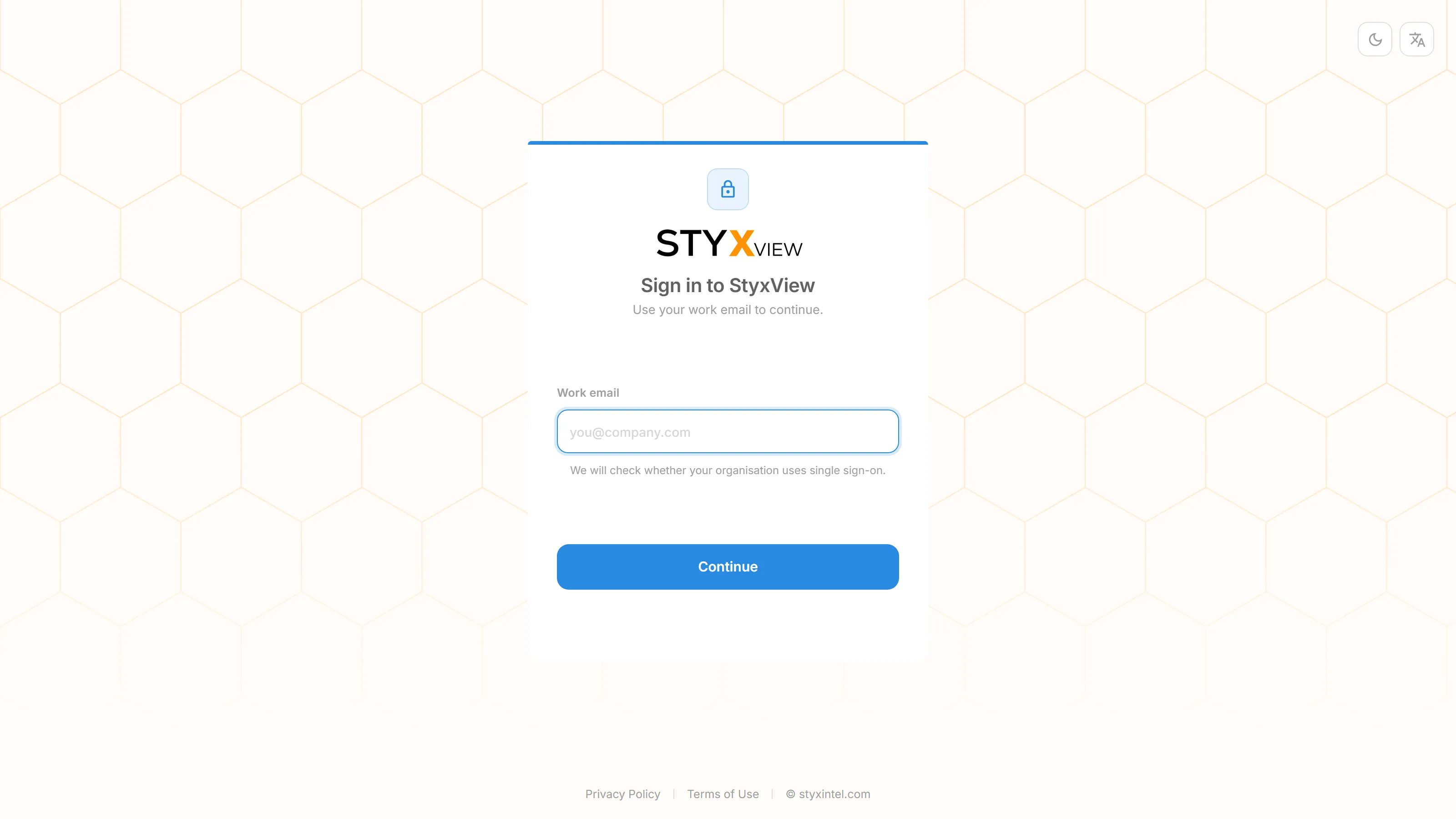
On the "Sign in to StyxView" screen, enter your "Work email" and select "Continue". StyxView checks whether your account signs in with single sign-on.
-
Continue on the screen StyxView shows next:
- "Enter your password": your account signs in with a StyxView password. See Signing In with a Password.
- "Continue with single sign-on": your organisation signs you in through its identity provider. See Signing In with Single Sign-On.
To use a different email address, select "Change" next to the address.
Signing In with a Password
Section titled “Signing In with a Password”- Enter your "Password". The eye icon shows or hides what you typed, and StyxView warns "Caps Lock is on" when it is.
- Select "Sign in".
- Enter the 6-digit code from your authenticator app. See Two-Factor Authentication.
If your organisation also uses single sign-on, "Use single sign-on instead" switches to it.
Signing In with Single Sign-On
Section titled “Signing In with Single Sign-On”- Select "Continue to single sign-on". StyxView sends you to your organisation's identity provider.
- Sign in there. Your identity provider applies its own sign-in checks, and StyxView does not ask for a code of its own.
StyxView places you in the group whose name matches the group your identity provider sends. If no group matches, sign-in does not complete and StyxView shows "Single sign-on did not complete. Try again, or sign in with a password." Ask your StyxView Admin to check your group. To set up single sign-on, see SAML Auth Config.
If you also have a StyxView password, "Use a password instead" switches to password sign-in.
Your First Sign-In
Section titled “Your First Sign-In”When an Admin adds you, StyxView emails you a temporary password with the subject "Your temporary password for your new StyxView account". The temporary password is valid for 7 days.
- Sign in with your work email and the temporary password.
- On "Choose a password", enter a "New password" and repeat it in "Confirm password". The password needs at least 8 characters, with an uppercase letter, a lowercase letter, a number, and a symbol.
- Select "Save password".
- On "Set up 2-factor authentication", scan the QR code with an authenticator app, such as Google Authenticator or Microsoft Authenticator. If you cannot scan it, select "Can't scan the QR code? Enter setup key manually" and type the key into the app.
- Enter the 6-digit code the app shows and select "Verify".
If you close the browser before you finish, StyxView asks you to set up two-factor authentication at your next sign-in.
Two-Factor Authentication
Section titled “Two-Factor Authentication”Every password sign-in ends on "Enter verification code".
- Open your authenticator app and find the StyxView entry.
- Enter the 6-digit code. You can paste it into the first box.
- Select "Verify".
You have two minutes. After that, StyxView shows "Verification expired" and you start again from "Return to sign in". A wrong code shows "Invalid code. Please check your authenticator app and try again."
If you no longer have your authenticator app, select "Lost access to your authenticator?" to email the StyxView Support Team.
Resetting Your Password
Section titled “Resetting Your Password”Password reset applies only to accounts that sign in with a StyxView password. If you sign in with single sign-on, your organisation's administrator manages your password.
-
On "Enter your password", select "Forgot password?".
-
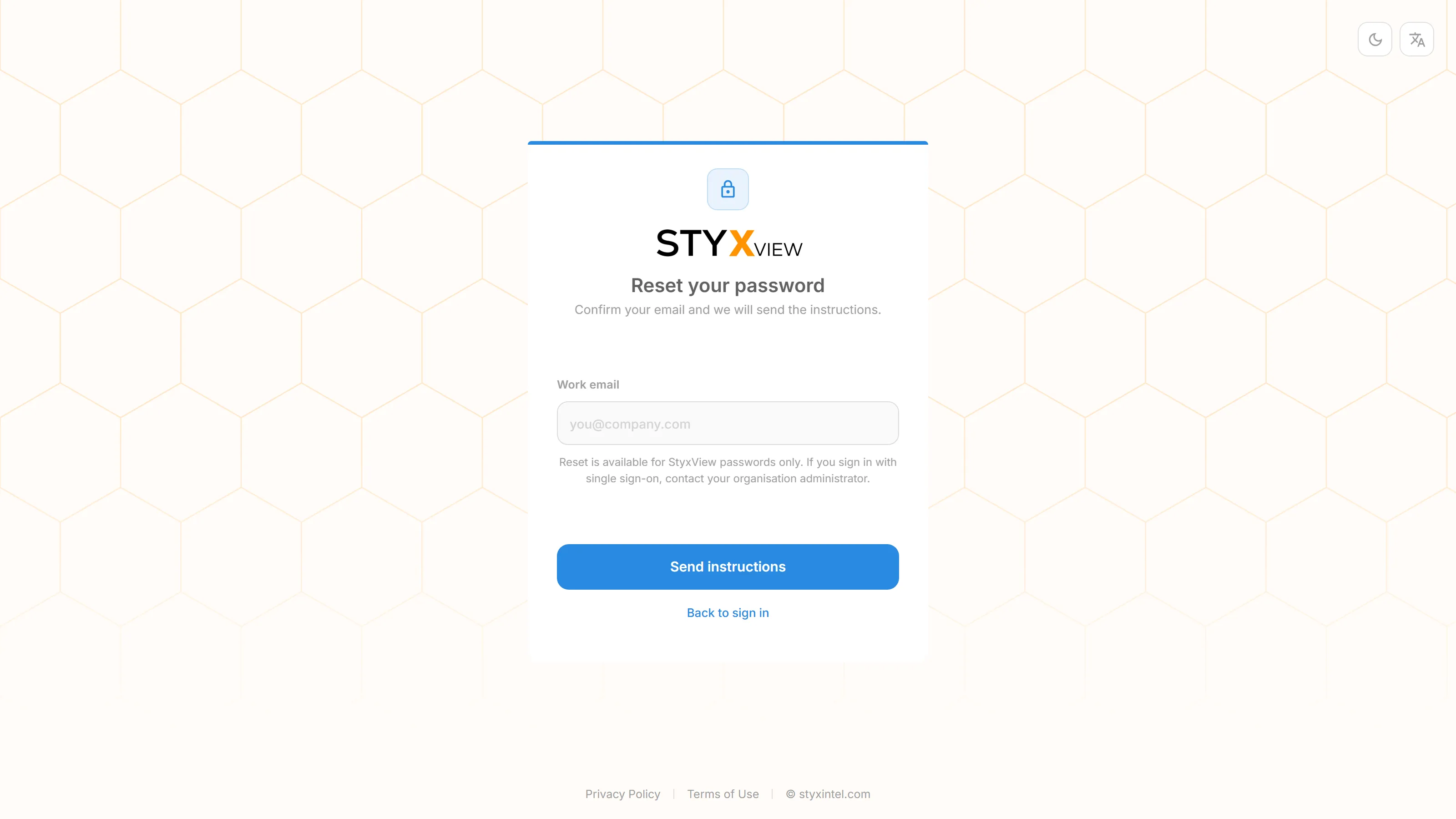
On "Reset your password", enter your "Work email" and select "Send instructions". StyxView emails you a verification code.
-
On the same screen, enter the "Code" from the email, a "New Password", and the same password again in "Enter New Password Again".
-
Select "Confirm and proceed".
-
On "Password updated", select "Back to sign in" and sign in with the new password.
User Roles and Access
Section titled “User Roles and Access”What you can do in StyxView depends on your group. Each group has a role and a scope, and an Admin sets both on Groups.
| Role | What it can do |
|---|---|
| Admin | Everything an Analyst can do, plus the "Configuration" menu (users, groups, single sign-on, audit logs, accounts, policies, alert rules and subscriptions, integrations, and the other settings), "Search", "Subscriptions", "TPRM Questionnaire Library", and "IOC Files" in Cyber Insights. |
| Analyst | Works on findings: the "Actions" menu on finding detail pages, "Mark as False Positive" on social and news items, "Create Risk", and "Send Questionnaire". No "Configuration" menu. |
| Viewer | Sees the same pages as an Analyst, without those controls. |
| Scope | What the user can see |
|---|---|
| Client | Every account and every solution. Admin groups always have this scope. |
| Account | Only the accounts chosen for the group. Analysts and Viewers also see only the solutions chosen for each account. |