

Theming & Customization
"Theming & Customization" sets the branding StyxView applies on your behalf: the template, colours, company details, and logo of your generated PDF reports, and the colours, contact details, and logo of the questionnaire emails sent to your third parties. Branding applies to the selected account.
In the left menu, select "Configuration" > "Theming & Customization". Only users with the Admin role see it. The page has two tabs, Reports and Third Party Questionnaire.
Both tabs work the same way:
- A live preview on the right updates as you change the form. It is an approximation, so the final result can differ slightly.
- "Save" applies your branding. StyxView checks the required fields first, then asks you to confirm.
- "Discard Changes" puts every field back to your last saved settings, after you confirm.
- "Remove Branding" deletes your saved branding and returns to the StyxView defaults. It appears once branding is saved, and it cannot be undone.
Reports
Section titled “Reports”"Report Branding" applies to every report StyxView generates for the account from the time you save. See Reports.
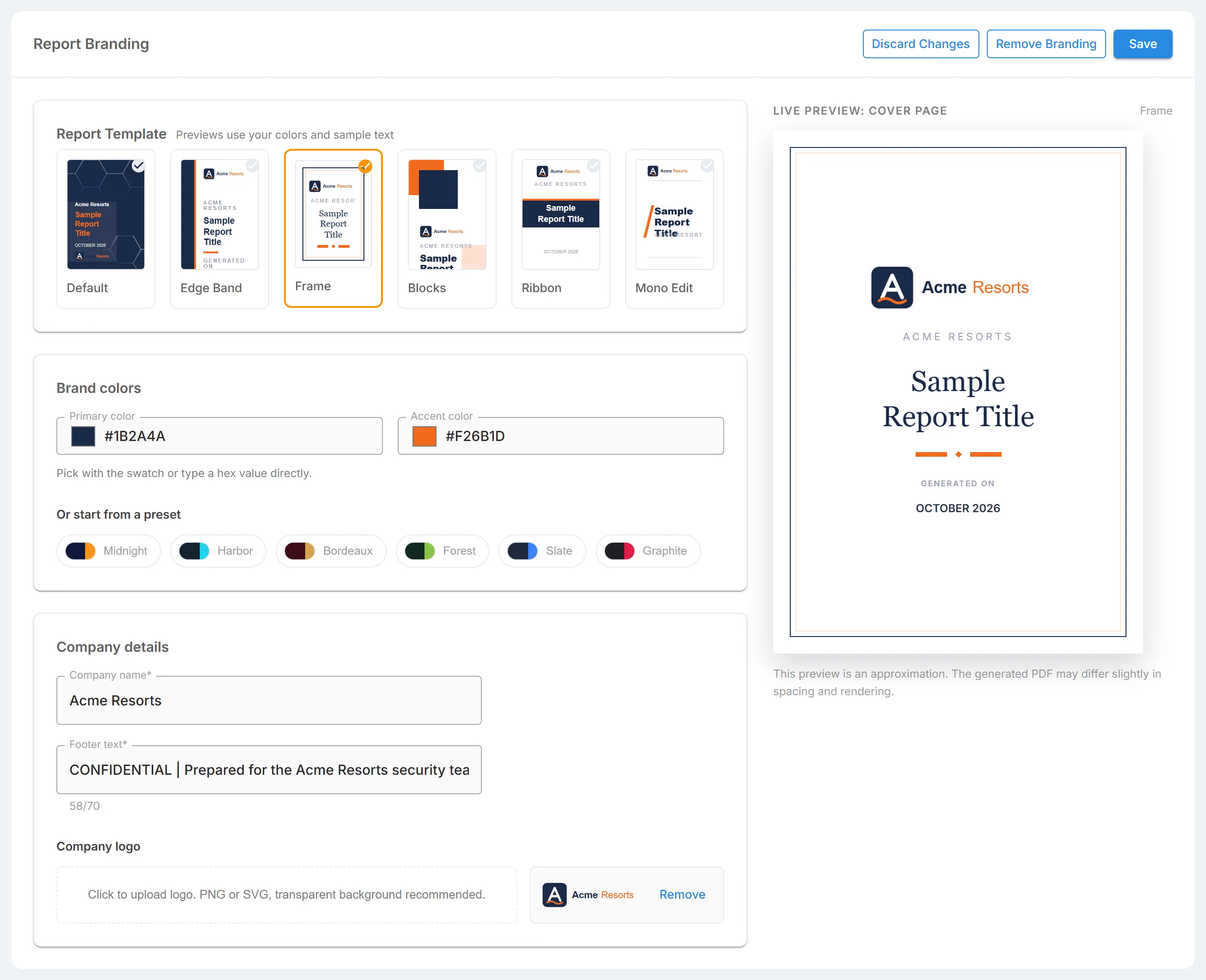
- "Report Template": the cover and page design. Choose "Default", "Edge Band", "Frame", "Blocks", "Ribbon", or "Mono Edit". The thumbnails use your colours and sample text.
- "Brand colors": the "Primary color" and "Accent color". Pick each with its swatch or type a six-digit hex value, such as #111739. To start from a preset, choose "Midnight", "Harbor", "Bordeaux", "Forest", "Slate", or "Graphite".
- "Company details": the "Company name" and the "Footer text", up to 70 characters. Both are required.
- "Company logo": select the upload box to add a PNG or SVG image under 2 MB. A transparent background works best. Select "Remove" to take the logo off.
"Live preview: cover page" shows the cover with the template's name.
Third Party Questionnaire
Section titled “Third Party Questionnaire”"Questionnaire Email Branding" applies to the emails StyxView sends your third parties about questionnaires, such as the invitation to complete one. A recognisable sender helps your third parties trust the email and open the questionnaire. See Sending Out a Questionnaire.
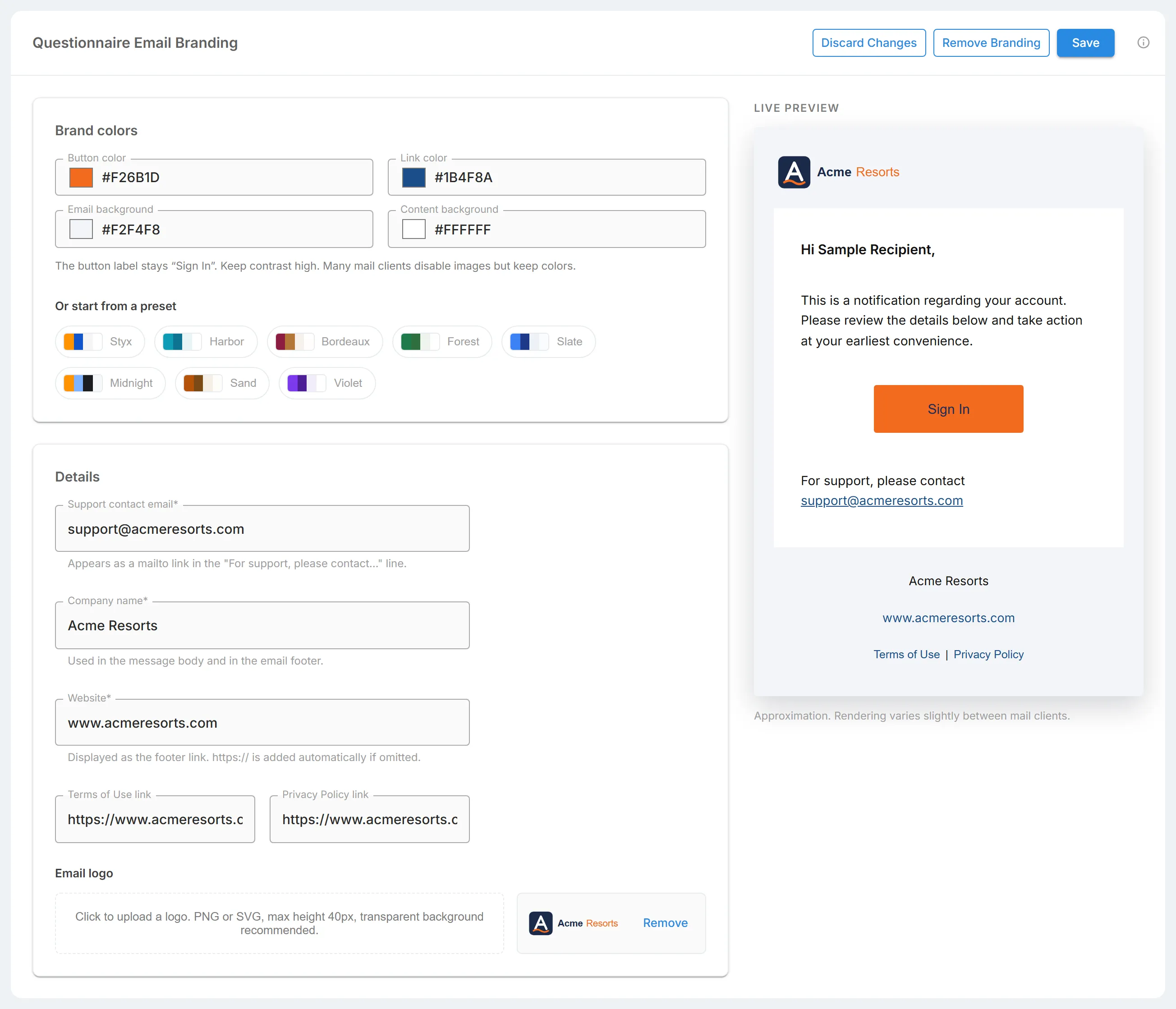
- "Brand colors": the "Button color", "Link color", "Email background", and "Content background", each with a swatch or a six-digit hex value. The button keeps the label "Sign In", so choose a button colour with strong contrast. To start from a preset, choose "Styx", "Harbor", "Bordeaux", "Forest", "Slate", "Midnight", "Sand", or "Violet".
- "Details":
- "Support contact email": shown as the support contact in the email. Required.
- "Company name": used in the message and in the footer. Required.
- "Website": the footer link. Required. StyxView adds
https://if you leave it out. - "Terms of Use link" and "Privacy Policy link": optional footer links. If you set neither, the footer has no legal links.
- "Email logo": select the upload box to add a PNG or SVG image under 2 MB, no taller than 40 pixels. A transparent background works best. Select "Remove" to take the logo off.
Many mail clients block images but keep colours, so check the email reads well without the logo.