

IOC Files
"IOC Files" holds the indicator of compromise (IOC) files that StyxView produces from its threat intelligence. Download them to load the indicators into your own security tools, such as a firewall, a security information and event management (SIEM) system, or an endpoint detection product.
Where to find it
Section titled “Where to find it”Select "Cyber Insights" > "IOC Files". The menu item is shown to users with the Admin role.
The page has up to two tables:
- "IOC Export Files": the standard files, the same for every account.
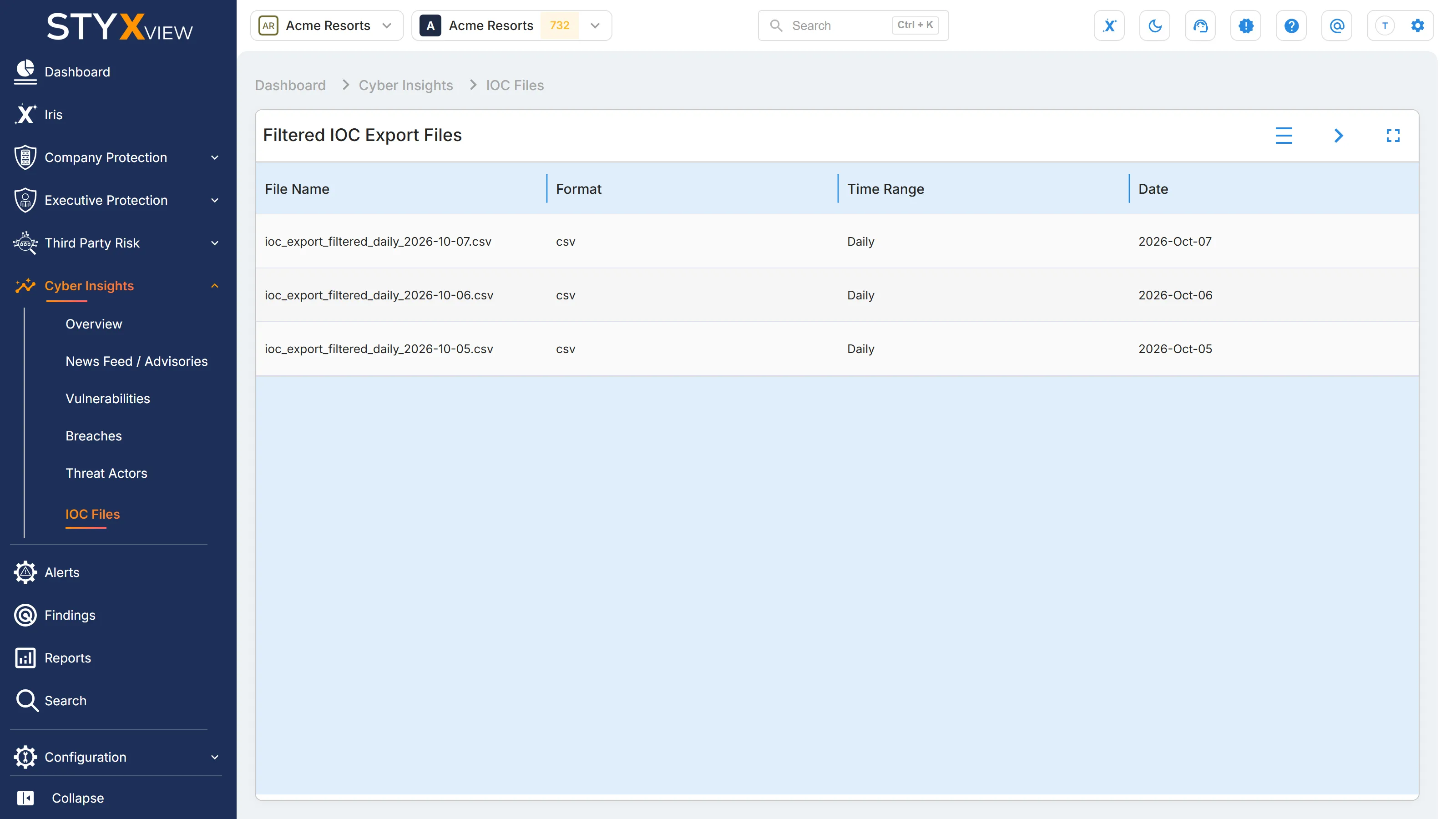
- "Filtered IOC Export Files": the files produced from your own export configuration. The table appears when there are filtered files to show. See Set up a filtered export.
Each table shows the three most recent daily files. Select the arrow at the top right of a table to see all its files.
Columns
Section titled “Columns”| Column | What it shows |
|---|---|
| File Name | The name of the file. |
| Format | The file format: csv, json, yara, or stix2. |
| Time Range | The period the file covers, such as "Daily" or "Weekly". |
| Date | When the file was created. |
| Download | Select the download icon to save the file. |
All files
Section titled “All files”The arrow on a table opens its full list, titled "IOC Export Files" or "Filtered IOC Export Files". Select the back arrow to return.
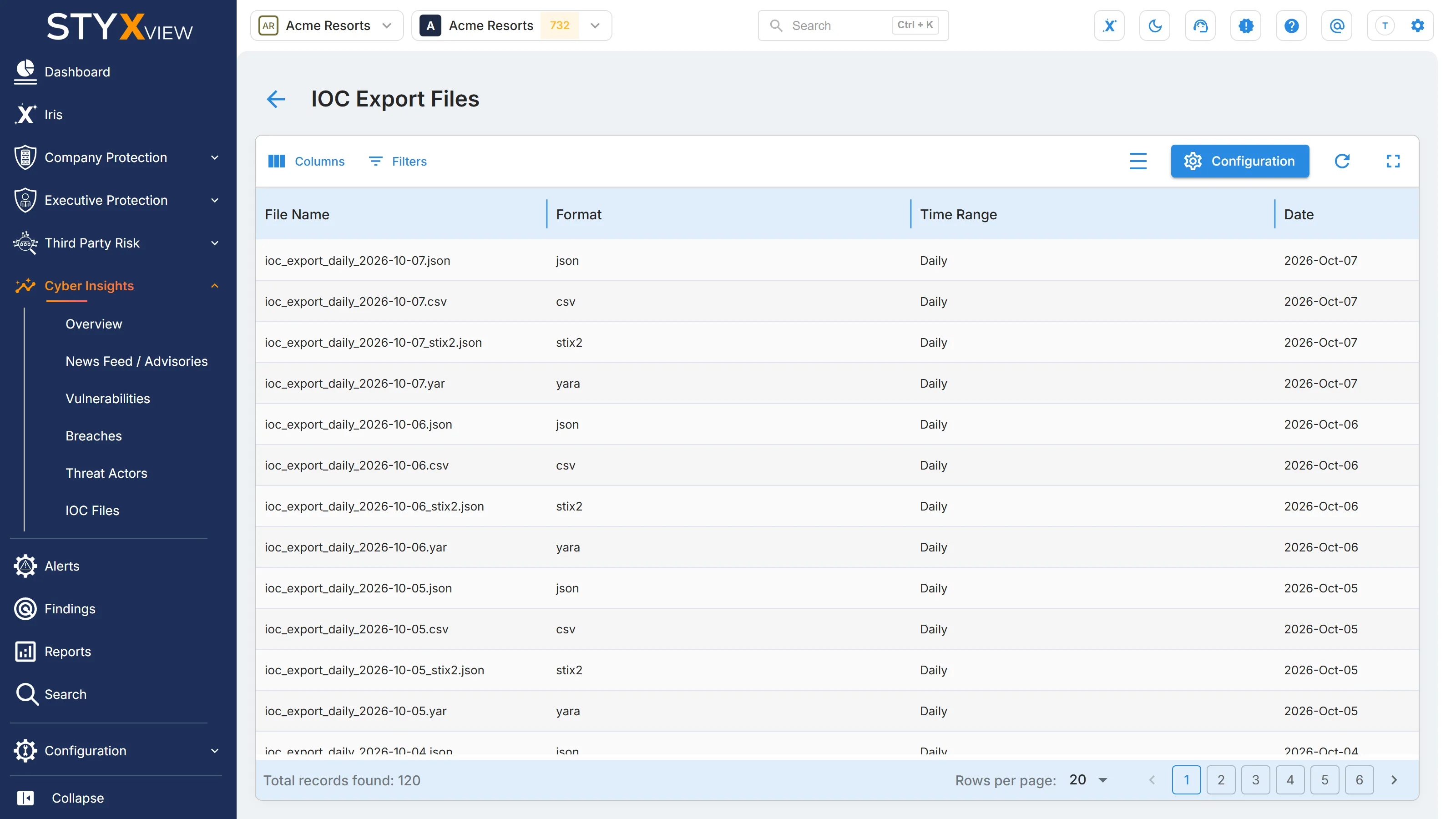
The list opens on daily files. To see weekly files, filter on "Time Range". You can also filter on "Format", and on "Date" with "is on or after" or "is on or before". See Action & Filter Bar.
Set up a filtered export
Section titled “Set up a filtered export”A filtered export holds only the indicator types you choose, in one format, on a daily or weekly schedule. Each account has one export configuration.
- Open the full list of either table and select "Configuration".
- In "Export Configuration", choose the "Format".
- Choose the "Frequency": "Daily" or "Weekly".
- In "Types", choose one or more indicator types.
- Select "Save". "Save" is available once every field has a value.
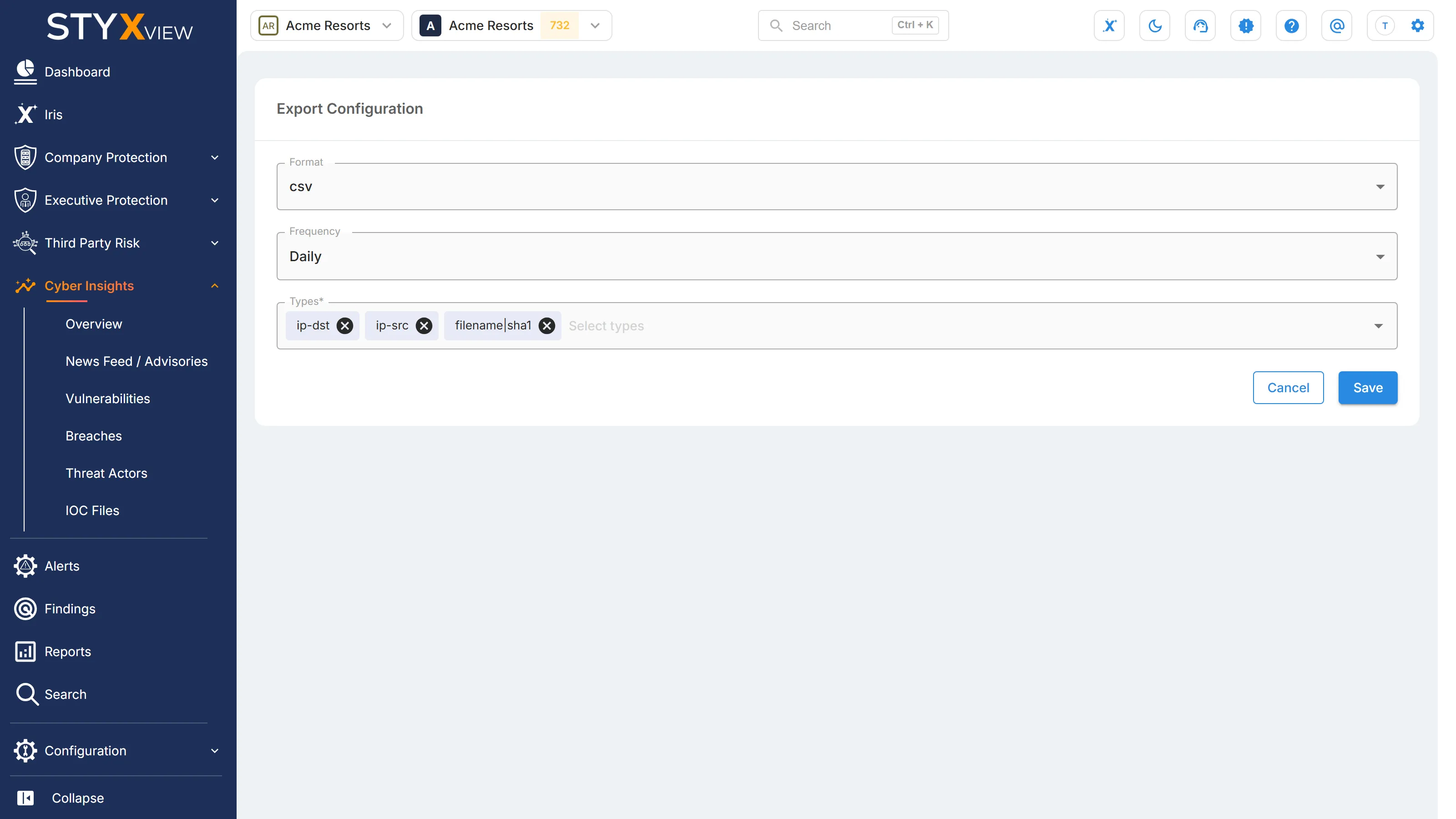
To change the configuration, open it again, change the fields, and select "Save". Select "Cancel" to leave without saving.
New files from the configuration appear in "Filtered IOC Export Files".