

Vulnerabilities
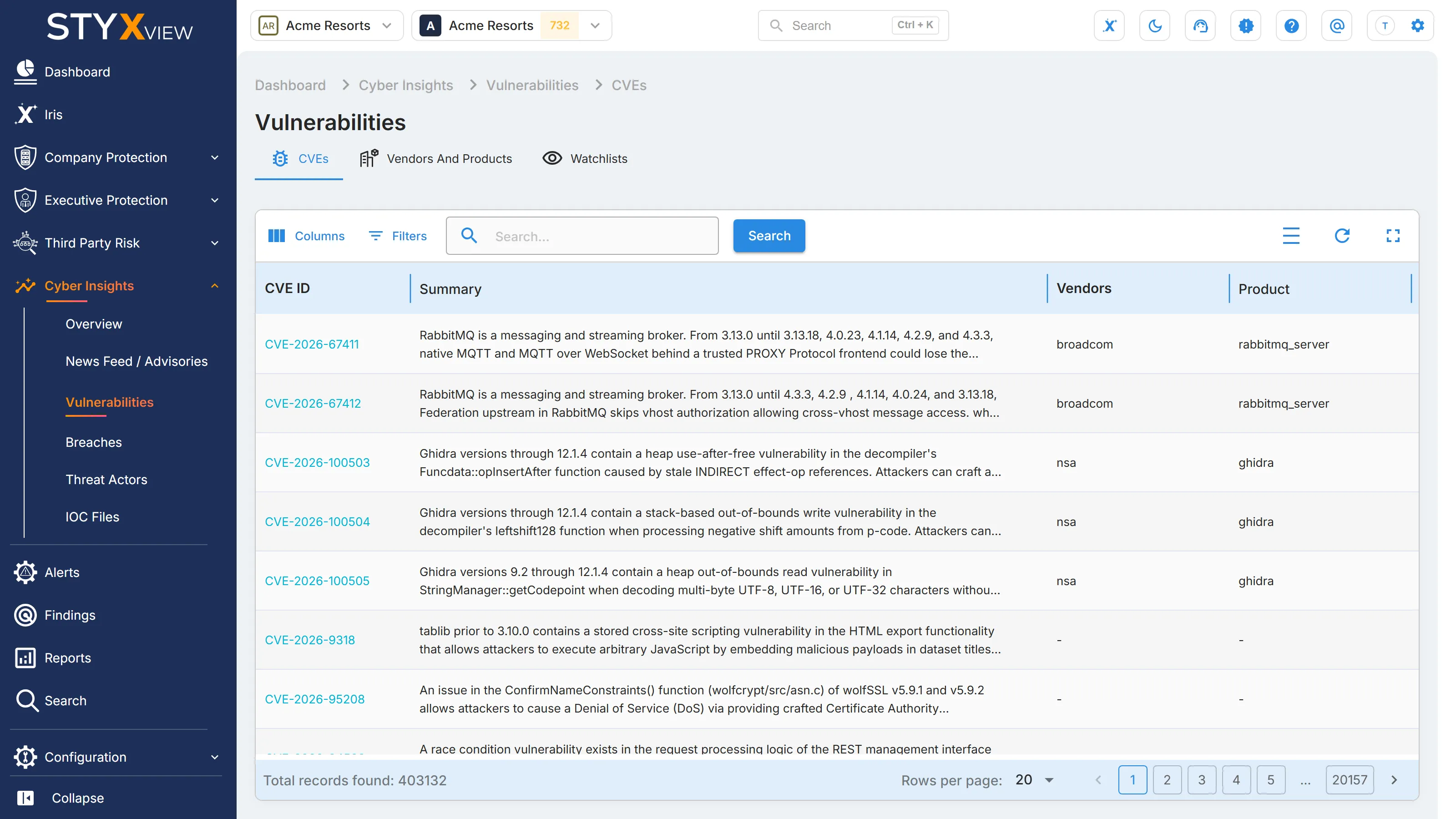
The "CVEs" tab lists published Common Vulnerabilities and Exposures (CVE) entries. Use it to check whether new vulnerabilities affect the software you run, and to judge how urgently to patch.
To open it, select Cyber Insights, then "Vulnerabilities", in the sidebar. "CVEs" is the first tab.
Columns
Section titled “Columns”| Column | What it shows |
|---|---|
| "CVE ID" | The vulnerability's public identifier. |
| "Summary" | A short description of the vulnerability. |
| "Vendors" | The vendors whose products are affected. |
| "Product" | The affected products. |
| "CVSS " | The Common Vulnerability Scoring System (CVSS) version 3 score, from 0.0 to 10.0. It rates the vulnerability, not your exposure to it. |
| "Risk Rating" | The severity that goes with the score: "None", "Low", "Medium", "High", or "Critical". |
| "Updated At" | When the entry last changed. |
Filtering and searching
Section titled “Filtering and searching”Open "Filters" to narrow the list:
| Filter | Options |
|---|---|
| "WatchList" | One of your watchlists, to show only CVEs for the vendors and products in it. See Watchlists. |
| "Date Range" | "Last Day", "Last Week", "Last Month", "Last 3 Months", "Last Year", "Last 3 Years", or "ALL". |
| "Risk Rating" | "None", "Low", "Medium", "High", "Critical", or "ALL". |
To search, enter a keyword in the search box and select "Search". Selecting "View" on the Vendors And Products tab opens this list filtered to that vendor or product.
CVE record
Section titled “CVE record”Select a row to open the CVE's record:
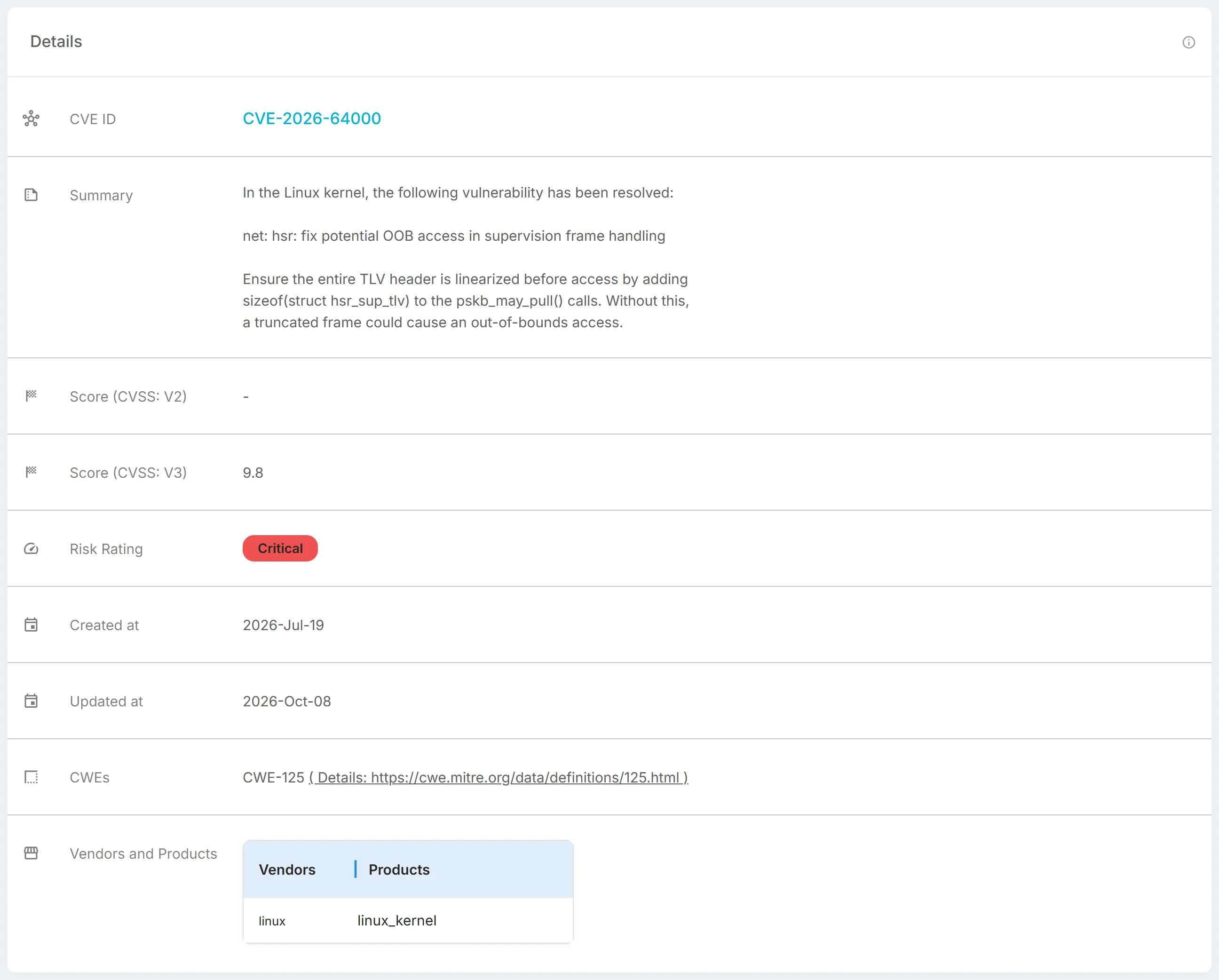
- "Details": "CVE ID", "Summary", "Score (CVSS: V2)", "Score (CVSS: V3)", "Risk Rating", "Created at", "Updated at", "CWEs", and "Vendors and Products". Each Common Weakness Enumeration (CWE) entry links to its definition on the MITRE website.
- "References": links to advisories, patches, and reports about the CVE, with their tags.
- "Known Exploited Vulnerability": shown when the CVE is in the Known Exploited Vulnerabilities catalogue of the US Cybersecurity and Infrastructure Security Agency (CISA), with "Vulnerability Name", "Source", and "Required Action".
- "Configurations": the affected product configurations listed in the CVE record.
- One tab per CVSS version in the record, such as "CVSS V3.1" and "CVSS V2": the base score out of 10, the severity, the exploitability and impact scores, and each CVSS metric.
Vendors and Products
Section titled “Vendors and Products”"Vendors And Products" lists the software and hardware vendors, and their products, named in published Common Vulnerabilities and Exposures (CVE) entries. Use it to open every known vulnerability for a vendor or product you rely on, and to add vendors and products to a watchlist.
To open it, select Cyber Insights, then "Vulnerabilities", in the sidebar, then the "Vendors And Products" tab.
Vendors and products tables
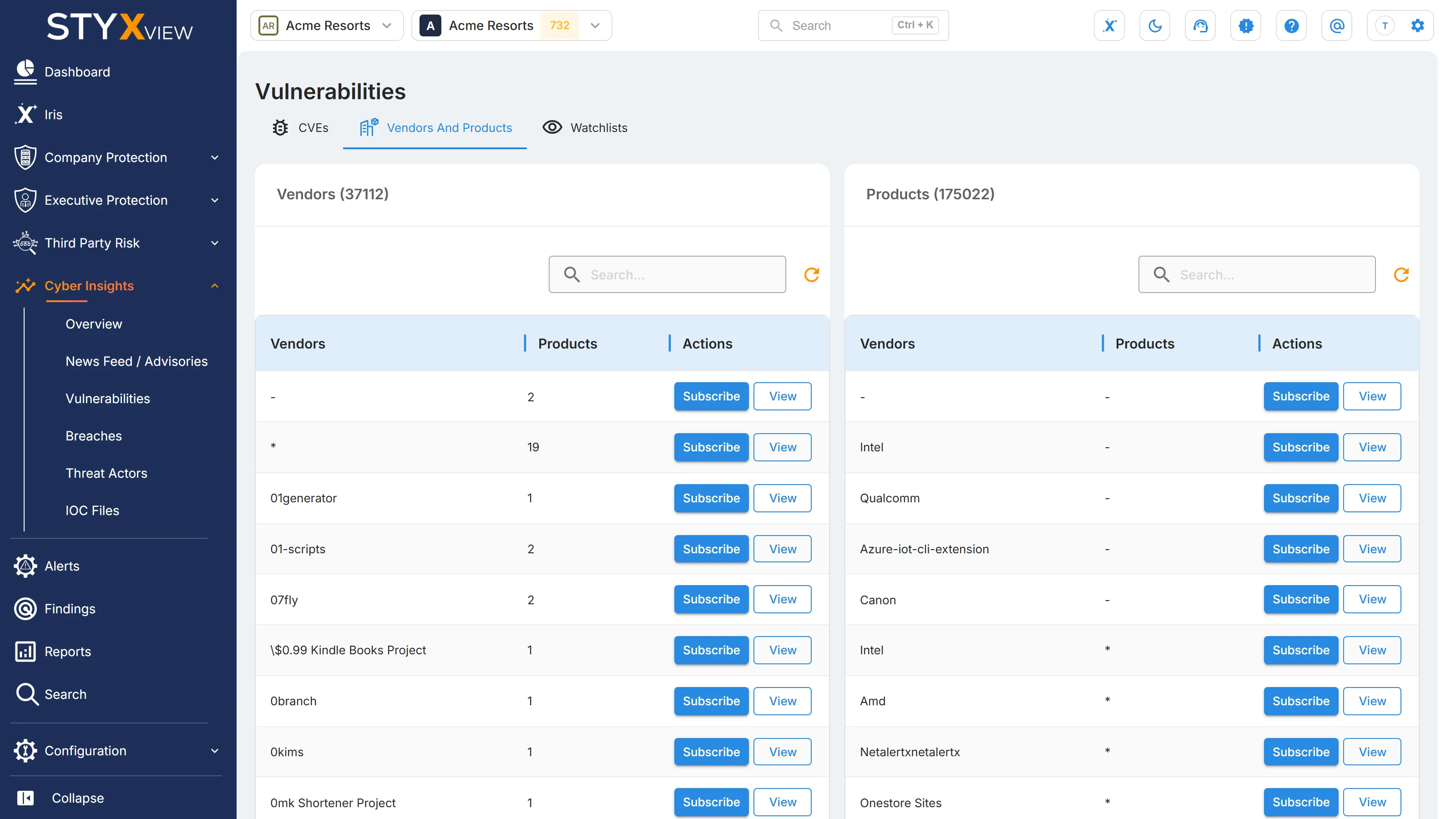
Section titled “Vendors and products tables”The tab has two tables side by side, each with its total in the title:
- "Vendors": each vendor, with the number of its products in "Products".
- "Products": each product, with its vendor in "Vendors".
Select a vendor's row to show only that vendor's products in the "Products" table. Select the row again to show all products.
Each table has its own search box (press Enter to search) and refresh button.
Actions
Section titled “Actions”Each row has two buttons in "Actions":
- "View": opens the "CVEs" tab filtered to that vendor, or to that product. See CVEs.
- "Subscribe": adds the vendor or product to a watchlist.
Adding a vendor or product to a watchlist
Section titled “Adding a vendor or product to a watchlist”Create the watchlist first, on the Watchlists tab.
- Select "Subscribe" on the vendor's or product's row.
- Choose the watchlist in "Watchlist". The dialog lists what the watchlist already holds under "Subscribed Vendors" and "Subscribed Products". To remove an entry, select the x on it.
- Select "Subscribe".
To see the CVEs for everything in a watchlist, filter the "CVEs" tab by "WatchList".
Watchlists
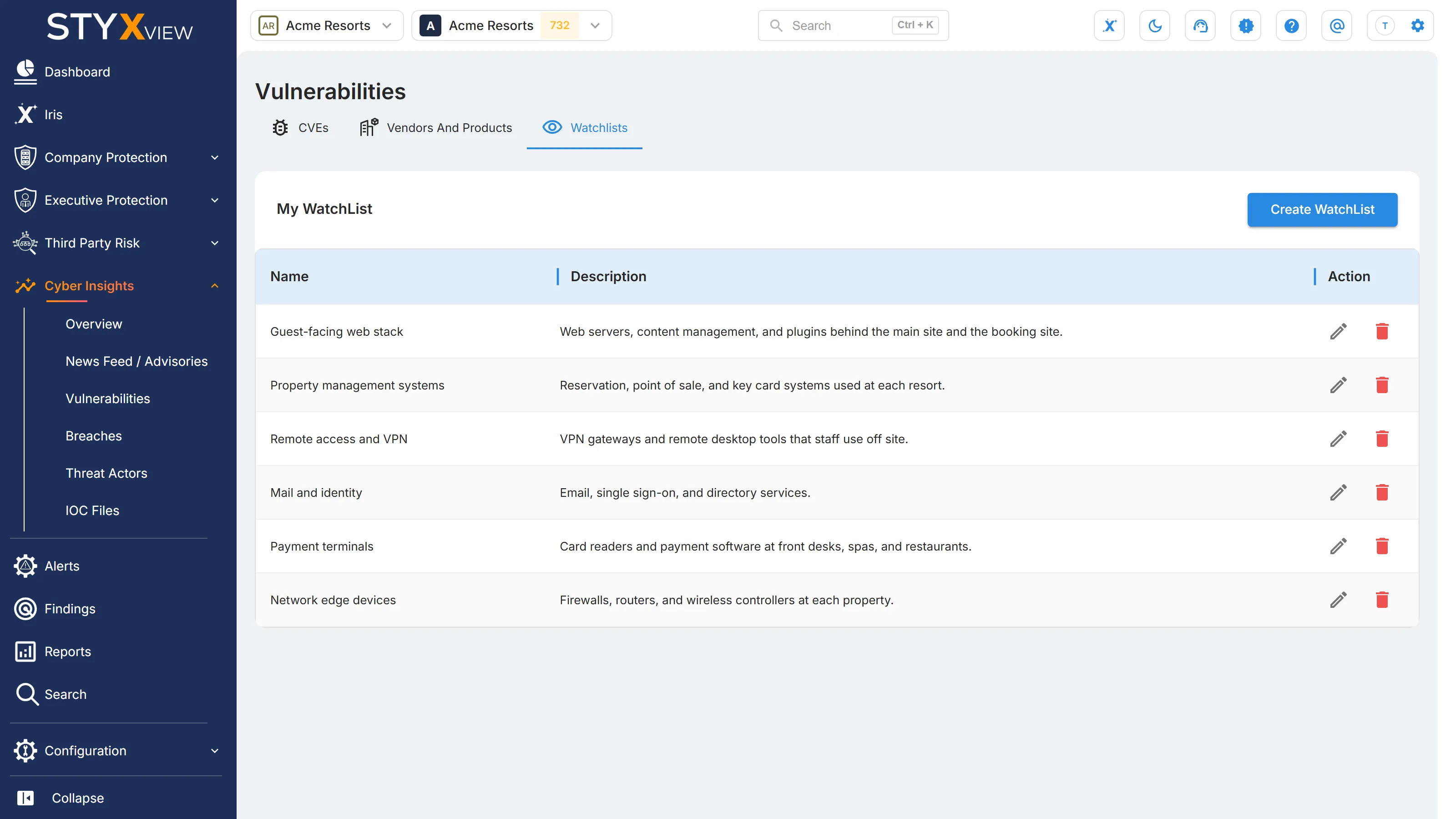
Section titled “Watchlists”A watchlist is a named set of vendors and products, typically the software you run. Filter the "CVEs" tab by a watchlist to see only the vulnerabilities that affect it.
To open your watchlists, select Cyber Insights, then "Vulnerabilities", in the sidebar, then the "Watchlists" tab. They are listed under "My WatchList", with their "Name" and "Description", and edit and delete icons under "Action".
Creating a watchlist
Section titled “Creating a watchlist”-
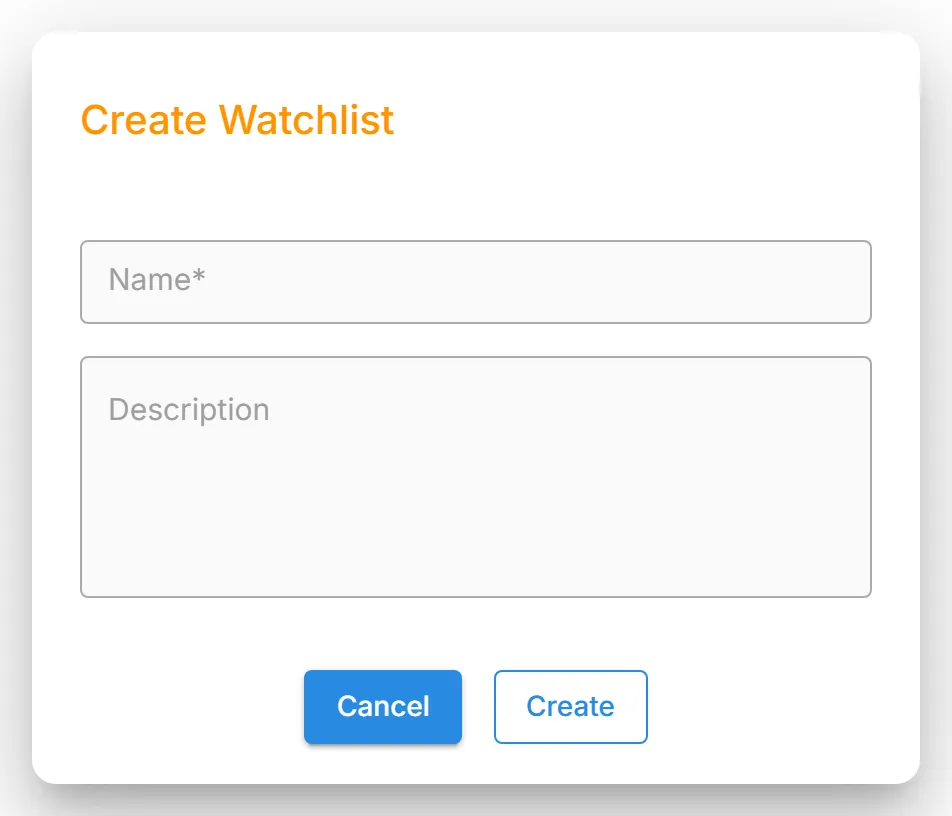
Select "Create WatchList".
-
Enter a "Name" and, optionally, a "Description".
-
Select "Create".
The new watchlist is empty. Add vendors and products to it with "Subscribe" on the Vendors And Products tab.
Editing a watchlist
Section titled “Editing a watchlist”- Select the edit icon on the watchlist's row.
- Change the "Name" or "Description". To remove a vendor or product, select the x on it under "Subscribed Vendors" or "Subscribed Products".
- Select "Update", then "Yes" to save the changes.
Deleting a watchlist
Section titled “Deleting a watchlist”- Select the delete icon on the watchlist's row.
- Select "Delete" to confirm.
Using a watchlist
Section titled “Using a watchlist”On the CVEs tab, open "Filters", choose "WatchList", and choose the watchlist.