

Accounts
An account holds a set of policies, and each policy tells StyxView what to monitor. Use separate accounts to keep the monitoring of different companies or brands apart, for example one account for Contoso and one for Fabrikam. An account can have one Company Protection policy, and several Executive Protection and third-party policies.
Users switch between accounts with the account switcher in the header. To limit a user to some accounts, put them in a group with "Account" scope. See Groups.
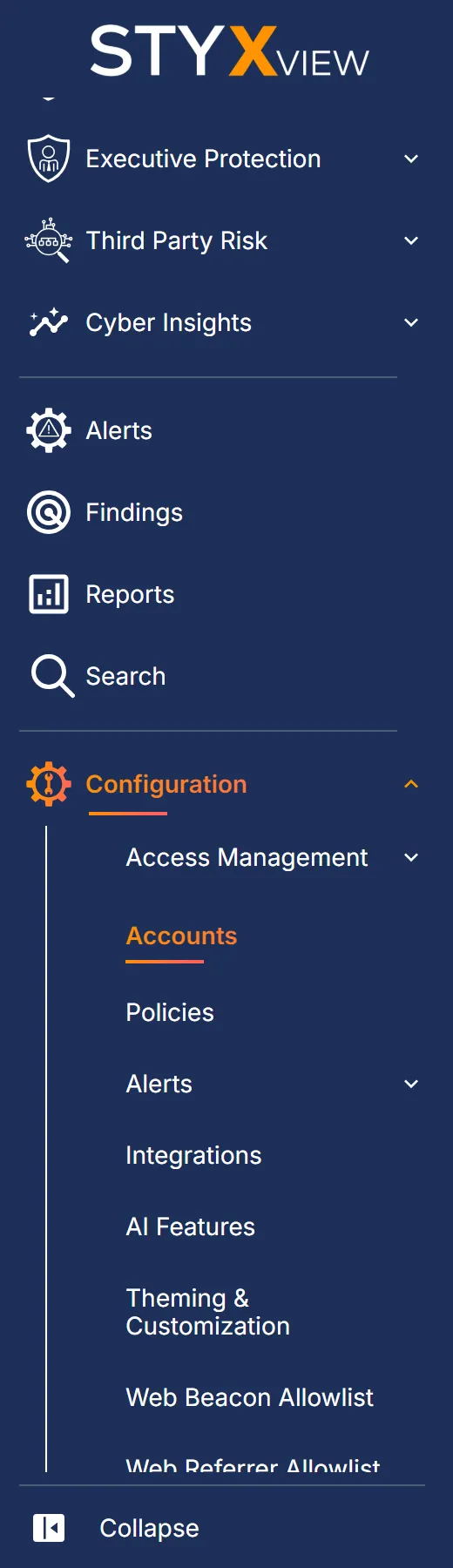
Accounts is in the "Configuration" menu, which only Admins see. Only Admins can add and delete accounts.
Navigation Path
Section titled “Navigation Path”In the sidebar, select "Configuration" > "Accounts".
Creating an Account
Section titled “Creating an Account”-
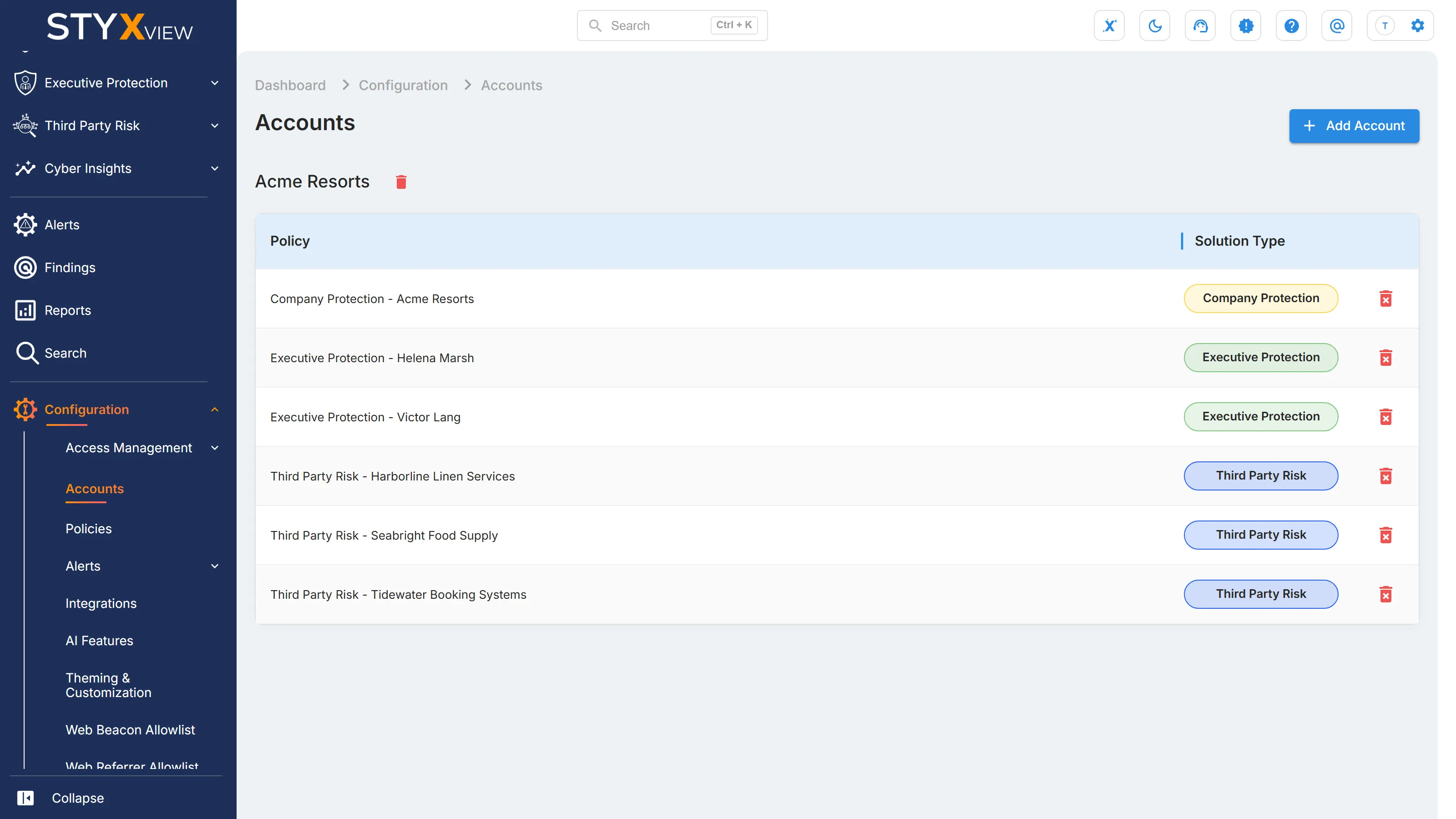
Select "Add Account" at the top right of the page.
-
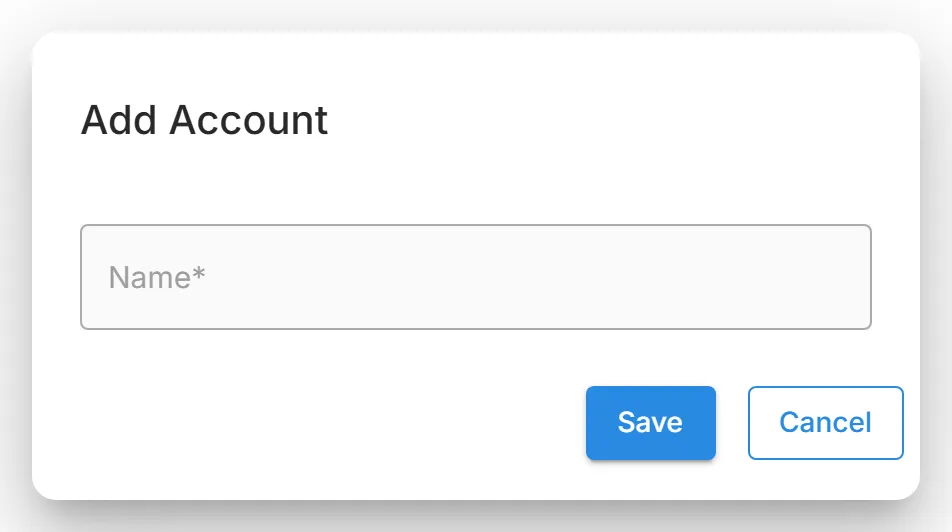
In the "Add Account" dialog, enter a "Name" of 4 to 250 characters. Use letters, numbers, spaces, apostrophes, and hyphens.
-
Select "Save". To close the dialog without creating the account, select "Cancel".
StyxView creates the account and opens the Policies page, where you add the account's first policy. See Policies.
Deleting Accounts and Policies
Section titled “Deleting Accounts and Policies”The Accounts page lists each account with a table of its policies. The table shows each policy's name ("Policy") and its "Solution Type".
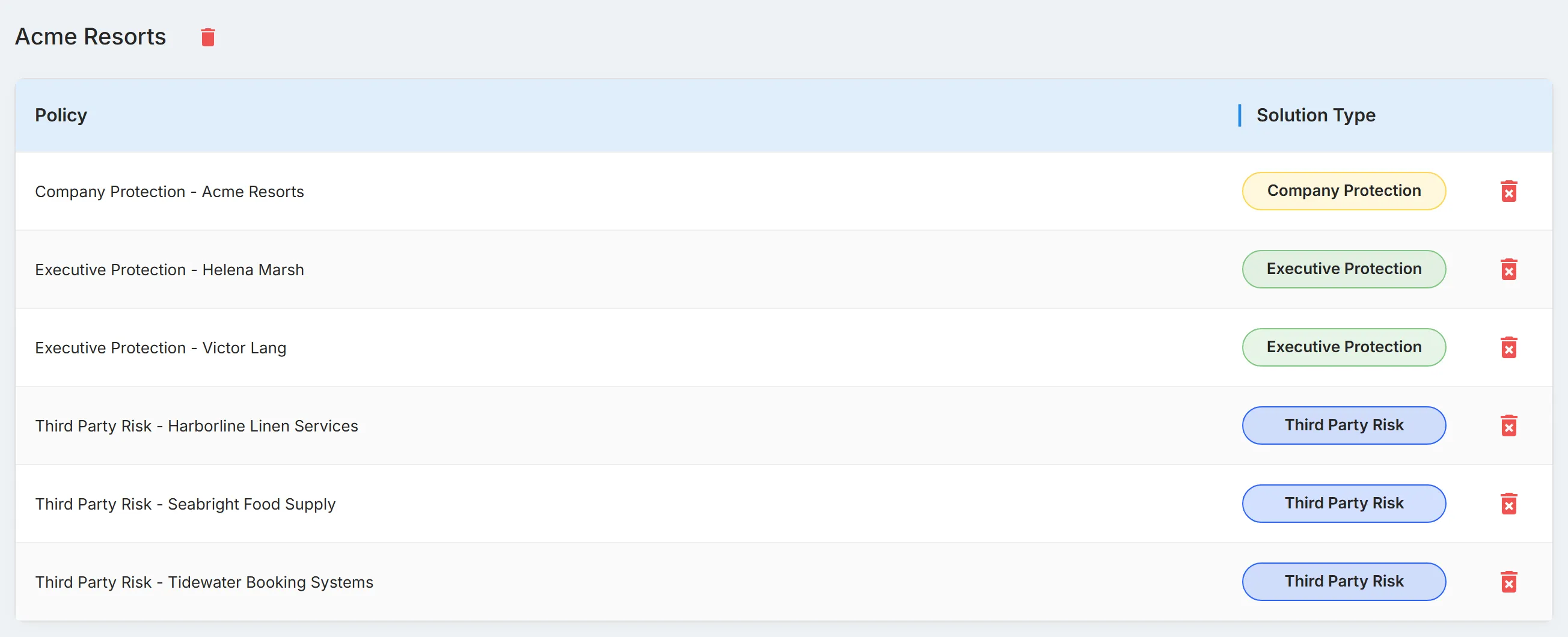
To delete a policy:
- Select the delete icon at the end of the policy's row.
- In the "Delete policy" dialog, select "Delete". To keep the policy, select "Cancel".
To delete an account and all of its policies:
- Select the delete icon next to the account name.
- In the "Delete account" dialog, select "Delete". To keep the account, select "Cancel".