

AppSec & Vulnerabilities
Vulnerabilities
Section titled “Vulnerabilities”Overview
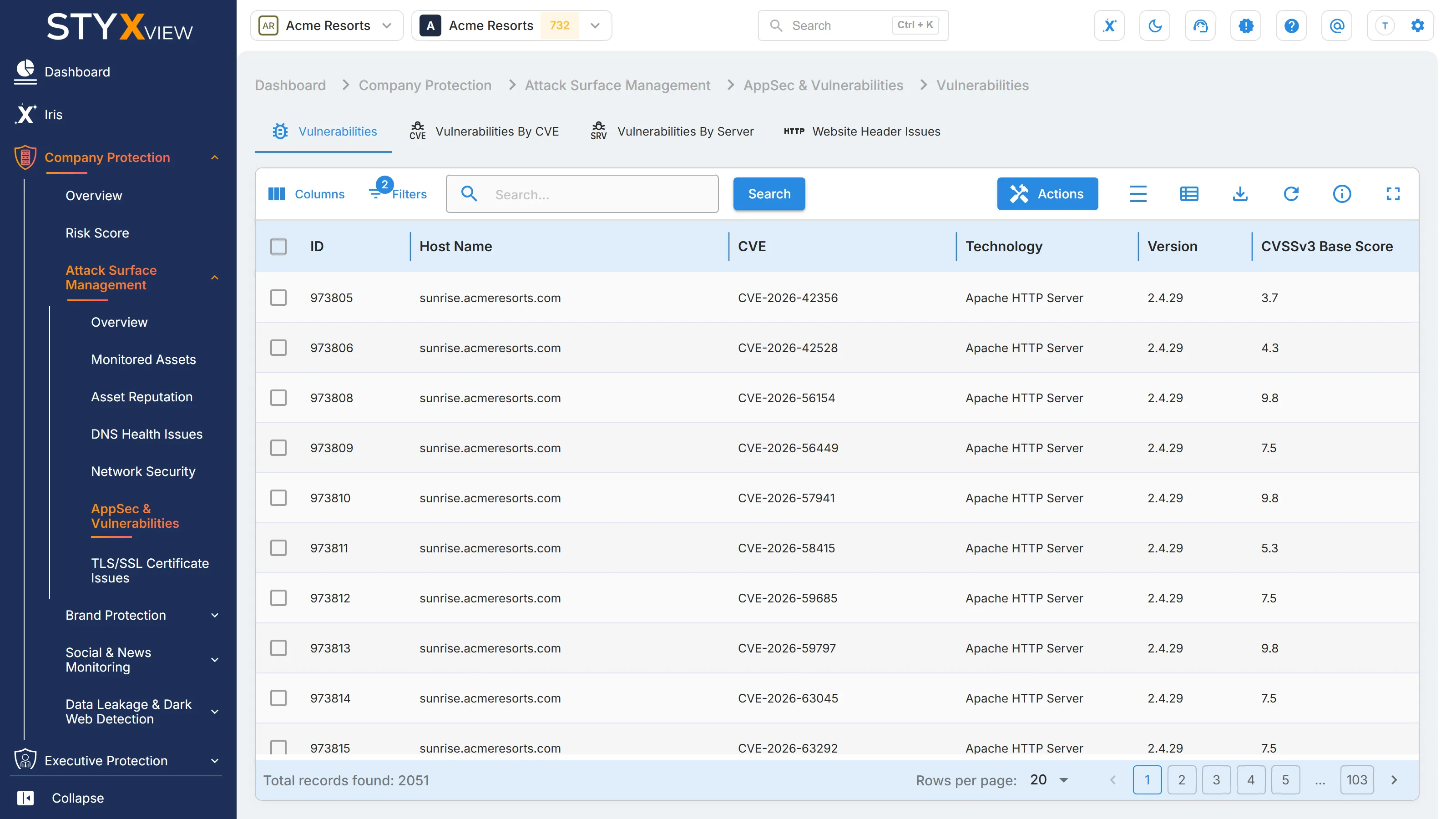
Section titled “Overview”The "Vulnerabilities" tab lists the publicly known vulnerabilities that affect the software versions found on your hosts. StyxView identifies the technology and version a host runs and matches it against the Common Vulnerabilities and Exposures (CVE) catalogue. Each row is one CVE on one host.
Open it from "Company Protection" > "Attack Surface Management" > "AppSec & Vulnerabilities". "Vulnerabilities" is the first tab. The same findings are grouped by CVE and by server on the next two tabs.
Columns
Section titled “Columns”| Column | What it shows |
|---|---|
| ID | The finding's permanent identifier. |
| Host Name | The host running the affected software. |
| CVE | The CVE identifier of the vulnerability. |
| Technology | The affected software. |
| Version | The version of the software found on the host. |
| CVSSv3 Base Score | The published severity of the vulnerability, from 0.0 to 10.0. |
| Status | Where the finding is in the triage workflow. See Findings for each status. |
| First Seen | When StyxView first found the vulnerability on the host. |
| Last Seen | The most recent scan that still found it. |
| Severity Rating | "Low", "Medium", "High", or "Critical", derived from the CVSSv3 base score. |
| Assigned User | The user the finding is assigned to. |
| Latest Comment | The most recent comment on the finding. |
More columns are hidden by default: "CVSSv3 Temp Score", "EPSS Score", "EPSS Percentile", "Vulnerability Class", "Title", "Details", "Exploit Price", and "Summary". Add them with "Columns".
Reading the scores
Section titled “Reading the scores”- The CVSSv3 base score rates the vulnerability itself. It does not know how exposed your host is: a "Critical" on a host nobody can reach can matter less than a "High" on a public one.
- "CVSSv3 Temp Score" adjusts the base score for whether exploit code exists and whether a fix is available.
- "EPSS Score" is the probability, from 0 to 1, that the vulnerability will be exploited in the next 30 days. "EPSS Percentile" ranks it against all other vulnerabilities. A high CVSS score with a very low EPSS score is often safer to defer.
Matching is by software version. If a host runs a version with the fix backported, or the affected feature is not in use, the finding may not apply: mark it as a false positive with a comment saying why.
Working with findings
Section titled “Working with findings”By default the grid shows open findings, with the status "New", "Analyzing", "On Watchlist", "Response In Progress", or "Reappeared", and hides findings marked as false positives. Change "Filters" to see the rest.
To act on findings:
- Select the checkbox of one or more rows, then select "Actions". To act on one row, you can right-click it instead.
- Choose an action:
- "Update Status" moves the findings through the triage workflow.
- "Assign To" assigns them to a user.
- "Comment" adds a note.
- "Mark as False Positive" records that a finding is not a real issue. "Unmark as False Positive" reverses it.
- "Accept Risk" records a decision to leave the issue unfixed: the finding's status becomes "Closed Without Action", so it leaves the open list, and it keeps being detected. "Undo Accept Risk" sets it to "Reappeared" and adds it to the watchlist. See Accept Risk.
- Enter the context the dialog asks for, then select "Confirm".
Select a row to open the finding's detail page. See Findings.
To export this grid, select the export icon in the toolbar. It opens the export dialog, where you can download now or schedule a recurring export. See Export Functionality.
Third parties
Section titled “Third parties”For a third party you monitor, open "Third Party Risk", the third party's name, "Risks", then "AppSec and Vulnerabilities". The grid lists that third party's vulnerabilities, and "Actions" offers "Create Risk", which raises a risk from the selected findings in the Risk Register.
Vulnerabilities by CVE
Section titled “Vulnerabilities by CVE”Overview
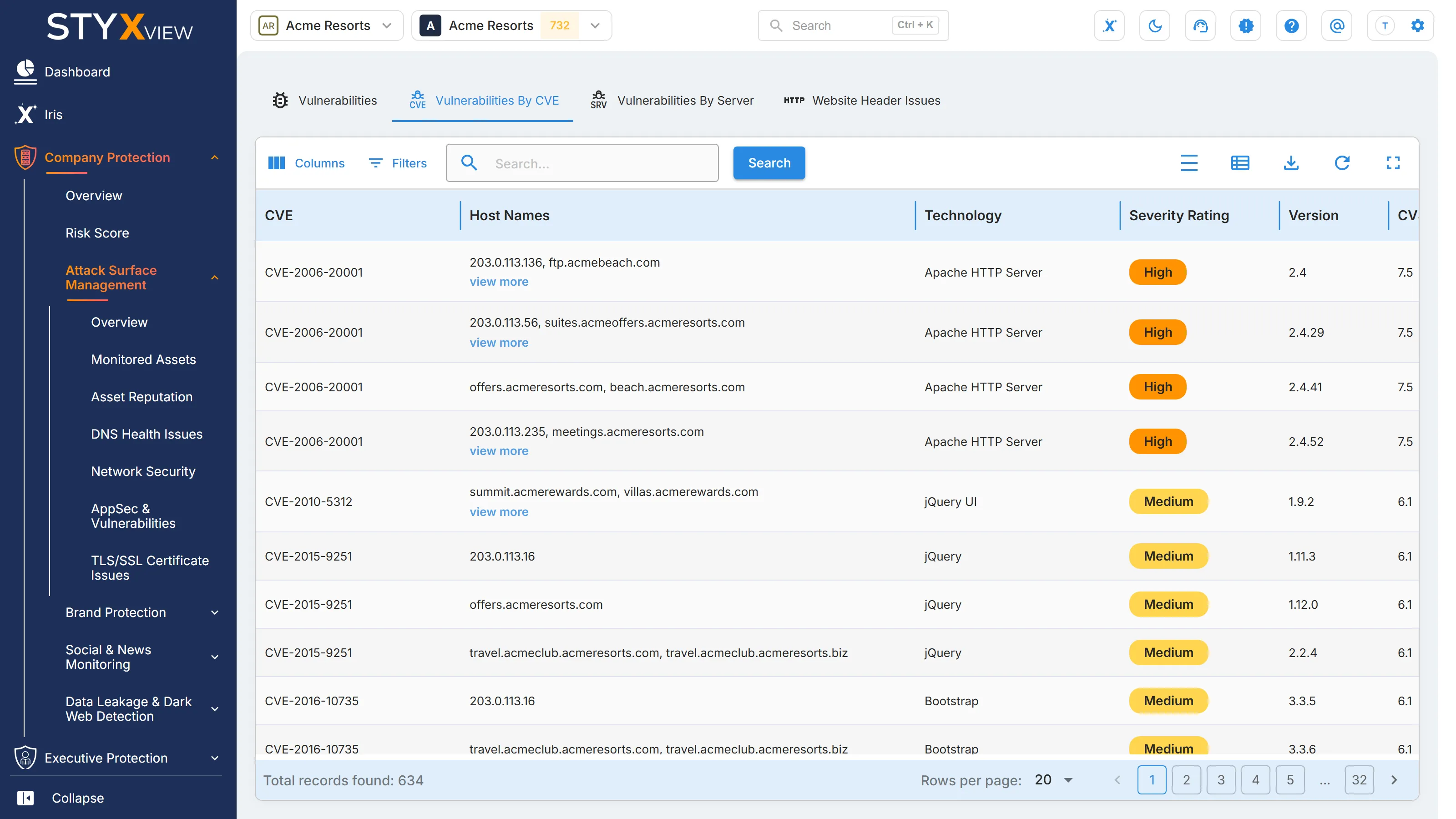
Section titled “Overview”The "Vulnerabilities by CVE" tab groups the findings from Vulnerabilities by CVE: one row for each CVE, affected technology, and version, listing every host it was found on. A CVE that spreads across many hosts is usually one upgrade with the widest effect available to you.
Vulnerabilities marked as false positives are left out.
Open it from "Company Protection" > "Attack Surface Management" > "AppSec & Vulnerabilities" > "Vulnerabilities by CVE".
Columns
Section titled “Columns”| Column | What it shows |
|---|---|
| CVE | The CVE identifier of the vulnerability. |
| Host Names | Every host and IP address the vulnerability was found on. Select "view more" when there are several. |
| Technology | The affected software. |
| Severity Rating | "Low", "Medium", "High", or "Critical", derived from the CVSSv3 base score. |
| Version | The affected version of the software. |
| CVSSv3 Base Score | The published severity of the vulnerability, from 0.0 to 10.0. |
"CVSSv3 Temp Score" and "Vulnerability Class" are hidden by default. Add them with "Columns".
CVE details
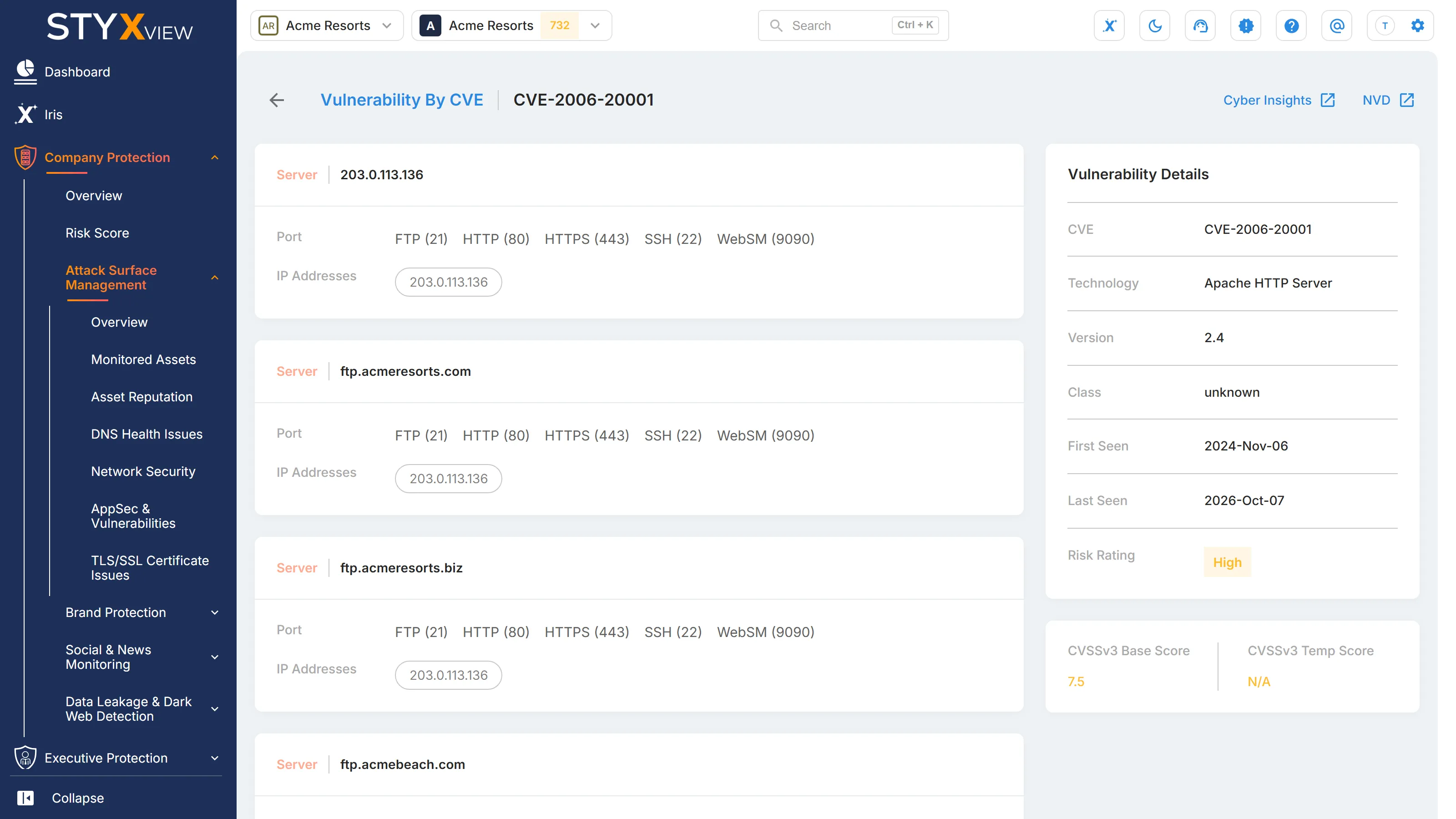
Section titled “CVE details”Select a row to open the CVE's detail page. It shows:
- "Vulnerability Details": technology, version, class, first and last seen dates, and risk rating.
- The CVSSv3 base and temporal scores.
- Each affected server, with its port and IP addresses. Select an IP address to open it.
- "Cyber Insights", which opens the CVE in Cyber Insights, and "NVD", which opens its entry in the National Vulnerability Database. Both open in a new tab.
To change a finding's status, assign it, or comment on it, use the Vulnerabilities tab. This tab has no actions.
Third parties
Section titled “Third parties”For a third party you monitor, open "Third Party Risk", the third party's name, "Risks", "AppSec and Vulnerabilities", then "Vulnerabilities by CVE".
Vulnerabilities by Server
Section titled “Vulnerabilities by Server”Overview
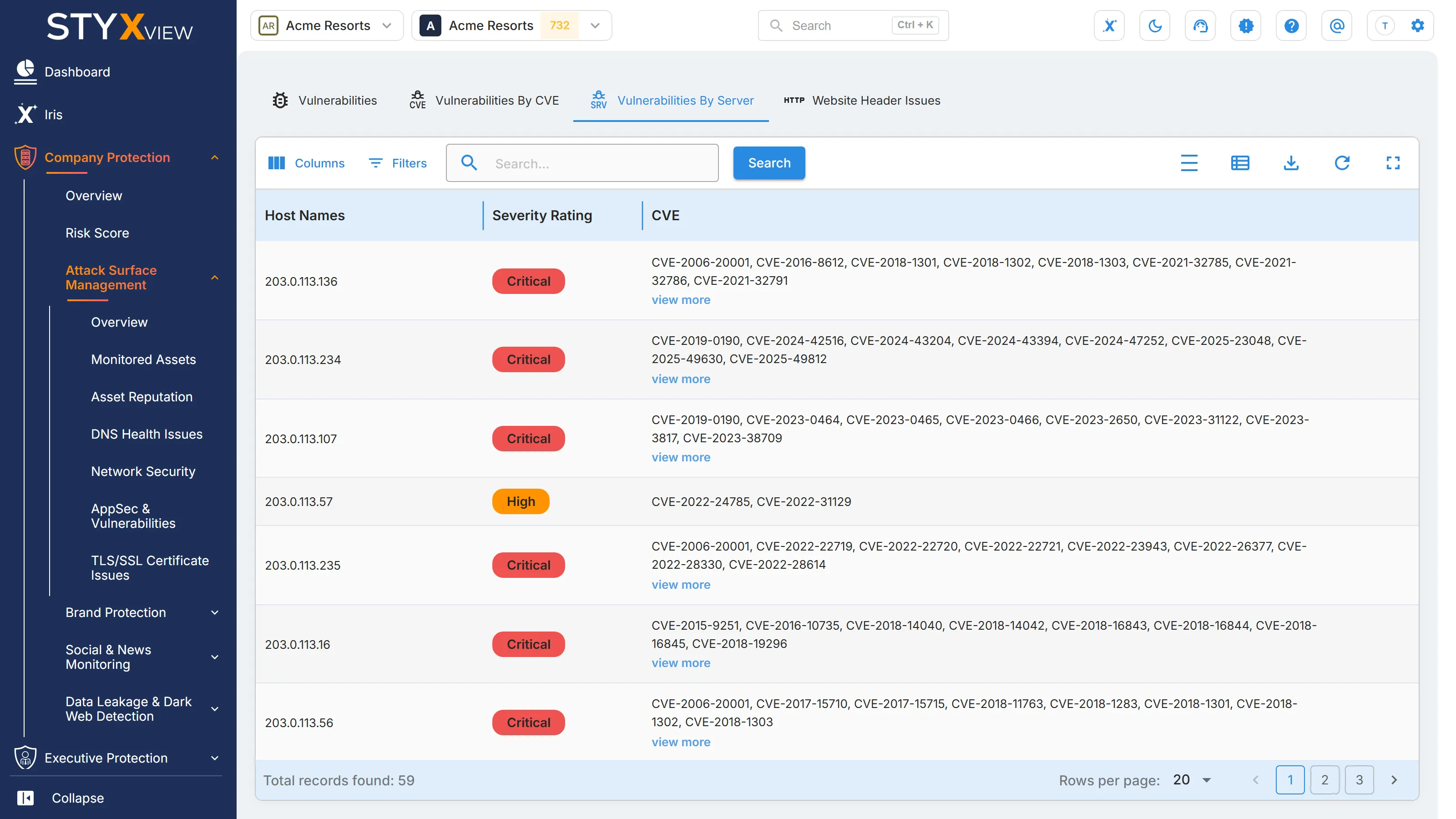
Section titled “Overview”The "Vulnerabilities by Server" tab groups the findings from Vulnerabilities by server: one row per host or IP address, with all of its CVEs together. It is the view for whoever patches a given machine.
Only open findings are included. Findings marked as false positives, or with the status "Resolved", "Closed Without Action", or "No Longer Seen", are left out.
Open it from "Company Protection" > "Attack Surface Management" > "AppSec & Vulnerabilities" > "Vulnerabilities by Server".
Columns
Section titled “Columns”| Column | What it shows |
|---|---|
| Host Names | The host name or IP address. |
| Severity Rating | The rating of the server's most serious vulnerability: "Low", "Medium", "High", or "Critical". |
| CVE | The CVEs found on the server. Select "view more" to see the full list. |
Server details
Section titled “Server details”Select a row to open the server's detail page: the IP address page for an address, or the host page for a host name. Its "Vulnerabilities" table lists each CVE as a separate finding.
To change a finding's status, assign it, or comment on it, use the Vulnerabilities tab. This tab has no actions.
Website Header Issues
Section titled “Website Header Issues”Overview
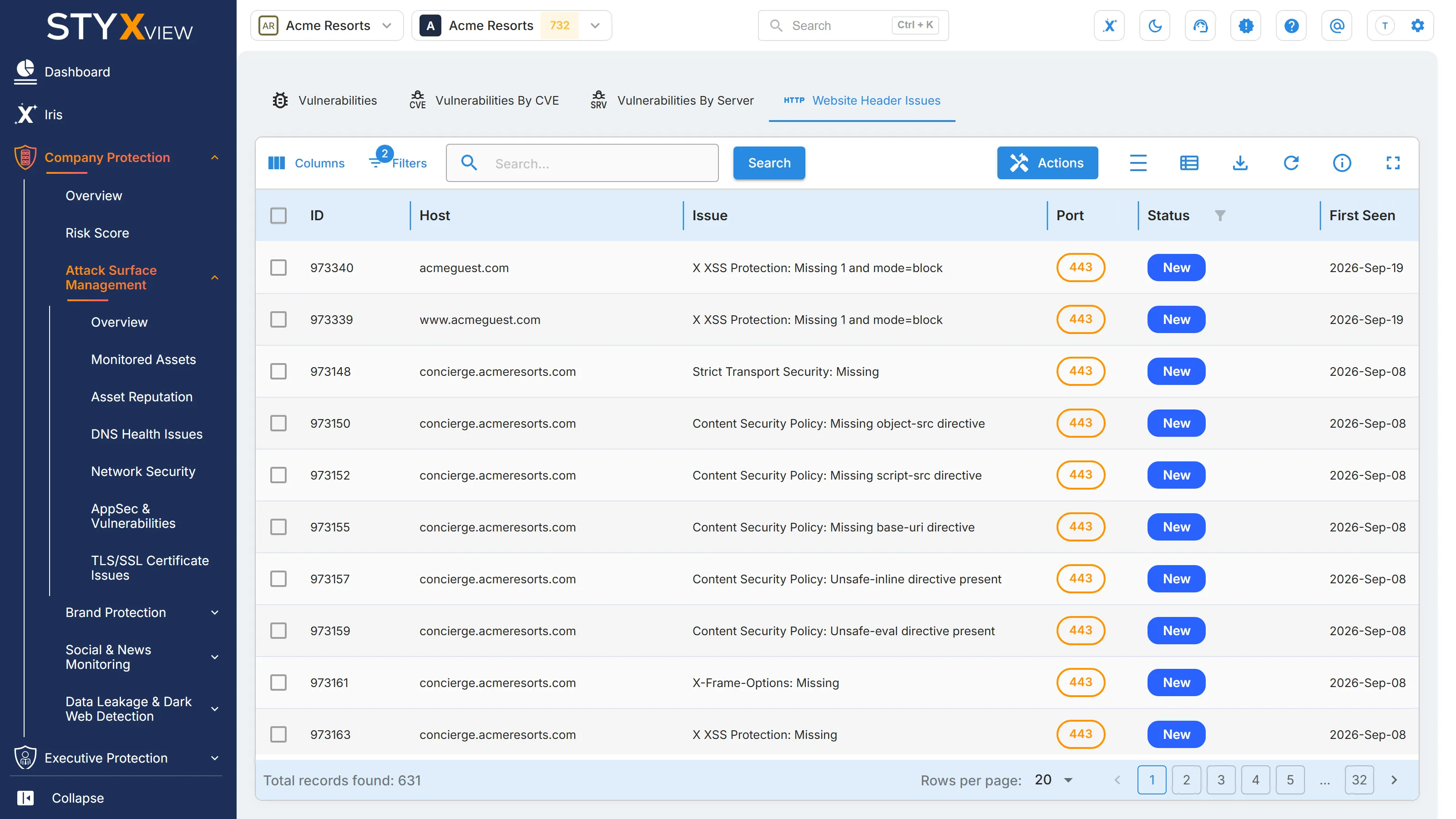
Section titled “Overview”HTTP security headers tell browsers how to protect visitors to a site: always use HTTPS, refuse to load the page inside another site, run only approved scripts. The "Website Header Issues" tab lists the headers that are missing or weakly set on your websites. Each row is one issue on one host and port.
A missing header does not mean the site has been attacked. It means one class of browser-side attack meets one fewer obstacle. The same header missing across many sites is usually one web server or content delivery network setting, so one change can clear many rows.
Open it from "Company Protection" > "Attack Surface Management" > "AppSec & Vulnerabilities" > "Website Header Issues".
Columns
Section titled “Columns”| Column | What it shows |
|---|---|
| ID | The finding's permanent identifier. |
| Host | The host serving the website. |
| Issue | The header and the problem with it, such as "Strict Transport Security: Missing". |
| Port | The port the website is served on. |
| Status | Where the finding is in the triage workflow. See Findings for each status. |
| First Seen | When StyxView first found the issue. |
| Last Seen | The most recent scan that still found it. |
| Severity Rating | How serious the issue is, from "Very Low" to "Very High". |
| Associated Risks | The attacks the issue makes easier. |
| Assigned User | The user the finding is assigned to. |
| Latest Comment | The most recent comment on the finding. |
"Issue Description" and "Issue Recommendation" are hidden by default. Add them with "Columns" to read what each issue means and how to fix it.
Headers checked
Section titled “Headers checked”| Header | What it does | Most serious issue |
|---|---|---|
| Strict Transport Security | Makes browsers use HTTPS only, which blocks downgrade and SSL stripping attacks. | "Strict Transport Security: Missing", rated "High" |
| Content Security Policy | Limits which scripts and resources a page may load, which blocks cross-site scripting and content injection. | "Content Security Policy: Missing", rated "High" |
| X-Frame-Options | Stops other sites from loading the page in a frame, which blocks clickjacking. | "X-Frame-Options: Missing", rated "High" |
| X Content Type Options | Stops browsers from guessing a file's type, which blocks MIME sniffing attacks. | "X Content Type Options: Missing", rated "Low" |
| X XSS Protection | Turns on the cross-site scripting filter in older browsers. | "X XSS Protection: Missing", rated "Low" |
| Referrer Policy | Limits what a page reveals about itself when visitors follow a link to another site. | "Referrer Policy: Missing", rated "Low" |
| Permissions Policy | Limits which browser features, such as the camera or location, a page may use. | "Permissions Policy: Missing", rated "Low" |
Besides a missing header, an issue can name a weak setting inside one, such as "Strict Transport Security: Missing includeSubdomains directive" or "Content Security Policy: Unsafe-inline directive present".
Working with findings
Section titled “Working with findings”By default the grid shows open findings, with the status "New", "Analyzing", "On Watchlist", "Response In Progress", or "Reappeared", and hides findings marked as false positives. Change "Filters" to see the rest.
To act on findings:
- Select the checkbox of one or more rows, then select "Actions". To act on one row, you can right-click it instead.
- Choose an action:
- "Update Status" moves the findings through the triage workflow.
- "Assign To" assigns them to a user.
- "Comment" adds a note.
- "Mark as False Positive" records that a finding is not a real issue. "Unmark as False Positive" reverses it.
- "Accept Risk" records a decision to leave the issue unfixed: the finding's status becomes "Closed Without Action", so it leaves the open list, and it keeps being detected. "Undo Accept Risk" sets it to "Reappeared" and adds it to the watchlist. See Accept Risk.
- Enter the context the dialog asks for, then select "Confirm".
Select a row to open the finding's detail page. See Findings.
Third parties
Section titled “Third parties”For a third party you monitor, open "Third Party Risk", the third party's name, "Risks", "AppSec and Vulnerabilities", then "Website Header Issues". The grid lists that third party's issues, and "Actions" offers "Create Risk", which raises a risk from the selected findings in the Risk Register.