

Findings
The "Findings" page lists every issue StyxView has detected for your organization across the Company Protection modules: exposures, misconfigurations, impersonation, leaked data, and more. A finding is one issue detected on one subject, such as a domain, a host, an account, or a document. It keeps its ID, status, assignee, and comments when later scans detect it again.
Navigation Path
Section titled “Navigation Path”In the left menu, select "Findings".
Findings Page Overview
Section titled “Findings Page Overview”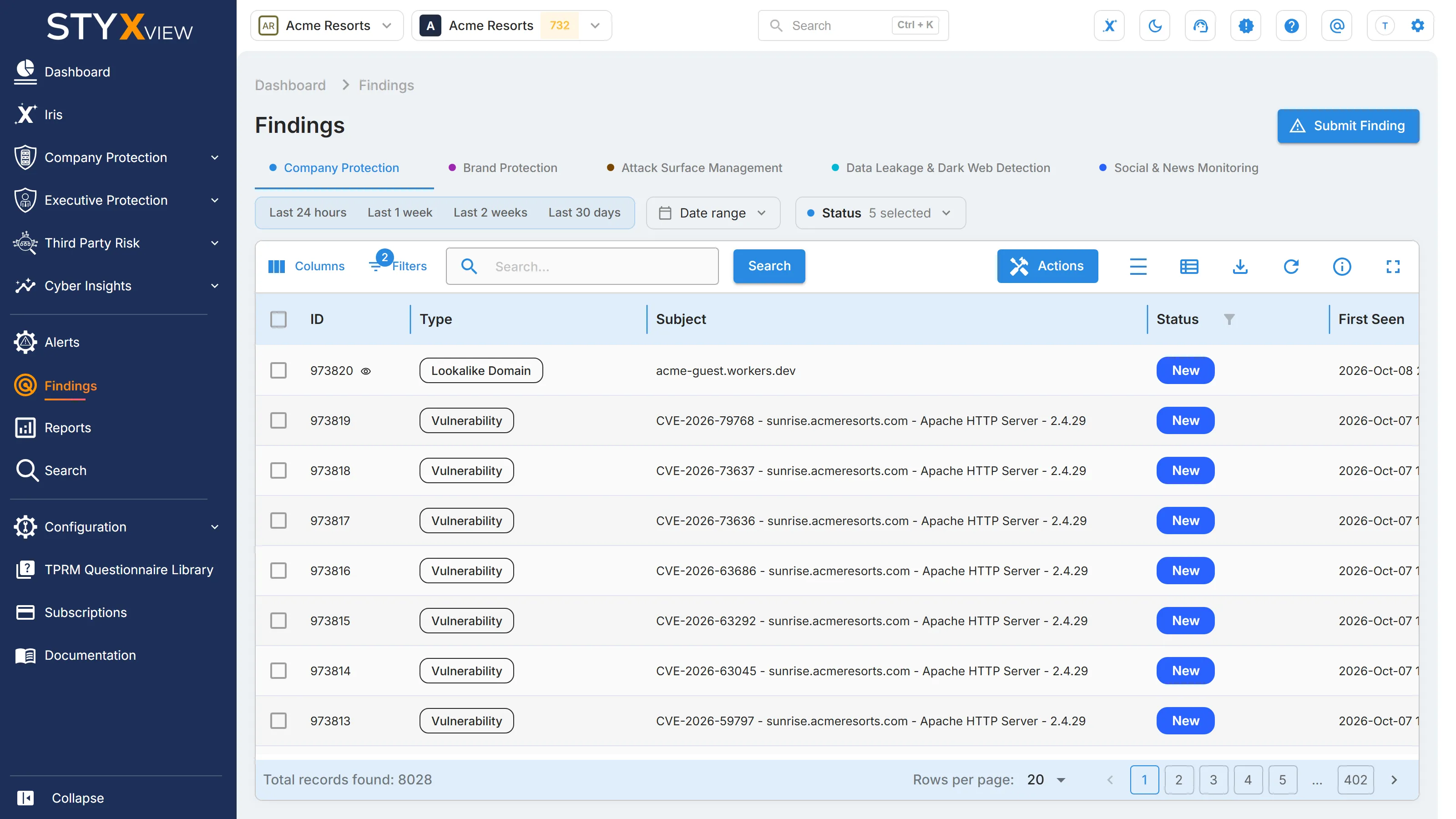
The top of the page has:
- "Submit Finding", to report an issue StyxView has not detected. See Submit a Finding.
- A tab for each solution: "All Solutions", "Brand Protection", "Attack Surface Management", "Data Leakage & Dark Web Detection", and "Social & News Monitoring".
- A time filter on "First Seen": "Last 24 hours", "Last 1 week", "Last 2 weeks", "Last 30 days", or a date range you pick.
- A "Status" menu with the statuses grouped as Open and Non-Open.
By default, the list shows findings in an open status (New, Analyzing, On Watchlist, Response In Progress, and Reappeared) that are not marked as false positive, with the most recently found first. Use "Filters" in the toolbar for any other filter, including "False Positive". The toolbar is described in Action & Filter Bar.
Findings Table Columns
Section titled “Findings Table Columns”| Column | Description |
|---|---|
| ID | The finding's permanent identifier. Marks next to it show, for example, that the finding is a false positive or that a takedown was requested. The legend icon in the toolbar explains each mark. |
| Type | The kind of issue. See the list below. |
| Subject | The affected domain, host, account, or other asset. Hover over it to see the associated hosts, where there are any. |
| Status | Where the finding is in the triage workflow. See the list below. |
| First Seen | When the finding was first detected. |
| Last Seen | When the finding was most recently detected. |
| Severity | How serious the finding is, as rated by the module that detected it. |
| Assigned User | The user the finding is assigned to. |
| Latest Comment | The most recent comment on the finding. |
"False Positive", "Associated Hosts", and "Sub Solution" are hidden by default. Show them with "Columns".
Finding Types
Section titled “Finding Types”| Solution | Finding types |
|---|---|
| Brand Protection | Lookalike Domain, Account Impersonation, Potential Employee Profile, Rogue Mobile App, Unauthorized Job Posting, Logo Match Detection |
| Attack Surface Management | TLS/SSL Certificate Issue, Potentially Insecure Port, Blocklisted Asset, DNS Health Issue, Vulnerability, Website Header Issue, SSH Connection Issue |
| Data Leakage & Dark Web Detection | Exposed Surface Web Document, Paste, Secret Leaks, Exposed Code Repository, Exposed Cloud Resource, Client Email in a Third Party Breach, Client Domain in a Third Party Breach, Compromised Credit Card, Other Mention, Advanced Stealer Logs |
| Social & News Monitoring | Negative Sentiment Post, Negative Sentiment Article |
Finding Status Options
Section titled “Finding Status Options”| Status | Meaning |
|---|---|
| New | The finding has been detected and not yet reviewed. |
| Analyzing | The finding is under review. |
| On Watchlist | The finding is being monitored. No immediate action is required. |
| Response In Progress | A mitigation or response is under way. |
| Resolved | The issue has been addressed. |
| Closed Without Action | The finding was reviewed and needed no action. |
| No Longer Seen | Recent scans did not detect the issue. StyxView keeps the record, so its history stays intact if it comes back. |
| Reappeared | A finding that was closed has been detected again. It usually means a fix regressed or an actor came back, so it deserves more attention than a new finding. |
Act on Several Findings
Section titled “Act on Several Findings”Select findings with their checkboxes, then select "Actions":
| Action | What it does |
|---|---|
| Update Status | Moves the findings to the status you choose. |
| Assign To | Assigns the findings to a user. |
| Comment | Adds the same comment to every selected finding. |
| Mark as False Positive | Records that the findings are not real issues and removes them from the open list. Detection may still find the same subject again. "Unmark as False Positive" reverses it. |
| Mark as Brand Infringement/Impersonation/Leak Detected | Records that the findings are confirmed infringement, impersonation, or leaks. |
| Accept Risk | Records a decision to leave the findings unfixed. They stay visible and keep being detected. "Undo Accept Risk" reverses it. |
| Add to Watchlist | Marks the findings for observation without action yet. "Remove from Watchlist" reverses it. |
| Mark as Legitimate | Records that the assets belong to your organization. |
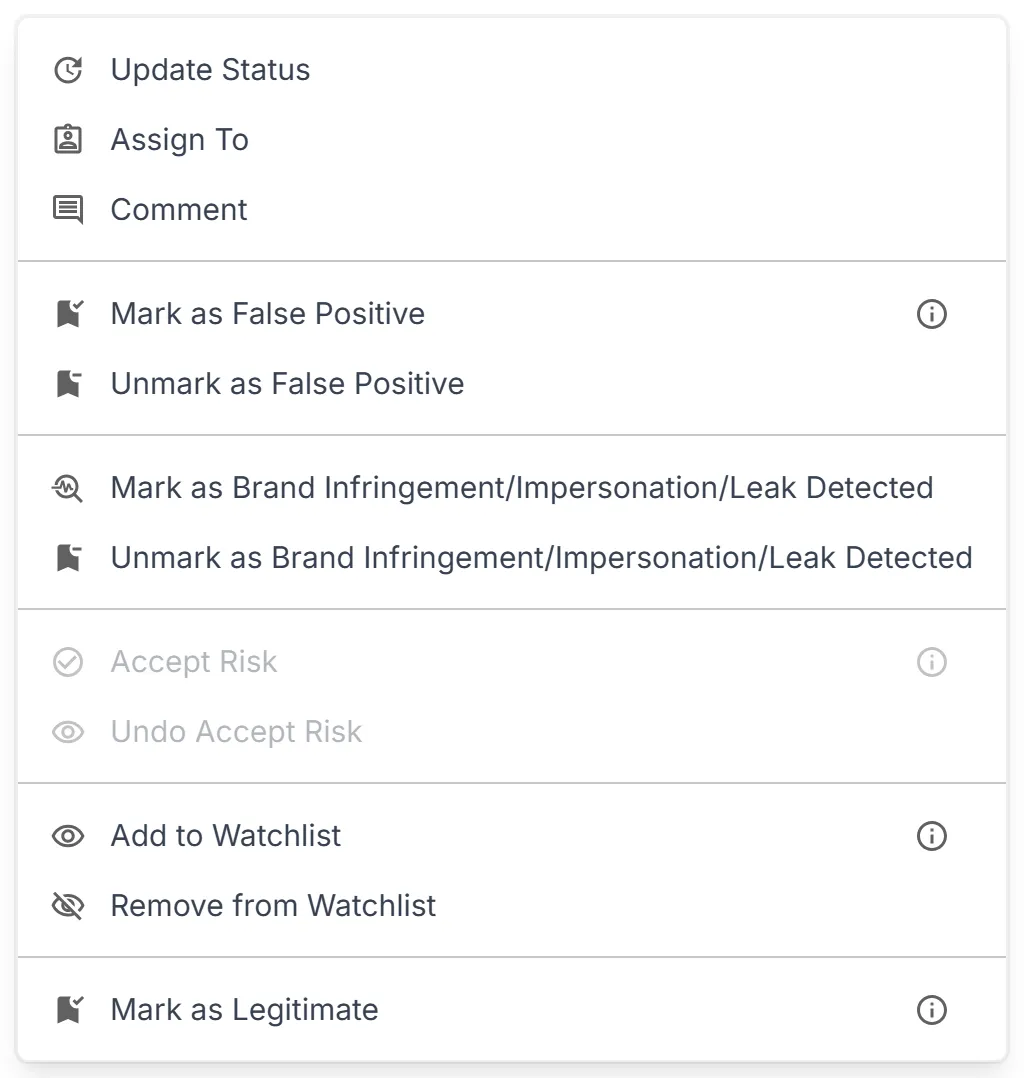
Every action asks you to add context, which is saved as a comment on each finding. Some actions apply only to some finding types: an action applies to the selected findings whose type supports it, and is unavailable when none of them does. You can also right-click a row to act on that finding alone. For what each action changes, and how to undo it, see Finding Actions.
Submit a Finding
Section titled “Submit a Finding”To report an issue StyxView has not detected, such as a suspicious domain, profile, or asset:
-
Select "Submit Finding". The "Submit a New Finding" dialog opens.
-
Describe the finding. Be specific: include the full URL, the platform name, and the brand being impersonated.
-
Attach screenshots or other evidence, if you have them.
-
To ask for a takedown, select "I would like to request a takedown for this finding". A takedown needs clear impersonation, infringement, or malicious activity.
-
Select "Submit".
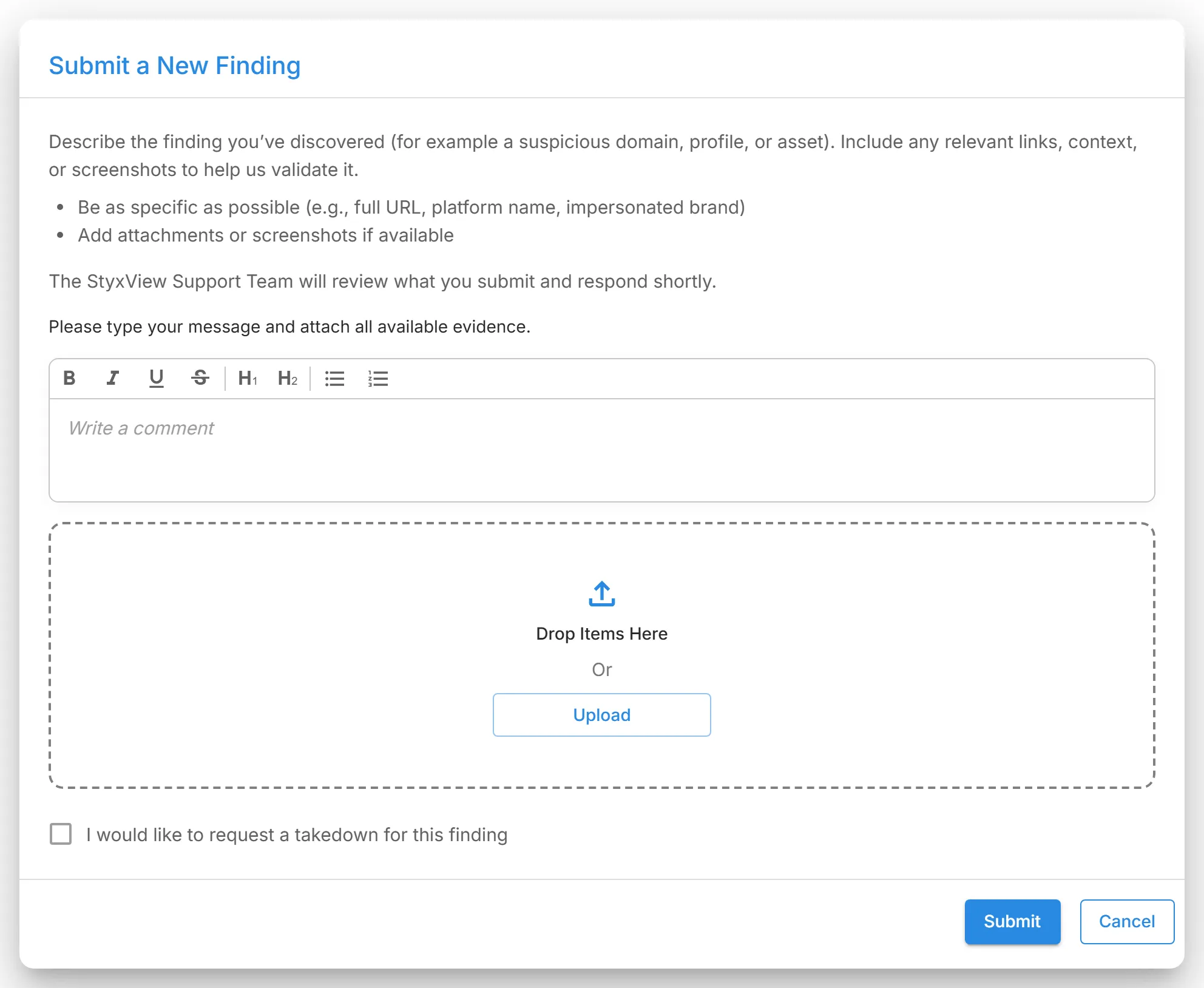
The StyxView Support Team reviews what you submit and responds.
Findings Detail View
Section titled “Findings Detail View”Select a row to open the finding's detail page.
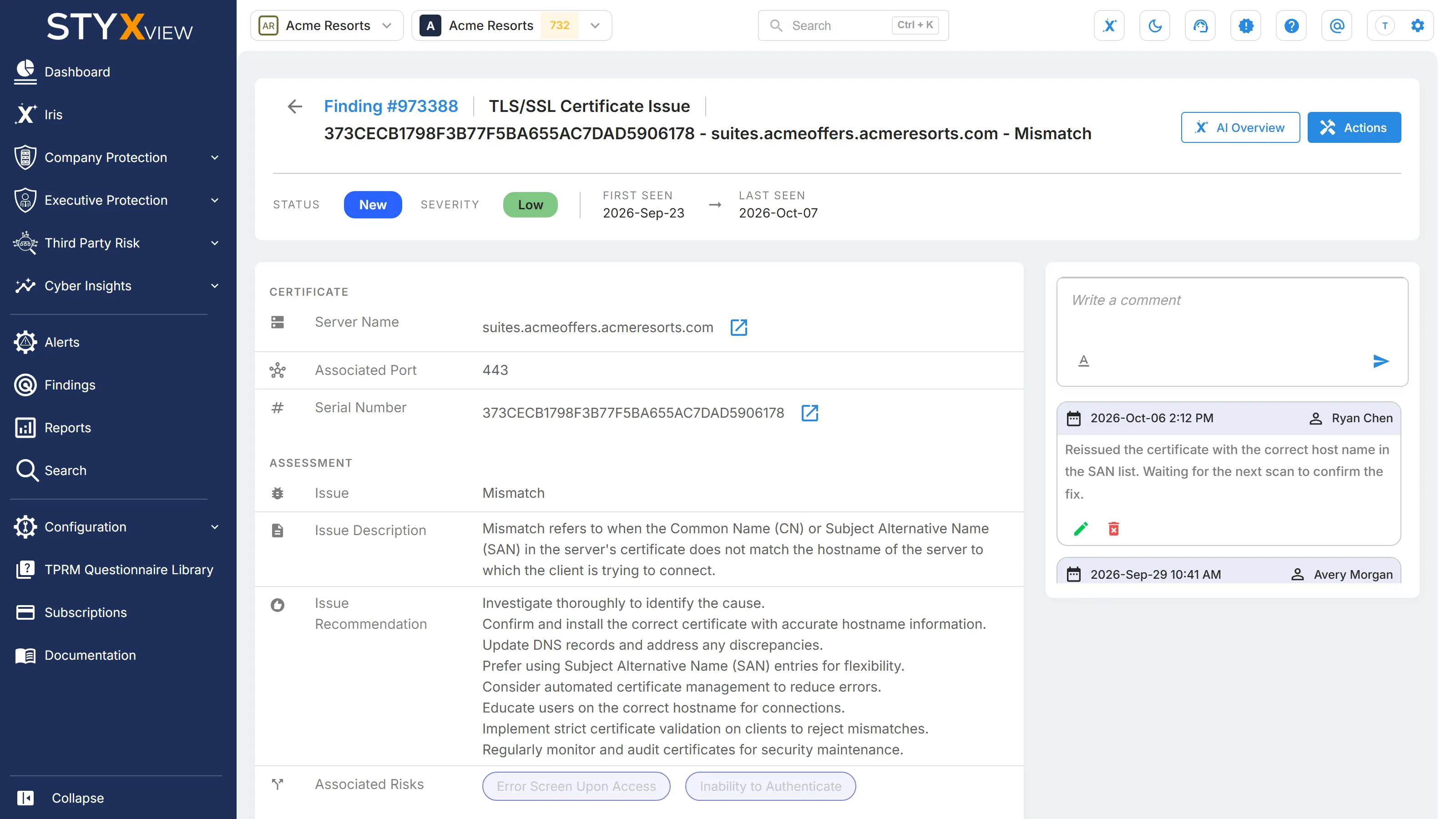
Details Card
Section titled “Details Card”The top of the page shows the finding's type and subject, the user it is assigned to, and these details:

- Status: where the finding is in the triage workflow.
- Severity: how serious the finding is.
- First seen and Last seen: when the finding was first and most recently detected.
- Marks: icons that show, for example, that the finding is a false positive, is legitimate, or has a takedown request.
When alerts have been raised for the finding, a "Related Alerts" indicator lists them. Select an alert to open it.
Finding Information Card
Section titled “Finding Information Card”Below the summary are the details of the issue. What you see depends on the finding type, for example the host, port, issue description, and recommendation for a website header issue.
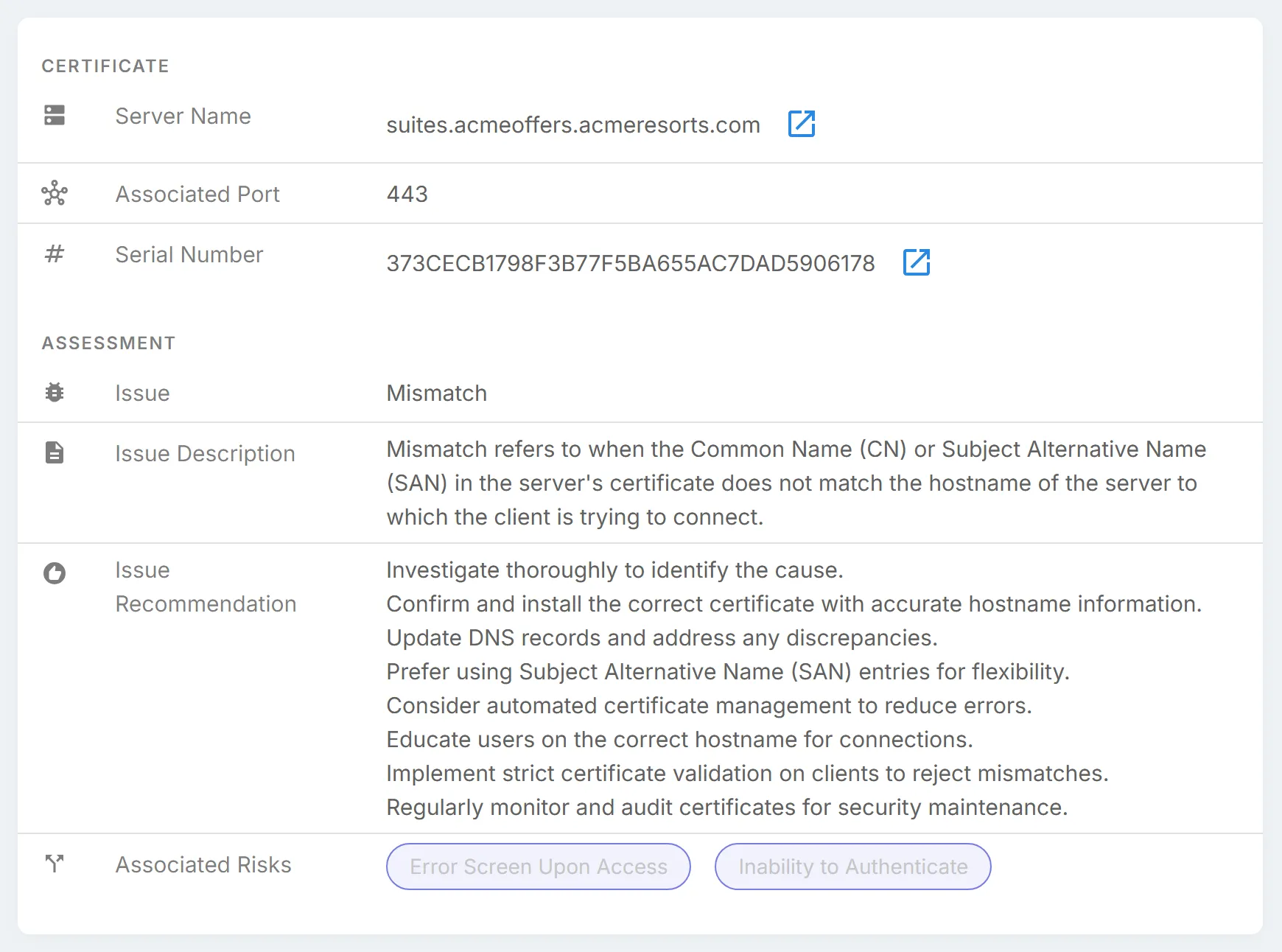
Select "AI Overview" at the top of the page to open Iris's analysis of the finding. See Iris.
Actions Button
Section titled “Actions Button”Select "Actions" at the top right of the page to act on the finding. Users with the Viewer role do not see this button.
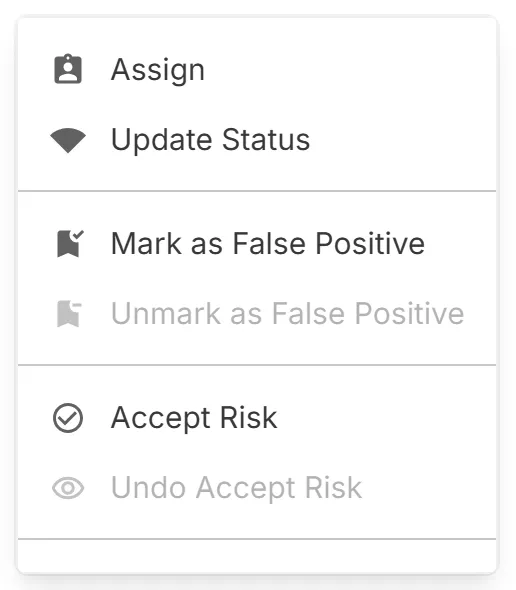
| Action | What it does |
|---|---|
| Assign | Assigns the finding to a user. |
| Update Status | Moves the finding to the status you choose. |
| Mark as False Positive | Records that the finding is not a real issue. "Unmark as False Positive" reverses it. |
| Accept Risk | Records a decision to leave the finding unfixed. "Undo Accept Risk" reverses it. |
| Mark as Brand Infringement/Impersonation/Leak Detected | Records that the finding is confirmed infringement, impersonation, or a leak. |
| Add to Watchlist | Marks the finding for observation. "Remove from Watchlist" reverses it. |
| Upload Screenshot | Attaches a screenshot in JPG, JPEG, or PNG format. |
| Mark as Legitimate | Records that the asset belongs to your organization. |
| Request Takedown | Sends a takedown request to the Styx takedown team. See Response Actions / Takedowns. |
The menu shows only the actions that apply to the finding's type. Each action asks you to add context, which is saved as a comment.
Comments Section
Section titled “Comments Section”Comments are on the right of the page. Select the comment count at the top of the page to jump to them.
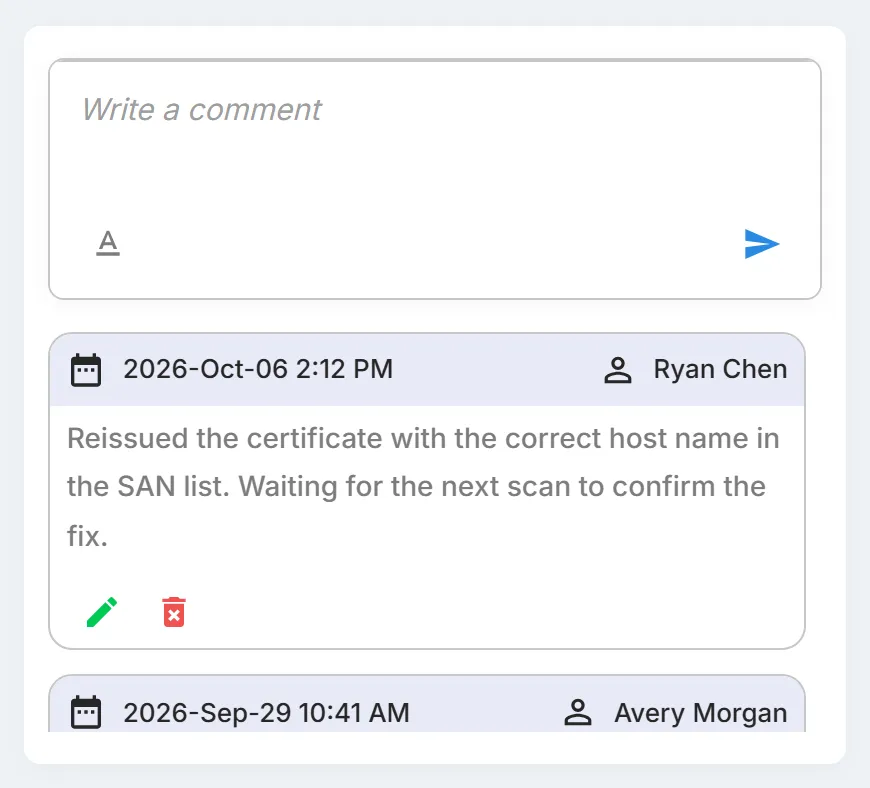
- Enter your comment in "Write a comment". Open the toolbar to format the text.
- Select the post icon, or press
Ctrl + Enter(⌘ + Enteron a Mac), to post it. - Use the edit and delete icons on a comment to change or remove it.