Alert Subscriptions
An alert subscription decides who is emailed when StyxView raises an alert. Each subscription names a set of categories and severities and the email addresses to notify. Which alerts are raised at all is set in Alert Rules. The alerts themselves are on the Alerts page.
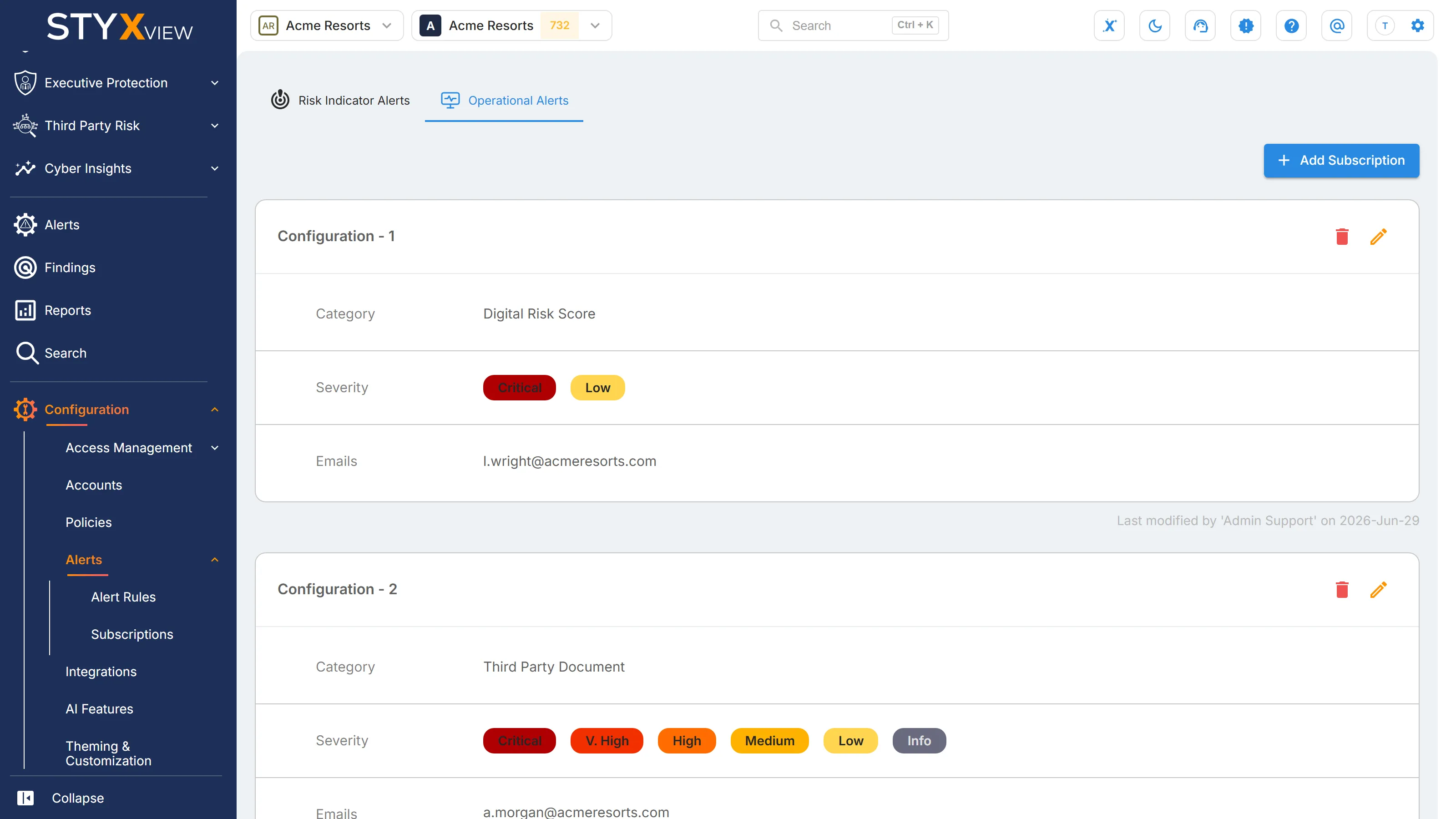
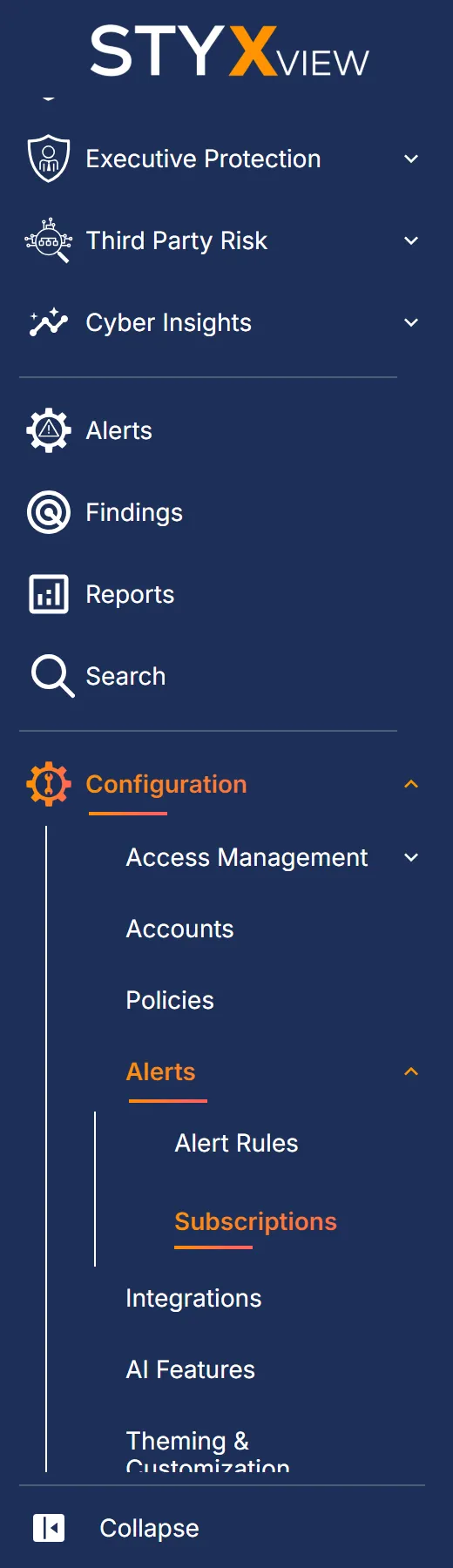
In the left menu, select "Configuration" > "Alerts" > "Subscriptions". Only users with the Admin role see it.
Alert Subscriptions
Section titled “Alert Subscriptions”The page has two tabs, one for each kind of alert:
- Risk Indicator Alerts: alerts about your risk indicators.
- Operational Alerts: alerts about platform events.
Each tab offers only the categories that have alert rules.
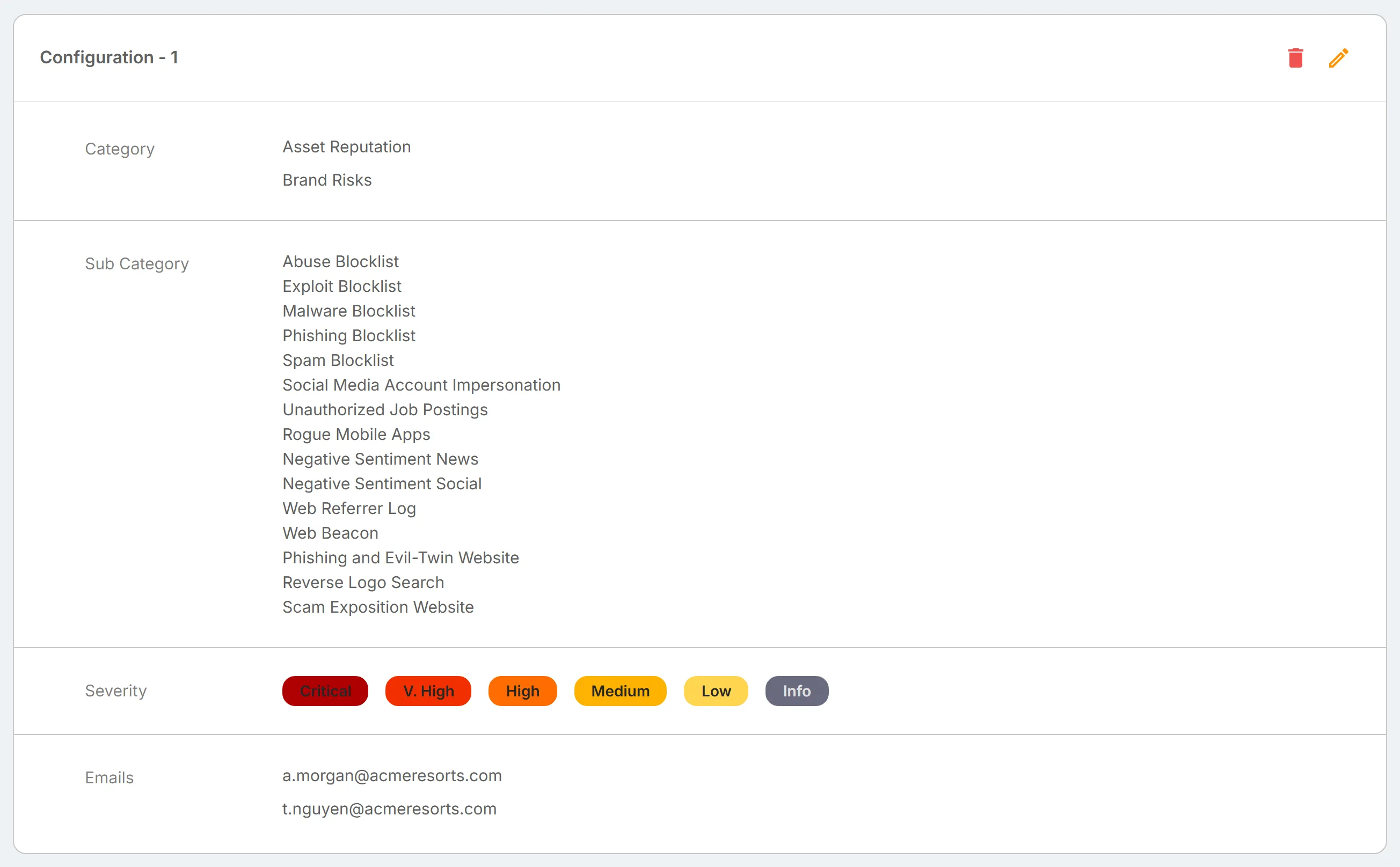
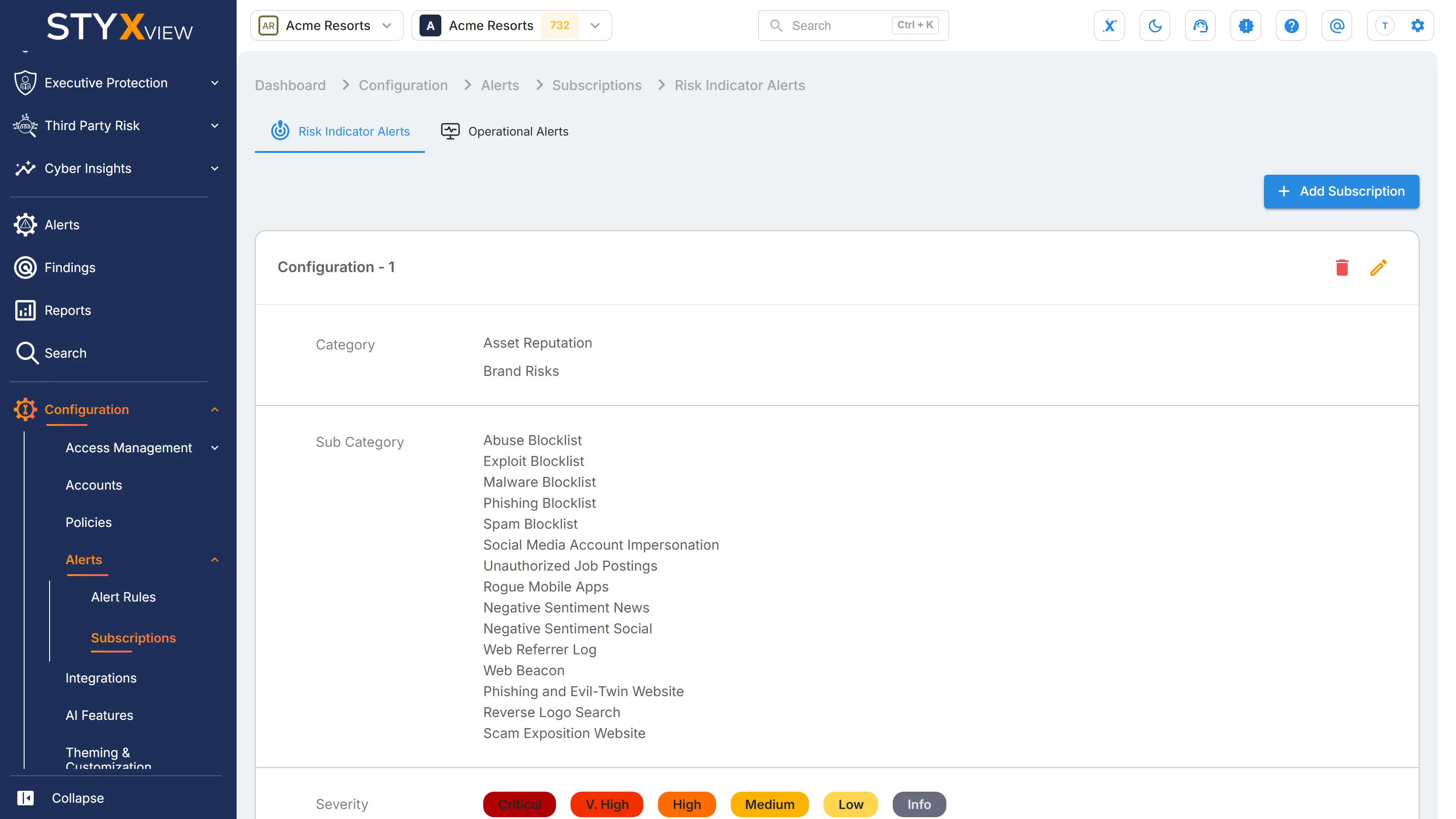
Each subscription is a card, "Configuration - 1", "Configuration - 2", and so on, showing its "Category", "Sub Category" ("Risk Indicator Alerts" only), "Severity", and "Emails". Below each card, StyxView shows who last changed it and when.
You can create as many subscriptions as you need. A tab with no subscriptions opens straight on the form for a new one.
Editing an Alert Subscription
Section titled “Editing an Alert Subscription”- To add a subscription, select "Add Subscription".
- To change a subscription, select the pencil icon on its card.
- To delete a subscription, select the delete icon on its card, then "Yes".
Adding or changing a subscription opens the "Configuration" form.
Customising Alert Subscriptions Settings
Section titled “Customising Alert Subscriptions Settings”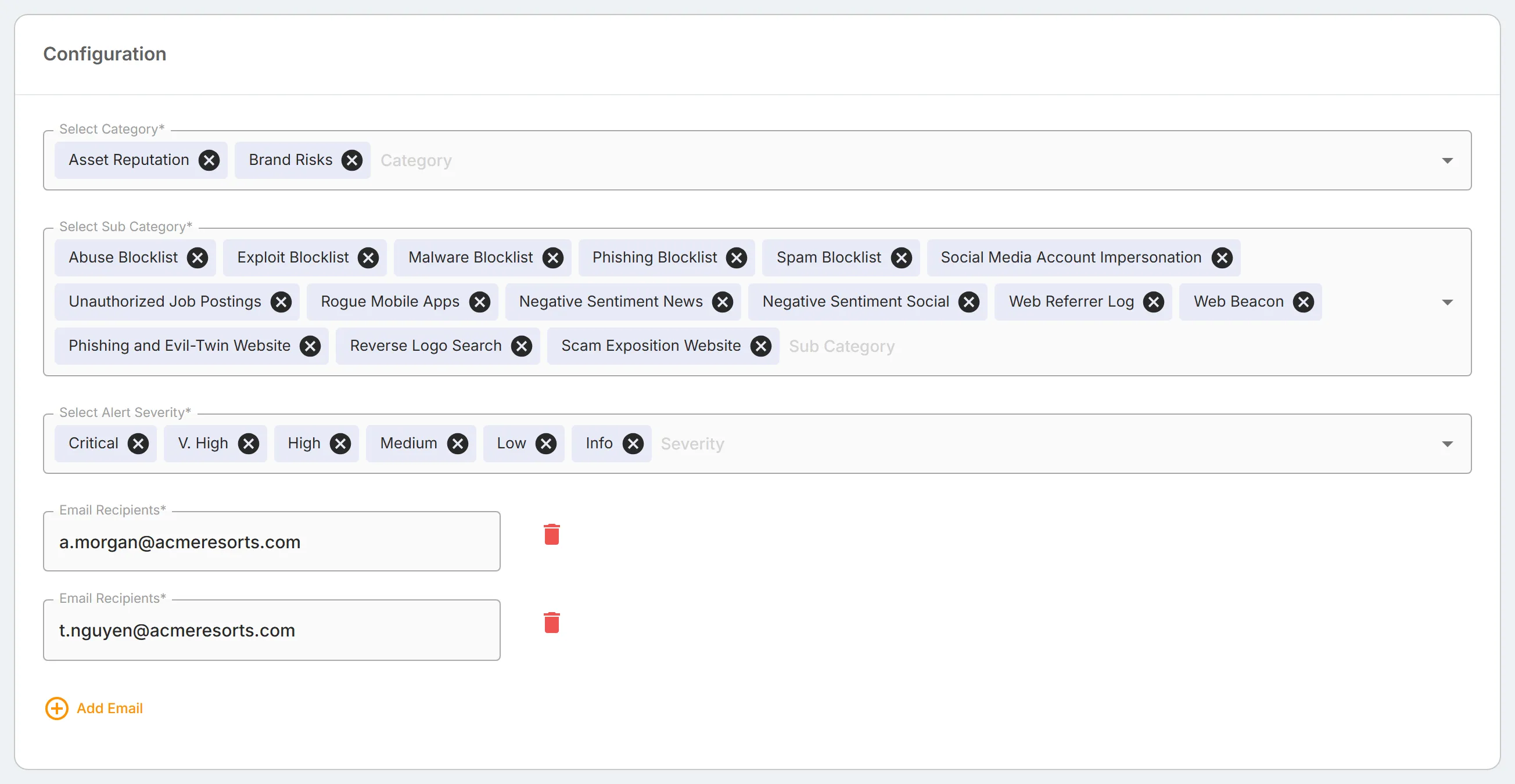
- In "Select Category", choose one or more categories.
- On the "Risk Indicator Alerts" tab, choose the sub categories in "Select Sub Category". See Risk Indicator Alerts.
- In "Select Alert Severity", choose one or more of "Critical", "V. High", "High", "Medium", "Low", and "Info".
- In "Email Recipients", enter an email address. To add another, select "Add Email". To remove one, select the delete icon next to it.
- Select "Save", then "Yes" to confirm.
Every field is required, and each email address must be valid. To leave without saving, select "Cancel". If you changed an existing subscription, select "Yes" to discard the changes.
Risk Indicator Alerts
Section titled “Risk Indicator Alerts”The "Risk Indicator Alerts" tab holds subscriptions for alerts about your risk indicators, in categories such as "Asset Reputation", "Brand Risks", "Data Leakage", and "DNS Health".
Each category has sub categories, and the form asks for them in "Select Sub Category". Choosing a category selects all of its sub categories; remove the ones you do not want. Removing every sub category of a category also removes the category.
Operational Alerts
Section titled “Operational Alerts”The "Operational Alerts" tab holds subscriptions for alerts about platform events, in categories such as "Digital Risk Score" and "Watchlist Event". These categories have no sub categories, so the form has no "Select Sub Category" and the cards show no "Sub Category".